







Losing your browser bookmarks is more than just a minor inconvenience; for many, it represents the loss of months or years of curated research, essential work tools, and personal memories. If you are panicking after a sudden disappearance of your folders, you are likely searching for how to recover deleted bookmarks chrome users can rely on.
This guide serves as a masterclass in data retrieval. We will move from simple “undo” commands to deep-system file manipulation and finally to professional-grade recovery using PandaOffice Drecov.
Understanding the “Vanishing Act”
Why Do Bookmarks Disappear?
Before we learn how to recover deleted bookmarks chrome, we must understand why they vanish. Common culprits include:
- Accidental Deletion: The most common cause. A slip of the mouse in the Bookmark Manager can wipe a folder in a second.
- Sync Conflicts: If you use Chrome on multiple devices, a deletion on your phone might sync to your desktop instantly.
- Profile Corruption: Chrome profiles can become “corrupt,” leading the browser to generate a fresh, empty bookmarks file.
- Disk Failure or Formatting: Physical issues with your SSD/HDD or an accidental drive format can wipe the local data directory.
Immediate Response – The “Quick Fix” Methods
If you just deleted the bookmark seconds ago, do not close your browser yet.
Method 1: The Undo Shortcut (The First Line of Defense)
The simplest answer to how to recover deleted bookmarks chrome is the built-in “Undo” feature.
- Step 1: Open the Bookmark Manager by pressing
Ctrl + Shift + O.
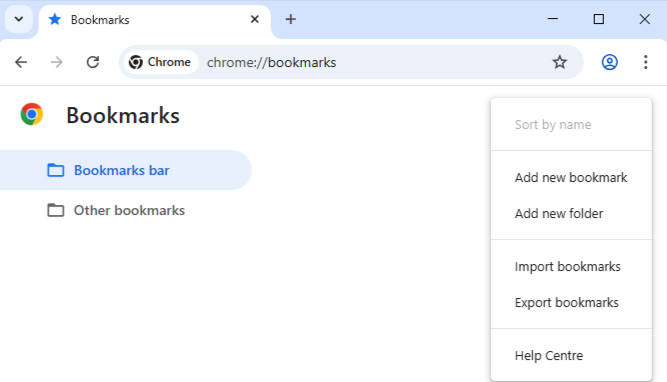
- Step 2: Click anywhere in the manager list.
- Step 3: Press Ctrl + Z (Windows) or Command + Z (Mac).
Limitations: This only works if the Bookmark Manager was open when the deletion occurred and you haven’t closed the window since.
Method 2: The Google Sync “Stop and Reset” Trick
If you realize you deleted bookmarks on one device and don’t want the change to sync to others:
- The Logic: If you have another computer (e.g., a home PC) that is currently offline, it still has your old bookmarks.
- The Process: Disconnect that computer from the internet immediately. Open Chrome, export the bookmarks to an HTML file, and then re-import them to your main device.
Deep System Recovery – The Manual .BAK Method
Chrome creates a single backup of your bookmarks file every time you launch the browser. This is a crucial part of knowing how to recover deleted bookmarks chrome manually.
You need to find where Chrome hides its “heart.”
- Windows: Paste
%LOCALAPPDATA%\Google\Chrome\User Data\Defaultinto your File Explorer address bar.
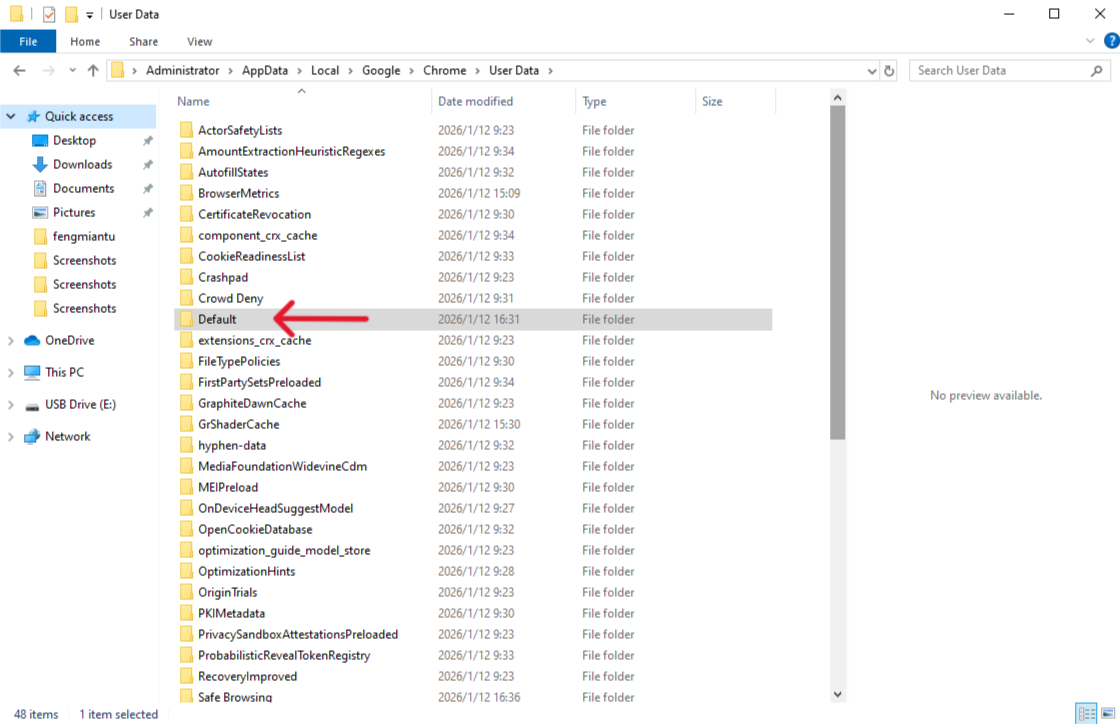
Note: If you use multiple Chrome profiles, the folder might be named “Profile 1” or “Profile 2” instead of “Default.”
Step 2: Identify the Files
You will see two files: Bookmarks (the current, corrupted version) and Bookmarks.bak (the backup created at the last launch).
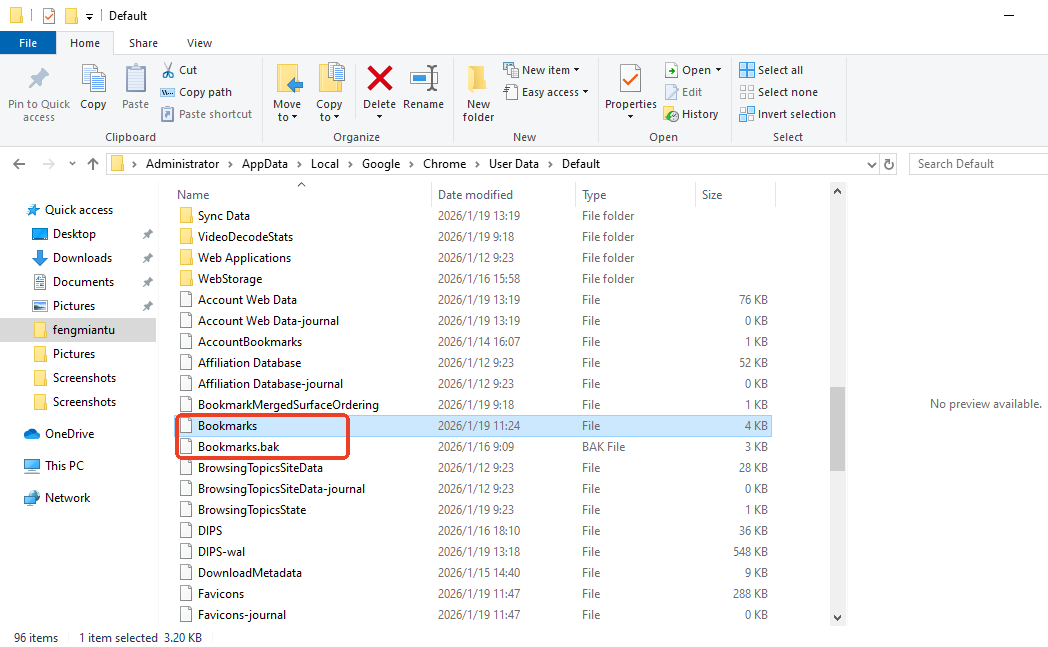
Step 3: Rename and Restore
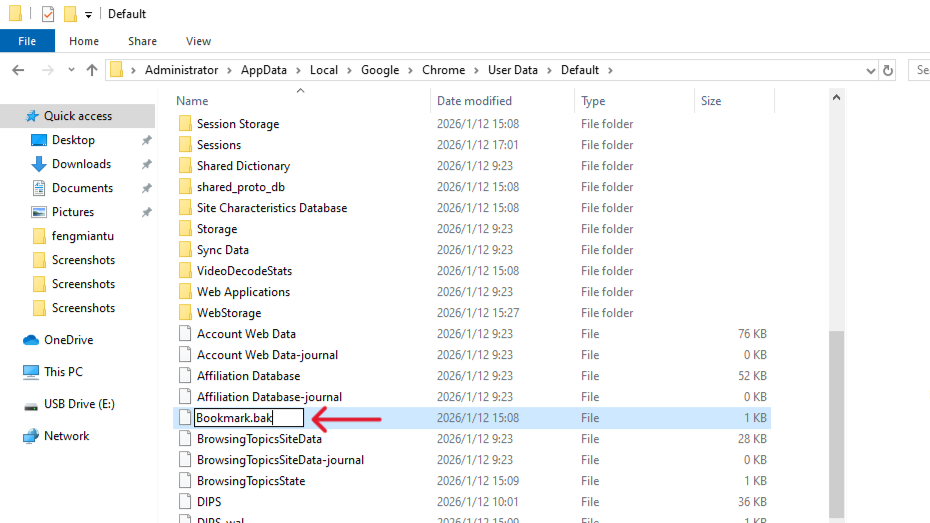
- Close all instances of Chrome.
- Rename
BookmarkstoBookmarks.old. - Rename
Bookmarks.baktoBookmarks(remove the extension). - Restart Chrome.
Professional Recovery with PandaOffice DRecov
If you have already restarted Chrome several times, the .bak file has been overwritten. In this scenario, manual methods will fail. This is where PandaOffice DRecov becomes indispensable for solving how to recover deleted bookmarks chrome.
Why PandaOffice Drecov is the Industry Standard
When local backups are gone, you need a tool that can scan the binary sectors of your hard drive. PandaOffice DRecov is a high-performance recovery engine trusted by experts and partnered with giants like Microsoft Store, Trustpilot, and Sourceforge.
- Scenario Versatility: Whether you emptied the Recycle Bin, formatted your C: drive, or suffered a system crash, DRecov can find the “ghosts” of your deleted files.
- File Integrity: It supports over 100 formats, including the JSON-based Bookmark files, images, videos, and EXE files. Even if a file appears as “garbled code” or won’t open, DRecov features advanced content repair algorithms.
- Zero Technical Barrier: There is no need for command-line coding. It is a true “one-click” solution for beginners.
The Three-Step Recovery Process
Step 1: Choose Your Starting Point (Select Location)
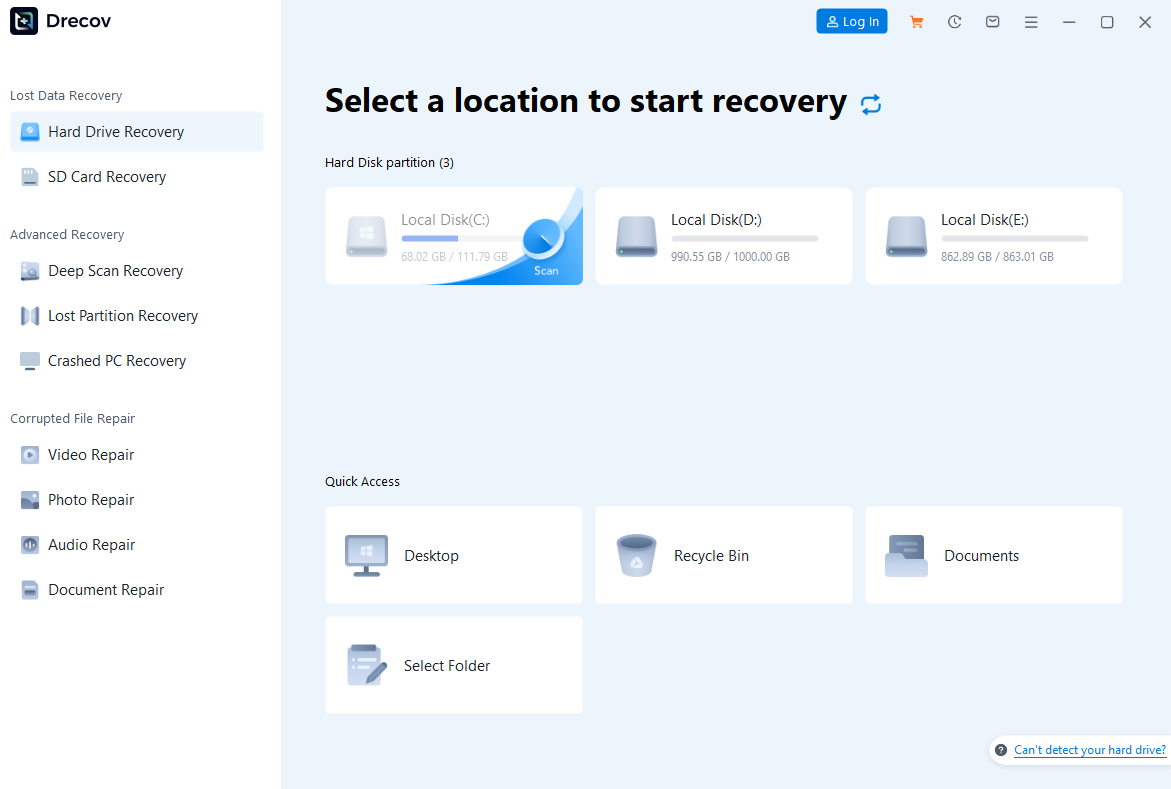
Open PandaOffice DRecov. You will see a clean dashboard. Select the drive where your browser was installed (usually Disk C). Drecov also supports SD cards and USB drives if you were using a portable version of Chrome.
Step 2: Intelligent Scanning (Scan and Preview)
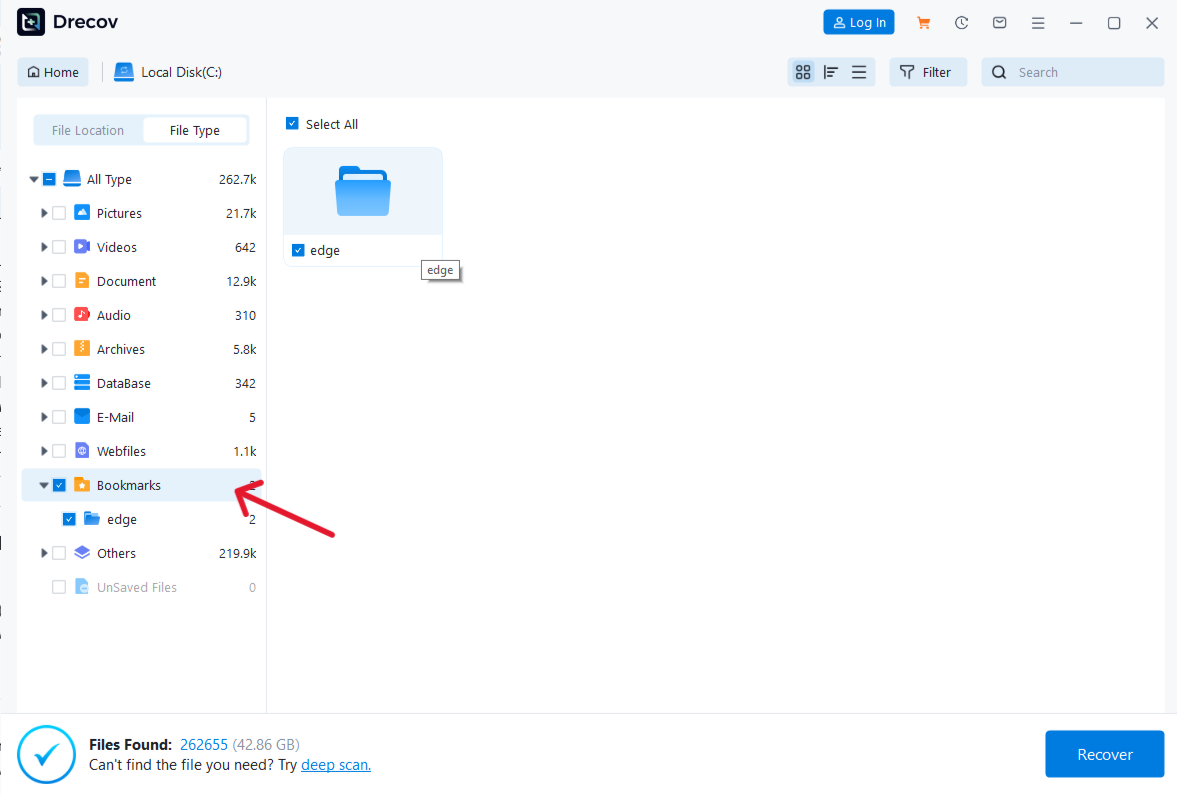
Click “Scan.” The software uses a multi-threaded algorithm to sift through your drive. Use the search bar to look for “Bookmarks.” The Preview function is vital here; it allows you to verify the file’s timestamp and size before proceeding.
Step 3: Secure Retrieval (Recover and Save)

Once you have located your lost files, hit “Recover.”
🚨CRITICAL WARNING:
To maintain the highest success rate for how to recover deleted bookmarks chrome, do not save the recovered files to the original partition. If you are recovering from the C: drive, save the output to a USB drive or the D: drive. This prevents the “Write” process from overwriting the very data you are trying to “Read.”
Alternative Recovery via Windows System Protection
If you have “System Protection” turned on, Windows might have a “Previous Version” of your folder saved.
- Navigate to the
User Datafolder mentioned in Part 3. - Right-click the
Default(orProfile 1) folder. - Select Properties > Previous Versions.
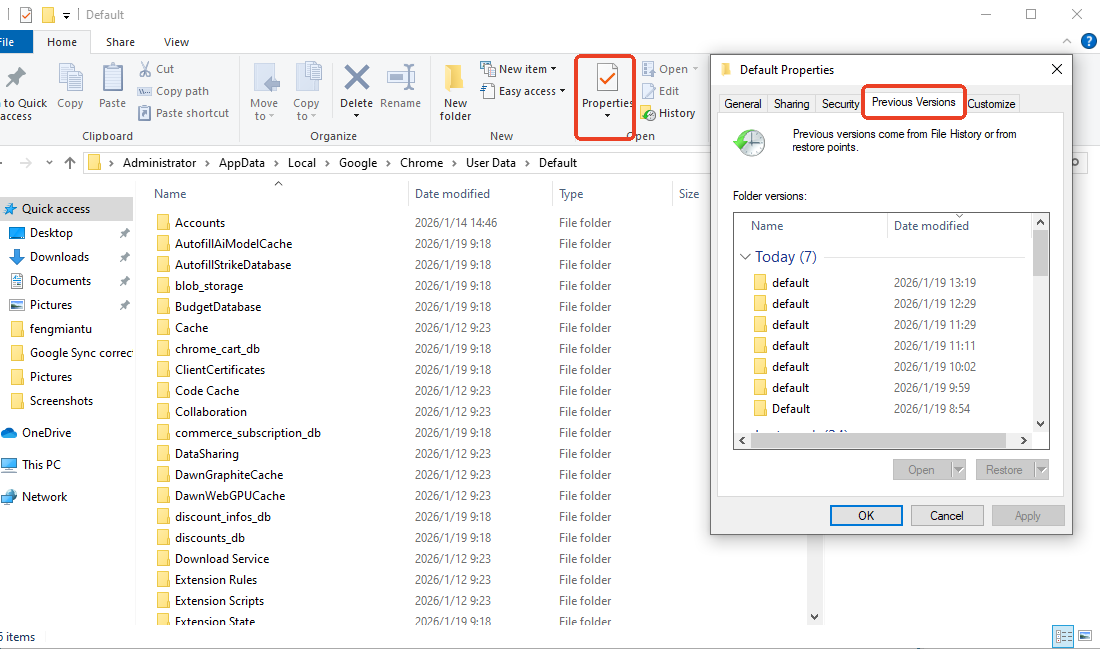
- If a version exists from a few days ago, click Restore. This is a powerful, though often overlooked, way of how to recover deleted bookmarks chrome.
Using the Google History Method (The Manual Rebuild)
If all file-based recovery attempts fail, you can still “rebuild” your bookmarks through your browsing history.
- Go to
myactivity.google.com. - Filter by date and “Chrome.”
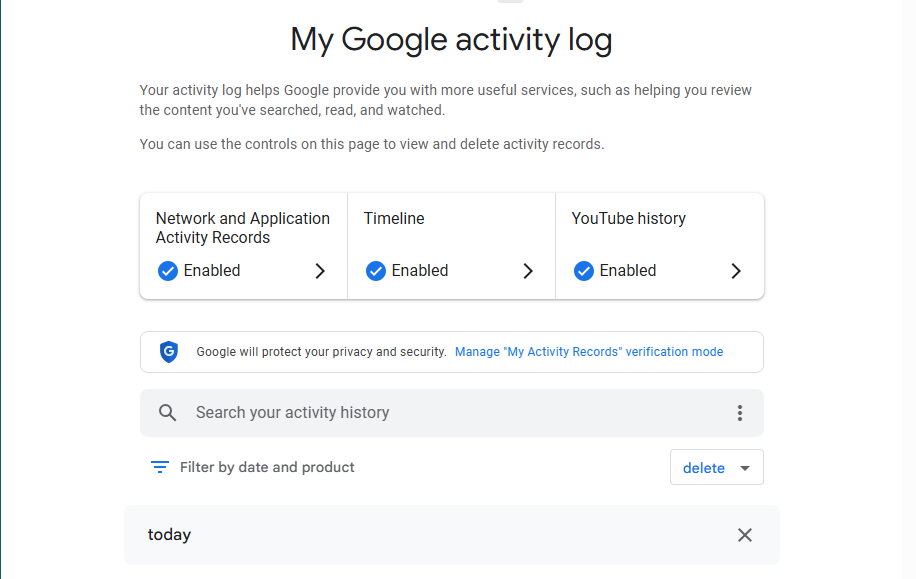
- While tedious, this allows you to see every site you visited, effectively providing a trail to every lost bookmark.
Prevention Tips
- Export Regularly: Every month, go to the Bookmark Manager > Export Bookmarks to HTML.
- Use Cloud Backups: Keep a copy of your HTML export on Google Drive or OneDrive.
- Keep Drecov Ready: Having recovery software installed before a disaster occurs prevents the risk of overwriting data during the installation process.
Recover Deleted Chrome Bookmarks FAQs
Even with the best tools, you might encounter specific hurdles. Here are the most frequently asked questions regarding how to recover deleted bookmarks chrome and their professional solutions.
I found the Bookmarks.bak file, but it’s from today, after I deleted my folders. Is it useless?
Not necessarily. Chrome updates the .bak file every time the browser is launched. If you have already closed and reopened Chrome, the manual backup likely already reflects the “deleted” state. This is exactly why we recommend PandaOffice Drecov.
While the current .bak file on your active disk might be overwritten, the previous versions of that file still exist in the “unallocated space” of your hard drive. By using DRecov to scan your C:\Users\ directory, you can locate and restore older versions of the Bookmarks.bak file from days or weeks ago, effectively turning back the clock.
Can I recover Chrome bookmarks if I wasn’t signed into a Google Account?
Yes! This is a common misconception. Many users believe that without “Sync” turned on, their bookmarks are gone forever. However, Chrome always saves a local copy of your data on your hard drive regardless of your login status.
To solve how to recover deleted bookmarks chrome without an account, you simply need to access the local User Data path. If the local files are missing or corrupted, PandaOffice Drecov can perform a raw sector scan to retrieve the JSON data structures that make up your bookmark library, even if no Google Sync data ever existed.
Why shouldn’t I install recovery software on the C: drive if that’s where my bookmarks were?
This is a critical safety rule in data recovery. When you delete a file, the computer doesn’t actually erase the data; it simply marks that space as “available.” If you download and install new software (like a recovery tool) onto that same drive, the computer might write the new data directly over your deleted bookmarks.
The Correct Approach: Always download and install PandaOffice Drecov on a different partition (like D: or E:) or an external drive. This ensures that the “deleted” bookmark sectors remain untouched and “recoverable.”
My recovered bookmark file shows up as “Garbled Code” or “Unknown Text.” What should I do?
This usually happens when the file structure is slightly damaged during the deletion process. Unlike basic tools that give up on corrupted files, PandaOffice Drecov features a built-in repair engine.
When you are figuring out how to recover deleted bookmarks chrome, remember that bookmarks are stored in JSON format. DRecov’s advanced algorithms can scan the internal strings of these files to fix broken syntax, turning “unreadable” code back into clickable URLs. If the file is still messy, you can try opening the recovered file with a dedicated JSON editor or even a simple Notepad++ to manually extract the URLs.
Will restoring my bookmarks overwrite the ones I have currently?
Yes, if you use the manual “rename” method (replacing the Bookmarks file), it will replace your current set with the old one. To avoid losing your new bookmarks while trying to get the old ones back, follow this pro tip:
- Export your current bookmarks as an HTML file via the Chrome Bookmark Manager.
- Use PandaOffice Drecov to restore your old bookmark file.
- Import the HTML file you just created. This merges both worlds, giving you a complete, deduplicated library.
Conclusion
In summary, mastering how to recover deleted bookmarks chrome users often need is about choosing the right tool for the specific situation. While simple mistakes can be fixed with an “Undo” command or by renaming the .bak file, these manual methods are often limited by Chrome’s automatic overwriting habit.
For a foolproof solution, PandaOffice Drecov offers a professional-grade bridge between data loss and recovery. By following the “Select, Scan, and Recover” process, even beginners can retrieve lost bookmarks from formatted drives or emptied bins without writing a single line of code. Its high success rate and partnerships with Microsoft Store and Trustpilot ensure that your data is handled with industry-leading security.
The key to a successful recovery is acting quickly and avoiding saving new data to the original partition. By combining proactive habits—like regular HTML exports—with a reliable tool like Drecov, you can ensure your digital library is always protected.






