







Losing important bookmarks can feel like losing a digital roadmap of your life. Whether you accidentally cleared your “Work” folder or lost data after a browser crash, mastering the steps in Recover Deleted Bookmarks Chrome: The Ultimate 2026 Guide can save you hours of frustration.
This comprehensive guide explores six distinct methods, ranging from simple keyboard shortcuts to advanced data retrieval. Use the navigation table below to find the solution that fits your specific situation.
| Scenario | Recommended Method | Success Rate |
| Accidental deletion just now | Undo Shortcut (Ctrl+Z) | High |
| Browser restarted after loss | Local .bak File Replacement | High |
| Files cleared or drive formatted | PandaOffice Drecov | Very High |
| Syncing across multiple devices | Google Account Sync | Medium |
| No local backup files found | Windows “Previous Versions” | Medium |
| Need to find one specific URL | DNS Cache Resolution | Low |
Method 1: The “Instant Regret” Shortcut
If you just deleted a bookmark and the Chrome window is still open, you can perform a quick “undo” within the browser’s internal memory. This is the simplest way to Recover Deleted Bookmarks Chrome: The Ultimate 2026 Guide.
- Step 1: Open the Bookmark Manager by pressing
Ctrl + Shift + O.
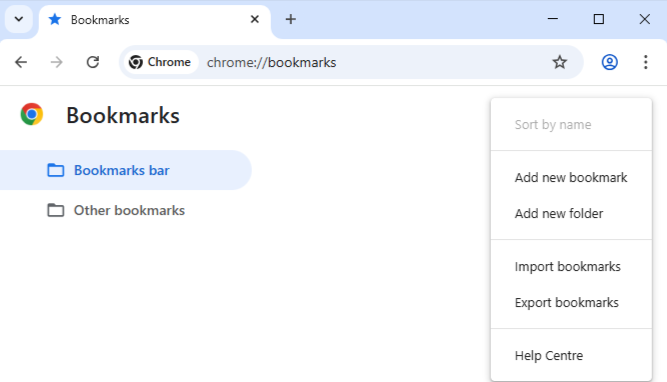
- Step 2: Right-click anywhere in the list or simply press
Ctrl + Z(Windows) orCommand + Z(Mac).
⚠️ Operation Reminder: Do not close the browser! Once you exit Chrome, the temporary “undo” history disappears forever.
Method 2: Replacing the Local .bak File
Chrome maintains a hidden backup of your bookmarks on your hard drive. This is often the most effective manual fix when searching for how to Recover Deleted Bookmarks Chrome: The Ultimate 2026 Guide.
- Step 1: Close all active Chrome windows to prevent file conflicts.
- Step 2: Open File Explorer and paste the following path:
%LocalAppData%\Google\Chrome\User Data\Default.
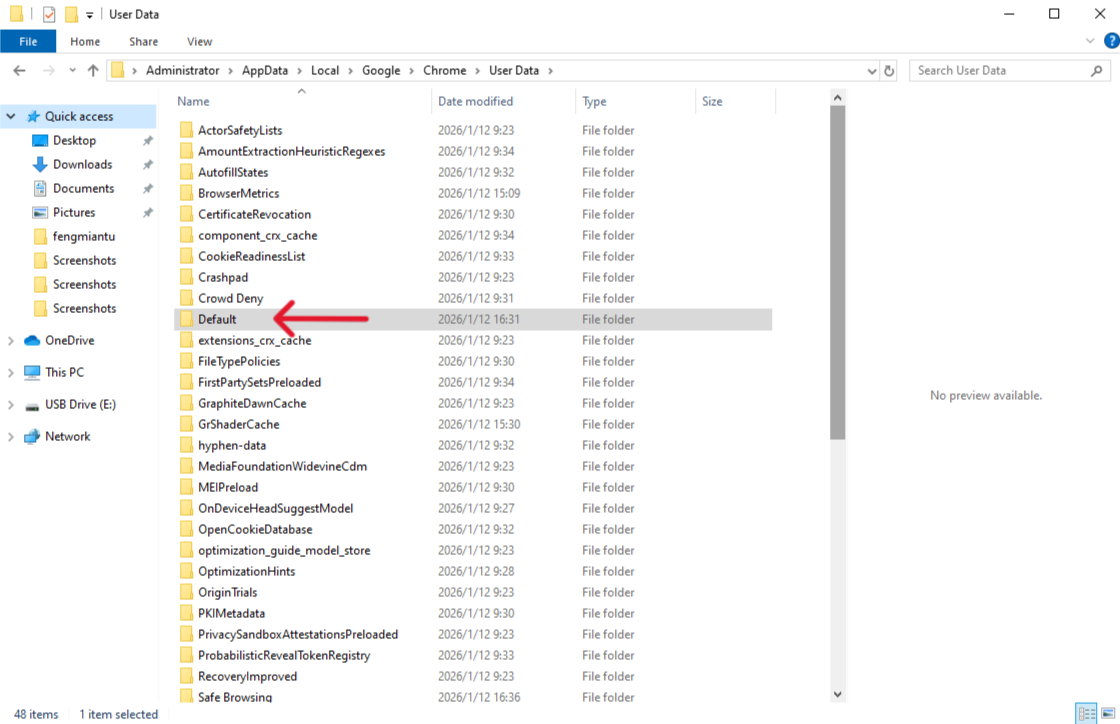
- Step 3: Look for two files:
BookmarksandBookmarks.bak.
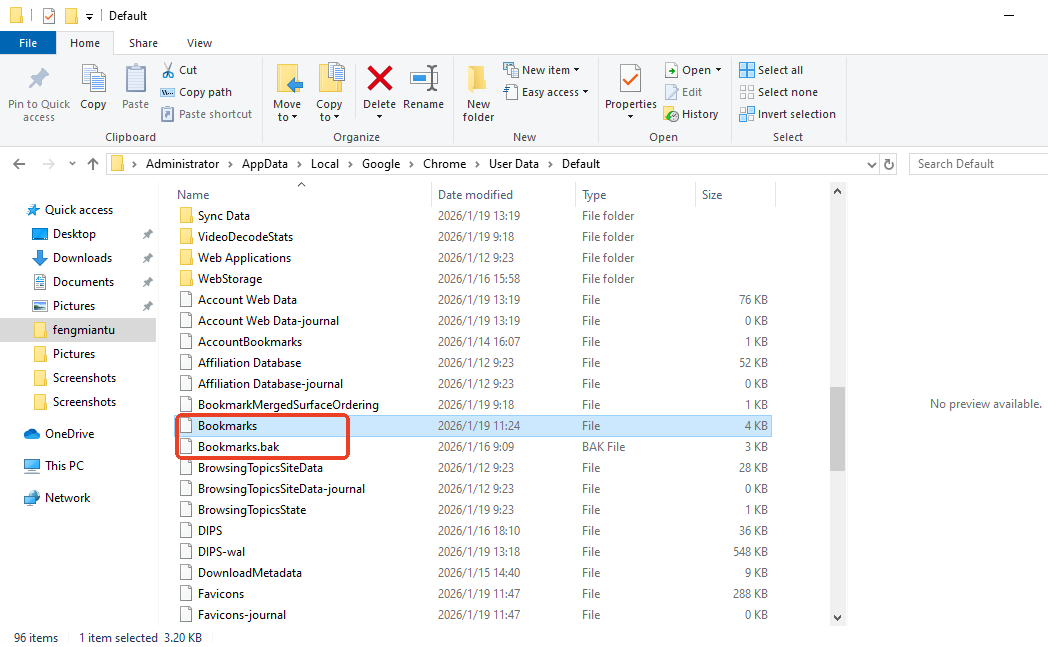
- Step 4: Rename
BookmarkstoBookmarks.old. Then, renameBookmarks.baktoBookmarks(simply remove the extension).
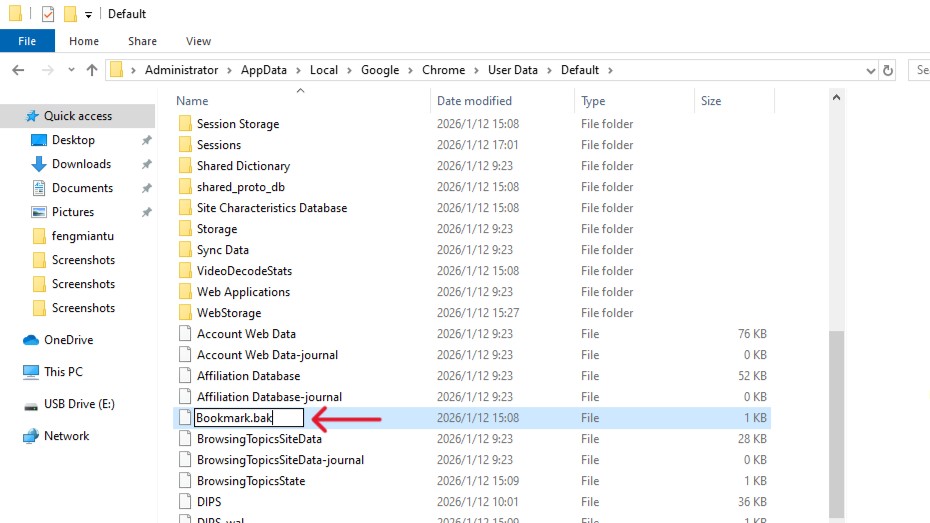
💡 Pro Tip: If you have multiple Chrome profiles, look for folders named Profile 1 or Profile 2 instead of Default.
Method 3: Using PandaOffice Drecov
When manual backups are missing or the entire “User Data” folder is gone, you need a professional-grade solution. PandaOffice Drecov scans the physical sectors of your disk to find files that the operating system can no longer see.
Why Choose PandaOffice Drecov?
PandaOffice Drecov is a professional data recovery tool built for Windows users who need fast, safe, and accurate results—without technical complexity.
Core advantages include:
- ✅ Supports recovery from formatted SD cards, USB drives, HDDs, SSDs
- ✅ Recovers data lost due to:
- ✅ Compatible with Windows systems
- ✅ Supports hundreds of file types, including:
- Photos (JPG, PNG, RAW, HEIC)
- Videos (MP4, MOV, AVI, MKV)
- Audio files
- Documents
- ZIP / RAR archives
- Executable files (EXE)
- ✅ Repairs corrupted, unreadable, or garbled files
- ✅ Local scanning & recovery — no data uploads, no privacy risk
- ✅ No command lines, no scripts — perfect for beginners
- ✅ Trusted through collaborations with:
- Trustpilot
- Microsoft Store
- TechBullion
- SourceForge
PandaOffice DRecov Three-Step Recovery:
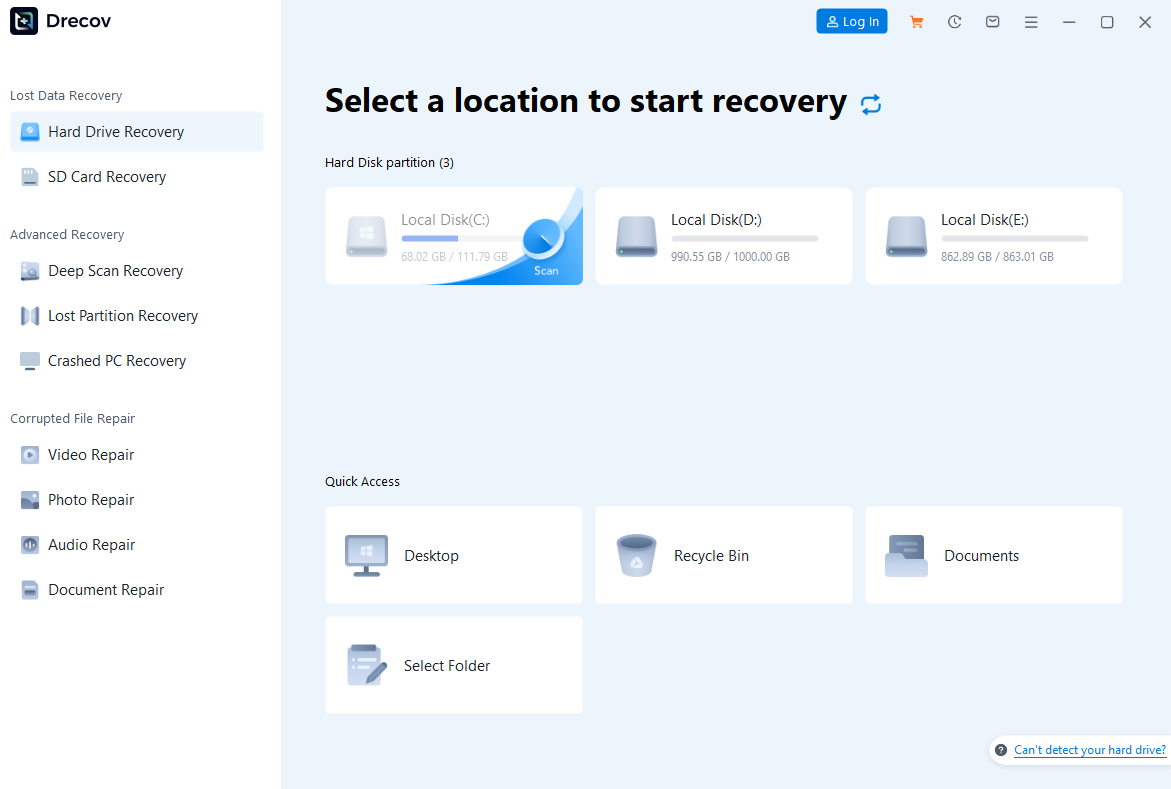
- Step 1: Locate and Scan. Open PandaOffice DRecov. Select the drive where Chrome was installed (usually the C: Drive) and click “Scan.”
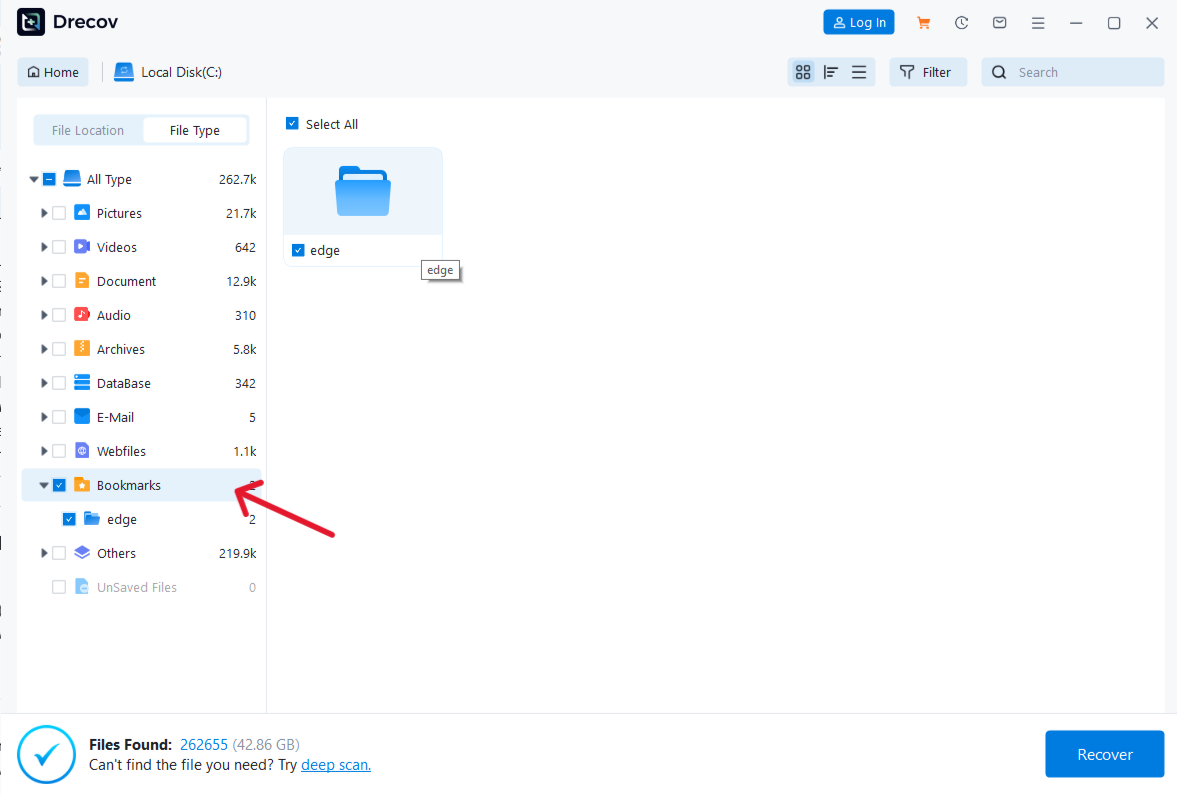
- Step 2: Filter and Preview. Type
Bookmarksin the search bar once the scan finishes. The software will display all versions of your bookmark files found in the disk’s “free space.”
- Step 3: Secure Export. Select the correct file and click “Recover.”

🚨 Critical Warning: Always save your recovered files to an external drive or D: Drive. Writing data back to the same drive might overwrite the very bookmarks you are trying to save!
Method 4: Google Account Sync & Reset
If you use Google Sync, your bookmarks might still exist on the cloud or another device (like your phone) even if they vanished from your PC.
- Step 1: Check another device (tablet or phone) where you are logged in. Immediately turn off its Wi-Fi to prevent it from syncing the “deletion.”
- Step 2: If the bookmarks are visible on the offline device, export them as an HTML file.
- Step 3: Go to your Google Dashboard on your PC, select “Reset Sync,” and then import your saved HTML file back into Chrome.
✨ Helpful Hint: Disconnecting the internet quickly is vital here; otherwise, the cloud will synchronize the “empty” state across all devices.
Method 5: Windows “Previous Versions”
Windows often creates automatic “Shadow Copies” of your folders. This is a lifesaver if you want to know how to recover deleted bookmarks chrome without using third-party software.
- Step 1: Navigate to the
User Datafolder path mentioned in Method 2. - Step 2: Right-click the
Defaultfolder and select Properties.
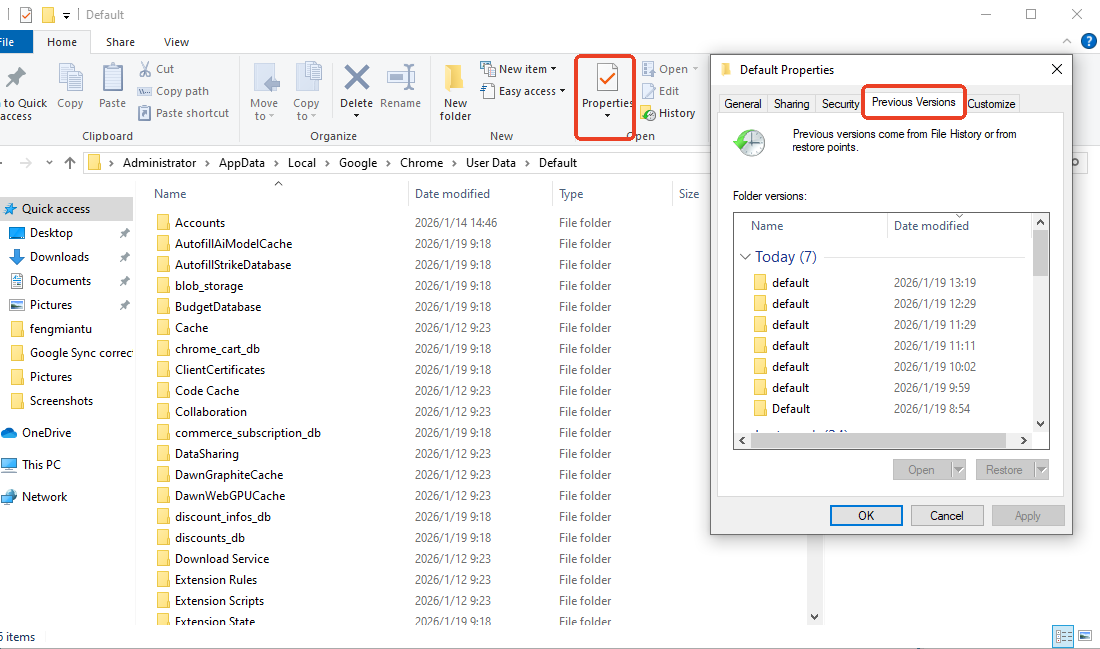
- Step 3: Click the Previous Versions tab.
- Step 4: Select a version from a date before the bookmarks were lost and click Restore.
Method 6: DNS Cache Resolution (The Last Resort)
If all files are gone and you only need to find one or two specific URLs you visited recently, you can peek into your system’s DNS cache.
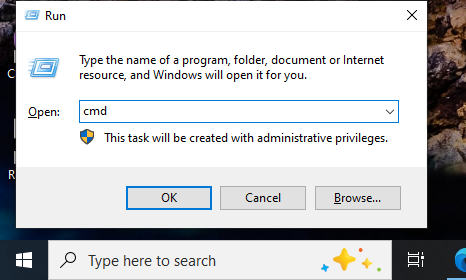
- Step 1: Type
cmdin the Windows search bar and open the Command Prompt.
- Step 2: Type
ipconfig /displaydnsand press Enter.
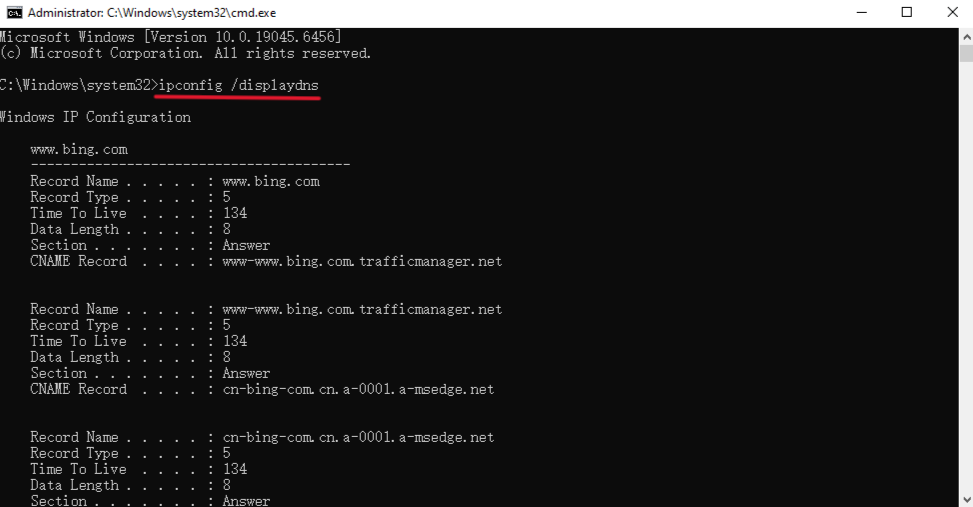
- Step 3: Scroll through the list of recently resolved domains to find the website you need.
Note: This won’t restore your bookmark folder structure, but it helps you manually find lost links.
🛡️ Prevention 2026: The “Never-Lose” Strategy for Your Bookmarks
While learning how to recover deleted bookmarks chrome is essential, setting up a modern, automated safety net is much smarter. As we move further into 2026, data management has become more AI-driven and decentralized. Here is how to safeguard your links using the latest technology:
1. Cross-Browser Hybrid Syncing:
If you use multiple browsers (like Chrome for work and Safari for personal use), use a cross-platform sync tool. This creates multiple “local” copies of your bookmarks across different browser architectures, making a total loss nearly impossible.
2.AI-Powered Automated Backups:
In 2026, don’t rely on manual exports. Use browser extensions that leverage AI-driven syncing to automatically back up your bookmark changes to a private GitHub repository or a decentralized cloud (like IPFS) every time you add a new link.
3.Enable Multi-Cloud Redundancy:
Ensure your Chrome Sync is active, but don’t stop there. Link your Google Account with a secondary “Vault” service. This ensures that even if your Google Account is locked or compromised, your bookmark metadata remains accessible.
4.Utilize “Live” Bookmarking Tools:
Transition to modern managers like Raindrop.io or Anybox. These tools offer permanent library features—they don’t just save the link; they save a simplified version of the webpage itself, so even if the original site goes offline in 2026, your content stays.
5.Quarterly “Data Drills” with PandaOffice Drecov:
Make it a habit to check your system’s health. Having PandaOffice Drecov pre-installed as part of your 2026 “Digital Hygiene” toolkit allows you to run a quick scan for deleted fragments before they are overwritten by system updates.
Common Questions on Chrome Bookmark Recovery
Why can’t I find the Bookmarks.bak file?
You might have “File Name Extensions” hidden. In File Explorer, go to the “View” tab and check “File name extensions.” Also, if you just installed Chrome, the backup file may not have been created yet.
Will reinstalling Chrome bring back my bookmarks?
No. In fact, reinstalling often deletes the local User Data folder. Always perform a backup or use PandaOffice Drecov before making major software changes.
Can I recover bookmarks deleted months ago?
This is difficult because the data has likely been overwritten. However, PandaOffice Drecov is your best bet as it can sometimes find deep-seated file fragments that haven’t been touched yet.
Conclusion
Understanding how to recover deleted bookmarks chrome is a valuable skill for any digital citizen. While shortcuts and syncs solve minor issues, having a tool like PandaOffice Drecov provides a professional safety net for more severe data loss scenarios.






