







We’ve all experienced that sinking feeling: you’ve just clicked “Empty Recycle Bin” only to realize a vital project file was still inside. While it feels like a digital dead end, the truth is far more optimistic. Learning how to recover data deleted from recycle bin is a vital skill that hinges on understanding one simple fact: your computer doesn’t instantly erase data; it merely hides it.
In this guide, we will walk you through the essential “Dos and Don’ts” of data emergencies. From using professional-grade tools like PandaOffice Drecov to leveraging hidden Windows features, you will discover that “permanently deleted” is rarely as final as it sounds. If you act quickly and follow the right steps, the process of how to recover data deleted from recycle bin becomes a straightforward rescue mission rather than a technical nightmare.
1. The Digital Safety Net: Why Deleted Files Aren’t Actually Gone
It happens to the best of us. You are cleaning up your desktop, selecting old project folders, and hitting “Empty Recycle Bin” to save space. Seconds later, your heart drops. You realize a critical document was tucked away in one of those folders.
The first thing to understand about how to recover data deleted from recycle bin processes is that Windows does not immediately shred your files. Instead, the operating system simply marks the space occupied by those files as “available.” Think of it like a library removing a book’s entry from the card catalog but leaving the physical book on the shelf. As long as you don’t “write” a new book over that exact spot, the original data remains intact.
The Golden Rule: Stop Writing Data Immediately
Before we dive into the steps of how to recover data deleted from recycle bin, you must stop using the affected drive. Every new file you download, every software update, and even browsing the web creates temporary files that could overwrite your “deleted” data. If the data is on your C: drive, minimize your activity immediately.
2. Professional Rescue: Utilizing PandaOffice Drecov
When standard “Undo” commands fail, specialized software is the most reliable way to address how to recover data deleted from recycle bin. PandaOffice Drecov stands out because it balances a powerful scanning engine with a user-friendly interface that doesn’t require a degree in computer science.
Why Choose PandaOffice Drecov?
This tool is specifically engineered to bypass the operating system’s file directory and look directly at the binary bits on the disk. It is highly effective for files lost through accidental emptying of the bin or “Shift + Delete” commands. This makes it an indispensable tool for a wide range of data loss scenarios, including:
- Accidental Desktop Deletions: Instantly retrieving files wiped from your local workspace.
- Disk Formatting Errors: Salvaging files from drives that have been completely wiped or reformatted.
- External Media Rescue: Recovering lost data from formatted or corrupted SD cards and USB flash drives.
- Sync Conflict Resolution: Reversing data loss caused by synchronization errors between your PC and the OneDrive cloud.
- Browser Metadata Recovery: Restoring lost Chrome bookmarks and other essential application data.”
Crucial Hint: If you are trying to recover data from your C: drive, install the software on an external USB drive or a secondary partition to avoid overwriting your lost files.
Step-by-Step Guide to Using PandaOffice Drecov
- Step 1: Select the Source Location
- Launch the application. You will see a list of drives and common locations. Select the “Recycle Bin” icon or the specific drive (usually C:) where the bin resides.

- Step 2: Initiate the Deep Scan
- Click the “Scan” button. PandaOffice Drecov will first perform a quick scan, followed by a Deep Scan. The Deep Scan is the secret weapon here; it reconstructs file headers even if the directory structure is damaged.

- Step 3: Preview and Filter
- Once the scan completes, use the filter sidebar. You can sort by file type (e.g., .jpg, .docx, .pdf). The software allows you to preview images or text files to ensure they aren’t corrupted before you commit to the recovery.

- Step 4: Secure Recovery
- Select the checkboxes for the files you need and click “Recover.”
Warning: Always save the recovered files to a different drive than the one they were lost from. This prevents data collision.
3. The Built-in Failsafe: Windows File History
If you prefer not to use third-party software initially, Windows has a native feature called File History. This is a powerful, though often overlooked, method for how to recover data deleted from recycle bin without external tools, provided you had it turned on.
- Step 1: Access the Control Panel
- Type “File History” into your Windows search bar and select the result.
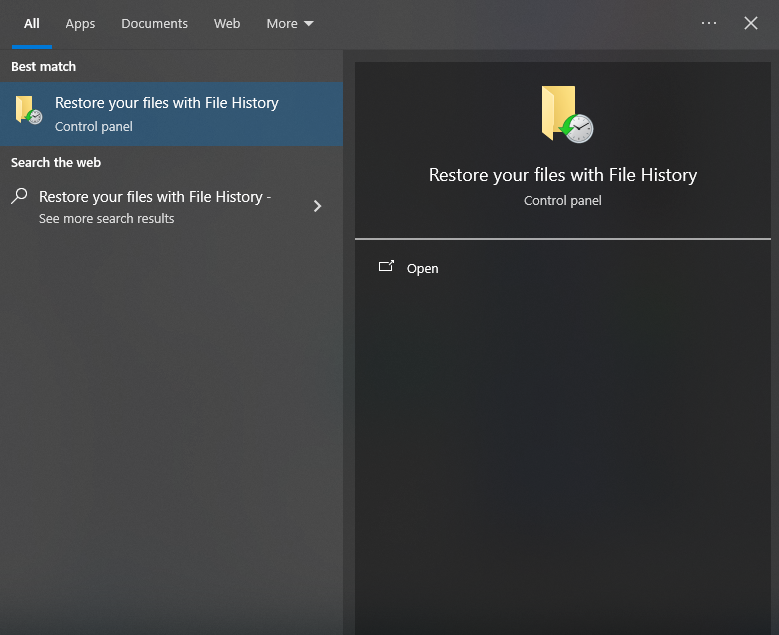
- Step 2: Restore Personal Files
- On the left-hand menu, click the link that says “Restore personal files.” This opens a window showing snapshots of your folders over time.
- Step 3: Browse by Date
- Use the left and right arrows at the bottom to find a version of the “Recycle Bin” or the original folder from before the deletion occurred.

- Step 4: Execute RestorationOnce you find your missing files, click the green “Restore” button to return them to their original location.
4. Cloud-Based Contingencies: OneDrive and Google Drive
Many modern Windows setups automatically sync the Desktop, Documents, and Pictures folders to OneDrive. If you are wondering how to recover data deleted from recycle bin on a synced device, you might have a second “cloud bin” to check.
Steps for Cloud Recovery
- Step 1: Log in to the Web Portal
- Go to OneDrive or your respective cloud provider’s website. Often, files deleted locally remain in the cloud bin for 30 days.
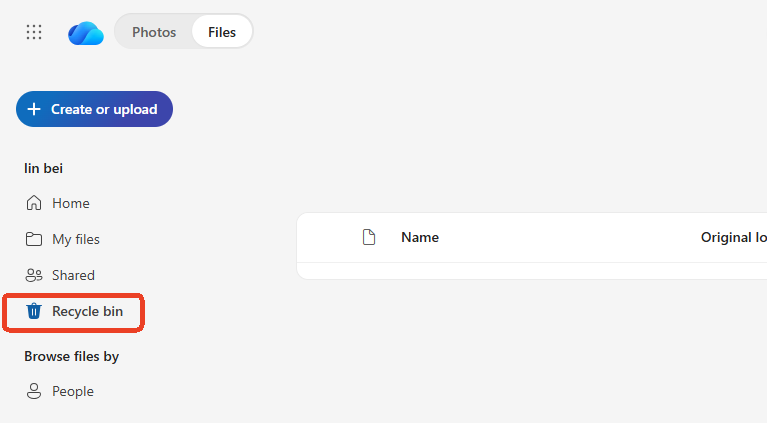
- Step 2: Check the Online Trash
- Navigate to the “Recycle Bin” on the web interface.
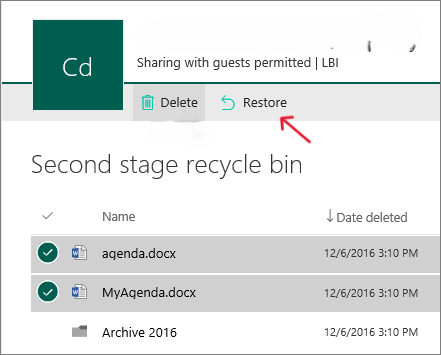
- Step 3: Restore to Cloud
- Select the files and click “Restore.” They will automatically download back to your PC the next time your system syncs.
5. Command Line Recovery: Using Windows File Recovery (WFR)
For users who are comfortable with a text-based interface, Microsoft offers a free tool called Windows File Recovery available in the Microsoft Store. This is a “mid-tier” complexity method for how to recover data deleted from recycle bin.
Operating the Command Line
- Step 1: Install WFR
- Download it from the Microsoft Store and launch it as an Administrator.
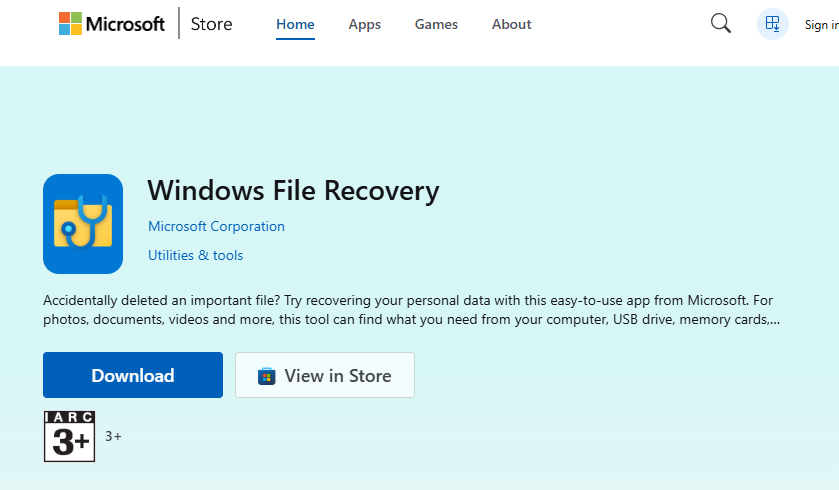
- Step 2: Formulate the Command
- You will use a syntax like:
winfr source-drive: destination-drive: /regular.For example:winfr C: E: /regular /n \$Recycle Bin\
- You will use a syntax like:
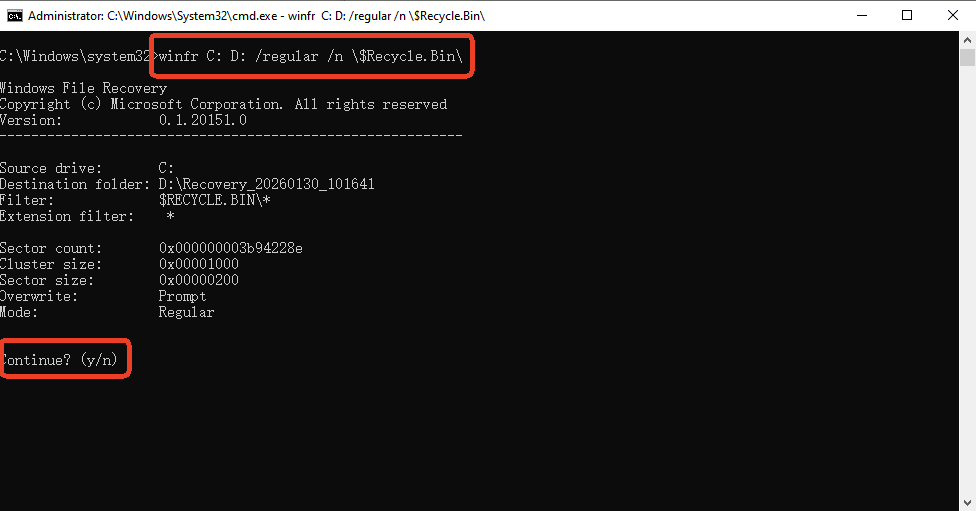
- Step 3: Analyze the ResultsThe tool will create a folder named “Recovery_[Date]” on your destination drive containing the rescued bits.
6. Understanding the Boundaries of Recovery
While learning how to recover data deleted from recycle bin is empowering, we must discuss the “Point of No Return.”
The SSD vs. HDD Difference
If your computer uses a modern Solid State Drive (SSD), a feature called TRIM makes recovery significantly harder. TRIM automatically clears data blocks after a deletion to maintain drive speed. If you have an SSD, the window of opportunity for how to recover data deleted from recycle bin is much smaller—sometimes only minutes.
When to Call the Professionals
If the data is of extreme financial or legal importance and the software methods above fail, do not continue trying. Every DIY attempt carries a small risk. In such cases, taking the physical drive to a clean-room data recovery lab is the final, albeit expensive, resort.
7. Proactive Prevention: Never Panic Again
Mastering how to recover data deleted from recycle bin is a great skill, but never needing that skill is even better.
- Adjust Recycle Bin Settings: Right-click the Recycle Bin and select “Properties.” You can increase the maximum size so files stay in the “safety zone” longer before being purged.
- Disable Permanent Delete: Ensure the box “Display delete confirmation dialog” is checked. This adds a “Are you sure?” prompt that saves thousands of files every year.
- The 3-2-1 Backup Rule: Keep 3 copies of your data, on 2 different media types, with 1 copy stored off-site (cloud).
Summary of Recovery Methods
| Method | Complexity | Success Rate | Best For |
| PandaOffice Drecov | Low | High | Accidental emptying, Shift+Delete |
| File History | Medium | High | Users with existing backups |
| Cloud Sync | Low | Medium | OneDrive/Google Drive users |
| Windows File Recovery | High | Medium | Technical users, CLI fans |
By following these structured steps, the process of how to recover data deleted from recycle bin transitions from a chaotic emergency to a manageable technical task. Whether you choose the automated power of PandaOffice Drecov or the manual control of system backups, your digital life is far more resilient than it seems.






