







Imagine you are preparing for a crucial presentation. You open your trusty Chromebook, but instead of the snappy interface you love, you face a frozen screen and a spinning cursor. Or perhaps you’ve decided to upgrade to the latest model and need to wipe your personal data before handing your old device to a new owner. In these moments, knowing how to reset chromebook to factory settings becomes the most valuable skill in your digital toolkit.
A factory reset, often referred to as a “Powerwash” in the ChromeOS ecosystem, is the digital equivalent of a fresh start. It strips away years of accumulated cache, buggy extensions, and configuration errors, returning the device to the state it was in when it first left the box.
Part 1: Understanding Your Chromebook and the Reset Process
What Makes a Chromebook Unique?
Before we dive into the mechanics of how to reset chromebook to factory settings, we must understand what we are working with. Unlike traditional Windows or Mac laptops, Chromebooks run on ChromeOS—a lean, cloud-centric operating system. Most of your “heavy lifting” happens in the browser, and your files typically live in Google Drive. This architecture makes the resetting process significantly faster and safer than on other platforms.
Why Should You Reset Your Chromebook?
There are several scenarios where a factory reset is not just an option, but a necessity:
- Persistent Performance Lags: If your apps are crashing or the UI feels sluggish despite having few tabs open.
- Profile Corruption: Sometimes, a user profile becomes “stuck,” preventing sync or causing login loops.
- Selling or Gifting the Device: You must remove your accounts, local files, and saved passwords to protect your privacy.
- System Updates Gone Wrong: On rare occasions, a ChromeOS update might conflict with specific hardware.
- Forgotten Passwords: If you lose access to the owner account and cannot log in.
Multiple Methods: How to Reset Chromebook to Factory Settings
Depending on your situation (whether you can log in or not), you have three primary ways to perform this action.
Method 1: The Settings Menu (The “Powerwash” Way)
This is the standard method if you can still navigate the interface.
- Step 1: Click on the Time in the bottom-right corner of your shelf.
- Step 2: Select the Settings (gear icon).
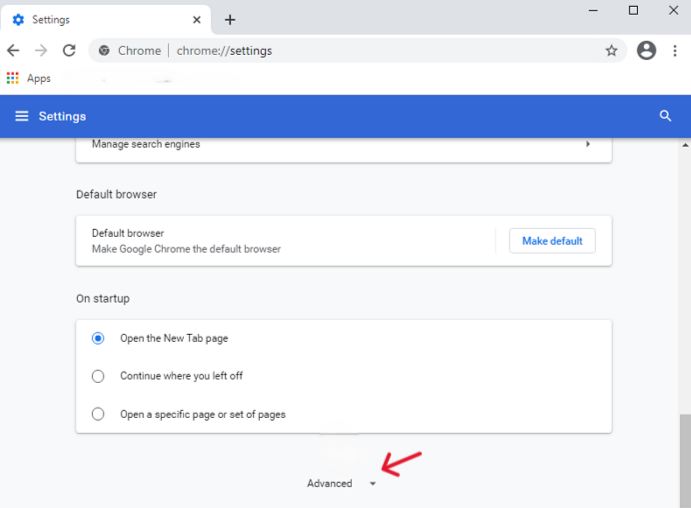
- Step 3: On the left sidebar, click Advanced, then scroll down to Reset settings.
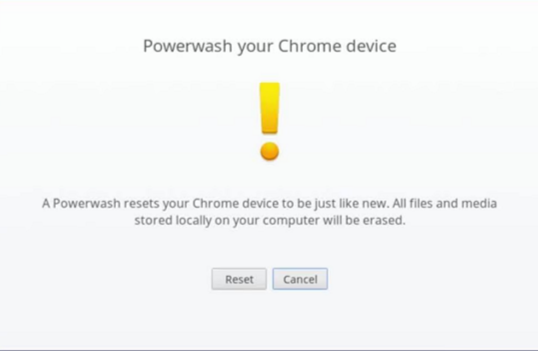
- Step 4: Find the “Powerwash” section and click the Reset button.
- Step 5: A prompt will appear. Click Restart, and the system will handle the rest.
Method 2: The Shortcut Key Method
If you want to skip the menus, Google built a “secret” keyboard combo for this.
- Step 1: Sign out of your Chromebook.
- Step 2: Press and hold Ctrl + Alt + Shift + R.
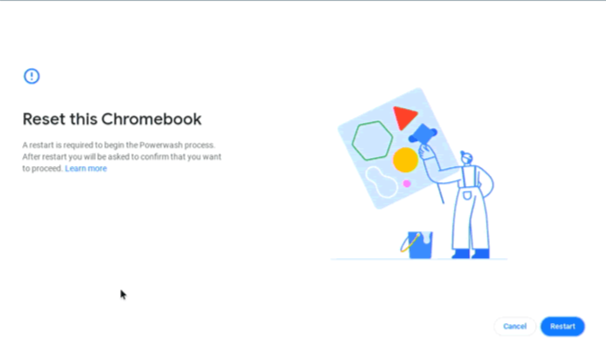
- Step 3: A window titled “Reset this Chromebook” will appear. Select Powerwash (or Restart first, then Powerwash).
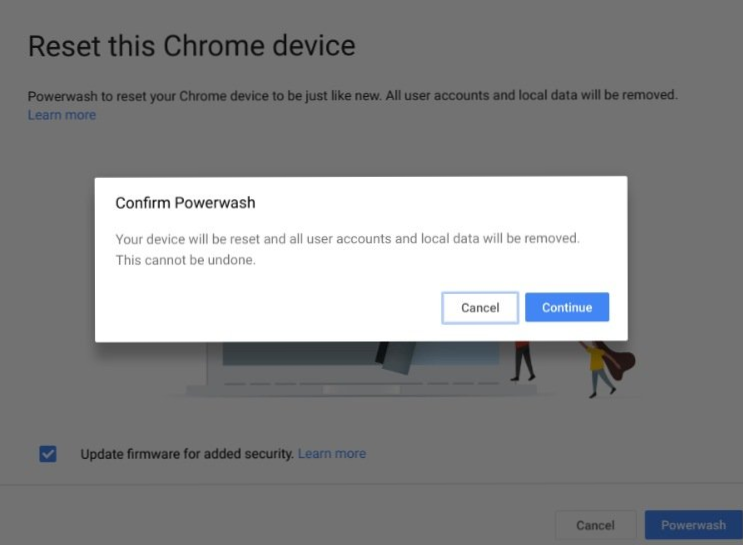
- Step 4: Confirm the action by clicking Continue.
Method 3: Hard Reset (Hardware Refresh)
Use this if your hardware (keyboard, touchpad) is acting strangely. It doesn’t delete your data but resets the hardware controller.
- Step 1: Turn off your Chromebook.
- Step 2: Press and hold the Refresh key (usually the circular arrow key above the 3 or 4) and tap the Power button.
- Step 3: When the Chromebook starts up, release the Refresh key.
Part 2: Data Recovery After You Reset Chromebook
One of the most common “panic moments” occurs right after you reset chromebook devices. You realize that a local folder—perhaps your “Downloads” folder which isn’t automatically synced to the cloud—contained an important document. Since a Powerwash wipes the local SSD (eMMC), these files disappear instantly.
However, all is not lost. While ChromeOS is restrictive, professional tools like PandaOffice Drecov can help you recover lost fragments if you act quickly.
Restoring Files with PandaOffice Drecov
PandaOffice Drecov is a specialized data recovery suite designed to handle the unique file systems used by modern portable devices. It excels at scanning storage partitions that have been formatted or “washed.”This makes it an indispensable tool for a wide range of data loss scenarios, including:
- Accidental Desktop Deletions: Instantly retrieving files wiped from your local workspace.
- Disk Formatting Errors: Salvaging files from drives that have been completely wiped or reformatted.
- External Media Rescue: Recovering lost data from formatted or corrupted SD cards and USB flash drives.
- Sync Conflict Resolution: Reversing data loss caused by synchronization errors between your PC and the OneDrive cloud.
- Browser Metadata Recovery: Restoring lost Chrome bookmarks and other essential application data.”
How to use PandaOffice Drecov to find your lost data:
- Step 1: Connection. Since you cannot install recovery software directly on a locked ChromeOS partition, you should remove the internal drive (if possible) or connect the Chromebook to a PC in “Target Disk Mode” (for supported models). Alternatively, if the data was on an SD card or USB drive during the reset, connect that to your PC.

- Step 2: Selection. Launch PandaOffice Drecov (Version 4.2 or higher). Select the drive representing your Chromebook’s storage from the main dashboard.

- Step 3: Deep Scan. Choose the Deep Scan mode. This allows the software to bypass the file directory (which the reset destroyed) and look for raw file signatures like
.jpg,.pdf, or.docx.

- Step 4: Preview and Recover. Once the scan completes, browse the found files. Drecov allows you to preview images before recovery. Select the files you need and click Recover to save them to a safe location (not the Chromebook itself!).
Part 3: Maintaining Your Chromebook to Avoid Frequent Resets
While knowing how to reset chromebook to factory settings is vital, doing it every month is a hassle. Here is how to keep your system clean:
- Audit Your Extensions: Chrome extensions are the biggest resource hogs. Go to
chrome://extensionsand remove anything you haven’t used in 30 days. - Monitor Disk Space: ChromeOS needs at least 10% of its storage free to function smoothly. Move large downloads to Google Drive or an external SD card immediately.
- Stay on the Stable Channel: Unless you are a developer, avoid the “Beta” or “Dev” channels in settings. These are prone to bugs that force resets.
- Clear Local Cache: Regularly go to Settings > Privacy and security > Clear browsing data to keep the system light.
How to Restore a Chromebook to Factory Settings FAQs
1. Will a factory reset delete my Google Drive files?
No. A Powerwash only deletes files stored locally on the device (like the “Downloads” folder). Anything synced to Google Drive, Photos, or Gmail remains safe in the cloud.
2. Can I undo a Powerwash?
No. Once the process starts, the encryption keys for the local data are destroyed. This is why using a tool like PandaOffice Drecov immediately after an accidental reset is your only hope.
3. My Chromebook is managed by a school/workplace. Can I reset it?
Generally, the standard “Powerwash” option is disabled by administrators to prevent unauthorized access. However, while you might not be able to perform a full factory reset, you can often wipe your data by removing the specific user profile from the login screen.
4. How long does the process take?
Because ChromeOS is so lightweight, the actual how to reset chromebook to factory settings process usually takes less than 5 minutes.
Conclusion
Mastering the steps on how to reset chromebook to factory settings ensures that you are never held hostage by a slow or malfunctioning device. Whether you use the Settings menu or the Ctrl + Alt + Shift + R shortcut, the process is designed to be user-friendly. Always remember to back up your local “Downloads” folder to Google Drive before proceeding. If the worst happens and you lose data, tools like PandaOffice Drecov are available to bridge the gap. By keeping your extensions minimal and your storage clear, you can enjoy the “as-new” speed of your Chromebook for years to come.






