







I still remember the cold sweat I felt last Tuesday. I had spent three weeks perfecting a 50-page marketing strategy and I stored it in my cloud, feeling safe. Then, while trying to delete an old draft, I accidentally selected the final version and hit the delete key. When I checked my local trash, it was empty. I felt a moment of pure panic. I asked myself: “Is it possible to learn how to recover deleted files from OneDrive before my boss asks for the file?”
The answer, as I discovered, is a resounding yes. Whether you are a student, a freelancer, or a corporate executive, losing data is a universal fear. This guide will walk you through the science of data recovery and show you exactly how to recover deleted files from OneDrive using professional techniques.
What Exactly is Microsoft OneDrive?
Before we dive into the recovery process, we must understand the tool we are using. Microsoft OneDrive is a robust cloud storage service that integrates deeply with Windows and Microsoft 365. It acts as a bridge between your physical computer and Microsoft’s secure servers.
Unlike a simple external hard drive, OneDrive is a synchronization service. This means it mirrors the state of your files across all devices. If you edit a document on your laptop, the changes appear on your phone. However, this synchronization is a double-edged sword: if you delete a file on one device, the system deletes it everywhere. Understanding this “mirroring” behavior is the first step in learning how to recover deleted files from OneDrive.
The “Digital Ghost” Theory: How Data Recovery Actually Works
Many users believe that a deleted file is physically erased from the universe. However, computer science tells a different story. To understand how to recover deleted files from OneDrive, think of your computer’s storage like a massive hotel.
The Hotel Manager Metaphor
Imagine every file is a guest in a hotel room. Your computer keeps a “Guest Registry” (the File System) that tells the manager which room each guest occupies. When you delete a file, the manager doesn’t throw the guest out the window. Instead, the manager simply crosses the name off the registry and marks the room as “Available.”
The guest (your data) actually stays in the room until a new guest (new data) arrives and takes the space. This is why you must stop using your device immediately after a loss. If you continue to save new files, you are essentially “overwriting” the old guests, making it impossible to how to recover deleted files from OneDrive.
Essential Methods to Recover Your Lost Data
If you are currently facing a data loss crisis, stay calm. Follow these methods in order. We will start with the easiest cloud-based solution and move toward professional-grade software.
Method 1: The Primary Defense — The Online Recycle Bin
Most users look at their desktop Recycle Bin, but OneDrive has its own secondary safety net in the cloud. This is often the quickest way to solve the problem of how to recover deleted files from OneDrive.
- Step 1: Open the official OneDrive login page and sign in with your Microsoft account credentials.
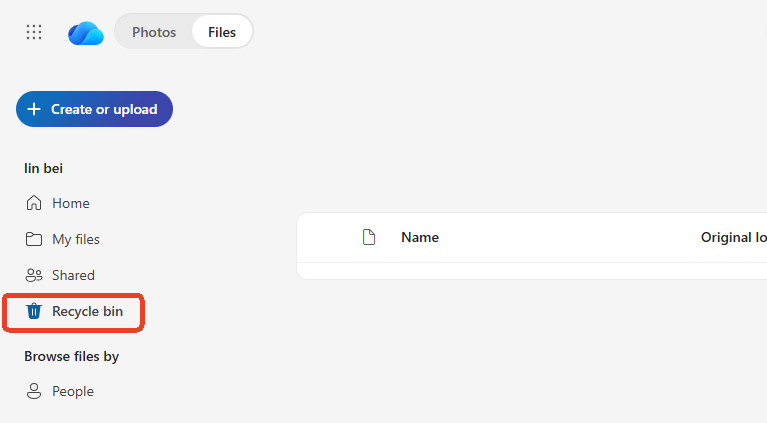
- Step 2: On the left-hand navigation panel, click the link labeled Recycle bin.
- Step 3: Look through the list of deleted items. You can sort them by “Date deleted” to find your recent work faster.
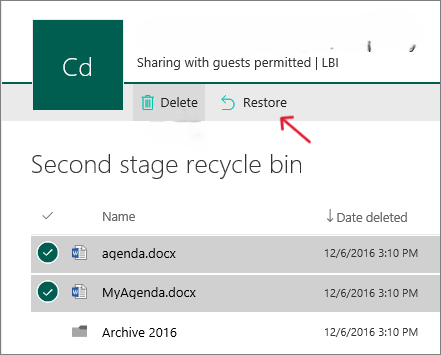
- Step 4: Select the checkbox next to the files you need.
- Step 5: Click the Restore button at the top of the page.
Warning: Personal accounts usually hold files for only 30 days. If you wait too long, the system purges them automatically.
Method 2: Professional Restoration — Using PandaOffice Drecov
If your files are not in the online bin, or if you accidentally emptied it, you need a specialized tool that can look for those “Digital Ghosts” we discussed earlier. PandaOffice Drecov is a premium data recovery application designed to scan the local cache that OneDrive leaves on your hard drive.
What sets PandaOffice Drecov apart is its ability to bypass the operating system’s limitations; it performs a deep scan of the raw disk sectors to reconstruct files that Windows no longer recognizes. This makes it an indispensable tool for a wide range of data loss scenarios, including:
- Accidental Desktop Deletions: Instantly retrieving files wiped from your local workspace.
- Post-Recycle Bin Recovery: Restoring data even after the trash has been permanently emptied.
- Disk Formatting Errors: Salvaging files from drives that have been completely wiped or reformatted.
- External Media Rescue: Recovering lost data from formatted or corrupted SD cards and USB flash drives.
- Sync Conflict Resolution: Reversing data loss caused by synchronization errors between your PC and the OneDrive cloud.
- Browser Metadata Recovery: Restoring lost Chrome bookmarks and other essential application data.”
Warning: Install the software on a different drive. This is critical! If you install it on the C: drive, you might overwrite the very files you want to save.
Even when the cloud says a file is gone, the physical sectors of your hard drive often still contain the data. Here is how to recover deleted files from OneDrive using PandaOffice Drecov:
- Step 1: Open the application. On the home screen, select the C: Drive (or OneDrive folder).
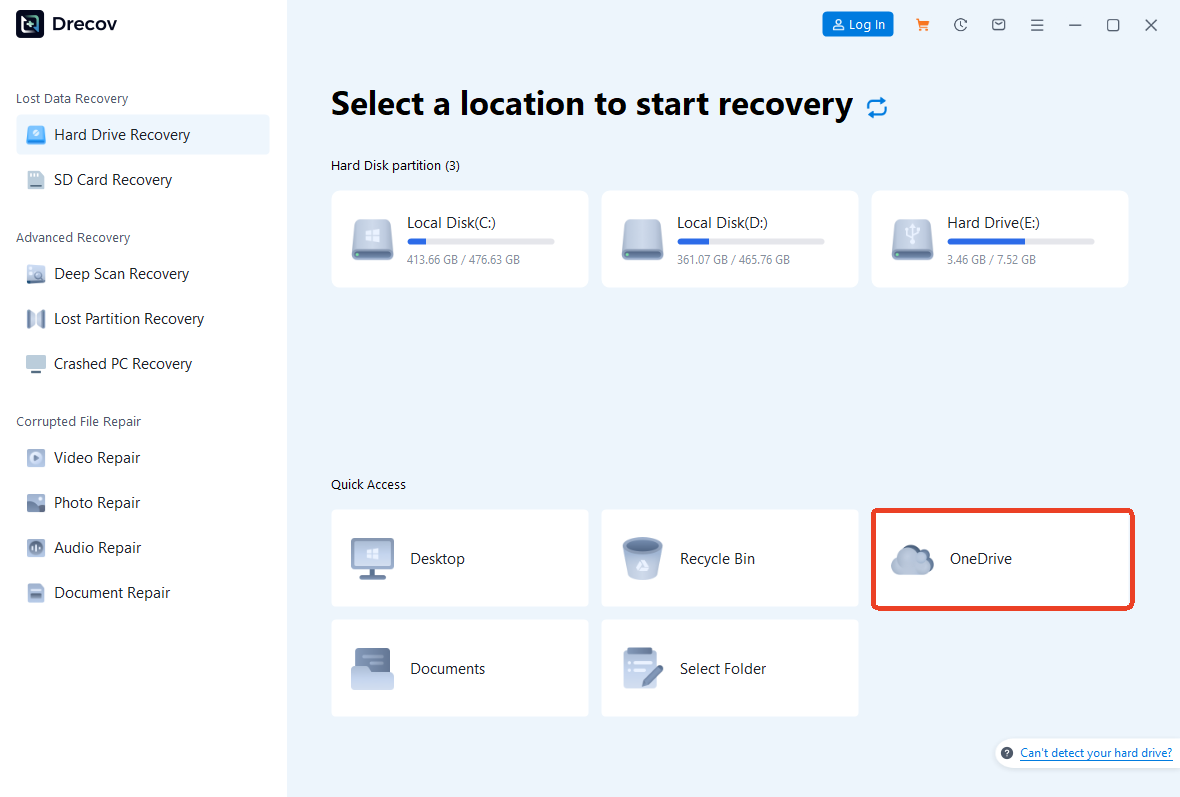
- Step 2: Click Deep Scan. The software will bypass the Windows file registry and look at the raw bits on the disk.

- Step 3: Once the scan finishes, use the “Filter” or “Search” bar. Type in the name of your file or the file extension (e.g.,
.docxor.pdf).

- Step 4: Select the files you found. Use the Preview function to make sure the file isn’t corrupted.
- Step 5: Click Recover and choose a safe location on an external drive to save the restored data.
Method 3: The “Time Machine” Approach — Restoring to a Previous Date
For Microsoft 365 subscribers, there is a powerful “Undo” button for your entire account. This is a life-saver if a virus or ransomware attacks your files.
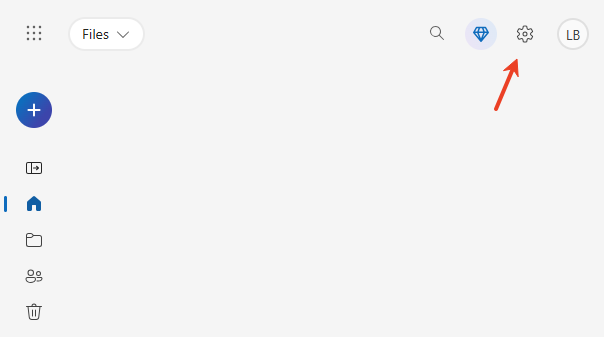
- Step 1: Log into OneDrive on the web and click the Settings (gear) icon in the top right corner.
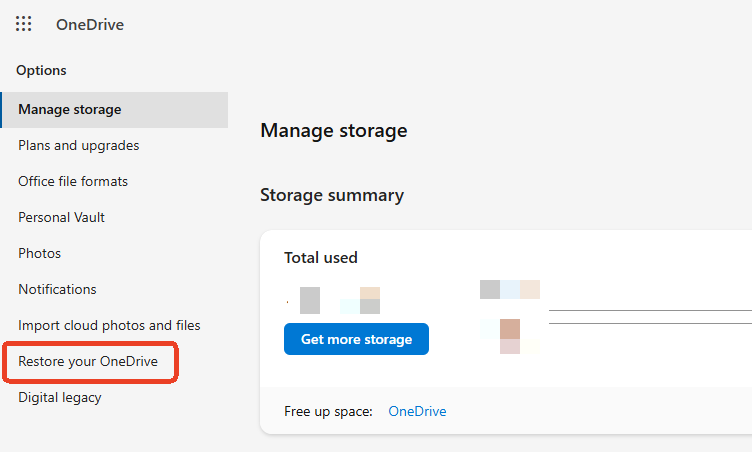
- Step 2: Select Options, then click Restore your OneDrive from the sidebar.
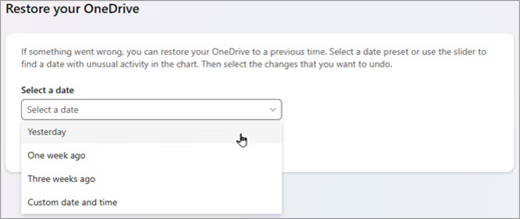
- Step 3: Choose a date from the dropdown menu (for example, “Yesterday” or “Two days ago”).
- Step 4: A chart will appear showing all file activities. Slide the bar back to the time before you deleted the files.
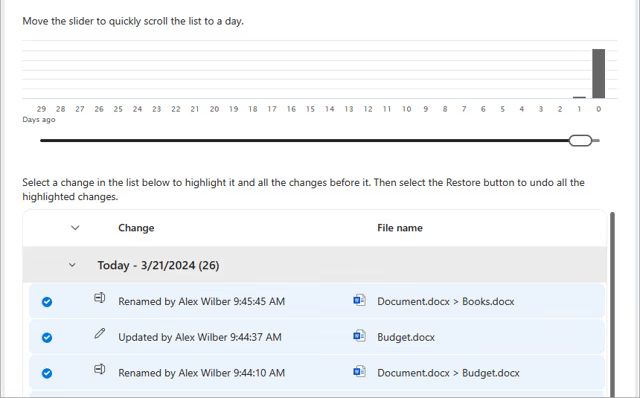
- Step 5: Click Restore to roll back your entire storage to that exact moment.
Comparison of Recovery Strategies
To help you decide how to recover deleted files from OneDrive based on your specific situation, look at this comparison:
| Feature | OneDrive Recycle Bin | PandaOffice Drecov | OneDrive Restore |
| Ease of Use | Very Easy | Very Easy | Moderate |
| Recovery Depth | Surface Level | Deep Sector Scan | Version-based |
| Success Rate | High (within 30 days) | Highest (even for expired files) | High (for subscribers) |
| Best For… | Recent accidental clicks | Empty bins or system crashes | Ransomware/Mass deletion |
The Drecov Advantage: While cloud methods rely on Microsoft’s servers, PandaOffice Drecov relies on the physical reality of your hard drive. It works even when the cloud server has permanently purged your data.
Proactive Protection: Prevent Future Data Loss
Learning how to recover deleted files from OneDrive is essential, but preventing the crisis is even better. Follow these steps to safeguard your future work:
- Step 1: Enable Local Persistence. Right-click your OneDrive folder and select “Always keep on this device.” This ensures you always have a physical copy on your disk for Drecov to find if the cloud fails.
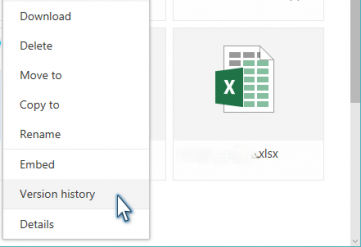
- Step 2: Use Version History. Don’t delete old versions of a file to save space. Right-click any file and select Version History to see older edits without needing a full recovery.
- Step 3: Set Up Secondary Backups. Never rely on a single cloud. Use the Windows “File History” tool to back up your OneDrive folder to an external HDD every week.
- Step 4: Secure Your Account. Enable Two-Factor Authentication (2FA) to prevent hackers from deleting your files maliciously.
Conclusion
In summary, losing data doesn’t have to be a permanent tragedy. If you act quickly, you can how to recover deleted files from OneDrive by checking the online Recycle Bin first. If the files are gone from the bin, use a powerful scanning tool like PandaOffice Drecov to retrieve the data from your local hard drive cache. Finally, remember that Microsoft 365 subscribers can always use the Restore your OneDrive feature to go back in time.
By staying calm and following these logical steps, you can ensure that your important projects stay right where they belong—safe in your hands.






