







We have all been there. You are cleaning up your browser tabs, and suddenly, a crucial folder of saved resources vanishes. Your heart sinks as you realize you just deleted months of research. But don’t panic!Whether you are a casual surfer or a power user, learning how to recover deleted bookmarks chrome is a straightforward process because your data isn’t truly gone until it’s overwritten by new system activity.
In this guide, we will explore the science of data retrieval and walk you through exactly how to recover deleted bookmarks chrome using reliable techniques.
The Golden Rule: Act Fast!
Before we dive into the steps, you must follow one critical rule: Stop closing and reopening your browser. Chrome automatically overwrites its single backup file every time you launch the application. If you keep the browser closed, your chances of a successful recovery stay high.
Method 1: The Local Backup Trick (The “.bak” Strategy)
Chrome stores your data in a hidden folder on your hard drive. It keeps a “Bookmarks” file and a “Bookmarks.bak” file. The latter is a snapshot of your bookmarks from the last time you opened Chrome.
- Step 1: Open File Explorer and navigate to the following path:
C:\Users\YourUserName\AppData\Local\Google\Chrome\User Data\Default
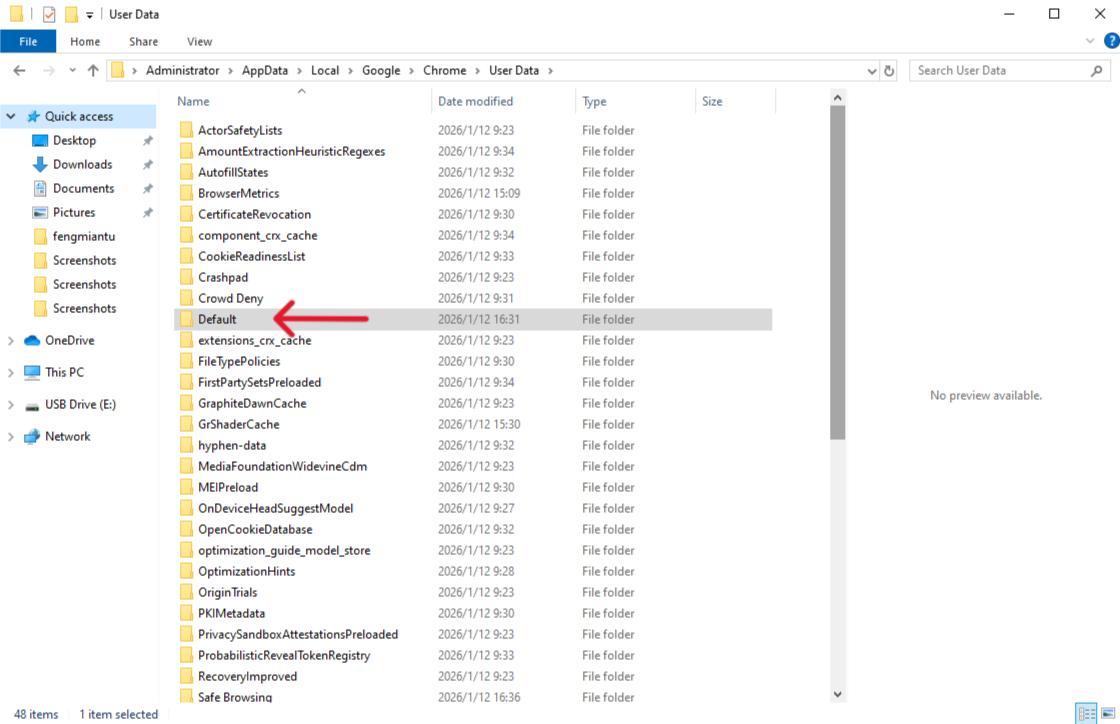
- Step 2: Look for two files named
BookmarksandBookmarks.bak. If you don’t see extensions, click “View” and check “File name extensions.”
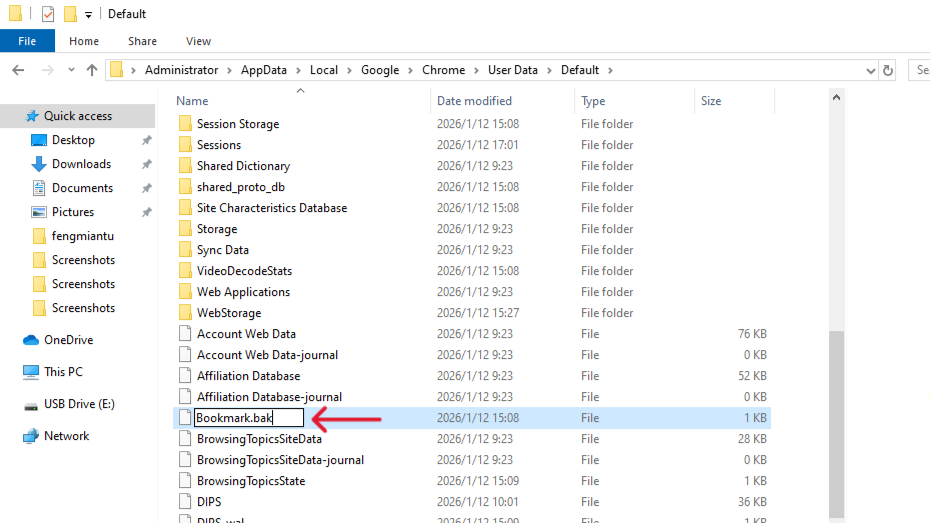
- Step 3: Rename the file
BookmarkstoBookmarks.old. Then, renameBookmarks.baktoBookmarks(removing the .bak extension). - Step 4: Relaunch Chrome. Your deleted folders should reappear exactly where they were.
Warning: If you have already reopened Chrome several times after the deletion, this backup file might already be updated with the deleted state.
Method 2: Use PandaOffice Drecov
If the local backup file is missing or corrupted, you need a professional-grade tool. PandaOffice DRecov is a powerful utility designed to scan your disk sectors for “invisible” deleted files.
Why is PandaOffice Drecov Highly Recommended?
This software is a favorite among IT professionals, maintaining strong reputations on Trustpilot and collaborating with industry leaders like the Microsoft Store, TechBullion, and Sourceforge. It serves as a comprehensive “safety net,” capable of retrieving everything from accidentally deleted desktop files to formatted SD cards.
- Versatility: It recovers photos, videos, audio, compressed files (ZIP/RAR), and even system files like EXEs.
- Accidental deletion from your computer desktop.
- Files lost after emptying the Recycle Bin.
- Data loss from disk formatting.
- Accidental deletion or formatting of SD cards/U disks.
- Sync error occurring with deleted OneDrive files
- Simple for Beginners: You don’t need to know a single line of code. It’s a “point-and-click” experience.
- File Repair: It can often fix files that are “corrupted” or “unreadable” during the recovery process.
- Privacy First: All recovery happens locally on your machine, so you don’t have to worry about your private data leaking to the web.
🚨 Important Warning: Do not install this on the same drive where the lost files were. Use an external USB drive to keep the data safe from being overwritten.
Steps to Recover Using PandaOffice Drecov
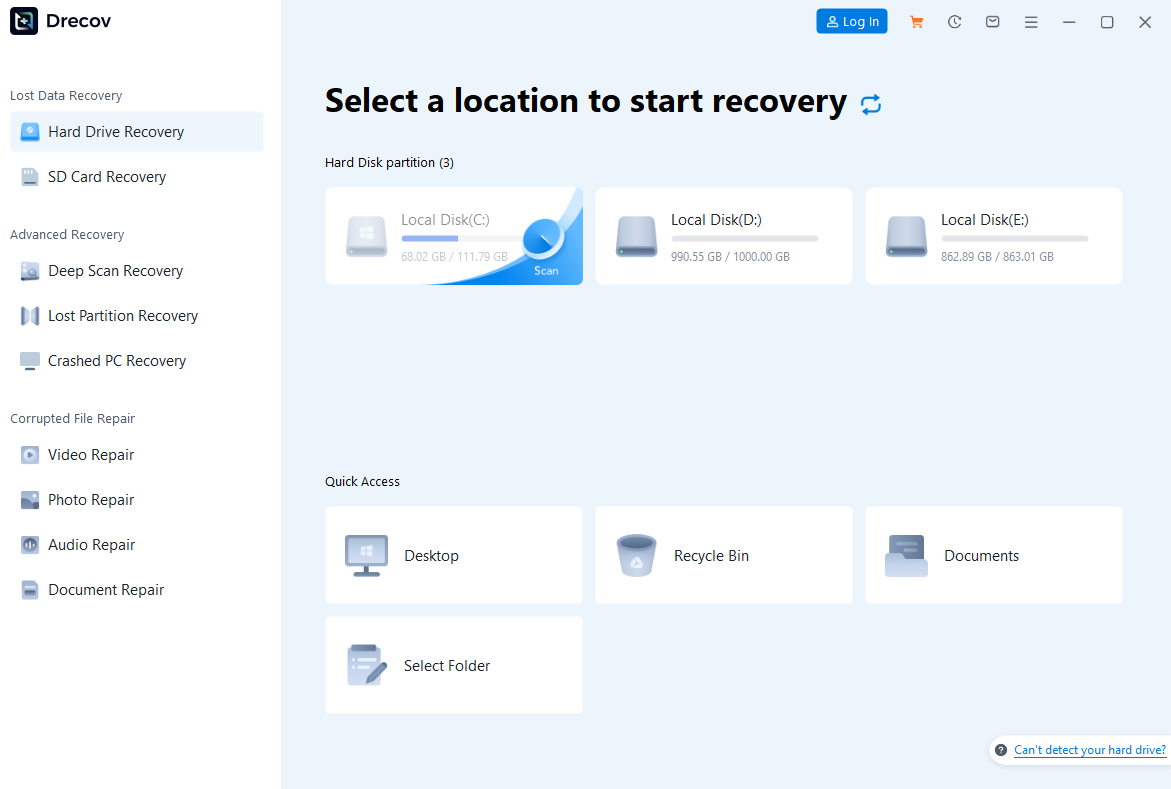
- Step 1: Select and Scan. Launch PandaOffice Drecov and select the C: drive. Click “Scan” to let the algorithm find deleted JSON and BAK files.
- Step 2: Filter and Preview. Instead of sifting through thousands of files, use the search bar to type “Bookmarks.” The software will display the recoverable versions of your bookmark database.
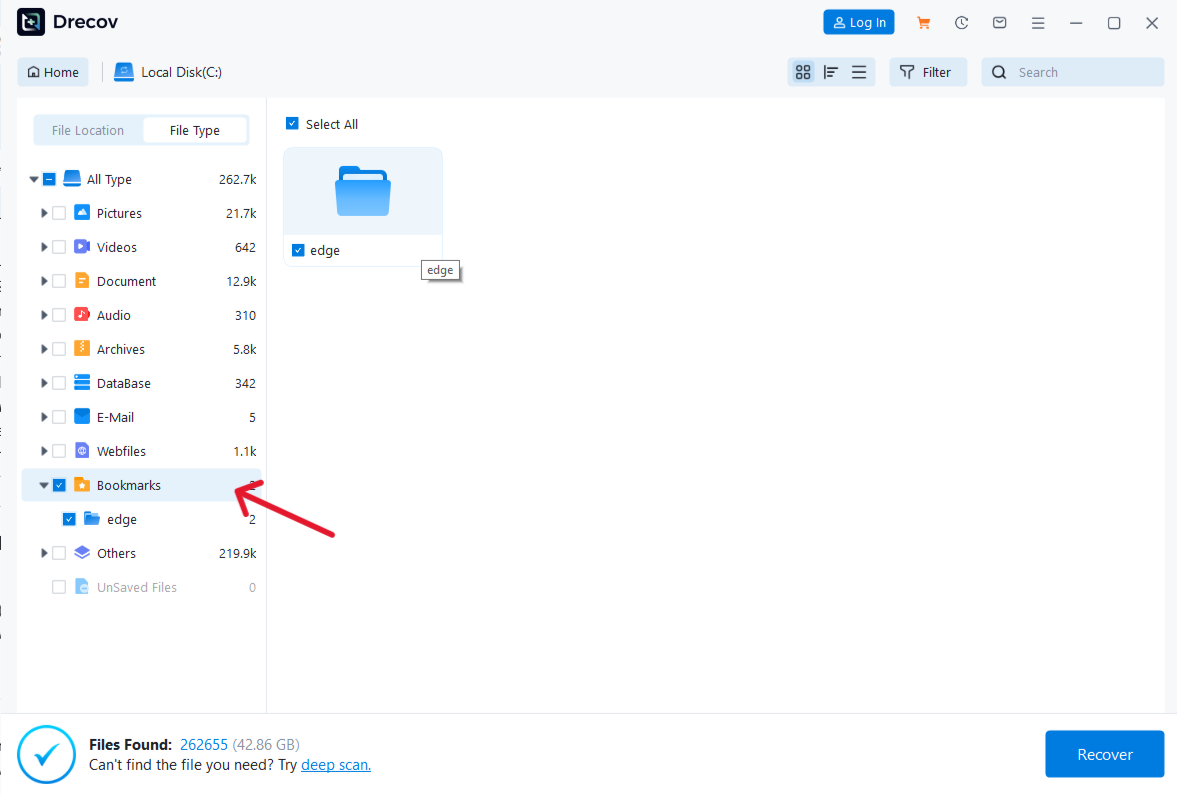
- Step 3: One-Click Recovery. Select the most recent version of the Bookmarks file and click “Recover.”
Important: Never save the recovered file directly back to the Chrome folder yet. Save it to a USB drive or Desktop first to avoid “data collision.”
Method 3: The “Sync Gap” Strategy (Multi-Device)
If you use Chrome on multiple devices (like a phone or a second laptop), you can exploit the synchronization delay to save your data.
- Step 1: Immediately turn off the internet on your second device (phone or tablet) before it has a chance to sync the deletion.
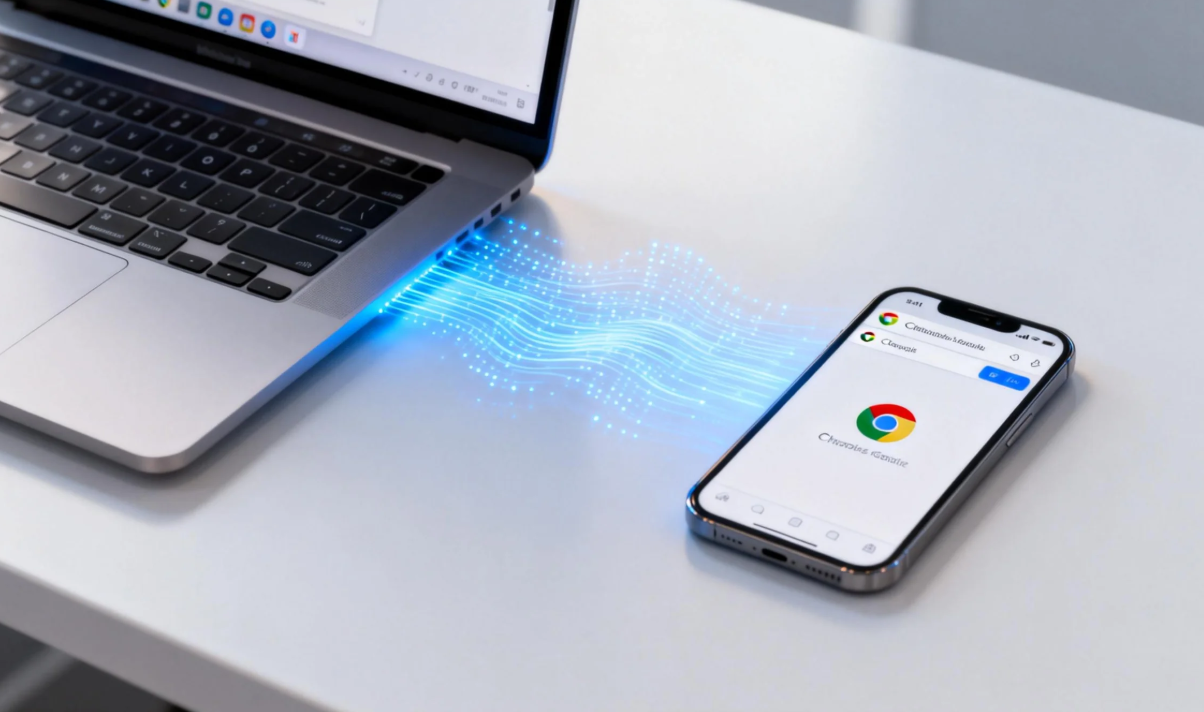
- Step 2: Open Chrome on that offline device. Since it hasn’t synced with the “delete” command yet, your bookmarks are still there.
- Step 3: For PC, go to Bookmark Manager and export them as an HTML file. For mobile, manually copy the important URLs. This “time-gap” is a lifesaver for cloud users.
Method 4: DNS Cache Recovery (The Last Resort)
If you deleted your bookmarks and your history, but desperately need the website addresses back, you can peek into your computer’s “memory.”
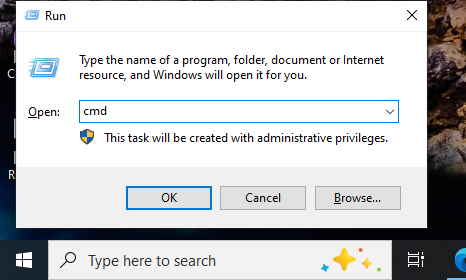
- Step 1: Press
Windows + R, typecmd, and hit Enter.
- Step 2: Type
ipconfig /displaydnsand press Enter.
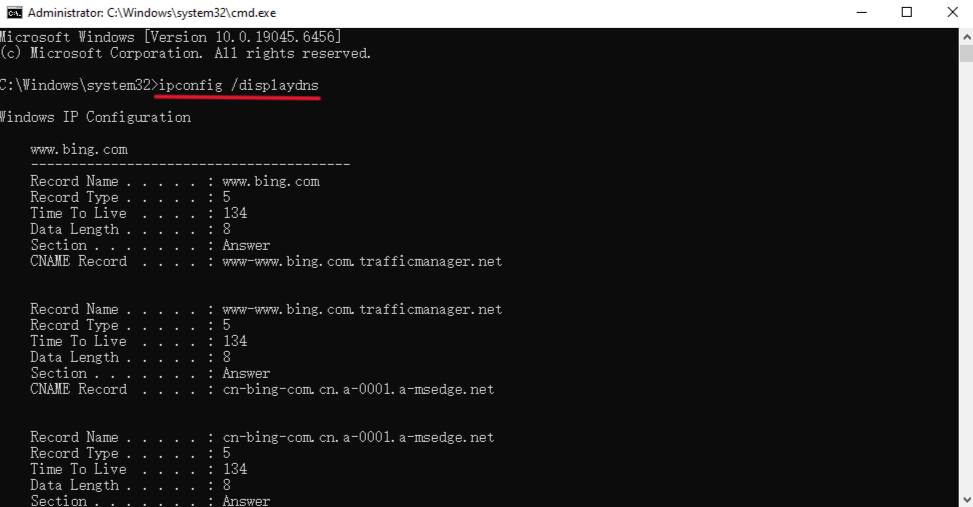
- Step 3: Scroll through the list. This displays the domains of all websites you have recently accessed. While it won’t restore the bookmark structure, it provides the raw data you need to find those lost sites again.
Proactive Protection: Never Lose a Link Again
Understanding how to recover deleted bookmarks chrome is vital, but setting up a safety net saves you the stress of a recovery mission.
1. Manual HTML Export (The Monthly Routine)
- Step 1: Open Chrome and press
Ctrl + Shift + Oto open the Bookmark Manager.
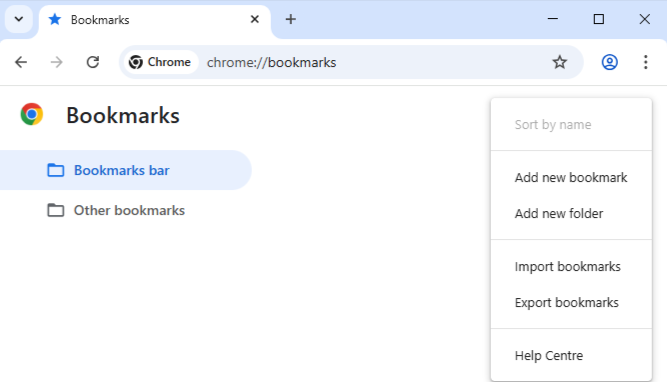
- Step 2: Click the “three dots” icon in the top right corner.
- Step 3: Select Export Bookmarks and save the HTML file to a cloud drive like Google Drive or Dropbox.
2. Enable Google Sync correctly
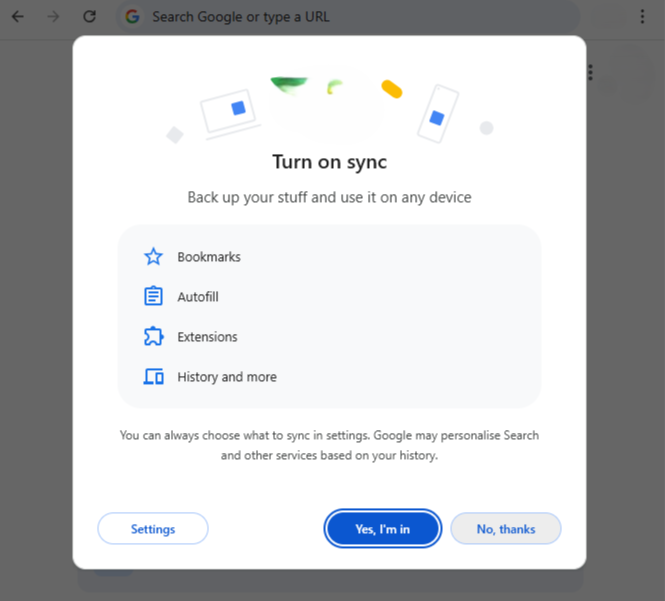
- Step 1: Click your Profile icon in Chrome and select Turn on sync.
- Step 2: Go to Settings > Sync and Google Services > Manage what you sync.
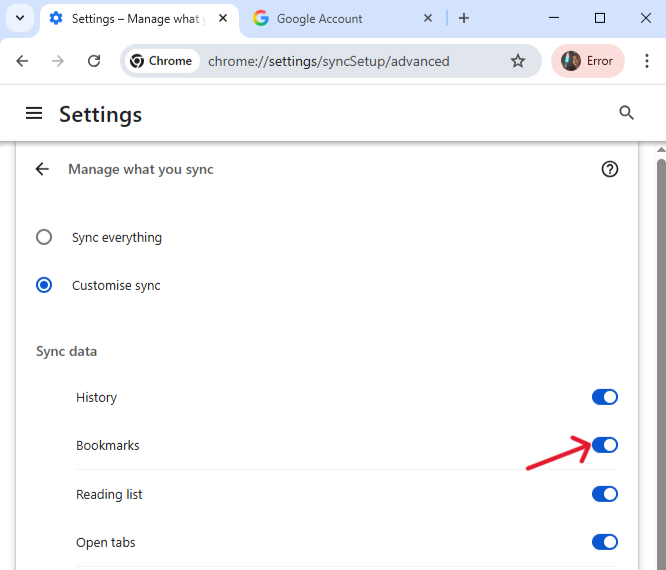
- Step 3: Ensure “Bookmarks” is toggled ON. This ensures that even if your computer crashes, your data lives in your Google Account.
3. Use Windows “File History”
- Step 1: Go to Settings > Update & Security > Backup.
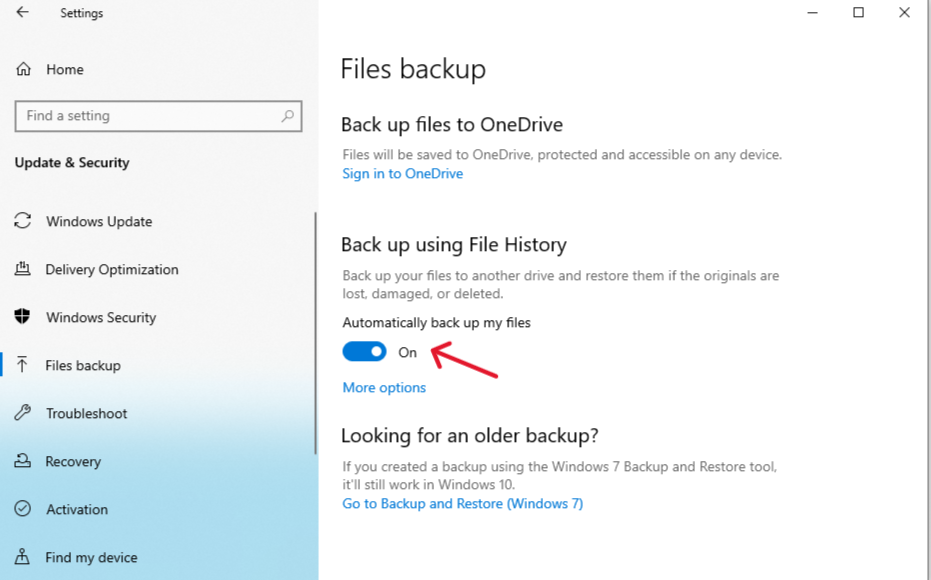
- Step 2: Add a drive and turn on Automatically back up my files. This creates the “Previous Versions” snapshots we mentioned earlier, giving you a literal “Undo” button for your entire hard drive.
How to Recover Deleted Bookmarks Chrome Like a Pro FAQs
Can I recover bookmarks if I never signed into a Google Account?
Yes! As long as you are using the same computer where the deletion occurred, you can still use Method 1 (The .bak file) or Method 2 (PandaOffice DRecov). Chrome saves a local database on your hard drive regardless of whether you are synced to the cloud. However, without an account, you won’t be able to use the “Sync Gap” strategy.
Does “Clear Browsing Data” delete my bookmarks?
No. Clearing your history, cookies, and cache does not affect your saved bookmarks. If your bookmarks disappeared after a cleanup, it is more likely that you accidentally toggled a “Sync” setting or manually deleted them while managing your browser folders.
Why is my Bookmarks.bak file missing?
This usually happens for two reasons: either you have “Hidden items” disabled in your File Explorer settings, or Chrome has already overwritten the backup.
Step Tip: In File Explorer, go to the View tab and ensure Hidden items is checked. If it is still missing, proceed immediately to Method 2 using recovery software.
Can I recover Chrome bookmarks on an Android or iPhone?
Direct file manipulation is difficult on mobile OS. Your best bet is to immediately check your Desktop Chrome. If the desktop version hasn’t synced the mobile deletion yet, you can quickly export the bookmarks there. Once deleted and synced across all mobile devices, professional recovery software like PandaOffice DRecov (scanning the synced PC) is the most reliable path.
How do I fix a “Sync error for deleted files” in OneDrive or Google Drive?
If you back up your local AppData folder to a cloud service like OneDrive, you might see a sync error after deleting files. This usually occurs because the cloud is trying to protect you from accidental loss. To fix this, go to your Cloud Trash/Recycle Bin, restore the file, or manually “Dismiss” the error in your sync settings to let the cloud know the deletion was intentional.
Conclusion: Mastering Digital Resilience
In conclusion, knowing how to recover deleted bookmarks Chrome is an essential skill in our data-driven lives. Whether you utilize the built-in .bak file swap, leverage the 3-step PandaOffice DRecov process, or exploit sync gaps across devices, your lost data is often just a few clicks away. However, the most effective recovery strategy is a proactive one. By setting up automatic cloud sync and performing regular HTML exports, you transform a potential digital disaster into a minor, fixable hiccup. Stay vigilant, act quickly when deletions occur, and keep your digital library secure.






