







Imagine this: You’ve spent the last 72 hours meticulously crafting a project proposal. It’s perfect. You do a quick “digital spring cleaning” of your desktop, drag a pile of folders to the Recycle Bin, and—in a moment of muscle memory—right-click and hit “Empty Recycle Bin.” A cold sweat sets in. You realize your masterpiece was in that pile. Your heart sinks as you stare at the empty icon. You start frantically Googling: how do i recover items deleted from recycle bin?
The good news? Your files aren’t actually “gone” the moment you empty the bin. They are just hiding. This guide will walk you through the logic of data storage and provide concrete steps to get your life back on track.
Part 1: The Library Mystery—How Data Recovery Works
To understand how do i recover items deleted from recycle bin, you first need to understand how Windows “deletes” things.
Think of your hard drive like a massive library. Every file is a book, and the File System (NTFS or FAT32) is the Library Catalog.
- Moving to the Bin: When you drag a file to the Recycle Bin, the librarian just moves the book to a “Holding Room.” It’s still in the catalog, just in a different section.
- Emptying the Bin: When you empty the bin, the librarian doesn’t burn the book. Instead, they simply tear the card out of the catalog and mark the shelf space as “Available.”
The book (your data) stays on the shelf until a new book (new data) comes along and is placed on top of it. This is called overwriting. Data recovery is essentially the process of scanning the shelves to find “uncataloged” books before they get replaced.
Part 2: Essential Precautions Before You Start
Before we dive into the “how-to,” there is one golden rule: Stop using your computer immediately.
Every minute you spend browsing the web, downloading updates, or even moving small files increases the risk that Windows will overwrite the “available” space where your deleted file resides. If you want to know how do i recover items deleted from recycle bin successfully, you must minimize disk activity.
Part 3: Step-by-Step Methods to Restore Your Files
Method 1: The “Ctrl + Z” and Basic Restore (The “Oops” Phase)
If you just deleted the file and haven’t emptied the bin yet, this is your first line of defense.
- Step 1: Open the Recycle Bin by double-clicking the icon on your desktop.

- Step 2: Locate your file. You can sort by “Date Deleted” to find it quickly.
- Step 3: Right-click the file and select Restore. The file will return to its original location.
Shortcut: If you just deleted it, press Ctrl + Z on your keyboard to undo the action instantly.
Method 2: Using Professional Software—PandaOffice Drecov
When the bin is empty, Windows tools often fail. This is where dedicated recovery algorithms are required. PandaOffice Drecov is a specialized tool designed to scan the “hidden shelves” of your hard drive.It can reconstruct file headers that Windows no longer recognizes. This makes it an indispensable tool for a wide range of data loss scenarios, including:
- Accidental Desktop Deletions: Instantly retrieving files wiped from your local workspace.
- Disk Formatting Errors: Salvaging files from drives that have been completely wiped or reformatted.
- External Media Rescue: Recovering lost data from formatted or corrupted SD cards and USB flash drives.
- Sync Conflict Resolution: Reversing data loss caused by synchronization errors between your PC and the OneDrive cloud.
- Browser Metadata Recovery: Restoring lost Chrome bookmarks and other essential application data.”
Tip: Install it on a USB drive or a different partition (like D: instead of C:) to avoid overwriting your lost data.
- Step 1: On the main interface, select the drive where your Recycle Bin is located (usually the C: drive) or select “Recycle Bin” from the quick access entries to start the scan.

- Step 2: Click the Scan button. The software will perform a Deep Scan to find fragments of files that were “permanently” deleted.

- Step 3: Once the scan completes, use the filter sidebar to search for specific file types (e.g., .docx, .jpg).

- Step 4: Preview the files to ensure they are intact. Select the items you need and click Recover.
Warning: Always save recovered files to an external drive or a different partition than the one they were lost from.
Method 3: Restoring from File History (The “Time Machine” Approach)
Windows has a built-in backup feature called File History. If you had this enabled prior to deletion, you are in luck.
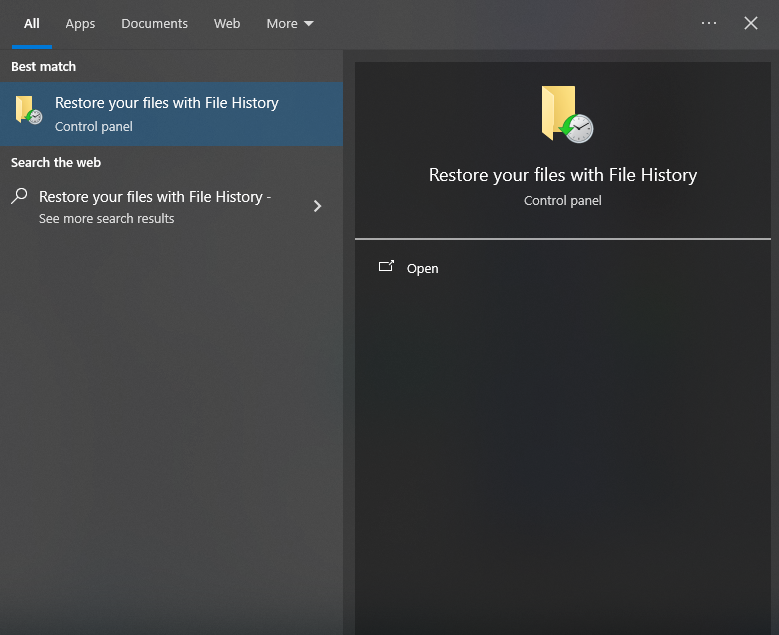
- Step 1: Type “Restore your files with File History” in the Windows Search bar.
- Step 2: Navigate to the folder where the file used to live (e.g.,
C:\Users\Name\Documents). - Step 3: Use the arrow buttons at the bottom to “travel back in time” to a version of the folder before the deletion occurred.

- Step 4: Select the file and click the green Restore icon.
Method 4: Windows File Recovery (Command Line Tool)
For those who aren’t afraid of a little coding, Microsoft offers a free command-line utility.
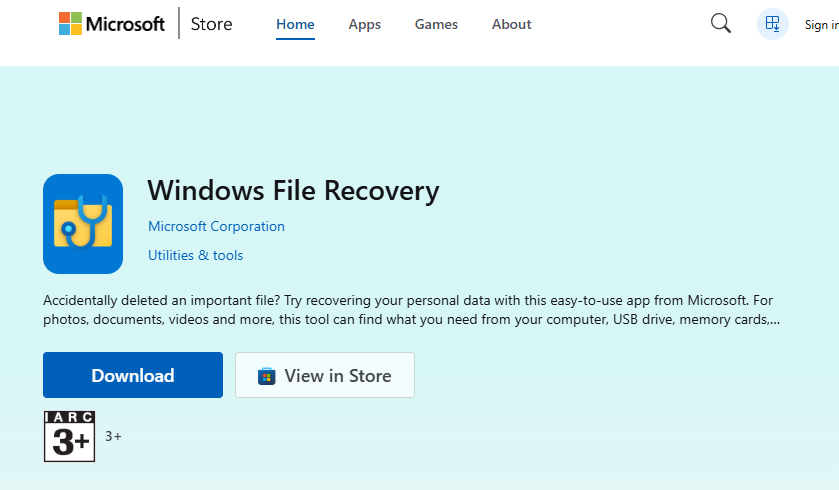
- Step 1: Download Windows File Recovery from the Microsoft Store.
- Step 2: Open the app (it will open a Command Prompt window).
- Step 3: Use the following syntax:
winfr source-drive: destination-drive: [/mode] [/switches]Example:winfr C: E: /regular /n \$Recycle Bin \
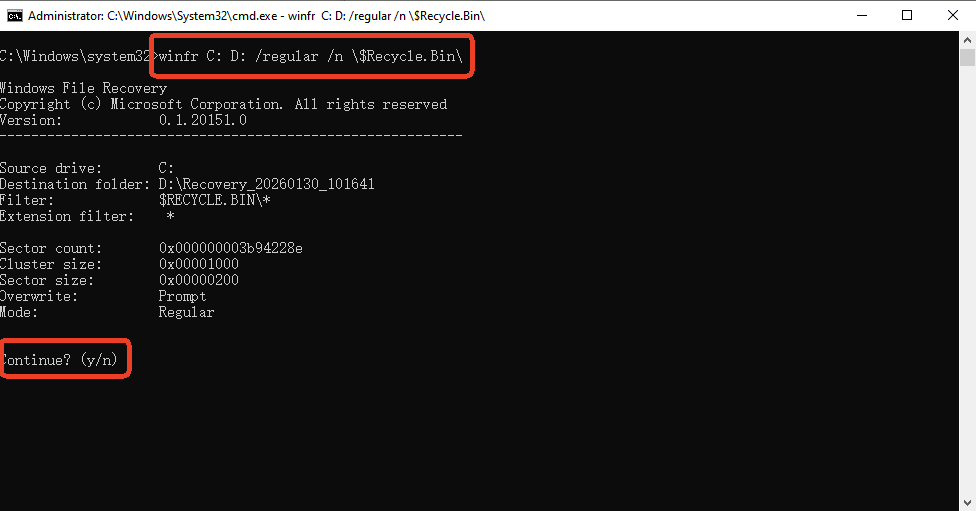
- Step 4: Follow the on-screen prompts to allow the tool to scan the clusters of your disk.
Method 5: Previous Versions (Shadow Copies)
Sometimes, Windows creates “Shadow Copies” as part of a system restore point.
- Step 1: Go to the folder that contained the deleted item.
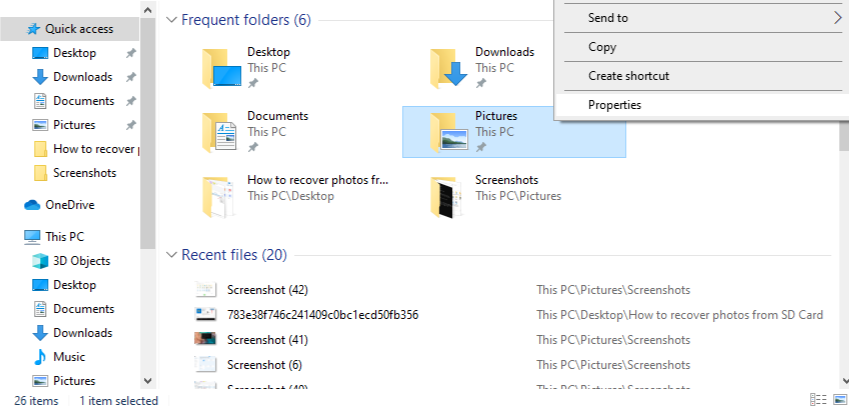
- Step 2: Right-click the folder and select Properties.
- Step 3: Click the Previous Versions tab.
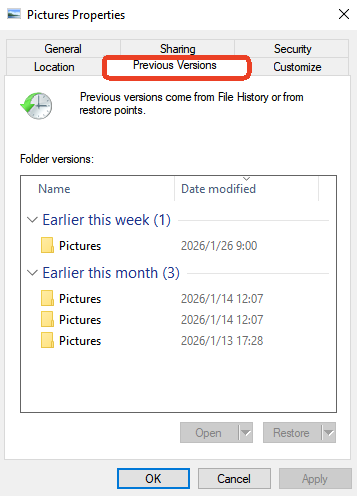
- Step 4: If a list appears, select a version dated before the deletion and click Restore.
Part 4: Comparing Your Recovery Options
When asking how do i recover items deleted from recycle bin, choosing the right tool depends on your technical comfort and the importance of the data.
| Method | Success Rate | Ease of Use | Best For… |
| Recycle Bin Restore | 100% | Very Easy | Files not yet emptied. |
| PandaOffice Drecov | Very High | Easy | Empty bin, formatted drives, or corrupted sectors. |
| File History | High | Medium | Users who set up backups in advance. |
| Windows File Recovery | Medium | Hard | Tech-savvy users looking for a free MS tool. |
| Previous Versions | Low/Variable | Easy | Quick restores if System Protection was on. |
Note: PandaOffice Drecov stands out because it doesn’t rely on pre-existing backup settings. It scans the raw data of the disk, making it the most reliable “last resort” when Windows internal logs are gone.
Part 5: How to Never Lose Data Again
Knowing how do i recover items deleted from recycle bin is vital, but preventing the loss is better. Follow these steps to build a safety net:
- Enable OneDrive/Cloud Sync: Sync your “Desktop” and “Documents” folders to the cloud. Even if you empty the bin on your PC, cloud services usually keep a “second” bin for 30 days.
- Configure File History: Connect an external drive and turn on File History in Settings > Update & Security > Backup.
- Adjust Recycle Bin Settings: * Right-click the Recycle Bin > Properties.
- Uncheck “Don’t move files to the Recycle Bin.”
- Check “Display delete confirmation dialog” to prevent accidental clicks.
- The 3-2-1 Rule: Keep 3 copies of your data, on 2 different media types, with 1 copy off-site (cloud).
How do i recover items deleted from recycle bin FAQs
1.Can I recover files if I used Shift + Delete?
Yes. When you use Shift + Delete, the file bypasses the Recycle Bin entirely. To recover it, you must use a tool like PandaOffice Drecov immediately, as the file is marked for overwriting instantly.
2.Is there a time limit for how do i recover items deleted from recycle bin?
There is no “timer,” but there is a “usage limit.” The more you use your computer, the faster those sectors get overwritten. A file could be recoverable after a year if the drive was never used, or gone in minutes if you are downloading a large game.
3.Why can’t I find my file even with recovery software?
If the file was stored on an SSD with TRIM enabled, recovery is much harder. TRIM actively wipes data from “available” sectors to maintain drive speed. In this case, immediate professional software intervention is the only hope.
4.Are there free ways to answer “how do i recover items deleted from recycle bin”?
Yes, Windows File Recovery and File History are free. However, they lack the deep-scanning GUI and preview features found in professional suites like PandaOffice Drecov.
Conclusion
In summary, if you are wondering how do i recover items deleted from recycle bin, the process starts with calm. Check your Bin, try Ctrl + Z, and look into File History. If the files are truly gone from the Windows interface, utilize a professional tool like PandaOffice Drecov to scan your disk’s architecture. Always remember: data is rarely “deleted”; it is simply waiting to be overwritten.






