







It is a feeling of pure dread. You were cleaning up your desktop, selected a mountain of “junk” files, and hit “Empty Recycle Bin” to gain some disk space. Seconds later, you realize a vital project folder was tucked inside that selection. Now, the bin icon is empty, and your stomach is doing flips. You are left asking: how do i recover files deleted from the recycle bin when the “Restore” button is gone?
Take a deep breath. You haven’t actually destroyed the data yet; you’ve only removed the pointers to it. This guide functions as your emergency manual, walking you through different “rescue scenarios” to get your data back safely.
Part 1: The Essential “First Aid” Rules
Before we get into the technical steps, you must treat your computer like a crime scene. Do not “contaminate” the evidence.
- Cease All Downloads: Every new byte you save could land on top of your deleted file.
- Avoid Web Browsing: Even browsing the web creates temporary cache files that write to your drive.
- Don’t Panic-Format: Some users think formatting or “resetting” will help; it will actually make things much worse.
Part 2: Scenario-Based Recovery Solutions
Different situations require different tools. Let’s look at the most common ways to answer the question: how do i recover files deleted from the recycle bin?
Scenario A: You Need a Powerful, “No-Fail” Professional Solution
If the files are high-stakes—such as business documents, unreplaceable photos, or system-critical EXE files—you cannot afford to mess around with manual methods that might fail. In this case, PandaOffice DRecov is the industry-standard answer.
This software is designed for everyone from office workers to “tech-illiterate” beginners. It boasts an ultra-high data recovery success rate and operates entirely locally, so your private data never touches the internet. This makes it an indispensable tool for a wide range of data loss scenarios, including:
- Accidental Desktop Deletions: Instantly retrieving files wiped from your local workspace.
- Disk Formatting Errors: Salvaging files from drives that have been completely wiped or reformatted.
- External Media Rescue: Recovering lost data from formatted or corrupted SD cards and USB flash drives.
- Sync Conflict Resolution: Reversing data loss caused by synchronization errors between your PC and the OneDrive cloud.
- Browser Metadata Recovery: Restoring lost Chrome bookmarks and other essential application data.”
How to use PandaOffice DRecov in 3 simple steps:
- 1.Select File Type & Target: Open the application. First, check the Recycle Bin box to target the search area.

- 2.Deep Scan & Preview: Click the “Scan” button. The engine will perform a forensic-level search of your drive’s sectors. Once finished, you can view the files in the preview window. This even works for “garbled” or unopenable files, as the software includes a quick-repair content feature.

- 3.Recover & Save: Simply mark the files you want back and click “Restore”. Choose a location to save them (ideally a different drive) to complete the process. No code, no complex commands—just a few clicks.
Scenario B: You Use OneDrive or Cloud Synchronization
Many modern Windows users have their “Desktop” or “Documents” folders synced to the cloud without even realizing it.
- 1.Log in to the web version of OneDrive.
- 2.Check the Online Recycle Bin on the left-hand sidebar.
- 3.Often, when you delete a file locally and empty your computer’s bin, the cloud bin keeps a copy for 30 days.
- 4.If found, simply click “Restore” to sync it back to your PC.
Scenario C: You Regularly Use Windows File History
If you have an external drive plugged in for backups, Windows might have a “snapshot” of your files.
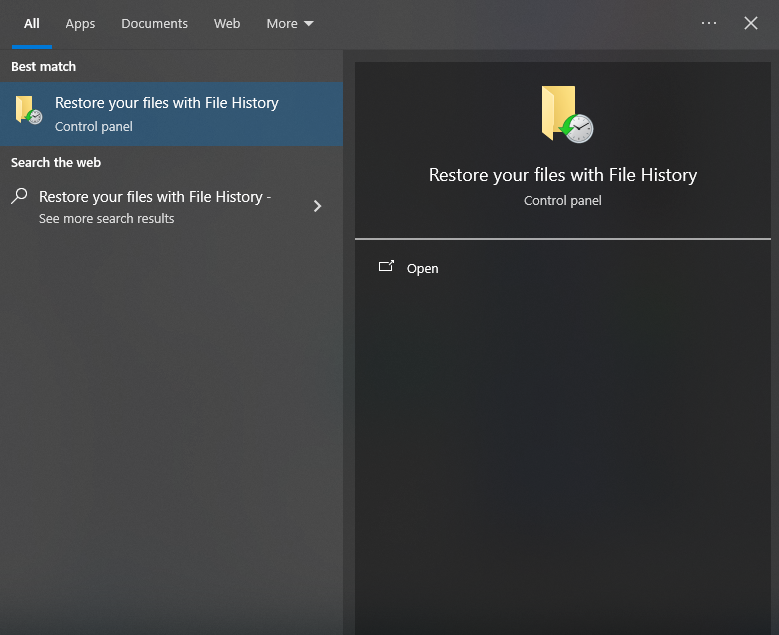
- 1.Type “Restore your files with File History” in the Windows search bar.
- 2.Browse through the library of backups by using the left and right arrows at the bottom.
- 3.Locate the folder where your deleted file used to live.

- 4.Once you find the version you need, click the green Restore button to put it back in its original place.
Part 3: Why Is Data Still There?
So, how do i recover files deleted from the recycle bin if the computer says the space is empty? Think of your hard drive like a large notebook. When you “permanently delete” a file, Windows doesn’t use an eraser to scrub the page clean. Instead, it simply goes to the Table of Contents at the front of the book and crosses out the entry.
The page itself still contains all the writing. Windows just views that page as “blank” and ready to be written over. As long as you don’t write a new “story” on that specific page, tools like PandaOffice DRecov can read the “invisible ink” and re-list the file in the Table of Contents. This is why local recovery is so fast and efficient—it is essentially just re-linking pieces of a puzzle that were never actually thrown away.
Part 4: How Do I Recover Files Deleted from the Recycle Bin FAQs
1.Can I recover files if I used “Shift + Delete”?
Yes! “Shift + Delete” simply bypasses the Recycle Bin and goes straight to the “unindexed” state. The methods mentioned above, especially PandaOffice DRecov, are specifically designed for this.
2.Does it matter if the file was on a USB stick?
Absolutely. USB sticks don’t usually have a Recycle Bin; they delete files immediately. However, the data recovery principles remain the same. The software scans the “blocks” of the USB drive to find the raw data.
3.Why do some recovered files look like gibberish?
This happens when the file was partially overwritten. This is why using a tool that supports “content repair” for unopenable files is so important.
Part 5: Conclusion
Finding yourself asking how do i recover files deleted from the recycle bin is a stressful experience, but modern technology makes it a solvable problem. By acting quickly and choosing a professional, local recovery tool, you can usually get your data back in minutes.
To avoid this in the future, consider setting up a redundant backup system (the 3-2-1 rule: 3 copies of data, 2 different media types, 1 offsite).






