







We have all experienced that moment of sheer panic. In the middle of tidying up your digital workspace, your fingers might move faster than your brain, causing a vital folder to vanish instantly. Checking the trash reveals nothing but an empty screen. This sudden loss often leads you to wonder, “how can we recover deleted files from recycle bin when everything seems to have disappeared?”
The anxiety of losing months of work or years of memories is overwhelming. However, before you give up, you should know that “deleted” in the Windows environment rarely means “destroyed.” This article acts as a masterclass in data retrieval, walking you through the underlying mechanics of your hard drive and providing specific, actionable solutions for the most common data loss nightmares.
Part 1: The Hidden Logic of Deletion
To understand how can we recover deleted files from recycle bin, we must first demystify what happens when you click “Delete.”
Your hard drive is managed by a File System (like NTFS). This system maintains a “Master File Table” (MFT), which acts like a map. When you empty the Recycle Bin, Windows does not wipe the actual data sectors. Instead, it simply marks the file’s space as “Available” in the MFT. The data remains physically present on the disk—hidden and silent—until new data is saved over it. This is why immediate action is the most critical factor in successful recovery.
Part 2: Four Scenarios and Their Targeted Solutions
The path you take depends entirely on how the data was lost. Let’s explore the four primary scenarios that lead users to ask: how can we recover deleted files from recycle bin?
Scenario 1: Accidental Emptying
The Case: You are tidying up your desktop. You drag a batch of old files to the bin and immediately right-click to “Empty Recycle Bin.” Seconds later, you realize a critical project file was accidentally included in that batch.
The Solution: Professional Restoration with PandaOffice Drecov
When the bin is manually emptied, the internal Windows “Restore” links are severed. You need a specialized tool that can scan the drive’s raw sectors to find “orphaned” files.
- Step 1: Stop Activity. Do not download any new files or restart your computer, as this could overwrite the “Available” space.
- Step 2: Install the Tool. Download and install PandaOffice Drecov on a separate drive (like a USB stick) to keep the target drive “clean.”
- Step 3: Target the Scan. Open the software. On the main interface, select the Recycle Bin icon under the “Quick Access” menu or simply select the C: Drive.

- Step 4: Execute Deep Scan. Click Scan. The engine will search for file signatures that match your deleted items.

- Step 5: Preview and Recover. Once the results appear, use the filter to find your specific file type. Preview the file to ensure it is intact, then click Recover to save it to an external device.
Scenario 2: Shift + Delete Command
The Case: You used the Shift + Delete shortcut to bypass the Recycle Bin and save time. Unfortunately, you selected the wrong folder, and the data never even touched the “holding area” of the trash.
The Solution: Windows File History (The Backup Route)
If you are wondering how can we recover deleted files from recycle bin when the file never went there in the first place, File History is your best bet.
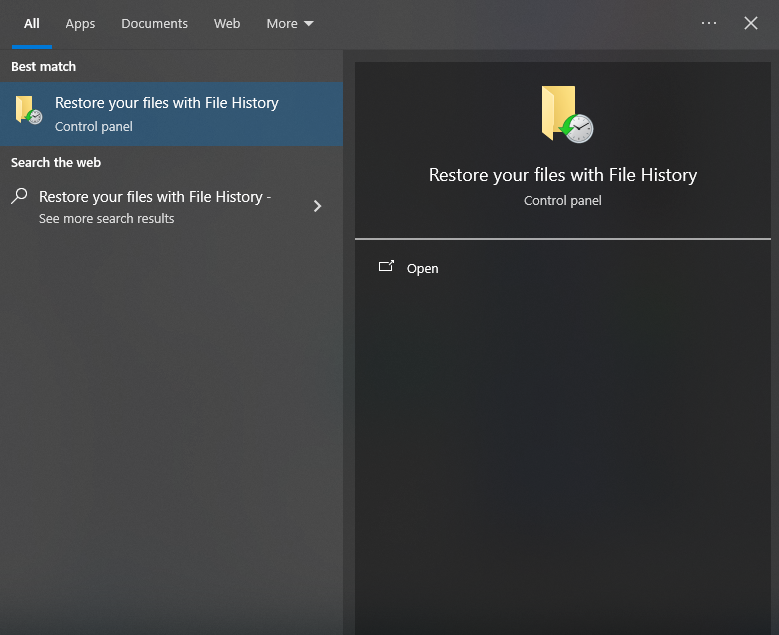
- Step 1: In the Windows search bar, type “Restore your files with File History.”
- Step 2: Navigate to the folder where the file was originally stored.
- Step 3: Use the navigation arrows at the bottom to find a version of the folder from earlier in the day.

- Step 4: Select the missing items and click the green Restore button.
Scenario 3: Automatic Cleanup (Storage Sense or 3rd-Party Apps)
The Case: You didn’t delete anything today, but Windows “Storage Sense” or a cleaning utility like CCleaner ran its scheduled task and purged your Recycle Bin automatically to save space.
The Solution: Previous Versions (Shadow Copies)
When automated tools purge your data, Windows often keeps “Shadow Copies” as part of its system protection.
- Step 1: Right-click the folder that contained the deleted file (or the Recycle Bin’s parent drive).
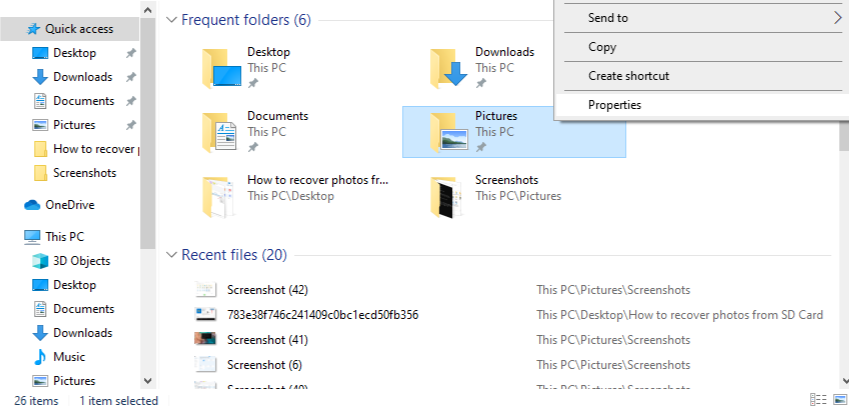
- Step 2: Select Properties and click the Previous Versions tab.
- Step 3: Look for a folder version dated before the cleanup occurred.
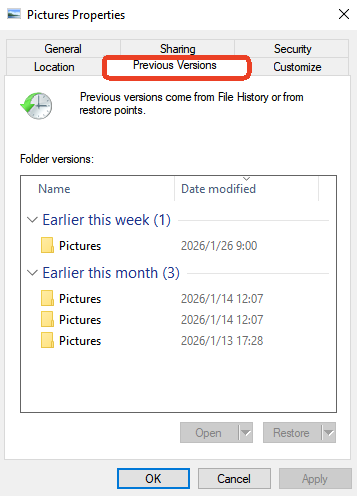
- Step 4: Click Open to confirm the file is there, then select Restore to bring it back.
Scenario 4: File Corruption (The Inaccessible Bin)
The Case: You try to open the Recycle Bin to restore a file, but you get an error message saying the bin is “Corrupted” or it simply appears empty despite you knowing files were inside.
The Solution: Command Prompt (CMD) Reset & PandaOffice Drecov
In this technical scenario, the “map” to the bin is broken. You must repair the bin or bypass the system entirely.
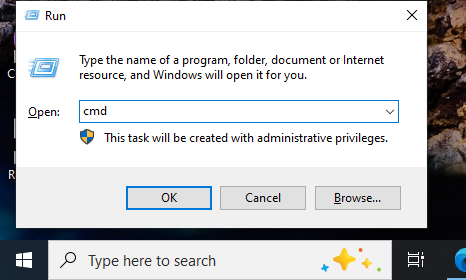
- Step 1: Search for CMD, right-click it, and select Run as Administrator.
- Step 2: Type the command
rd /s /q C:\$Recycle.binand hit Enter. This resets the bin’s structure. - Step 3: If the files do not reappear after the reset, the logical links are likely gone.
- Step 4: Launch PandaOffice Drecov. Because the tool reads data at the hardware level, it ignores the “Corruption” errors of the Windows OS and pulls the files directly from the disk clusters.
Part 3: Method Comparison Table
When evaluating how can we recover deleted files from recycle bin, use this table to choose your strategy:
| Feature | PandaOffice Drecov | Windows File History | CMD Reset |
| Success Rate | Very High | High (if enabled) | Low |
| Ease of Use | Simple / Guided | Moderate | Technical |
| Best For… | Emptied/Corrupted Bins | Pre-planned Backups | System Errors |
| Preview Files | Yes | Yes | No |
| Requirement | None | External Backup Drive | Admin Rights |
PandaOffice Drecov is the most versatile solution because it works reactively. While File History requires you to have set it up before the disaster, Drecov can find data even if you had no backup plan in place.
PandaOffice Drecov is engineered to scan the ‘hidden shelves’ of your hard drive, reconstructing file headers that the operating system no longer recognizes. This deep-level restoration capability makes it an indispensable asset for a wide range of data loss scenarios, including:
- Accidental Desktop Deletions: Instantly retrieving files wiped from your local workspace.
- Disk Formatting Errors: Salvaging files from drives that have been completely wiped or reformatted.
- External Media Rescue: Recovering lost data from formatted or corrupted SD cards and USB flash drives.
- Sync Conflict Resolution: Reversing data loss caused by synchronization errors between your PC and the OneDrive cloud.
- Browser Metadata Recovery: Restoring lost Chrome bookmarks and other essential application data.”
Part 4: Preventive Measures
Knowing how can we recover deleted files from recycle bin is a vital skill, but preventing the need for recovery is even better.
- Adjust Storage Sense: Go to Settings > System > Storage and change “Empty Recycle Bin” to “Never” or “60 days.”
- Use the 3-2-1 Backup Rule: Keep three copies of your data (Original, Local Backup, Cloud).
- Enable System Protection: Ensure your C: drive has “System Protection” ON to create automatic shadow copies.
How can we recover deleted files from recycle bin FAQs
1.How can we recover deleted files from recycle bin on an SSD?
SSDs use the TRIM command, which proactively erases data sectors. To recover from an SSD, you must shut down the PC immediately and use PandaOffice Drecov to scan before the TRIM command executes.
2.Will my files still have their original names?
Usually, yes. However, if the file system is heavily corrupted, tools may recover files with generic names (e.g., FILE001.jpg). PandaOffice Drecov includes a preview feature so you can identify these files by their content.
3.How can we recover deleted files from recycle bin on a USB or SD card?
Windows does not create a Recycle Bin for external drives; deletions are immediate. To get these files back, connect the device to your PC and use PandaOffice Drecov to scan the external partition, as native Windows “Restore” options are not available for removable media.
Conclusion
Losing data is a stressful experience, but as we have shown, there are multiple ways to answer the question: “how can we recover deleted files from recycle bin?” Whether you face a simple accidental emptying or a complex file corruption, tools like PandaOffice Drecov and built-in Windows features provide a powerful safety net. Always act fast, stop writing new data, and choose the method that fits your specific scenario.






