







It happens to the best of us. You are clearing out old project files, your mouse slips, or perhaps a sudden sync error occurs, and suddenly, a crucial folder vanishes. You check your local desktop—gone. You check your laptop—gone. That sinking feeling in your stomach is universal.
I recently spoke with a freelance graphic designer, Sarah, who accidentally deleted a “Client Assets” folder containing three months of work. She thought because it was “in the cloud,” it was gone forever once it disappeared from her screen. But here is the good news: in the digital world, “deleted” rarely means “destroyed” immediately.
If you are panicking about how to recover deleted OneDrive folder files, take a deep breath. As a data recovery specialist, I am here to walk you through the process, from the “hidden” safety nets Microsoft provides to professional-grade rescue tools.
Part 1: What is OneDrive and Why Do Folders Vanish?
Understanding Your Digital Backpack
Microsoft OneDrive is essentially a “digital backpack” that follows you across different computers. When you save a file there, it doesn’t just sit on your hard drive; it mirrors itself onto Microsoft’s massive secure servers. This synchronization is its greatest strength, but also its “Achilles’ heel.” If you delete a folder on your phone, the command tells the cloud to delete it everywhere else, too.
Common Scenarios for Needing a Folder Rescue
Before we dive into how to recover deleted OneDrive folder data, let’s look at why this happens:
- Accidental Selection: Selecting a parent folder instead of a sub-folder and hitting
Shift + Delete. - Sync Conflicts: Two devices trying to update the same folder simultaneously, leading to a “disappearing” act.
- Shared Folder Mishaps: Someone else with “Edit” permissions deletes a folder you shared with them, removing it from your view as well.
- Account Expiration: If a subscription lapses, folders might become inaccessible or flagged for removal.
Part 2: The “Library” Metaphor: How Data Recovery Actually Works
To understand how to recover deleted OneDrive folder contents, imagine your OneDrive is a massive library.
The Index Card System
When you “delete” a folder, the computer doesn’t immediately shred every page of the books inside. Instead, it just goes to the Library Index Card and scribbles out the entry.
- The Books (Your Data): They are still sitting on the shelf in the back.
- The Index (The File System): It simply tells the computer, “This spot is now empty; feel free to put new books here.”
As long as you don’t save new large files (putting new books on that specific shelf), the old data remains perfectly intact. This is why the first rule of data recovery is: Stop using the device immediately. The less you write to the disk, the higher the chance of a 100% successful recovery.
Part 3: Step-by-Step Guide: How to Recover Deleted OneDrive Folder
We will move from the simplest “built-in” fixes to more advanced professional solutions.
Method 1: The First Line of Defense – The OneDrive Recycle Bin
OneDrive has its own internal “trash can” that keeps files for 30 days (for personal accounts) or 93 days (for school/work accounts).
- Step 1: Go to the and sign in.
- Step 2: On the left-hand navigation pane, click on Recycle bin.
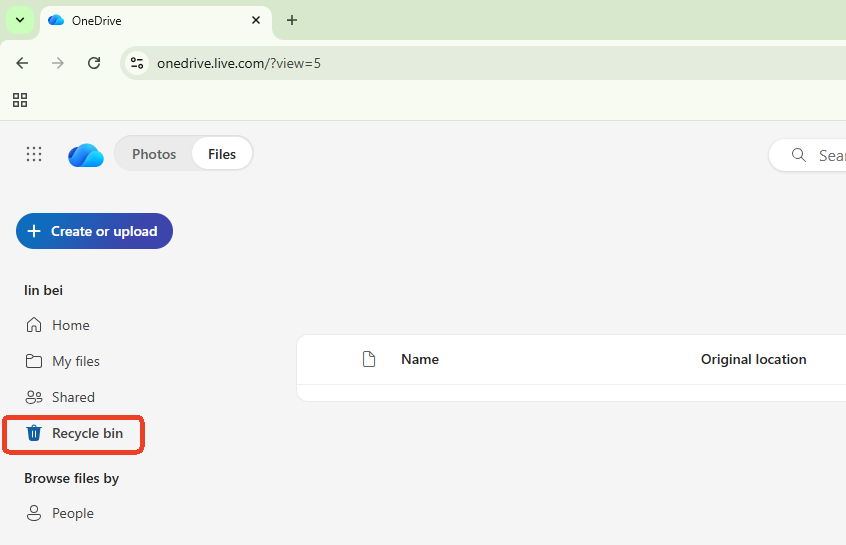
- Step 3: Browse for your missing folder. Use the search bar if you have a lot of deleted items.
- Step 4: Select the folder and click Restore at the top of the page.
Expert Tip: If you don’t see your folder here, check the “Second-stage recycle bin” link at the bottom of the page. This is a “hidden” safety net for items deleted from the primary bin!
Method 2: The Professional Choice – PandaOffice Drecov
If the Recycle Bin is empty or the 30-day limit has passed, you need a specialized tool that can read those “books on the shelf” we talked about earlier. This is where PandaOffice Drecov shines. It is designed to bypass the operating system’s “index” and look directly at the raw storage bits.
Why choose PandaOffice Drecov?
Unlike standard tools, Drecov is optimized for cloud-synced local directories. It understands how OneDrive structures its local cache, making the process of how to recover deleted OneDrive folder data much more reliable.This makes it an indispensable tool for a wide range of data loss scenarios, including:
- Accidental Desktop Deletions: Instantly retrieving files wiped from your local workspace.
- Disk Formatting Errors: Salvaging files from drives that have been completely wiped or reformatted.
- External Media Rescue: Recovering lost data from formatted or corrupted SD cards and USB flash drives.
- Sync Conflict Resolution: Reversing data loss caused by synchronization errors between your PC and the OneDrive cloud.
- Browser Metadata Recovery: Restoring lost Chrome bookmarks and other essential application data.”
Important: Install it on a different drive (like a USB stick) than the one where the OneDrive folder was located to avoid overwriting data.
Step-by-Step Recovery with PandaOffice Drecov:
- Step 1: Select Location. Launch the software. You will see a list of drives. Select your
C:drive (or wherever your OneDrive folder was synced locally).

- Step 2: Deep Scan. Click the “Scan” button. Drecov will perform a “Deep Scan,” searching for those missing “Index Cards” we discussed.

- Step 3: Filter by Path. Once the scan is complete, use the search filter. Type “OneDrive” or the specific folder name.

- Step 4: Preview and Save. Drecov allows you to preview files inside the folder before recovering. Select the folder and click Recover. Save the files to an external drive.
Method 3: Rolling Back Time – OneDrive “Restore Your OneDrive”
Microsoft provides a “Time Machine” feature for Microsoft 365 subscribers. This is incredibly helpful if a virus or accidental mass-deletion occurred.
- Step 1: Log in to OneDrive on the web.
- Step 2: Click the Settings (Gear Icon) at the top right, then select Options.
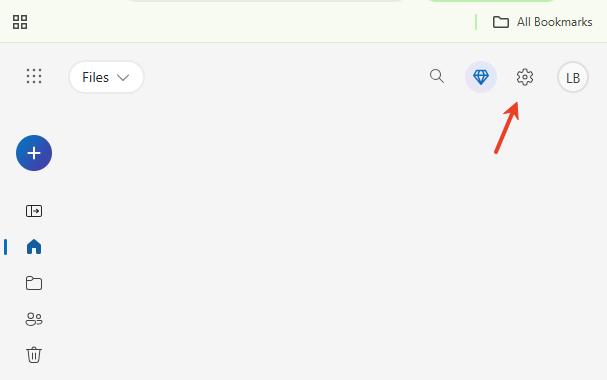
- Step 3: Click Restore your OneDrive from the sidebar.
- Step 4: Select a date (e.g., “Yesterday” or a “Custom date and time”).
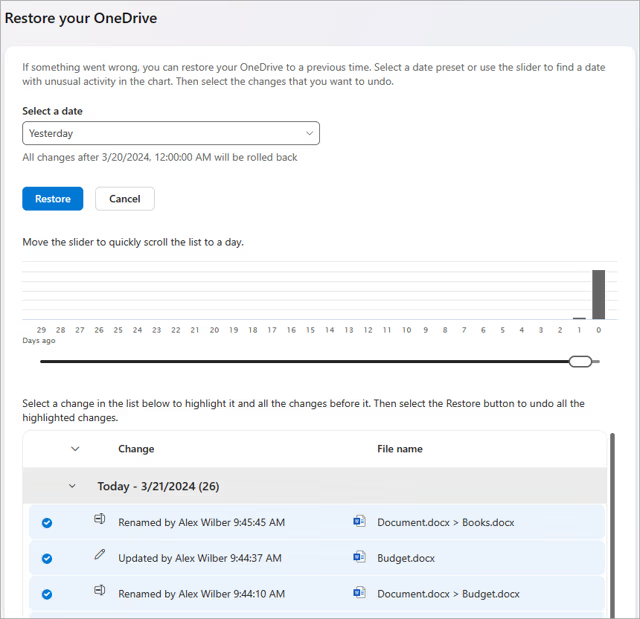
- Step 5: Use the chart to see when the big deletion happened, then click Restore.
Warning: This method is a “roll back.” It will return your entire OneDrive to that specific point in time, meaning any new files you created after that time will be removed. Back them up first!
Method 4: Checking Local “Shadow” Copies
Windows often creates “System Restore” points or “File History” backups without you even noticing. If your OneDrive folder was synced to your PC, a ghost version might still exist.
- Step 1: Navigate to the parent folder where your deleted folder used to live (usually
C:\Users\YourName\). - Step 2: Right-click the
OneDrivefolder and select Properties. - Step 3: Click the Previous Versions tab.
- Step 4: If Windows has a backup, you will see a list of dates. Select a version from before the deletion and click Restore.
Part 4: How to Prevent Future OneDrive Data Loss
As the old saying goes, “An ounce of prevention is worth a pound of cure.” While knowing how to recover deleted OneDrive folder data is a lifesaver, setting up a digital safety net ensures you never have to panic again. Here are the professional configurations I recommend:
1. Enable Windows File History
OneDrive syncs your files, but Windows File History creates a local “snapshot” of them. Even if a folder is deleted from the cloud and the online bin, you can pull a copy from your local external drive.
- Go to Settings > Update & Security > Backup and toggle on “Automatically back up my files.”
2. Lock Important Folders with “Personal Vault”
For your most sensitive data, use the OneDrive Personal Vault. It requires a second layer of authentication (like a fingerprint or code) and has stricter deletion safeguards.
3. Use the “Always Keep on This Device” Setting
By default, OneDrive uses “Files On-Demand” to save space. However, this means if the cloud link breaks, the file isn’t physically on your PC.
- Action: Right-click your most important folders and select “Always keep on this device.” This ensures that tools like PandaOffice Drecov have local data to “grab” if a sync error occurs.
4. Set Up Regular Cloud-to-Cloud Backups
Professional users often use a secondary backup service to copy their OneDrive data to another cloud (like Google Drive or Dropbox) or a NAS (Network Attached Storage). This creates a “redundant” backup that is independent of your Microsoft account.
OneDrive Recover Deleted Files FAQs
1. Can I recover a folder if I don’t have a Microsoft 365 subscription?
Yes. You can use the standard Recycle Bin or professional software like PandaOffice Drecov. The “Restore Your OneDrive” (time-travel) feature, however, is exclusive to paid subscribers.
2. Does “Shift + Delete” bypass the OneDrive Recycle Bin?
On your local computer, yes. If you Shift + Delete a folder inside the OneDrive local folder, it often bypasses the local bin. However, it usually still goes to the web-based OneDrive Recycle Bin. If it’s missing from both, PandaOffice Drecov is your only remaining option.
If you are the owner, it goes to your Recycle Bin. If they were the owner and you just had access, it is in their Recycle Bin. You will need to ask them to restore it.
4. How long do I have before the data is gone forever?
On the cloud, 30 days. On your hard drive (using recovery software), it depends on how much you use the computer. If you keep downloading new games or movies, you might overwrite the deleted folder within hours.
Conclusion
Knowing how to recover deleted OneDrive folder data is a vital skill in our cloud-centric world. To summarize: always check your online Recycle Bin first. If you are a subscriber, consider the “Restore” rollback feature. But for those high-stakes situations where the bin is empty and time is of the essence, a dedicated tool like PandaOffice Drecov provides the deep-scanning power needed to pull your data back from the brink.
Moving forward, remember the “3-2-1 Backup Rule”: 3 copies of your data, on 2 different media, with 1 copy off-site (the cloud). Don’t let OneDrive be your only backup!






