







As a creator focused on digital storage solutions, I know the panic that strikes when an SD card fails. This small, powerful device is the heartbeat of your camera, phone, or drone, and losing data—whether due to corruption, accidental formatting, or deletion—can feel catastrophic.
Fortunately, success in SD card data recovery is often achievable. This guide will walk you through the essential steps, explain why your files are still reachable, and provide an unbiased review of the best SD card recovery software available today, helping you choose the right tool for the job.
Understanding SD Card Data Loss
When you delete a file on your SD card, the system doesn’t erase the file’s contents; it merely alters the file system table. It marks the space as “free” and available for new data. The file remains intact until a new file is written over that specific sector.
- The Crucial Insight: Recovery is possible because the data still physically exists.
- The Golden Rule: To ensure the highest SD card data recovery success rate, stop using the card immediately and do not save any new files to it. Use a dedicated card reader to connect it to your computer for scanning.
Reviews of the Best SD Card Recovery Software
Selecting the right software is the most critical decision. The best tools combine powerful scanning algorithms with user-friendly interfaces. Here, we analyze three top-tier programs, offering both their strengths and limitations.
1. PandaOffice Drecov: The High-Success, User-Friendly Option
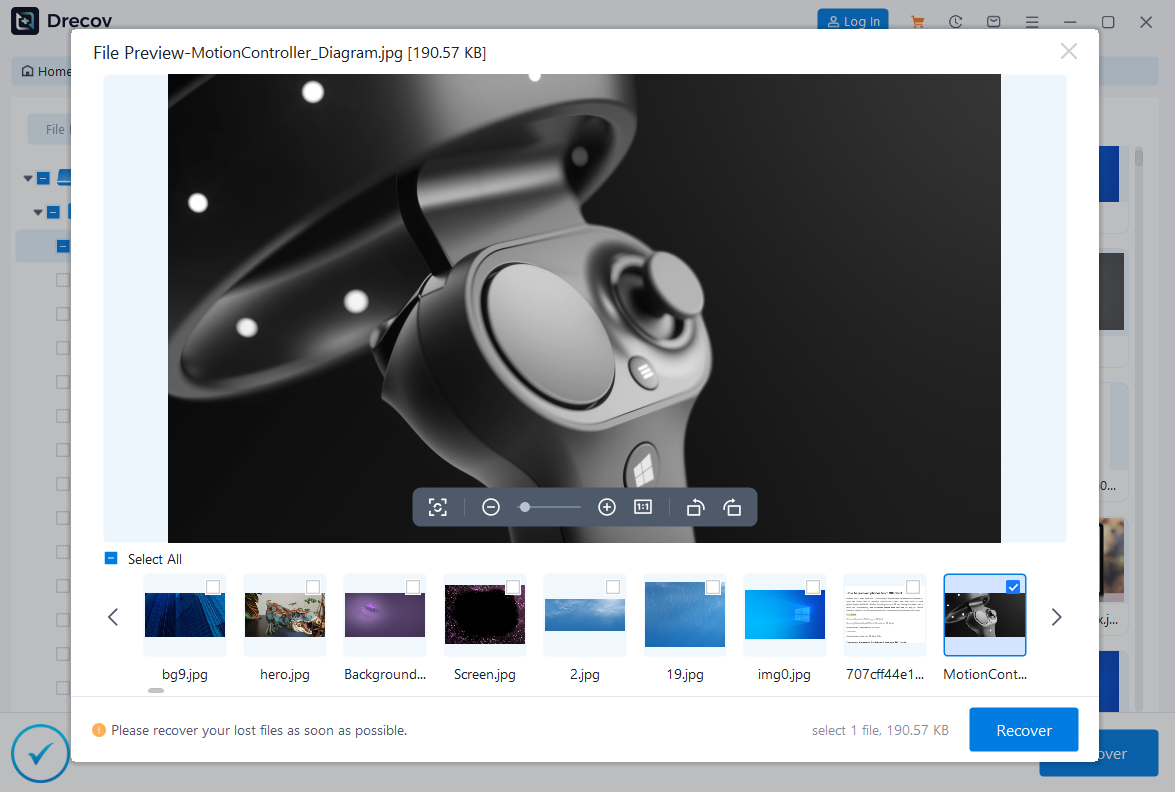
PandaOffice Drecov stands as a professional-grade data recovery software, focusing on delivering efficient, secure, and user-friendly data retrieval services. Whether dealing with routine file loss or complex storage device failure, Drecov utilizes its powerful algorithms and streamlined operational flow to help users recover lost data easily.
👍 Strengths:
- High Success Rate Guarantee: The software employs industry-leading deep scanning algorithms, which allows it to thoroughly search every sector of a storage device, ultimately achieving an extremely high recovery success rate.
- Technical Mechanism: It manages to bypass logical errors at the file system level. Instead, it directly analyzes the underlying data structure and file signatures. Significantly, this capability proves crucial when processing formatted or severely damaged SD cards.
- Broad Device and Scenario Support: PandaOffice Drecov functions not only as a powerful SD card data recovery tool but also extends its capability to virtually all storage media and data loss scenarios.
| Supported Devices | Supported Loss Scenarios |
| External Storage | Accidental Deletion |
| SD/Memory Cards | Formatting |
| HDD/SSD | Lost/Damaged Partition |
| USB Flash Drives | System Crash |
| Digital Cameras/Drones | Virus Attack |
| Other Mobile Storage | Unknown Errors |
- Powerful File Compatibility. Drecov supports the recovery of over 300 different file formats, ensuring users can comprehensively retrieve their essential data:
- Image/Photo: It supports all mainstream formats, including JPEG, PNG, GIF, as well as professional camera RAW files (e.g., CR2, NEF, ORF).
- Video: It handles MP4, MOV, AVI, WMV, and high-definition/ultra-high-definition (4k/8k) video files.
- Document: It supports the Microsoft Office suite (DOC/DOCX, XLS/XLSX, PPT/PPTX) and PDF files.
- Others: This includes audio files, compressed archives (ZIP, RAR), and email files.
- Non-Destructive Read-Only: The software only performs “read-only” operations during the scanning process. This means it absolutely does not write any data back to the original SD card or storage media, thereby guaranteeing that the recovery attempt will not cause secondary damage or overwriting of the lost data.
- Recovery Preview: It allows users to preview files before recovery. Consequently, this ensures file integrity and verifies the correct version before saving, avoiding wasted time on corrupted or incorrect files.
🔍 Limitations:
- Advanced Features: It lacks some advanced features found in professional tools, such as RAID recovery and advanced data reconstruction algorithms.
PandaOffice Drecov provides comprehensive, user-focused, and highly efficient data recovery. Its wide compatibility with various storage devices, powerful file format support, and core design philosophy of “high success rate and ease of operation” make it a reliable choice for users seeking to recover data from SD cards and other storage media.
2. UFS Explorer: The Professional File System Specialist
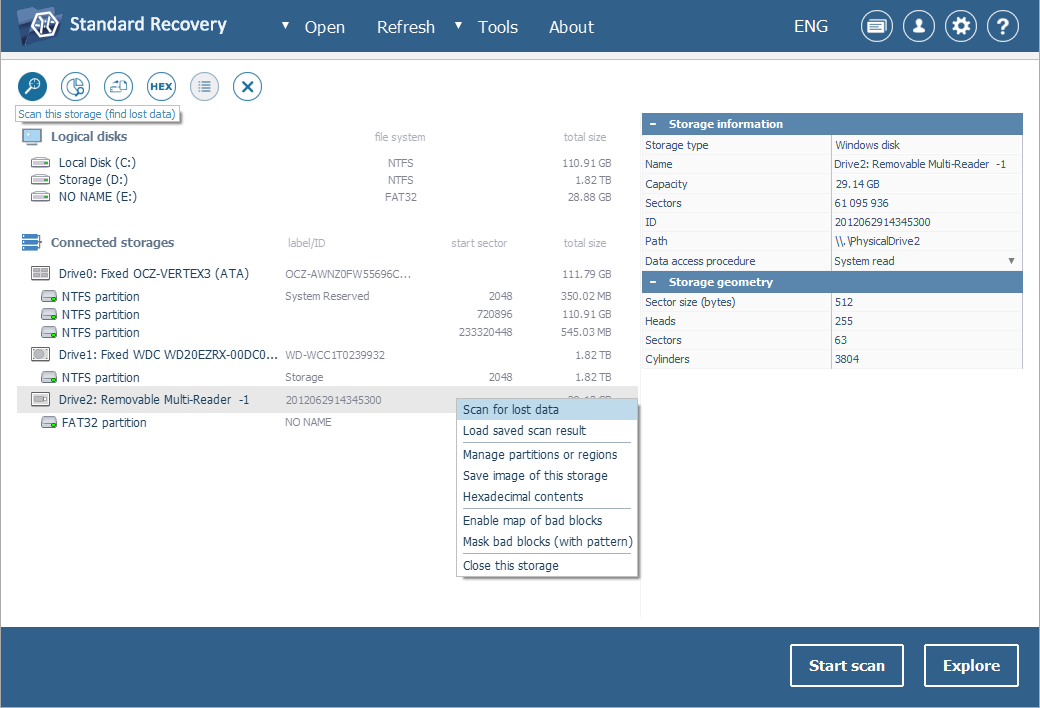
UFS Explorer is a powerful, professional tool known for its exceptional support for various file systems and complex storage setups, making it a favorite among data recovery technicians.
👍 Strengths:
- File System Depth: Outstanding capability in handling non-standard file systems often found on specialized SD cards or external devices (e.g., Linux partitions, uncommon RAID setups).
- Virtual Disk Support: Excellent for working with disk images and virtual disks, allowing for recovery without touching the physical card.
- Reliability: Highly regarded for its ability to reconstruct corrupted file system structures reliably.
🔍 Limitations :
- Price and Complexity: It carries a premium price tag and its interface is technical, requiring a steep learning curve not suitable for casual users.
- Overkill for Simple Loss: Its powerful features are often unnecessary for simple accidental deletions from an SD card.
3. PhotoRec: The Open-Source Power Duo
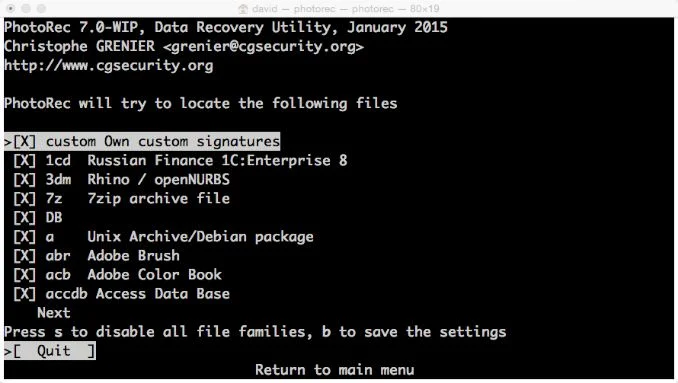
This is a combination of one free, open-source utilities. PhotoRec specializes in media file recovery by ignoring the file system and searching for file headers.
👍 Strengths:
- Cost: Completely free and open-source with no recovery limits.
- Effectiveness: PhotoRec is incredibly effective at recovering photos and videos by signature scanning, even from badly damaged media.
🔍 Limitations:
- Command Line Interface (CLI): This tools primarily use a command-line interface, which is highly intimidating and inaccessible for most users accustomed to graphical environments.
- File Names Lost: PhotoRec often recovers files with generic names (e.g., file0001.jpg), making sorting and identifying recovered data a manual chore.
4.Recuva: The Reliable Free Option
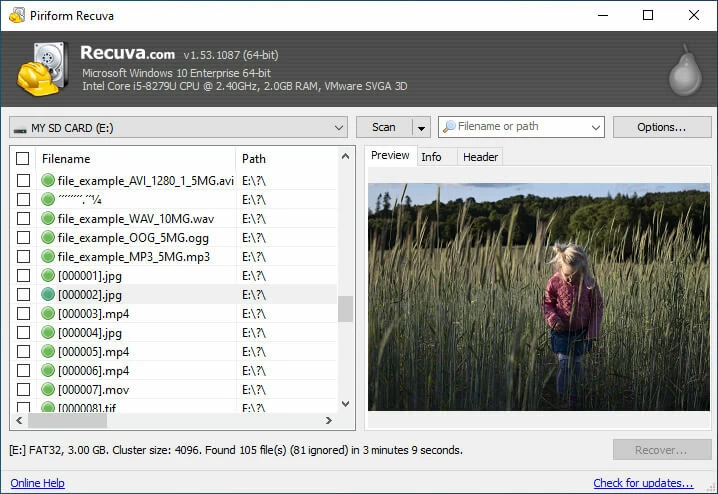
Recuva is a widely popular tool, primarily known for its powerful free version, making it an excellent starting point for simple deletions.
👍 Strengths:
- Cost: The free version offers unlimited data recovery for common formats, making it highly accessible.
- Lightweight and Fast: Installs quickly and offers very fast scan times for recently deleted files.
- Portability: Can be run as a portable application, avoiding installation on the drive being recovered.
🔍 Limitations :
- Deep Scan Power: The Deep Scan mode is less comprehensive than premium tools like Disk Drill or pandaoffice drecov when dealing with severe corruption or formatting.
- Last Updated: Updates are less frequent than paid competitors, which can affect performance on newer file systems or operating systems.
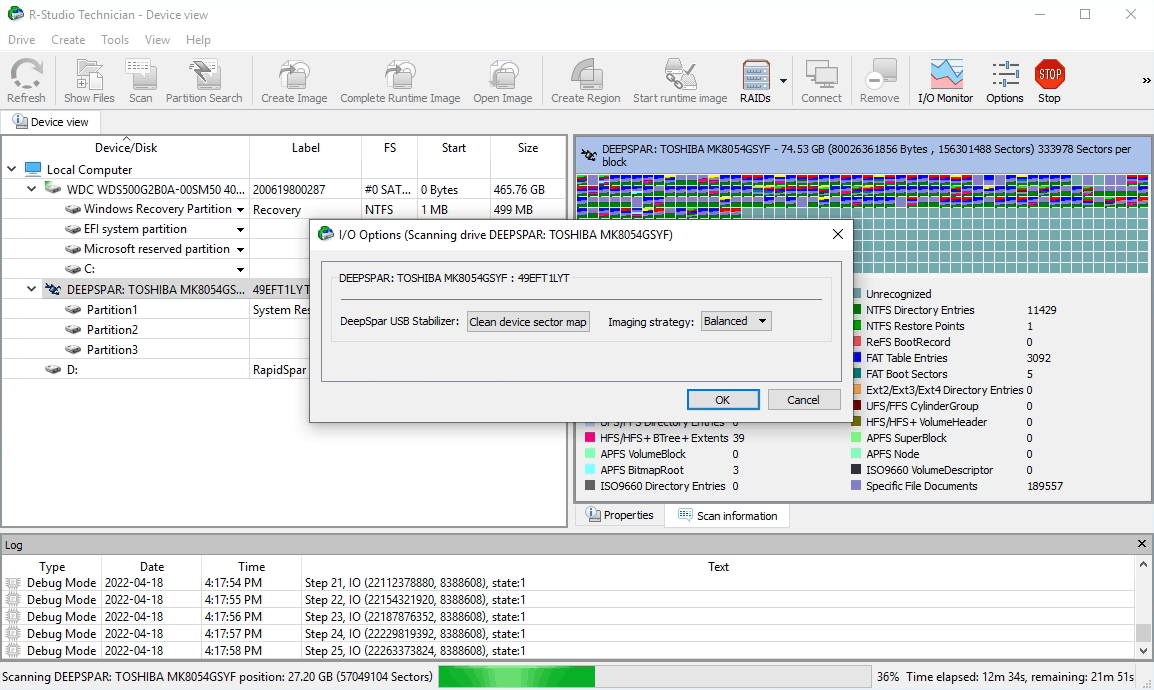
5. R-Studio: The Technical Expert
R-Studio offers professional-grade capabilities, primarily targeting IT experts, data recovery specialists, and, consequently, users who are comfortable handling complex settings.
👍 Strengths:
- Raw File Recovery: Unparalleled performance in recovering raw data from severely damaged, repartitioned, or unusual file systems.
- Network Recovery: Capable of recovering data from remote computers over a network—ideal for corporate environments.
- Flexibility: Offers advanced disk imaging and RAID reconstruction features.
🔍 Limitations :
- User Interface: The interface itself is complex and highly technical. Consequently, we do not recommend this software for novice users, since its steep learning curve and the potential risk of incorrect settings often challenge beginners.
- Price: It is one of the most expensive options, designed for professional use rather than casual home recovery.
Comparison Snapshot
To help you decide which SD card recovery software is right for your situation, use this quick, feature-focused comparison:
| Feature | PandaOffice Drecov | UFS Explorer | R-Studio | PhotoRec / TestDisk | Recuva |
| Ease of Use (UX) | Easiest (3-Step GUI) | Complex | Very Complex | Command Line (Difficult) | Easy |
| Recovery Focus | Accidental Deletion, Formatting | File System/Partition Repair | Advanced Raw Data | Media Signature Scanning | Simple Deletion |
| Success Rate Claim | 99.8% | High, Technical | Extremely High | High for Media Files | Moderate |
| Core Advantage | Best for Average User/High Success Rate | Multi-File System Support | Network/RAID Recovery | Free, Effective Media Scan | Free, Fast Simple Scan |
| Cost | Free Scan | Paid (High) | Paid (Very High) | Free | Free/Paid Pro |
The SD Card Data Recovery Roadmap
Once you’ve chosen your software, follow this universal, non-destructive process to ensure the highest chance of retrieving your files:
- Prep & Connect: Securely connect the problematic SD card via a USB reader.
- Install Safely: Install your chosen data recovery software onto your computer’s main hard drive (e.g., C: drive), never onto the SD card you plan to scan.
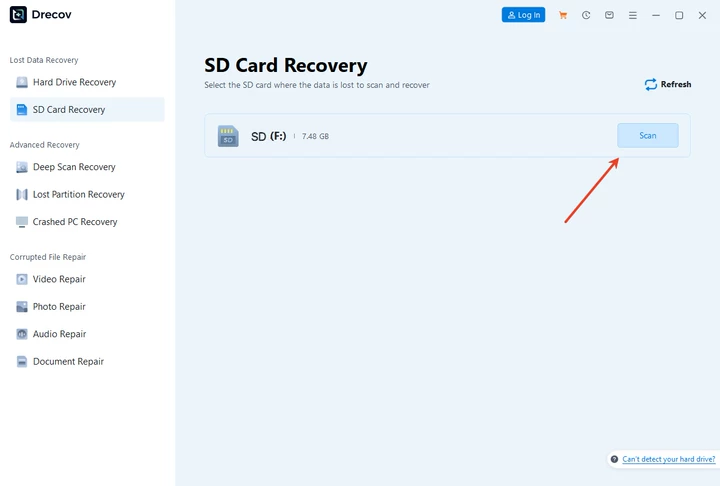
- Scan Mode Selection: Launch the software, select the SD card drive letter, and choose the most thorough scan option for best results.
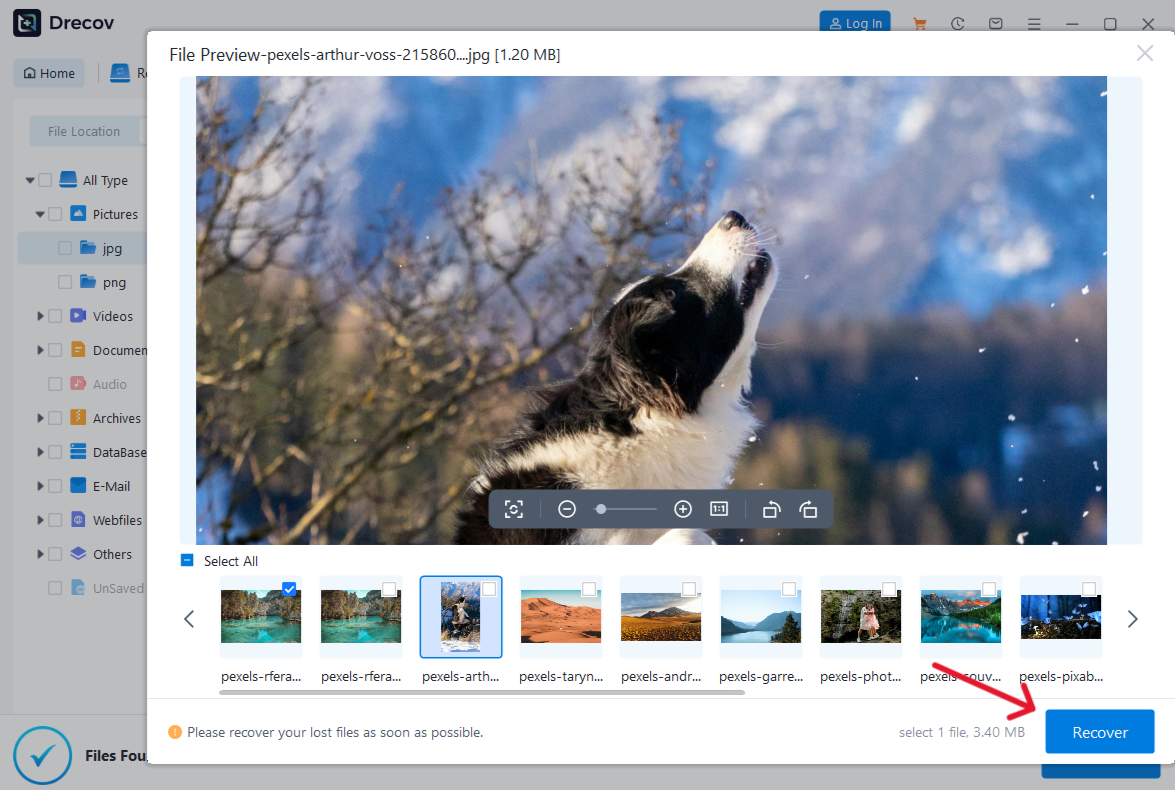
- Preview and Verify: Once the scan is complete, use the software’s preview function to check the integrity of the recovered files before proceeding.
- Safe Recovery: Select the desired files and click “Recover.” Crucially, save the recovered files to a completely different location (like your computer’s Desktop or a separate external drive), ensuring you do not write them back onto the source SD card.
Frequently Asked Questions About SD Card Data Recovery
As an expert, I often encounter the same questions regarding SD card data recovery. Here are five common scenarios:
Is it possible to recover files after formatting the SD card?
Yes, in most cases, especially if a Quick Format was performed. Quick Formatting only clears the file system table, leaving the data physically untouched. Tools like Disk Drill and PandaOffice Drecov specialize in scanning the card sector-by-sector to rebuild the file structure.
Why does the recovered file show as corrupted or damaged?
A file becomes corrupted if the area it occupied on the SD card was partially overwritten by new data before recovery. This partial overwriting damages the file’s structure. In this case, specialized software like Stellar Data Recovery, which includes repair functions, may offer a solution.
How long does the SD card data recovery process take?
The duration depends on the card’s capacity and the chosen scan type. A Quick Scan on a 64GB card might take minutes. A Deep Scan (or Raw Scan) on a 256GB card can take anywhere from 30 minutes to several hours. Always ensure your computer doesn’t go to sleep during this process.
My computer prompts me to “Format the disk.” Should I do it?
NO. This prompt usually means the file system is corrupted. Formatting may make the recovery process more difficult by creating a new file structure, even if the data remains. Immediately cancel the prompt and use the data recovery software to access the card directly.
Can software recover data if the SD card is physically broken (e.g., snapped)?
No. SD card data recovery software can only solve logical problems (corruption, deletion). If the card is physically damaged (e.g., cracked, water damaged, bent pins), the internal chips cannot be read by a standard reader. You would need to consult a specialized, high-cost cleanroom data recovery lab.
Conclusion
Navigating the world of SD card data recovery requires a methodical approach, but the tools available today make success highly probable for common data loss scenarios.The fundamental truth and keys remains:
- speed and prevention: Immediately ceasing use of the card and selecting a reliable, non-destructive tool are your best defenses.
- Be Patient: Deep scans take time. Do not interrupt the process, especially for large capacity cards.
- Prevent Future Loss: Always back up files immediately after creation. Consider using multiple copies (e.g., on your PC and in the cloud) to mitigate the need for data recovery software in the future.
For the everyday user seeking the highest chance of success with maximum simplicity, PandaOffice Drecov offers an excellent balance of claimed high success rate and user-friendly design. Ultimately, by understanding the principles of data loss and using the right software, you can turn a moment of panic into a successful retrieval of your valuable memories and files.






