







Have you ever experienced that sinking feeling when you accidentally delete an important document, a cherished photo album, or a critical work file on your brand-new Windows 11 PC? You might hit the “Delete” key or empty your Recycle Bin, only to realize seconds later that the file is gone. In fact, file loss is a surprisingly common occurrence on the Windows 11 system, often stemming from human error, corrupted updates, or even sudden system crashes. Consequently, you are probably wondering: are those files truly gone forever, or is there a way to bring them back?
This comprehensive guide walks you through the fundamental science behind file recovery and provides five reliable methods, ensuring you know exactly how to recover deleted files Windows 11.
The Science Behind File Recovery
Crucially, when you delete a file on Windows 11, the operating system does not immediately wipe the data from your hard drive (HDD) or solid-state drive (SSD). Instead, the system simply marks the space occupied by the file as “available” for new data. It removes the file’s index entry from the file system table, making it invisible to you.
Therefore, before this available space is overwritten by new files or applications, the original data remains physically intact on your drive. This means that as long as the space has not been reused, you have a high probability of successful recovery. Understanding this principle is the first step in learning how to restore those lost files effectively.
Essential Precautions and 5 Recovery Methods
📌 Core Precaution: Stop!
The single most important factor in file recovery success is time.
- STOP All Operations: Immediately stop using the drive or partition where the file was deleted. Do not install new software, download files, or save any documents. Any write operation risks overwriting the lost data.
- Act Promptly: The sooner you attempt recovery, the better your chances are. Consequently, if you cannot recover the file using built-in Windows tools, move quickly to dedicated recovery software.
Five Methods to Recover Deleted Files Windows 11
Method 1: The Simple Check – Recycle Bin
This is the first and easiest place to check when files vanish from your Windows 11 desktop or folders.
- Step 1: Double-click the Recycle Bin icon on your Windows 11 desktop. Browse or use the search bar within the Recycle Bin window to locate the file you deleted.
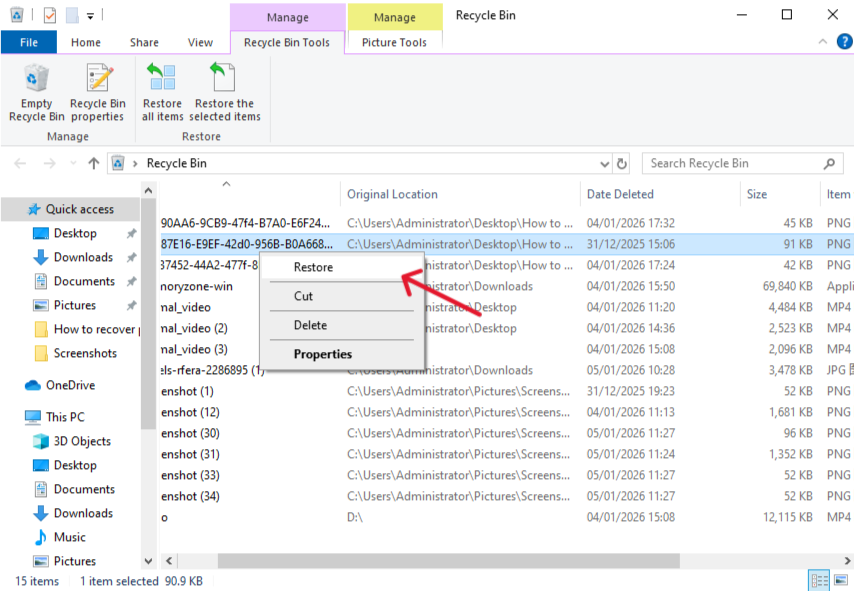
- Step 2: Right-click the desired file and select “Restore.”
- Step 3: Upon restoration, the file returns to its original location.
Method 2: Professional Solution – pandaoffice drecov data recovery software
When the Recycle Bin fails or the files were permanently deleted (e.g., using Shift + Delete), a dedicated third-party tool is your next best option for how to recover deleted files Windows 11.
Key Features: PandaOffice Drecov is a powerful application known for its deep scanning and high recovery rate. It’s also supports recovery from formatted drives, lost partitions, and various storage media like external hard drives and USB drives. Furthermore, it handles a wide array of file types, including photos, videos, documents, and emails.
- Step 1: Download and install PandaOffice Drecov on a different drive/partition (to avoid overwriting the lost data).
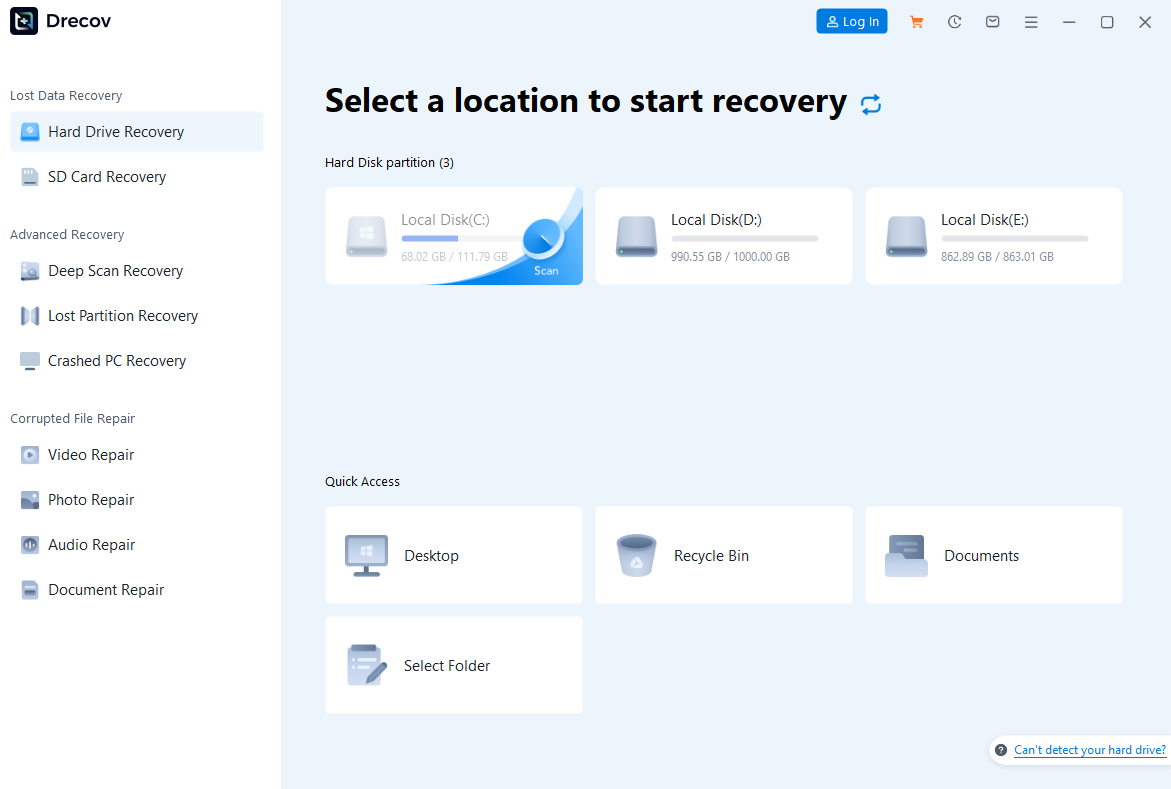
- Step 2: Select the drive or location where your files were lost and initiate the scan. The software performs both a Quick Scan and a deeper Deep Scan to find recoverable data.

- Step 3: Once the scan is complete, you can preview the recoverable files. Locate your files, select them and click “Recover” and choose a a location different from the source drive to save the restored files.
Method 3: Official Command-Line Tool – Windows File Recovery
Microsoft provides a free, command-line utility called Windows File Recovery (WFR) specifically designed for how to recover deleted files Windows 11.
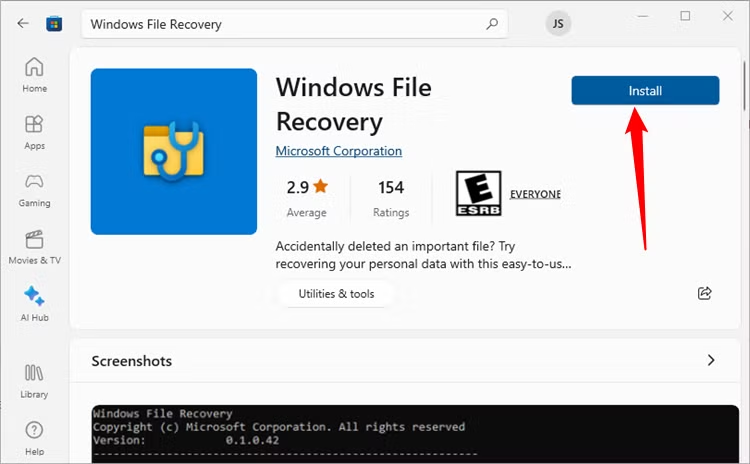
- Step 1: Search for and install Windows File Recovery from the Microsoft Store.
- Step 2: Open the Command Prompt or Windows PowerShell as an administrator.
- Step 3: Execute the command using the syntax : winfr source-drive: destination-drive: /switches
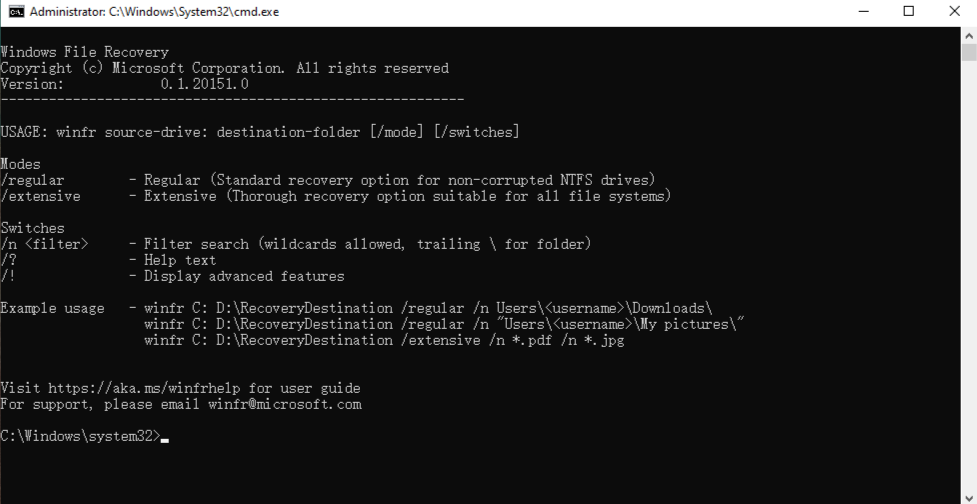
- Example : To recover all deleted JPG files from C: drive to E: drive: winfr C: E: /segment /n *.jpg
- Step 4: Follow the on-screen prompts. Remember the tool requires precise syntax and switches (, , ) based on your file system (NTFS, FAT, exFAT).
/regular/segment/extensive
🚨 Operation Warning:
Windows File Recovery is a purely command-line-dependent tool, which means the barrier to entry is extremely high. It has no graphical interface, and all operations (selecting drives, choosing recovery modes, specifying file types and paths) must be performed by entering specific code commands. Beginners are advised to use professional recovery tools first.
Method 4: Restoring from File History Backup
If you previously set up File History on your Windows 11 system, it provides a straightforward method for recovery.
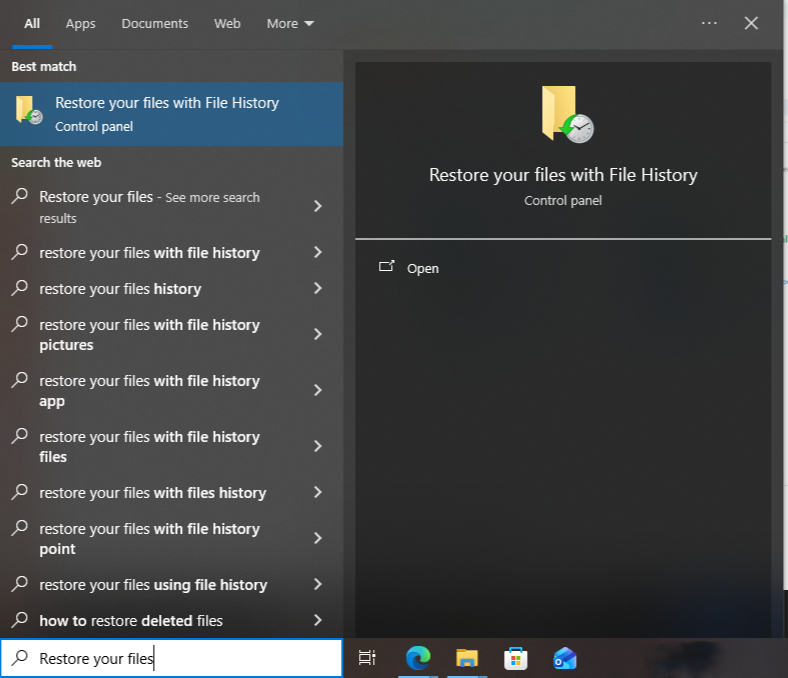
- Step 1: Connect the external drive you use for File History backup and search for and open “Restore your files with File History” in the Windows 11 search bar.
- Step 2: Browse through the folders and available versions of your files using the left and right arrows to navigate different backup points.
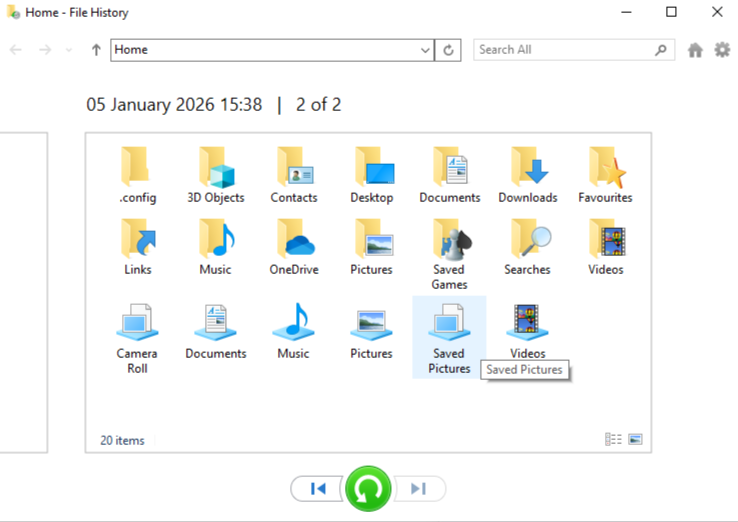
- Step 3: Once you find the correct version, select the file or folder. Click the green “Restore” button to bring the file back to its original location.
Method 5: Recovering from Previous Versions
This method uses System Protection data, which, if enabled, creates copies of files and folders as part of a restore point.
- Step 1: Open File Explorer and navigate to the folder where the file was originally stored.
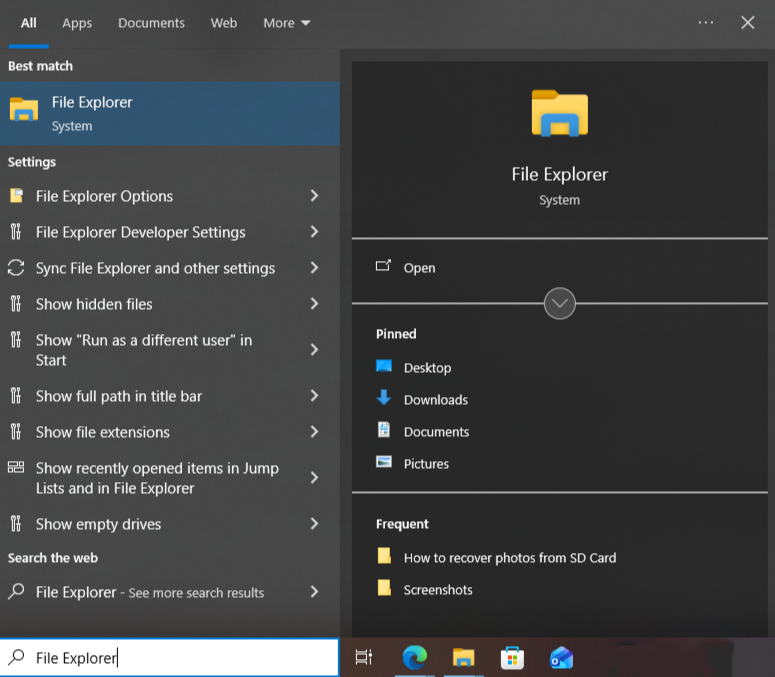
- Step 2: Right-click the folder and select “Show more options”, then choose “Restore previous versions.”
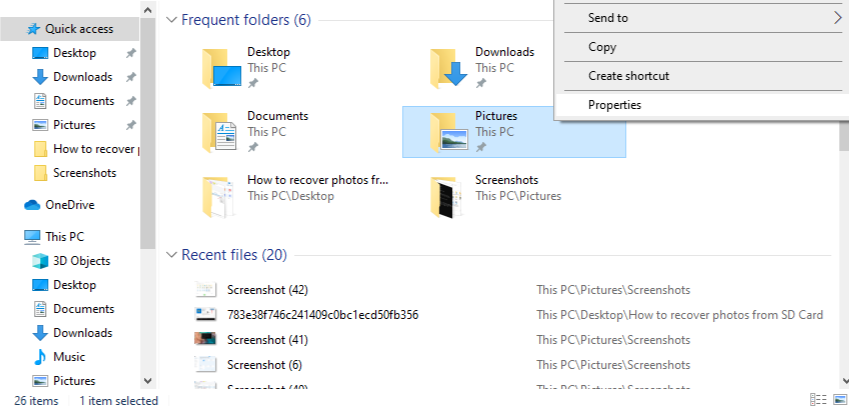
- Step 3: Subsequently, the system displays a list of available folder versions, with dates and times. Select a version that was saved before the deletion occurred.
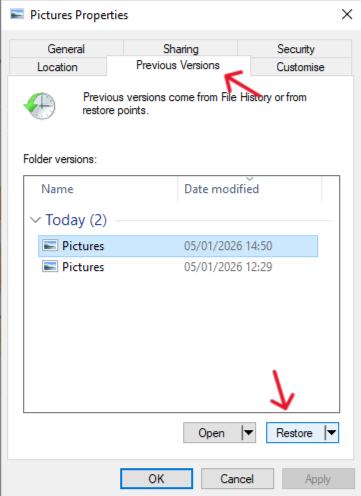
- Step 4: You can click “Open” to check the contents, or click “Restore” to revert the entire folder to that state.
🚨 Operation Warning: Using “Restore” replaces the current folder version.
Windows 11 File Deletion FAQs
Here are common questions users have when learning how to recover deleted files Windows 11:
1. How can I recover photos that I permanently deleted through file management?
If you deleted photos from a mobile phone, you can generally retrieve them from the “Recently Deleted” folder. Consequently, if you performed the deletion less than 30 days ago, you can often restore the files directly. Similarly, if you deleted the files from a computer, you can check the Recycle Bin to restore them. However, if you have truly and permanently deleted the files and cannot restore them from those locations, you can then try a data recovery software solution. What you do is scan the disk where you deleted the files, and subsequently, you can bring the files back.
2. My folder was accidentally deleted, and it’s not in the Recycle Bin. What happened?
Typically, when you delete a folder, the system moves it into the Recycle Bin. Therefore, if the Recycle Bin is missing the deleted folder, there are a few possibilities. For instance, you might have already emptied the Recycle Bin. Alternatively, you could have deleted the folder using the Shift + Delete key combination, which bypasses the Recycle Bin entirely. Furthermore, please note that if you stored the folder on an external storage device, such as a USB flash drive, before the deletion, the system would not put it into the Recycle Bin in the first place.
3. How long after a file is deleted can I still recover it?
There is no fixed time limit for how long you can recover a deleted file. Crucially, the deciding factor is whether new data has overwritten the underlying data. In other words, even if the deletion just happened, new data may already have covered the space, making recovery impossible. Generally speaking, as time passes, new write operations become unavoidable, which in turn covers the lost files. Consequently, we always advise you to act as quickly as possible when attempting data recovery.
4. Can data recovery software guarantee the recovery of all my files?
Although data recovery software is an incredibly useful tool, it cannot guarantee the recovery of all files you deleted or lost. For example, if new data has overwritten the lost files, or if the hard drive has physical damage, then data recovery software will not be effective. Therefore, before purchasing data recovery software, we strongly recommend you use the trial version first to see if the software’s features and performance meet your specific requirements.
5. Why are recovered deleted files unopenable or showing gibberish?
When recovered deleted files cannot be opened or show gibberish (random characters), it is usually due to the following reasons:
- Data Overwriting: A write operation occurred after you deleted the file, overwriting a portion of the deleted file. This results in an incomplete or corrupted file structure.
- Encrypted Files: Certain software encrypted the recovered file. As a result, you need to access the file on the original computer (which can provide the necessary certificates/keys required by the encryption software) in order to view the content.
- Problematic Recovery Method: Hence, you should try using a different data recovery software to retrieve the files. Since different software may employ different recovery algorithms and compatibilities, this action can significantly increase the chances of a successful recovery.
✅ Conclusion
Understanding how to recover deleted files Windows 11 boils down to a single principle: act quickly and minimize disk usage.
- Start Simple: Always check your Recycle Bin first.
- Use Backups: If available, File History or Previous Versions provide risk-free recovery.
- Go Professional: For complex cases or permanent deletion, PandaOffice Drecov offers a user-friendly interface and advanced deep-scan capabilities for maximum success.
- For Tech Savvy Users: Microsoft’s Windows File Recovery is a free, powerful option requiring precise command-line input.
Ultimately, successful data recovery relies on avoiding data overwrites. Keep the precautions in mind, and you significantly boost your chances of getting your important files back!






