







Recover Deleted Photos from SD Card: This is the urgent priority for anyone facing the nightmare of disappearing digital memories. Whether a “Card Error” message pops up or you accidentally hit “Delete All” on your DSLR, the panic is immediate. However, the digital world rarely destroys data instantly. If you are asking how can I recover deleted photos from SD card, the answer lies in the way flash memory manages information. This guide provides a step-by-step roadmap to reclaiming your lost images using the most effective methods available today.
The Science of Deletion: Why Recovery is Possible
To understand how can I recover deleted photos from SD card, one must first understand the FAT32 and exFAT file systems. When you delete a photo, the operating system does not wipe the binary code of the image. Instead, it alters a single character in the File Allocation Table, marking the space as “available” for new data.
As long as you do not save new files to the card, the original photo remains physically present. This period is your “Window of Opportunity.” If you continue shooting photos, the camera will overwrite those “available” sectors, leading to permanent data loss.
The Immediate Response Protocol
Before you try any software, follow these three steps to protect your data:
- Remove the card from the camera or smartphone immediately.
- Toggle the Write-Protect switch located on the side of the SD card to the “Lock” position. This physically prevents any device from writing new data to the card.
- Prepare a stable workstation. Use a PC with a high-speed USB 3.0 or 4.0 port to ensure the recovery process does not disconnect midway.
Method 1: Using CMD to Fix Logical Errors
Sometimes, your photos are not deleted but are simply hidden by a corrupted file attribute or a “shortcut virus.” This is the fastest way to address the query: how can I recover deleted photos from SD card without downloading third-party tools.
- Sept 1: Connect your SD card to your computer via a card reader.
- Sept 2: Identify your drive letter. Open “This PC” and note if your card is drive
E:,F:, or another letter.
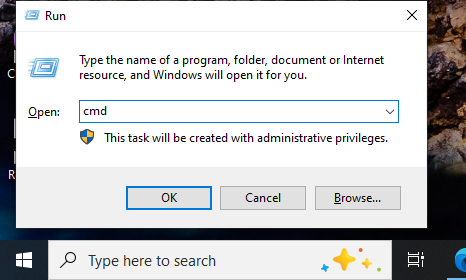
- Sept 3: Search for “Command Prompt” in the Start menu, right-click it, and select “Run as Administrator.”
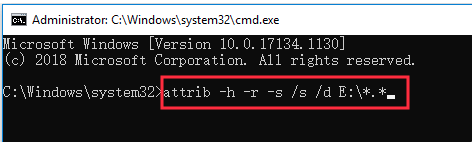
- Sept 4: Enter the following command exactly:
attrib -h -r -s /s /d E:\*.*(ReplaceEwith your specific drive letter). - Sept 5: Press Enter.
This command resets the hidden and system attributes. Once the process finishes, check your SD card folders for a “DCIM” or “RECOVER” folder where your photos may have reappeared.
Method 2: Professional Recovery with PandaOffice Drecov
When files are truly deleted or the card is formatted, professional software becomes necessary. PandaOffice Drecov uses signature-based scanning to find fragmented files that the OS can no longer see. This is the most reliable answer for users wondering how can I recover deleted photos from SD card after a format.
Benefits of the Graphical Approach:
- Cross-Platform Support: While WinFR is limited to Windows-native formats, Drecov handles SD cards from Sony, Canon, and GoPro cameras which often use specialized FAT32 or exFAT configurations.
- Versatility: It recovers photos, videos, audio, compressed files (ZIP/RAR), and even system files like EXEs.
- Accidental deletion from your computer desktop.
- Files lost after emptying the Recycle Bin.
- Data loss from disk formatting.
- Accidental deletion or formatting of SD cards/U disks.
- Sync error occurring with deleted OneDrive files
- Privacy First: All recovery happens locally on your machine, so you don’t have to worry about your private data leaking to the web.
🚨 Important Warning: Do not install this on the same drive where the lost files were. Use an external USB drive to keep the data safe from being overwritten.
Step-by-Step Recovery Workflow:
- Sept 1: Initialization. Launch PandaOffice Drecov and select the “SD Card Recovery” mode from the main dashboard. This mode is optimized for flash memory architecture.

- Sept 2: Selection and Scanning. Choose your SD card from the list of external drives. Click Scan. The software will first run a “Quick Scan” to find the directory structure, followed by a “Deep Scan” which analyzes the raw data sectors for photo signatures like JPG, TIFF, and RAW.

- Sept 3: Real-Time Preview. One of the best features of PandaOffice Drecov is the preview window. You can view thumbnails of the photos as they are found. This ensures you only recover what you actually need and click Recover.
⚠️ Warning: Do not save the recovered photos back onto the SD card. If the recovery is incomplete, saving files to the card will overwrite the remaining data you are trying to save. Always save to a local drive like D:\Restored_Photos.
Method 3: Windows File Recovery
For those who prefer open-source or official Microsoft utilities, Windows File Recovery (WinFR) is a powerful command-line tool. It is particularly effective for users asking how can I recover deleted photos from SD card on Windows 10 or 11.
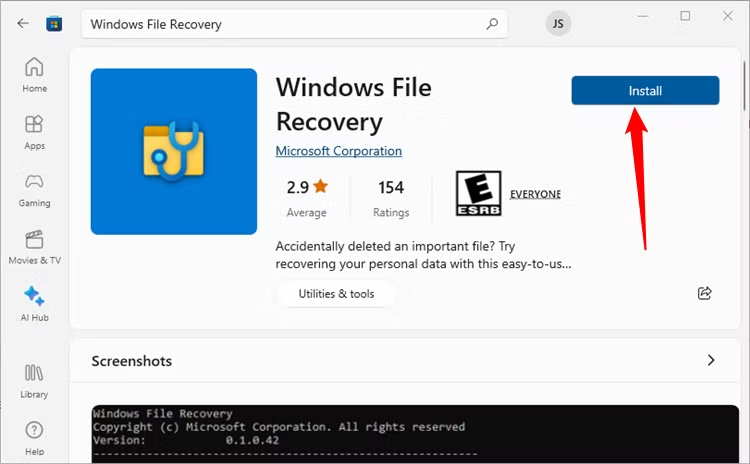
- Sept 1: Download and install WinFR from the Microsoft Store. Open the application. You will see a command line interface.
- Sept 2: Use the “Extensive” mode, which is designed for corrupted file systems. Type: winfr E: D:\RecoveryResults /extensive /n *.jpg /n *.cr2(In this example, E: is the SD card, and D:\RecoveryResults is the destination).
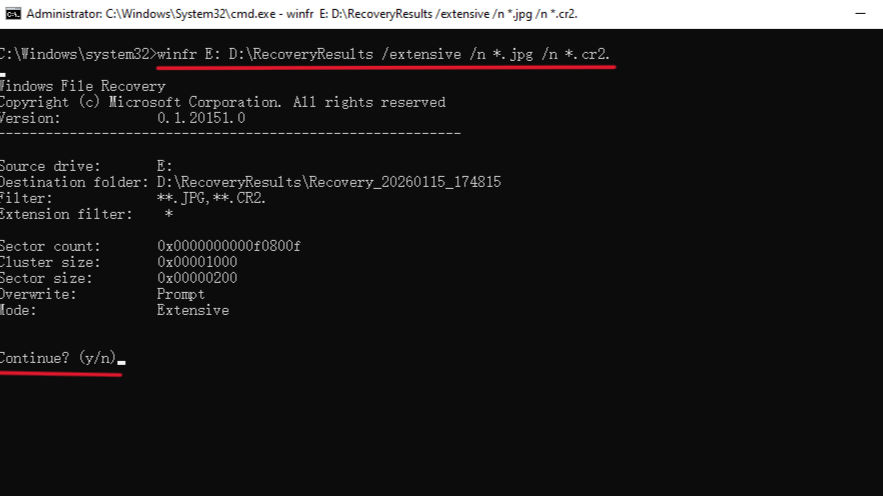
- Sept 3: Press Y to start the scan. WinFR will create a folder on your D drive and attempt to reconstruct every JPG and Canon RAW (.cr2) file it finds.
Method 4: Recovering Photos from a Formatted SD Card
Formatting is not the end. Most cameras perform a “Quick Format,” which only deletes the file index. However, if you perform a “Low-Level Format,” recovery becomes much more difficult. When considering how can I recover deleted photos from SD card after a format, follow these specific steps:
- Avoid a second format. If Windows tells you the card “Needs to be formatted to use it,” click Cancel.
- Use Deep Scan. Tools like PandaOffice Drecov or Recuva can bypass the corrupted file system and read the binary data directly.
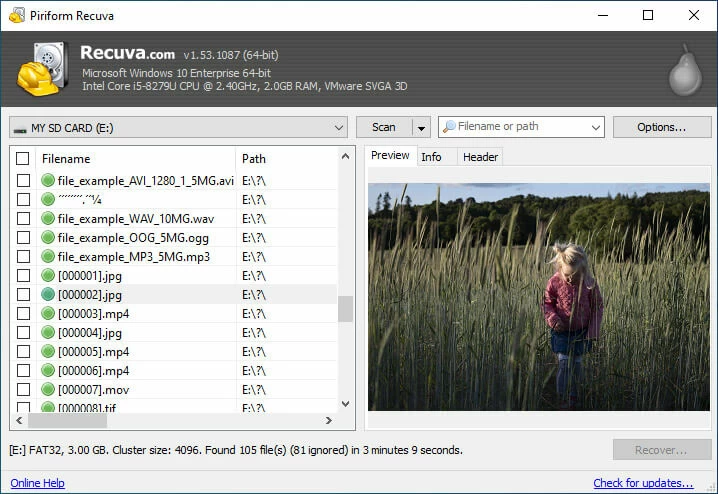
- Search for RAW signatures. Even if the file names are lost (e.g., they appear as
file001.jpg), the metadata (Exif data) inside the photo will still show the date taken and the camera model.
Advanced Troubleshooting: Hardware vs. Software
Sometimes the question how can I recover deleted photos from SD card requires a hardware solution. If your computer does not even assign a drive letter to the card, the controller chip might be damaged.
Signs of Physical Failure:
- The card feels excessively hot to the touch.
- The card reader makes a “disconnect/reconnect” sound repeatedly.
- The capacity shows as 0MB or the wrong size (e.g., a 64GB card showing as 31MB).

In these cases, software cannot help. You must contact a professional data recovery lab that can perform a “Chip-Off” recovery, where they desolder the NAND flash chip and read the data directly using a physical programmer.
Preventing Future Photo Loss
While knowing how can I recover deleted photos from SD card is vital, prevention is more efficient.
- The 3-2-1 Backup Rule: Keep 3 copies of your photos, on 2 different media types (SD card and Cloud), with 1 copy off-site.
- Eject Properly: Always use the “Safely Remove Hardware” option in Windows or “Eject” in macOS. Pulling a card while the buffer is writing is the cause of corruption.
- Quality Matters: Use high-end cards (UHS-II or V90) from reputable brands like SanDisk, Lexar, or ProGrade. Cheap cards use lower-quality NAND flash that is prone to bit-rot.
Conclusion
In 2026, the success rate for SD card recovery is higher than ever. If you follow the “read-only” principle and use professional tools like PandaOffice Drecov, you can almost always find a solution to how can I recover deleted photos from SD card. Act quickly, avoid overwriting, and your memories will be safe.






