






“Video codec not supported” can describe a player limitation, but it does not prove the video file is complete. The distinction matters after a download, USB transfer or recovery attempt. Keep the current file unchanged. Try the same copy in another trusted player, compare its size with a known original and check whether playback fails at the same point. If an intact original still exists, copying it again may solve the problem. Recovery software becomes relevant only when that local original has gone missing from a stable storage device.
Start with the particular video that fails
Open another video from the same camera, phone or editing application in the same player. If both fail, focus on playback support. When only the transferred or recovered file fails, inspect that copy. Note the exact error text, where the video came from and whether it ever played successfully on this computer. A message shown for a browser stream can have a completely different cause from a message shown for a local MP4. This article deals with local Windows files, not a website’s streaming server.
Do not rename the only copy or install several unknown codec packs. Save an untouched version on a healthy disk. If the original still opens on another device, copy it again using a reliable connection and test the new copy before deleting anything. When the source drive disconnects or reports severe read errors, stop repeated transfers. A physical storage problem deserves a safer imaging or professional path, not another conversion attempt.
Test the same file in a second trusted player
Choose a player that states support for the expected container and video format. Open the identical file without transcoding it. If one player handles the entire video and another refuses, a compatibility issue is likely. A stop at the same timestamp in both players points to a partial or damaged copy. Test the beginning, a scene in the middle and the final minutes. Listen for sound as well. A thumbnail and five seconds of playback do not establish that the full recording survived.
Understand the container and the codec
The extension `.mp4` or `.mov` names a container; it does not specify every video and audio stream inside. Even two MP4 files can need different decoders. A player may support the container but not the video stream, or it may show pictures while the audio remains silent. Microsoft’s Windows Media Player troubleshooting page notes that unsupported codecs can cause playback errors. Check the file details and the player’s documented support before changing the file itself.
A new filename extension is not a conversion. Renaming `.mov` to `.mp4` leaves its encoded streams untouched. A legitimate conversion reads a complete source and writes a new file; therefore, protect the source and use a different healthy destination. If the source is truncated, conversion may preserve the playable portion but cannot guarantee the missing end. When the whole recording is important, look for the original export, a camera copy or a backup first.
Some files from video editors are projects rather than final movies. They may point to separate media clips or proxy files. Open the project in the application that created it and check whether its linked assets still exist. If the project plays there, export a new movie to a healthy disk. Treating a project file as a standalone video can produce a misleading format error.
Use the failure point to judge copy quality
Inspect Properties in File Explorer for size, extension and modification time. Zero bytes means there is no video payload to play. A very small file for a long recording is suspicious, but compression varies, so compare it with another export from the same device rather than relying on a universal size rule. Modification time can change during copying or recovery. Keep that limitation in mind if you are looking for an older version.
Write down the timestamp at which the current file stops or becomes garbled. Compare it with a backup or a new export. If the second copy plays past that point, preserve it and identify where it came from. Failure at the same point in every copy may mean the original recording was incomplete. Do not advertise a normal-looking duration as proof that every frame is present; some players estimate duration from partial metadata.
For videos recovered from deletion, look at more than the preview. A recovery program can show a first frame even when later video blocks are missing. Open the saved result outside the program, seek through the middle and end, and check the audio track. A file that opens but omits a crucial scene may not satisfy the user’s task. Preserve several promising candidates until you have verified the right one.
Where Drecov can help, and where it cannot
Drecov is Windows data-recovery software. If a video original was deleted or the only transferred copy is incomplete, it can search a stable recognized PC drive, USB stick or external drive for another local file candidate. Quick Scan and Deep Scan, file-type filters and preview help locate videos before saving them to a separate healthy destination. Lost Partition Recovery can look for data from a missing partition. None of these functions installs a codec, converts a video, repairs a damaged video stream or makes an unstable device healthy. The video recovery page addresses the missing-file branch, not a pure player-compatibility problem.
Identify the original storage location before opening recovery software. A camera’s memory card, a PC folder and a USB transfer destination are different sources. If the original remains safely on the camera, export it again instead of scanning the copied file’s destination. For a deleted local original, stop writing to that storage and check backups. An SSD may have processed deleted blocks through TRIM, reducing prospects, but the outcome is not knowable from the error message alone. Do not install software or save recovered videos to the source.
Look for another local video copy
⚠ Warning: Install it on a drive different from the one where your data was lost to prevent overwriting.
Step 1: open Drecov and select the original loss location.
Confirm the device and capacity before scanning.
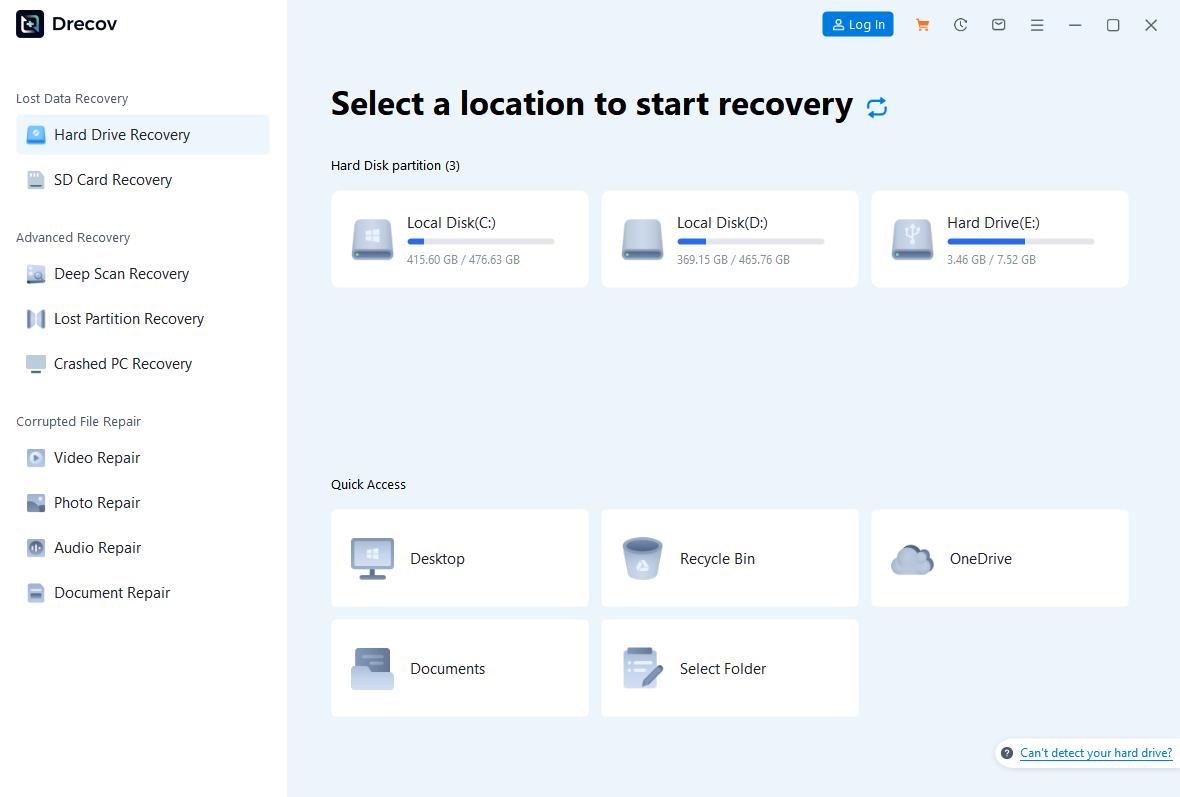
Step 2: run Quick Scan.
Search the former folder and relevant video types for the missing recording.
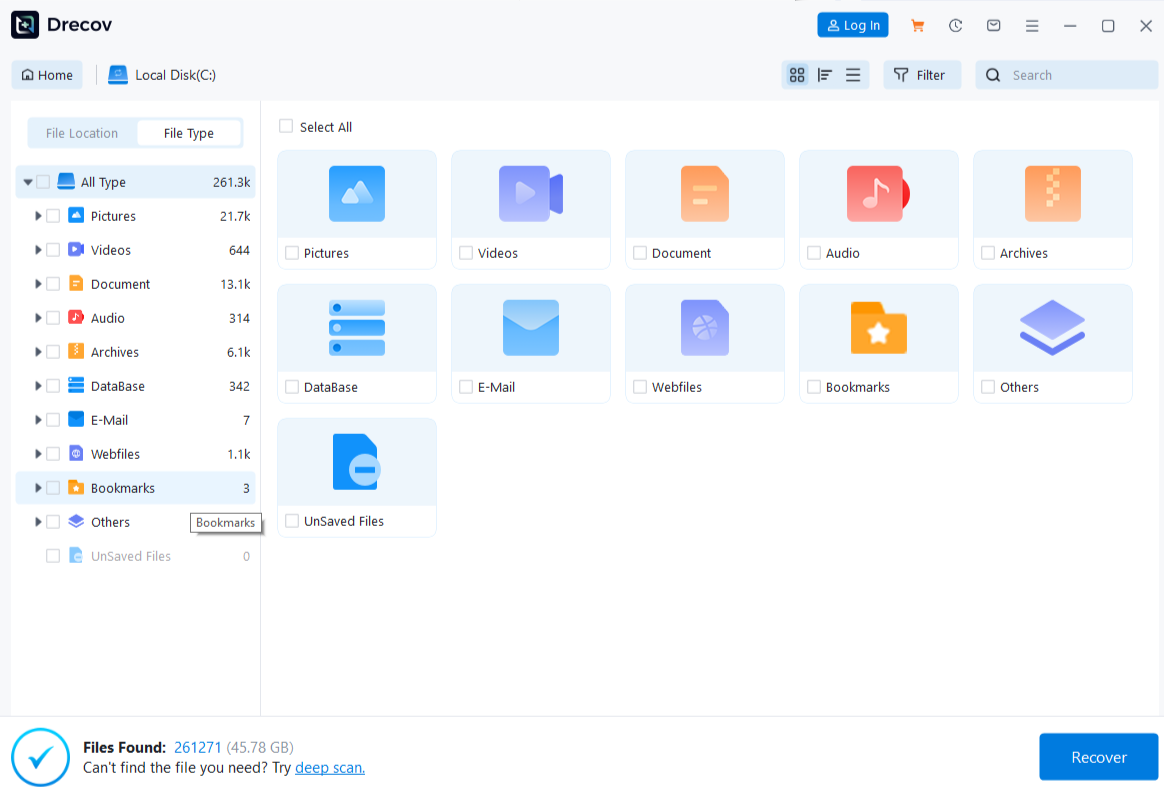
Step 3: use Deep Scan if needed and the source stays stable.
Stop if it disconnects or read errors increase.
Step 4: filter and preview candidates.
Use name, type or former path when available. Preview only supports initial identification.
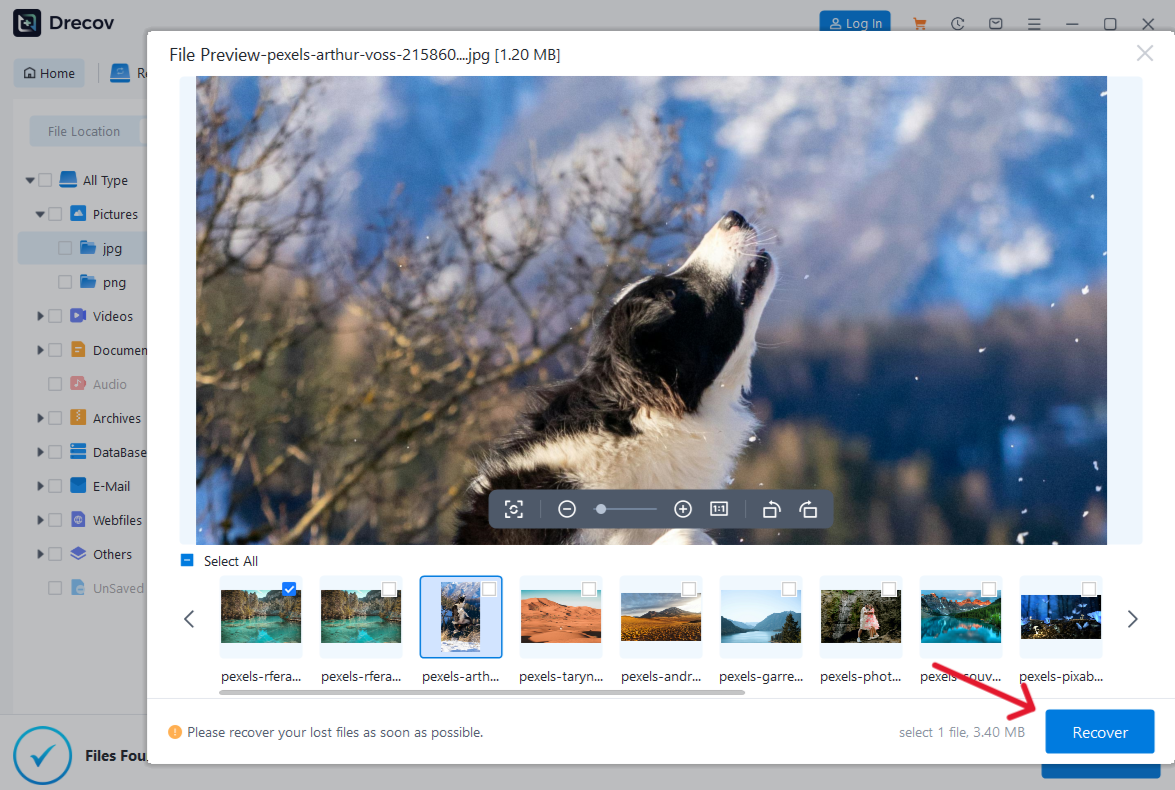
Step 5: recover selected videos to another healthy disk.
Never write results to the device being examined.
Step 6: open and test the output.
Check Drecov Folder or Recovery Folder if it is not in the expected destination.
Test several points in each recovered video. If your source was a USB stick that also holds other missing items, the USB recovery page covers the device side. For mixed documents and videos, the file recovery overview explains how to preserve results away from the source.
⚠ Warning: Install it on a drive different from the one where your data was lost to prevent overwriting.
Only convert after the source is safe
If a complete original works in one player but not another, conversion may be useful for compatibility with a particular device or application. Select a trusted converter that supports the source streams, save a new output beside—not over—the original, and test the output beginning to end. Record the settings so you can repeat the operation if the destination device rejects it. Conversion is a new export, not a method of recovering deleted storage blocks.
If no complete version plays in any compatible player, conversion is unlikely to restore missing scenes. Return to source devices, backups, export folders and copies sent to other people. Avoid uploading private recordings to an unknown online service merely because it promises to “fix” codecs. If the storage source is physically unstable, stop software experiments and consider professional imaging. For a video with intact file data but damaged internal structure, a format-specific repair may be a separate task; this page does not claim Drecov performs that repair.
Keep at least one untouched copy of every candidate while you investigate. This allows you to compare a later conversion or repair result with the original evidence. Your goal is a verified video containing the scene you need, not merely a file that no longer displays the codec message.
FAQs
Does this message mean the video is corrupted?
Not necessarily. A missing decoder or unsupported stream can produce it. Compare the same file in another trusted player and inspect other copies.
Can changing `.mov` to `.mp4` help?
Renaming changes the label, not the video data. Use a real conversion only on a complete source, and preserve the original.
Why does a recovered video show a thumbnail but not play?
A preview or embedded image can survive even when later video blocks do not. Recover a candidate to another disk and test its middle, end and sound.
Does Drecov install video codecs?
No. It can search a stable local source for missing video files. Player support and file-content repair are separate issues.
When should I stop scanning?
Stop direct scans when the device disconnects repeatedly, reports the wrong capacity or produces serious read errors. Ask about imaging or specialist help.
Conclusion
A “video codec not supported” warning should prompt a comparison, not an immediate download. Test the same untouched file in another compatible player, check where playback fails and look for a complete original. If that original was lost from stable local storage, Drecov can search for another candidate, preview it and recover it to a different drive. The software cannot supply a decoder or recreate missing scenes. Confirm the result by watching the beginning, middle and end with audio.
⚠ Warning: Install it on a drive different from the one where your data was lost to prevent overwriting.