







Losing pictures from an SD card can instantly turn excitement into panic. You may have deleted photos by mistake, formatted the card too quickly, or found that your camera suddenly shows an empty gallery. Fortunately, these situations are common—and in many cases, your digital memories remain intact beneath the surface. If you are searching for how to recover pictures from SD card effectively, this guide walks you through proven methods with clear steps and realistic expectations. Most importantly, it explains the critical precautions to take before beginning the recovery process, because your initial decisions strongly affect the final success rate.
Can You Really Recover Pictures from an SD Card?
In many cases, yes. When pictures are deleted from an SD card, the card does not erase the photo data right away. Instead, it marks the space as available for new files. Until new data replaces that space, recovery remains possible.
That is why understanding how to recover pictures from SD card early matters. Acting quickly and correctly often determines whether your photos return or disappear permanently.
Common Reasons Pictures Get Lost on an SD Card
Pictures may disappear from an SD card for several everyday reasons:
- Accidental deletion during photo review
- Formatting the SD card by mistake
- File system errors after unsafe removal
- SD card not showing files or appearing unreadable
- Virus or malware interference through a connected device
Each scenario affects recovery differently, but most still allow you to recover pictures from an SD card if handled properly.
What to Do Immediately After Losing Pictures
Before attempting any recovery method, follow these rules carefully:
- Stop using the SD card immediately
- Do not format the card again, even if prompted
- Do not take new photos or videos with the same card
- Avoid “repair” or “fix errors” options that rewrite data
These precautions protect the remaining picture data and significantly increase the chance to recover pictures from an SD card.
How to Recover Pictures from SD Card
Method 1 – Recover Pictures Using PandaOffice Drecov
PandaOffice Drecov is a professional data recovery tool designed to scan SD cards directly and restore deleted or lost pictures without modifying the original data.Benefits of the Graphical Approach:
- Cross-Platform Support: While WinFR is limited to Windows-native formats, Drecov handles SD cards from Sony, Canon, and GoPro cameras which often use specialized FAT32 or exFAT configurations.
- Versatility: It recovers photos, videos, audio, compressed files (ZIP/RAR), and even system files like EXEs.
- Accidental deletion from your computer desktop.
- Files lost after emptying the Recycle Bin.
- Data loss from disk formatting.
- Accidental deletion or formatting of SD cards/U disks.
- Sync error occurring with deleted OneDrive files
- Privacy First: All recovery happens locally on your machine, so you don’t have to worry about your private data leaking to the web.
🚨 Important Warning: Do not install this on the same drive where the lost files were. Use an external USB drive to keep the data safe from being overwritten.
Step 1 : Remove and Connect the SD Card
Power off the camera or device, remove the SD card, and connect it to your computer using a built-in card reader or a trusted USB card reader.
Step 2 : Select the SD Card and Start Scanning

Choose the SD card from the list and begin the scan. A deeper scan may take longer but usually finds more deleted pictures.
Step 3 : Preview Recoverable Pictures

After the scan completes, preview the found images to confirm which photos remain intact.
Step 4 : Recover Pictures to a Safe Location

Select the pictures you want and recover them to your computer or an external drive.
Important warning: never save recovered pictures back to the same SD card.
Method 2 – Recover Pictures from a Backup (If Available)
If you created backups before the data loss, recovery becomes straightforward.
Check common backup sources such as:
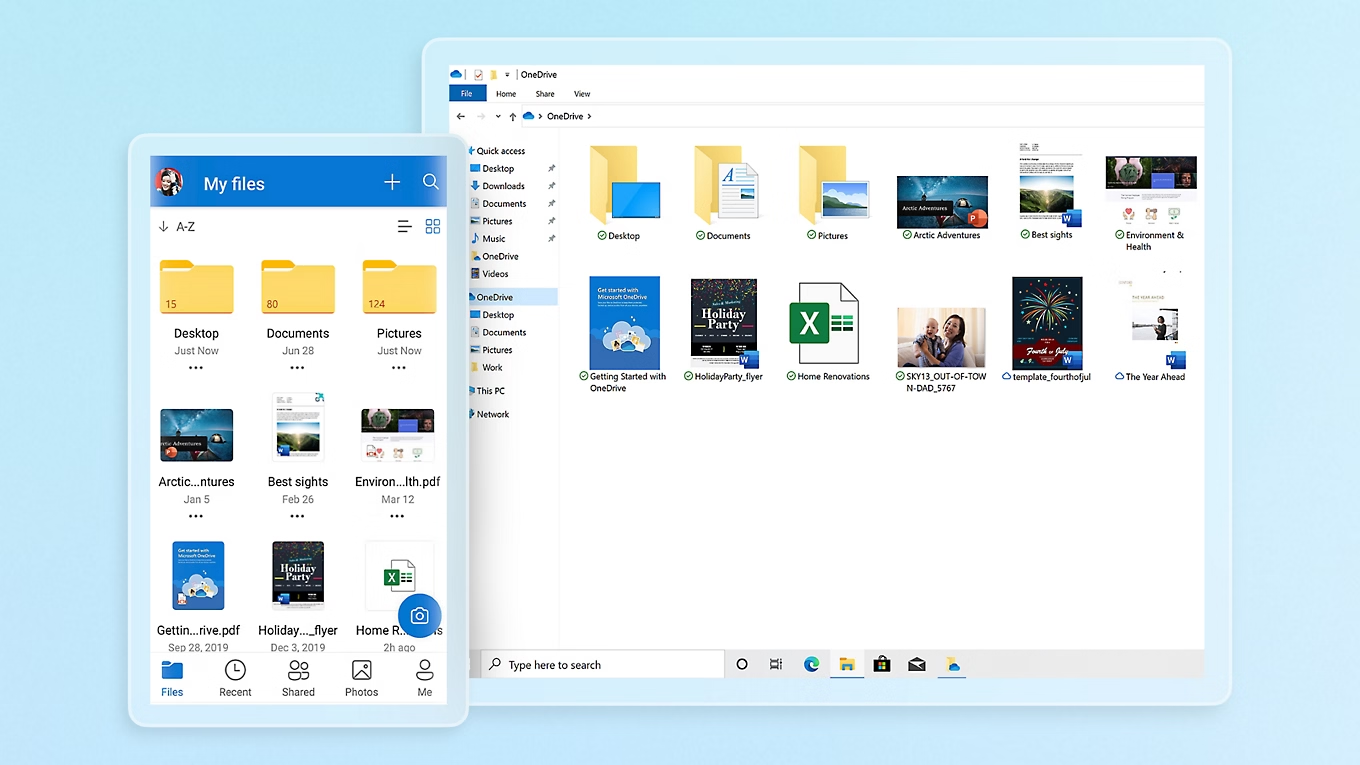
- Cloud photo services linked to your phone or camera
- Computer backups created before the pictures were deleted
- External hard drives used for manual photo storage
Although this method does not scan the SD card itself, it remains one of the safest ways to restore lost pictures when backups exist.
Method 3 – Recover Pictures from Cached or Imported Copies
In some cases, pictures still exist outside the SD card without users realizing it.
This situation often occurs when:
- Photos were previously imported to a computer
- Editing software created temporary or cached copies
- Messaging or sharing apps saved local image versions
Check photo libraries, import folders, and application galleries on your computer or device. While this method does not replace professional scanning, it can quickly restore pictures without risking further SD card damage.
Comparison Table: Choose the Right Recovery Method
| Data Loss Scenario | PandaOffice Drecov | Backup Recovery | Cached / Imported Copies |
|---|---|---|---|
| Accidentally deleted pictures | ✅ Highly recommended | ⚠️ If available | ⚠️ Possible |
| Formatted SD card | ✅ Effective | ❌ Not applicable | ❌ Unlikely |
| SD card not showing files | ✅ Effective | ❌ Not applicable | ❌ Unlikely |
| Corrupted file system | ✅ Often successful | ❌ Not applicable | ❌ Unlikely |
| Photos backed up earlier | ⚠️ Optional | ✅ Best choice | ⚠️ Possible |
| Physical SD card damage | ❌ Not supported | ⚠️ If backed up | ❌ Not supported |
When Picture Recovery from an SD Card Is Not Possible
Recovery may fail in these situations:
- The SD card has physical damage
- New data overwrote the deleted pictures
- The card underwent secure or low-level erasure
Understanding these limits helps set realistic expectations when exploring how to recover pictures from SD card.
How to Recover Pictures from SD Card FAQs
1. Can I recover pictures from a formatted SD card?
Yes, as long as new data has not overwritten the original photos.
2. How long does it take to recover pictures from an SD card?
Scan time depends on card size and condition, but most scans finish within an hour.
3. Is it safe to use PandaOffice Drecov on an SD card?
Yes. The software reads data without writing changes to the original card.
4. Can I recover pictures from a corrupted SD card?
In many cases, yes. File system corruption often does not destroy photo data.
5. Should I try recovery multiple times?
Yes, but always avoid writing recovered files back to the same SD card.
Conclusion
Understanding how to recover pictures from SD card comes down to quick action and the right method. By stopping card usage, choosing PandaOffice Drecov or a suitable alternative, and following clear steps, you greatly improve the chance of restoring your photos. Act early, stay cautious, and give your memories the best chance to return.






