







Few digital mishaps feel as alarming as realizing that important photos have disappeared from an SD card. One moment, your camera or phone displays treasured images; the next, they seem gone forever. Whether the deletion happened due to human error, formatting, or a sudden card malfunction, the question quickly becomes urgent: how can I recover deleted photos from SD card without making the situation worse?
Fortunately, photo loss from SD cards does not always mean permanent loss. In fact, many users recover deleted photos successfully when they understand how SD card storage works and choose the right recovery method. This comprehensive guide explains the recovery logic step by step and presents five proven ways to restore deleted photos from an SD card, ranging from professional software to system-level and hardware-based solutions.
Understanding How SD Card Photo Deletion Works Before Recovery
Before diving into recovery methods, it helps to understand what actually happens when photos disappear from an SD card. This knowledge alone often determines whether recovery succeeds or fails.
When you delete photos from an SD card, the card does not immediately erase the underlying image data. Instead, the file system removes the directory entry that points to those photos and marks the storage sectors as reusable. As a result, the photos remain physically present on the card until new data overwrites them.
Therefore, timing matters. The longer you continue using the SD card, the higher the chance that new data replaces the deleted photos. That is why most recovery professionals emphasize one critical rule:
⚠️ Stop using the SD card immediately after photo deletion. Keeping this principle in mind directly improves your odds when asking how can I recover deleted photos from SD card in real-world situations.
Common Reasons Why Photos Get Deleted from SD Cards
Photo loss can occur for many reasons, and identifying the cause helps you select the most effective recovery approach. Common scenarios include:
- Accidental deletion in a camera, smartphone, or tablet
- Formatting the SD card without backing up photos
- Corruption caused by improper ejection or power failure
- File system errors triggered by virus infection or firmware issues
- SD card damage due to aging or low-quality memory chips
Although these scenarios differ, they often lead to similar results: photos disappear, yet the underlying data remains recoverable for a limited time.
Method 1: Using PandaOffice Drecov
For most users, professional recovery software provides the safest and most efficient answer to how can I recover deleted photos from SD card. PandaOffice Drecov stands out because it combines deep scanning capability with a user-friendly workflow, making it suitable even for beginners.
Benefits of the Graphical Approach:
- Cross-Platform Support: While WinFR is limited to Windows-native formats, Drecov handles SD cards from Sony, Canon, and GoPro cameras which often use specialized FAT32 or exFAT configurations.
- Versatility: It recovers photos, videos, audio, compressed files (ZIP/RAR), and even system files like EXEs.
- Accidental deletion from your computer desktop.
- Files lost after emptying the Recycle Bin.
- Data loss from disk formatting.
- Accidental deletion or formatting of SD cards/U disks.
- Sync error occurring with deleted OneDrive files
- Privacy First: All recovery happens locally on your machine, so you don’t have to worry about your private data leaking to the web.
🚨 Important Warning: Do not install this on the same drive where the lost files were. Use an external USB drive to keep the data safe from being overwritten.
Recover Deleted Photos from SD Card with PandaOffice Drecov in 3 Clear Steps
Step 1: Connect the SD Card and Start PandaOffice Drecov

Remove the SD card from your device and insert it into a card reader. Connect it to your computer, then launch PandaOffice Drecov. From the main interface, select SD Card Recovery.
Step 2: Scan the SD Card for Deleted Photos

Select the correct SD card from the list of detected devices and click Scan. The program performs a quick scan first, then automatically transitions into a deep scan to locate deleted photo data.
Step 3: Preview and Recover Photos Securely

After scanning completes, preview the found photos to confirm quality. Select the photos you need and click Recover.
⚠️ Always save recovered photos to a different storage device, never back to the same SD card.
Method 2: Restore Deleted SD Card Photos from Recycle Bin or Trash
How Can I Recover Deleted Photos from SD Card Using System-Level Restore Options?
Although software recovery works in most cases, system-level restore options may help in limited scenarios, especially when deletion occurred through a computer rather than directly on a camera.
If you deleted photos while the SD card was connected to a computer, the operating system may have redirected those files to a temporary holding area instead of removing them permanently.
- On Windows systems, check the Recycle Bin
- On macOS systems, open the Trash
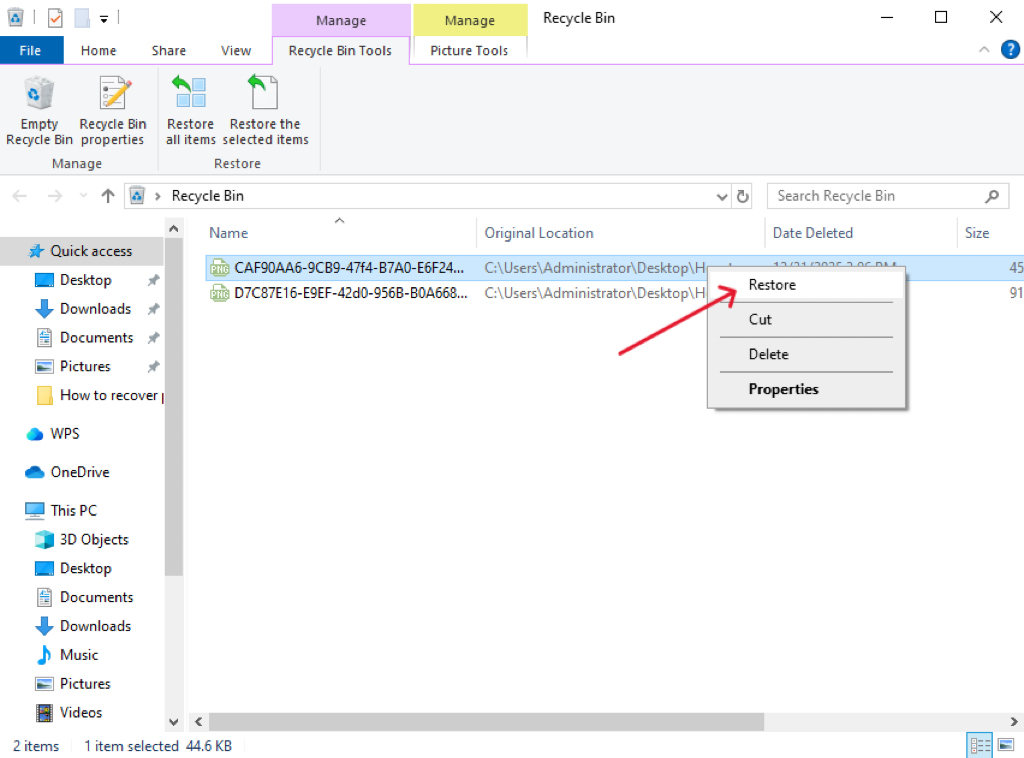
If you find the deleted photos there, restore them immediately. This method works only when the deletion happened through the system interface and the bin has not been emptied. While limited, it remains one of the simplest answers to how can I recover deleted photos from SD card in specific cases.
Method 3: Recover Deleted Photos from SD Card Using Existing Backups
How Can I Recover Deleted Photos from SD Card Through Backup-Based Recovery?
Backups often turn data loss into a minor inconvenience rather than a disaster. If you maintain any form of photo backup, check it before attempting advanced recovery.
Backup-based recovery applies when you previously copied photos from the SD card to another location. Common backup sources include:
- Cloud photo services associated with smartphones
- Local backups stored on external hard drives
- Automatic synchronization folders used by photo management tools

Although this method does not retrieve data directly from the SD card, it still solves the problem efficiently when backups exist. As a result, it plays an important role in answering how can I recover deleted photos from SD card for cautious users.
Method 4: Recover Deleted Photos from a Formatted SD Card Using Deep Scan Recovery
How Can I Recover Deleted Photos from SD Card After Formatting?
Formatting an SD card feels catastrophic, yet recovery often remains possible. Most quick formats only rebuild the file system structure without wiping the underlying data.
When formatting occurs, deep scan recovery becomes essential. Professional tools like PandaOffice Drecov can analyze raw storage sectors and reconstruct photo files based on known file signatures.
Key points to remember after formatting:
- Do not format the SD card again
- Do not create new folders or files on the card
- Start recovery as soon as possible
Although formatted recovery takes longer, many users successfully restore photos by acting quickly and avoiding further writes to the card.
Method 5: Use Device-Level or Camera-Specific Recovery Options
How Can I Recover Deleted Photos from SD Card with Camera-Based Recovery Features?
Some modern cameras and devices include limited internal recovery or protection mechanisms. While not universally available, these features may help in specific situations.
Certain cameras temporarily store deleted photos in internal buffers or protect recently deleted files until the device shuts down. In such cases:
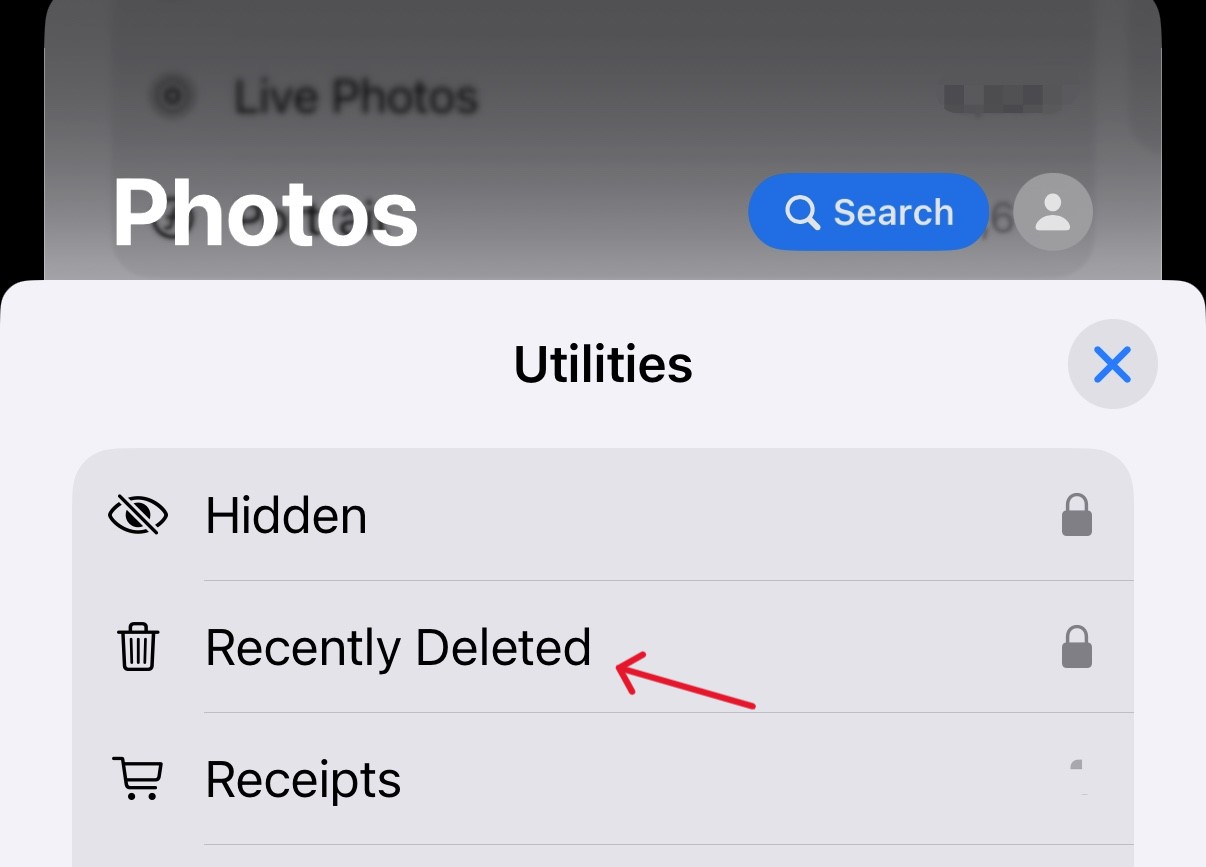
- Avoid turning off the camera immediately
- Avoid taking new photos
- Check camera documentation for recovery or “protect” features
This method rarely replaces professional recovery software, but it may provide a narrow recovery window in device-specific scenarios.
Critical Mistakes to Avoid During SD Card Photo Recovery
Even the most advanced recovery methods cannot succeed if users unknowingly sabotage their own recovery efforts. To maximize success, avoid these mistakes:
- Continuing to use the SD card after photo loss
- Saving recovered photos back to the same SD card
- Running multiple recovery tools simultaneously
- Ignoring early warning signs of SD card failure
By avoiding these errors, you significantly improve the outcome when addressing how can I recover deleted photos from SD card.
How Long Does SD Card Photo Recovery Take?
Recovery time depends on several factors:
- SD card capacity
- Degree of fragmentation
- Type of scan performed
- Speed of the card reader and computer
Quick scans often finish within minutes, while deep scans may take hours on large or heavily damaged cards. Patience often rewards users with better recovery results.
How Can I Prevent Photo Loss from SD Cards in the Future?
While recovery offers relief, prevention always provides the best protection. Consider these habits:
- Back up photos immediately after shooting
- Use high-quality SD cards from reputable brands
- Eject SD cards properly from devices
- Avoid using the same card across too many devices
These steps reduce the need to ask how can I recover deleted photos from SD card in the future.
Conclusion
After reviewing all recovery scenarios, one conclusion stands out: successful photo recovery depends less on luck and more on choosing the correct method at the right time.
In most cases, starting with a professional recovery tool such as PandaOffice Drecov offers the highest success rate, especially when you follow the three-step process and save recovered photos to a separate drive. If the deletion happened through a computer, always check the Recycle Bin or Trash first. When backups exist, restoring from them remains the fastest and safest option. For formatted cards or camera-related losses, deep scanning.
By following this decision order and avoiding common mistakes, you turn a stressful photo loss incident into a controlled recovery process. In short, understanding how can I recover deleted photos from SD card means knowing when to stop, where to look first, and which tool or method fits your exact situation.






