







Cloud storage has become a digital extension of our daily lives. Documents, photos, work files, and even entire projects often live online instead of on a single device. One of the most widely used services is OneDrive, a cloud storage platform developed by Microsoft that integrates directly with Windows, Office apps, and mobile devices. Understanding how to sign out of OneDrive is sometimes necessary.
Maybe you’re switching accounts, troubleshooting a sync issue, or simply protecting your data on a shared computer. Whatever the reason, mastering the ability to properly sign out ensures that your files remain safe while also preventing unnecessary syncing or account conflicts. Since data integrity is paramount, knowing the mechanics of these cloud connections can save you from accidental data loss or privacy breaches.
Understanding OneDrive and Account Sign-Out
Before we dive into the technical “how-to,” we must understand the environment we are working in. OneDrive operates as a bridge between your local hardware and Microsoft’s secure servers.
What Is OneDrive and How It Works
OneDrive is a cloud storage system designed to store files online and synchronize them across multiple devices. When you upload a document to OneDrive, it becomes accessible from your laptop, phone, tablet, and even through a web browser. That convenience is why millions of users rely on cloud storage daily.
The platform automatically syncs files between your device and the cloud. This means changes you make on one device appear everywhere else almost instantly. If you edit a document on your computer, the updated version will automatically appear on your phone. Because of this synchronization feature, your account remains actively connected to your device. To exit OneDrive or stop this flow, you must manually trigger a disconnection.
What Happens When You Sign Out of OneDrive
Signing out of Microsoft OneDrive doesn’t delete your files or erase your data. Instead, it simply disconnects your account from the device you’re using. According to official Microsoft support documentation, unlinking a computer from OneDrive stops file synchronization but does not remove files stored in the cloud.
When you perform a sign-out:
- File syncing stops immediately.
- Your account is disconnected from the device.
- Local copies of “Always available” files remain on the computer.
- “Online-only” files become inaccessible until you sign in again.
Reasons Why Users Sign Out of OneDrive
People decide to sign out of OneDrive for many different reasons. Some reasons involve privacy, while others are purely technical or related to data management.
Privacy and Security Concerns
Imagine using a public computer at a library, school, or coworking space. Leaving your OneDrive account signed in could allow others to access personal files, documents, or photos. Signing out protects your data and prevents unauthorized access. Cybersecurity experts often recommend signing out of all cloud accounts on shared devices. Even if the computer belongs to a trusted friend, it’s always safer to log out when you’re finished.
Switching Accounts or Devices
Many users maintain multiple cloud storage accounts. For example, you might have a personal account for photos and a work account connected to Microsoft 365. Switching between these accounts often requires you to exit OneDrive on one profile before engaging with another. This prevents the “mixing” of professional and private data.
Fixing Sync or Login Problems
Sometimes OneDrive runs into syncing errors. Files might stop uploading, or folders might display warning icons. In these cases, signing out and signing back in can reset the connection and fix the issue. Many troubleshooting guides recommend unlinking and reconnecting OneDrive as the first solution for persistent sync errors.
How to Sign Out of OneDrive on PC
Windows users typically interact with OneDrive through the system tray. This is the most common environment where users need to manage their connections. If you are wondering how to sign out of OneDrive on PC, the process is straightforward but requires navigating the application settings rather than just closing the window.
Step-by-Step Guide to Unlink OneDrive from a PC
To successfully exit OneDrive and disconnect your account from a Windows 10 or Windows 11 machine, follow these precise steps:
- Step 1: Locate the OneDrive cloud icon in the Windows system tray (bottom-right corner of your screen, near the clock). If you don’t see it, click the small “up” arrow to show hidden icons.
- Step 2: Click the icon to open the activity center, then click the Gear Icon (Help & Settings).
- Step 3: Select Settings from the dropdown menu. This will open a new configuration window.
- Step 4: Navigate to the Account tab located in the left-hand or top navigation bar.
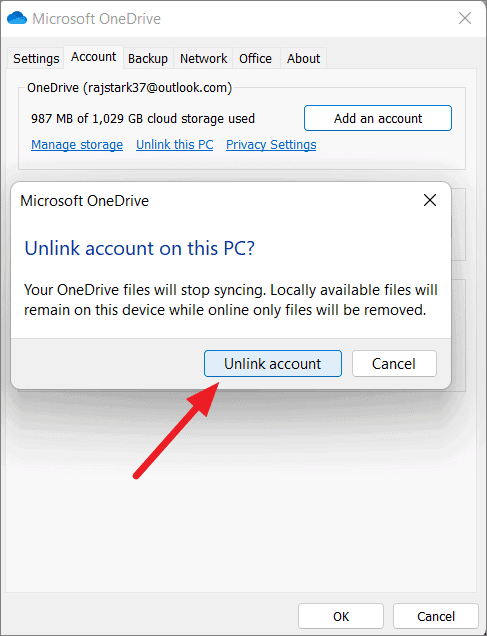
- Step 5: Look for the section displaying your account name and click the blue link labeled Unlink this PC.
- Step 6: A confirmation dialog will appear. Click Unlink account to finalize the process.
What Happens to Files After Unlinking
Many people worry that their data will vanish. Fortunately, that doesn’t happen. Files stored in OneDrive remain safe in the cloud and can still be accessed by signing in through a web browser. Local copies of files that were previously synced may still remain in your C:\Users\[Username]\OneDrive folder. However, they will no longer update or synchronize with the cloud until you sign back in.
How to Sign Out of OneDrive on Mac
Apple users also utilize OneDrive for cross-platform compatibility. The sign-out process on macOS is quite similar to the Windows experience but involves the Apple Menu Bar.
Removing Your OneDrive Account from macOS
If you need to sign out of OneDrive on a Mac, follow these instructions:
- Step 1: Click the OneDrive icon located in the top Menu Bar.
- Step 2: Click the Settings (Gear) icon and select Preferences.
- Step 3: Go to the Account tab.
- Step 4: Click the Unlink this Mac button.
- Step 5: Confirm that you want to remove the account from the device.
Stopping OneDrive Sync on Mac
Once you sign out, the OneDrive application effectively enters a dormant state. Your documents remain stored in the cloud, but the Mac will no longer upload new local changes or download updates made on other devices. This is an excellent way to save bandwidth if you are on a metered connection.
How to Sign Out of OneDrive on Mobile Devices
Mobile security is a top priority since phones are easily lost or stolen. Knowing how to sign out of OneDrive on your mobile device is a key skill for data protection.
Signing Out on Android
To log out of the OneDrive app on an Android device:
- Step 1: Open the OneDrive app.
- Step 2: Tap the Me icon or your profile picture (usually in the bottom-right or top-left).
- Step 3: Tap on Settings.
- Step 4: Tap the name of the account you wish to remove.
- Step 5: Select Sign out and confirm.
Signing Out on iPhone or iPad
The process for iOS users is nearly identical:
- Step 1: Open the OneDrive app on your iPhone or iPad.
- Step 2: Tap your Profile Picture in the top-left corner.
- Step 3: Select Settings.
- Step 4: Tap your account name under the “Accounts” section.
- Step 5: Tap Sign Out at the bottom of the screen.
Signing Out of OneDrive on the Web
If you are accessing your files through a browser at onedrive.live.com, the process is different because you are managing a web session rather than a background application.
Logging Out Through Your Browser
- Step 1: Click your Profile Picture or initials in the top-right corner of the OneDrive webpage.
- Step 2: Click Sign out.
- Step 3: Close the browser tab to ensure no cached session data remains active.
Clearing Account Sessions for Security
If you’re concerned about security, especially on a public computer, logging out of web sessions is vital. Signing out ensures that the next person using the computer cannot simply hit the “Back” button to see your files. For extra safety, you can clear your browser’s cache and cookies after you exit OneDrive.
Sign Out vs Unlink vs Uninstall OneDrive
Many users get confused by these three terms. Choosing the right one depends on your specific goal.
| Action | What It Does | Best Use Case |
| Sign Out | Disconnects the session/account. | Using a shared or public device. |
| Unlink PC | Stops syncing and removes the account linkage. | Troubleshooting sync errors or giving away a PC. |
| Uninstall | Removes the software application entirely. | You no longer want to use OneDrive at all. |
Key Differences Between These Options
Signing out is often temporary; you can reconnect instantly by signing back in. Unlinking is a deeper “disconnect” that removes the account’s presence from the app’s settings but leaves the app installed. Uninstalling is the final step where the actual program files are deleted from your hard drive.
When to Use Each Option
- Sign out when you are momentarily leaving a shared device.
- Unlink when you are experiencing “Processing changes” loops or sync hangs.
- Uninstall if you prefer a different cloud provider and want to free up system resources.
Emergency Data Recovery: Using PandaOffice Drecov
Sometimes, the process of signing out, unlinking, or moving files results in accidental data loss. Perhaps you thought a file was synced when it wasn’t, or you deleted a local folder thinking the cloud version would survive. When this happens, you need a professional-grade recovery tool. PandaOffice Drecov is a premier data recovery solution designed to retrieve lost or deleted files with ease.
⚠ Warning: Install it on a drive different from the one where your data was lost to prevent overwriting.
How to Recover Lost OneDrive Files with PandaOffice Drecov
If you find that files are missing after you sign out of OneDrive, follow these steps to recover them:
- Step 1: Select the Location. Launch the software and select the local drive where your OneDrive folder was located (usually the C: drive).

- Step 2: Scan for Deleted Files. Click the Scan button. The tool will perform a deep scan to find fragments of files that were deleted or lost during the unlinking process.

- Step 3: Preview and Filter. Once the scan completes, use the filter sidebar to find specific file types (like .docx or .jpg). You can preview files to ensure they are intact.

- Step 4: Recover. Select the files you need and click Recover. Save them to an external drive or a different partition.
Warning: Stop using your computer immediately if you notice files are missing. New data written to the disk can overwrite the “deleted” space, making recovery impossible even for advanced tools like PandaOffice Drecov.
More Data Recovery and OneDrive Management
Effective data management goes beyond just knowing how to exit OneDrive. It involves a comprehensive strategy for handling cloud-to-local transitions. To further master your environment, explore these specialized guides:
- Learn how to disable a folder from OneDrive and recover lost files to manage your storage space better.
- If you find that Windows “Save As” default location is stuck on OneDrive, there is a quick fix to return to local saving.
- Decided you don’t need the app? Follow this guide on how to uninstall OneDrive on Windows or Mac.
- Avoid a catastrophe by learning to delete OneDrive the right way so you don’t lose your life’s work.
Tips for Managing OneDrive Accounts Safely
Cloud storage security is incredibly important. Your OneDrive account may contain personal documents, tax records, and sensitive work information.
Security Best Practices for Cloud Storage
To protect your account effectively, adopt these habits:
- Enable Two-Factor Authentication (2FA): This adds a second layer of security beyond just your password.
- Use a Strong Password: Ensure your Microsoft account password is unique and complex.
- Avoid Public Wi-Fi: When signing in or out, try to use a secure connection or a VPN.
- Audit Connected Devices: Regularly check your Microsoft Account security page to see which devices are currently linked.
- Be Careful with “Files On-Demand”: Remember that if a file is “online-only,” you cannot access it if you sign out of OneDrive or lose internet access.
Exit OneDrive FAQs
1. Does signing out of OneDrive delete my files?
No. Signing out only disconnects your device from the account. Your files remain safely stored in the cloud. However, if you haven’t fully synced a file before signing out, the latest changes may only exist on the device you just disconnected.
2. Can I still access my files after I exit OneDrive?
Yes. You can log in through the OneDrive website (https://www.google.com/search?q=portal.office.com or onedrive.com) from any browser or use another device where you are still signed in.
3. What is the difference between unlinking and signing out of OneDrive?
Unlinking is a more permanent disconnection for the specific PC, often used for troubleshooting. Signing out is generally used in the context of the web browser or mobile app to end a session. On Windows, “Unlink this PC” is the official way to sign out of OneDrive on PC.
4. Will local files remain on my computer after signing out?
Yes. Files that were previously downloaded to your hard drive (marked with a green checkmark) will remain. Files marked with a blue cloud icon (Online-only) will disappear from your local file explorer until you sign back in.
5. How do I reconnect OneDrive after signing out?
Simply search for “OneDrive” in your Start menu or Applications folder, open it, and enter your Microsoft account credentials to start the sync process again.
6. Can I sign out of OneDrive remotely?
Yes. If you left yourself signed in on a public computer, you can go to your Microsoft Account security settings online and choose “Sign me out” from all locations, or manage your trusted devices to remove the specific computer.
Conclusion
Learning to sign out of OneDrive might seem like a small technical hurdle, but it is a fundamental part of digital hygiene. Whether you are troubleshooting a stubborn sync error, moving to a new device, or protecting your privacy on a public computer, the steps outlined here provide a safe path forward.
OneDrive was designed to make file access seamless across devices. At the same time, it gives users full control over when and where their accounts stay connected. By learning the difference between signing out, unlinking, and uninstalling—and keeping a tool like PandaOffice Drecov in your back pocket—you can manage your digital life with total confidence. Cloud storage should make life easier, not more stressful. Once you understand the sign-out process, controlling your OneDrive account becomes simple, secure, and efficient.






