







Microsoft OneDrive is a powerhouse for productivity, but there are numerous scenarios where you might need to disconnect. Whether you are troubleshooting sync errors, preparing a computer for a new owner, or simply trying to save system resources, knowing how to sign out of OneDrive is a fundamental skill for any Windows or Mac user.
In this comprehensive guide, we will explore every method to sign out of OneDrive across various devices. We will also delve into the critical distinction between signing out and unlinking, and provide a failsafe data recovery solution using PandaOffice Drecov should any files go missing during the process.
Understanding OneDrive Sign-Out vs. Unlink
Before we dive into the “how-to,” it is essential to understand the “what.” Many users find themselves confused by the terminology Microsoft uses. While you might be searching for how to sign out of OneDrive, the buttons you see in the software often say something else entirely.
What Signing Out Means
When people talk about how to sign out of OneDrive, they often imagine it working like logging out of an app or website—and in many ways, that’s exactly what it is. Signing out essentially disconnects your account from the OneDrive app, stopping it from syncing files, accessing your cloud storage, or updating anything in real time. Think of it like closing the door to your cloud storage—your files are still there, but your device no longer has access.
Here’s where things get interesting. OneDrive doesn’t always use the exact term “sign out” on desktop versions. Instead, it uses phrases like “unlink this PC,” which can confuse users. The end result is similar: your account is no longer actively connected. However, the terminology matters because it affects how users understand what’s happening behind the scenes.
Difference Between Sign Out and Unlink
Now, let’s clear up the confusion between signing out and unlinking. These two actions are often used interchangeably, but they’re slightly different depending on the platform. On Windows, the process to sign out of OneDrive is technically achieved by “unlinking” your PC. It disconnects your account and stops all syncing activity.
On mobile devices, however, you’ll typically see a clear “sign out” option. This removes your account from the app entirely. Meanwhile, unlinking on desktop keeps the app installed but inactive. It’s like muting notifications instead of uninstalling the app altogether. Understanding this distinction helps you choose the right method. If you just want to pause your connection, unlinking works perfectly. If you’re switching accounts or giving your device to someone else, knowing how to sign out of OneDrive completely is the better choice.
Why You Might Want to Sign Out of OneDrive
There are several strategic reasons why a user would seek to sign out of OneDrive. Understanding these can help you decide if a temporary pause or a full sign-out is required.
Privacy Concerns
Privacy is one of the biggest reasons people decide to sign out of OneDrive. When your account is active, files are constantly syncing between your device and the cloud. While this is convenient, it also means your data is stored remotely, which might not sit well with everyone. Imagine leaving your personal diary in a shared locker—even if it’s secure, you might still feel uneasy about it. Learning how to sign out of OneDrive gives you control over where your data lives and who can access it.
Switching Accounts
Another common scenario is switching between accounts. Maybe you have a personal account and a work account, or perhaps you’re helping a friend log in on your computer. To ensure that your files don’t mix with someone else’s, you must first sign out of OneDrive. It’s like logging out of social media before handing your phone to someone—you’re protecting your space while allowing others to use the device safely.
Reducing Background Activity
OneDrive runs quietly in the background, syncing files and checking for updates. While this is usually harmless, it can consume system resources. When you sign out of OneDrive, you stop these processes, freeing up CPU, memory, and bandwidth. If your computer feels sluggish during heavy tasks like gaming or video editing, this small change can make a noticeable difference.
Method 1: How to Sign Out of OneDrive via Settings (Unlink PC)
This is the standard method for Windows 10 and Windows 11 users. It is the most direct way to sign out of OneDrive without affecting your Microsoft Windows login. For the most up-to-date visual guides and official troubleshooting, you can also refer to the official Microsoft Support page on unlinking OneDrive.
Step-by-Step Instructions
- Locate the Icon: Look for the blue or white cloud icon in your Windows Taskbar (system tray) near the clock. If you don’t see it, click the upward arrow to show hidden icons.
- Open Settings: Click the OneDrive icon, then click the Gear icon (Help & Settings) in the top right corner of the pop-up window.
- Enter Settings Menu: Select Settings from the menu.
- Access Account Tab: A new window will appear. Ensure you are on the Account tab.
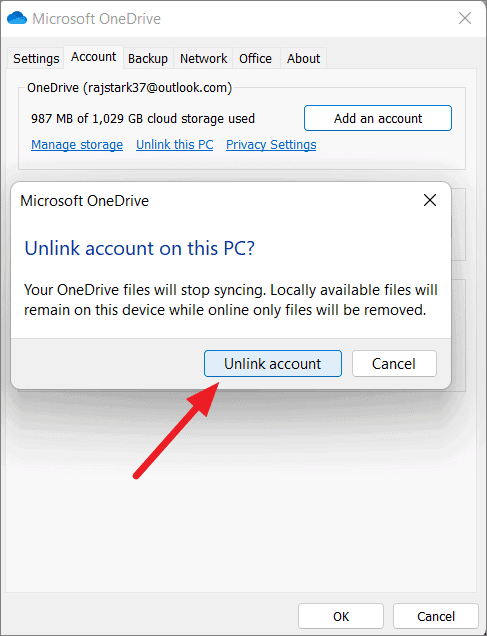
- Unlink the PC: Look for the link that says “Unlink this PC”.
- Confirm: A confirmation dialog will appear. Click Unlink account.
What Happens After Signing Out
After you sign out of OneDrive using this method, the OneDrive setup screen will appear, asking you to sign in again. You can simply close this window. Your files that were already downloaded to your hard drive will stay there, but they will no longer sync with the cloud. Any “online-only” files (marked with a blue cloud icon) will vanish from your local file explorer until you sign back in.
Method 2: Sign Out of OneDrive via Windows Account Settings
If you want to completely remove the association of your Microsoft account from the device, you can sign out of OneDrive by changing your Windows user account type.
Using Windows Settings
- Press
Windows Key + Ito open Settings. - Navigate to Accounts > Your info.
- Look for the option “Sign in with a local account instead”.
- Follow the prompts to create a local username and password.
Impact on Other Services
Be warned: this method is the “nuclear option” for how to sign out of OneDrive. While it successfully signs you out of OneDrive, it also signs you out of the Microsoft Store, Windows Mail, and Calendar. Only use this if you want to completely de-link your Microsoft identity from the computer hardware.
Method 3: How to Sign Out of OneDrive on Mobile Devices
Mobile apps handle accounts differently than desktop operating systems. Here is how to sign out of OneDrive on your smartphone.
Android Steps
- Open the OneDrive app.
- Tap the Me icon (or your profile picture) at the bottom right of the screen.
- Tap on Settings.
- Tap the account name you wish to sign out of.
- Select Sign out.
- Confirm the action when prompted.
iPhone (iOS) Steps
- Open the OneDrive app.
- Tap your Profile Picture or the icon in the top left corner.
- Go to Settings.
- Tap the account you want to remove.
- Tap Sign Out.
Note: On mobile, once you sign out of OneDrive, your offline files may be removed from the device to save space, though they remain safe in the cloud.
Data Recovery: What to Do if Files Disappear
Sometimes, the process of trying to sign out of OneDrive leads to unexpected data loss. Perhaps you unlinked your account and realized some files were “online-only” and are now missing, or you accidentally deleted a local folder thinking it was just a shortcut.
When this happens, you need a professional-grade tool like PandaOffice Drecov. PandaOffice Drecov is a premier data recovery solution designed to retrieve lost, deleted, or formatted files from your Windows or Mac system. If you encountered a glitch while learning how to sign out of OneDrive and lost important documents, Drecov can scan your drive for the “ghost” versions of those files that still reside on your disk.
⚠ Warning: Install it on a drive different from the one where your data was lost to prevent overwriting.
How to Recover Files with PandaOffice Drecov
If you find that your files are missing after you sign out of OneDrive, follow these simple steps:
- Step 1: Select a Location. Launch the software and select the drive where your OneDrive folder was located (usually the C: drive).

- Step 2: Scan for Data. Click the Scan button. Drecov will perform a deep dive into your file system to find remnants of unsynced files.

- Step 3: Preview and Recover. Once the scan is complete, browse the list of found files. You can preview images and documents to ensure they are intact.

- Step 4: Save Files. Select the files you want to get back and click Recover.
Warning: Never save the recovered files back to the same drive they were lost from. This could overwrite the very data you are trying to save! Use an external USB drive or a different partition.
Comparison of All Methods
To help you choose the best way to sign out of OneDrive, here is a quick reference table:
| Method | Ease of Use | Technical Level | Best For… |
| OneDrive Settings (Unlink) | Very Easy | Beginner | Most users and troubleshooting. |
| Windows Settings (Local Account) | Moderate | Intermediate | Users wanting total privacy from Microsoft. |
| Mobile App Sign Out | Very Easy | Beginner | Protecting data on phones/tablets. |
| PandaOffice Drecov | Easy | Beginner | Recovering files lost during sign-out. |
Common Mistakes to Avoid When You Sign Out of OneDrive
- Assuming Files are Offline: One of the biggest mistakes users make when learning how to sign out of OneDrive is assuming every file in their folder is saved on their hard drive. If a file has a Cloud icon, it is not on your computer. Sign out of OneDrive only after you have right-clicked those files and selected “Always keep on this device.”
- Deleting the Folder Manually: Do not try to “sign out” by simply deleting the OneDrive folder. This will delete the files from the cloud as well! Always use the “Unlink this PC” option first.
- Ignoring Sync Errors: If OneDrive is stuck “Processing changes,” signing out might be necessary, but ensure you have a manual backup of your most recent work before doing so.
For more detailed guides on managing your cloud storage safely, check out these resources:
- How to turn off OneDrive sync without losing your files
- How to unsync OneDrive without losing data
- How to delete files from OneDrive without losing data
Sign out of Onedrive FAQs
1. Is signing out the same as uninstalling OneDrive?
No. When you sign out of OneDrive, the application remains on your computer but stays idle. Uninstalling removes the software entirely from your system.
2. Will my files be deleted if I sign out?
No, your files remain both locally (if they were downloaded) and in the cloud. However, online-only files will no longer be visible in File Explorer.
3. Can I sign back in later?
Absolutely. Just open the OneDrive app, enter your credentials, and your files will begin syncing again.
4. Does signing out improve performance?
Yes. By choosing to sign out of OneDrive, you stop background syncing, which can reduce high disk usage and improve internet speeds on slower connections.
Conclusion
Mastering how to sign out of OneDrive is an essential part of maintaining your digital workspace. Whether you choose to unlink your PC for a fresh start or sign out on your mobile device for added security, the process is designed to be user-friendly. Always remember to verify that your important files are saved locally before you sign out of OneDrive to prevent any data loss.
If something does go wrong, tools like PandaOffice Drecov are there to catch you, ensuring that your data remains recoverable even in the most complex scenarios.






