







Accidentally deleting Chrome bookmarks can feel catastrophic—especially when those bookmarks represent months or even years of accumulated research, work references, client resources, or personal knowledge collections. For students, researchers, marketers, and developers alike, a well-organized bookmark library often functions as an external brain, which is why learning how to restore deleted Chrome bookmarks becomes so critical when mistakes happen.
From a professional data recovery perspective, however, deleted Chrome bookmarks are far from hopeless. In most real-world cases, bookmarks can still be recovered—if the correct recovery logic is applied and risky actions are avoided early on.
This expert-enhanced guide goes far beyond surface-level tutorials. It explains how Chrome bookmark data is actually stored, what technically happens at the file-system level when deletion occurs, how SSDs and sync mechanisms change recovery outcomes, and how to select the most effective recovery strategy based on time, device type, and overwrite risk.
Understanding Chrome Bookmark Deletion: What Really Happens
Chrome Bookmarks Are Structured Files, Not Isolated Entries
A common misconception is that each bookmark is stored as an independent record, similar to a photo or document. In reality, Google Chrome stores all bookmarks for a profile inside a single structured JSON file, primarily:
Bookmarks— the active bookmark databaseBookmarks.bak— a single-session backup created when Chrome launches
When you delete a bookmark or an entire folder:
- Chrome rewrites the entire JSON structure
- The previous version of the file becomes logically replaced
- The old data is not instantly erased from disk
Recovery therefore depends on whether:
- Earlier versions of the file still exist
- Those versions have been overwritten by new disk activity
- System-level snapshots or backups captured the file state
This is fundamentally different from recovering individual photos or videos, and it explains why browser-level recovery options are often limited.
The Role of the File System: Logical Deletion vs Physical Overwrite
From a data recovery standpoint, deleting Chrome bookmarks is a form of logical deletion. The operating system simply updates file pointers and metadata, marking previous data blocks as reusable space.
As long as those blocks have not been reused, recovery remains possible. Once overwritten, however, the original data becomes irretrievable—even with professional tools.
This is why timing and user behavior immediately after deletion are critical.
HDD vs SSD: Why Hardware Matters More Than You Think
The type of storage device dramatically affects recovery potential:
- HDD (Traditional Hard Drives):
- Deleted data may persist for days or weeks
- Overwrite happens gradually
- Recovery windows are relatively long
- SSD (Solid-State Drives with TRIM enabled):
- Deleted blocks may be proactively cleared
- Recovery windows are significantly shorter
- Idle time alone can reduce recoverability
Professional Insight: On modern SSD systems, waiting even a few hours—while continuing normal computer use—can drastically reduce success rates.
Critical Data Recovery Warnings (Read Before You Proceed)
Before attempting any recovery method, it is essential to avoid actions that can permanently destroy recoverable data.
Actions That Severely Reduce Recovery Chances
❌ Reinstalling or updating Chrome
❌ Running disk cleanup, optimization, or registry tools
❌ Using system “cleaner” utilities
❌ Repeatedly opening and closing Chrome
❌ Saving recovered files back to the system drive
Mandatory Best Practices
✅ Stop unnecessary computer activity immediately
✅ Install recovery software on a non-system drive
✅ Recover files to an external USB drive or secondary disk
These precautions are especially critical on SSD-based systems and laptops.
Chrome Bookmark Recovery Strategy: A Professional Hierarchy
From an engineering standpoint, Chrome bookmark recovery follows a layered escalation model. Each layer relies on deeper access to historical data and carries different risks.
Always attempt recovery in the following order. Skipping steps may permanently reduce success rates.
Method 1: Immediate Undo (Memory-Level Recovery)
Best for: Accidental deletion seconds ago
Chrome retains a short-lived action history while the Bookmark Manager remains open.
Steps
- Do not close Chrome
- Open Bookmark Manager:
- Windows: Ctrl + Shift + O
- macOS: Cmd + Option + B
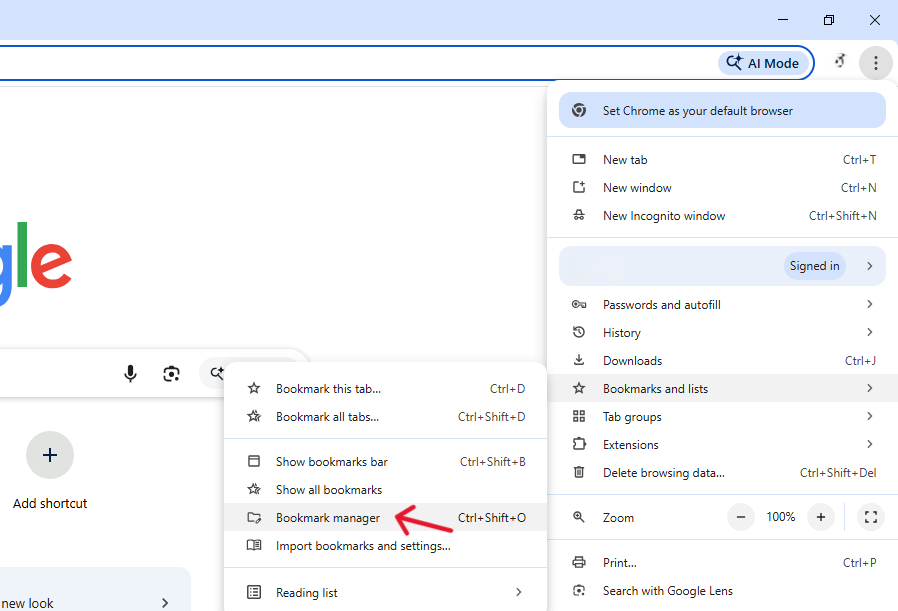
- Press Ctrl + Z (Windows) or Cmd + Z (macOS)
- Verify whether the deleted bookmarks reappear
Limitations
- Works only for the most recent action
- History is cleared once Chrome is closed
- Ineffective for deletions discovered later
Method 2: Manual Local Backup Recovery (.bak Strategy)
Why Use PandaOffice Drecov?
While other methods rely on the browser’s internal stability, PandaOffice Drecov accesses the raw data layer of your disk. It is specifically optimized for retrieving application-specific files like Chrome’s local state databases.
- Versatility: It recovers photos, videos, audio, compressed files (ZIP/RAR), and even system files like EXEs.
- Accidental deletion from your computer desktop.
- Files lost after emptying the Recycle Bin.
- Data loss from disk formatting.
- Accidental deletion or formatting of SD cards/U disks.
- Sync error occurring with deleted OneDrive files
- Privacy First: All recovery happens locally on your machine, so you don’t have to worry about your private data leaking to the web.
Best for: Deletions discovered within hours
Chrome automatically creates a backup of the bookmark file during startup. This backup often survives accidental deletions—but only briefly.
Chrome Bookmark Storage Path (Windows)
%LocalAppData%\Google\Chrome\User Data\Default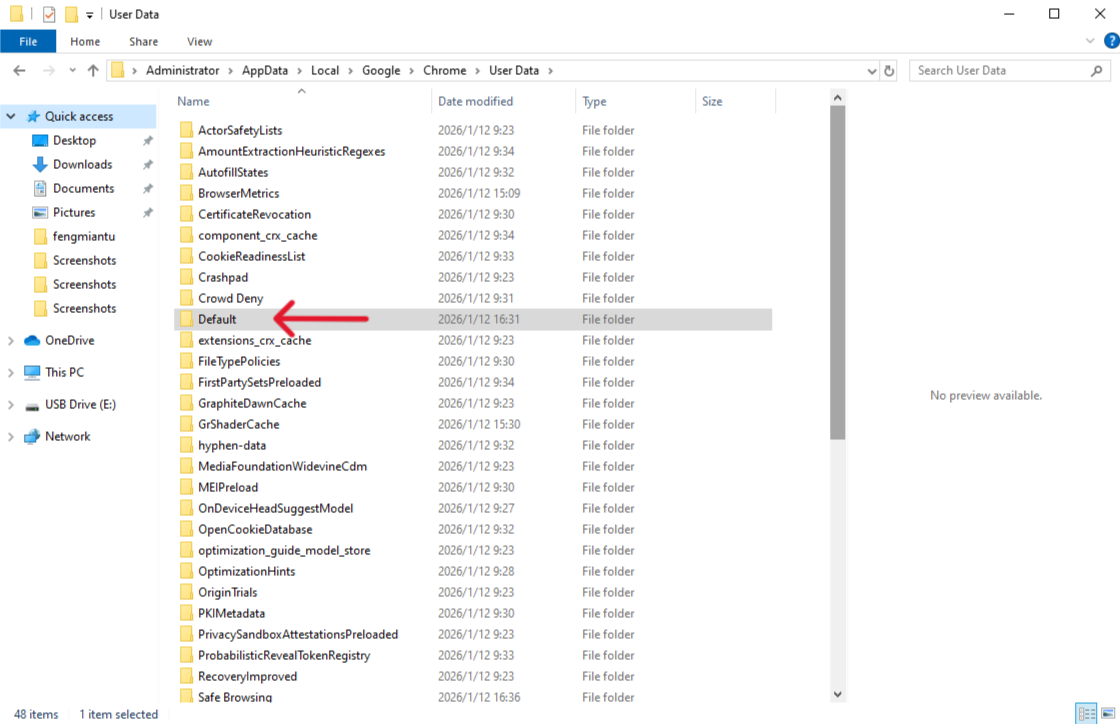
Note: If you use multiple Chrome profiles, the folder may be named
Profile 1,Profile 2, etc.
Recovery Steps
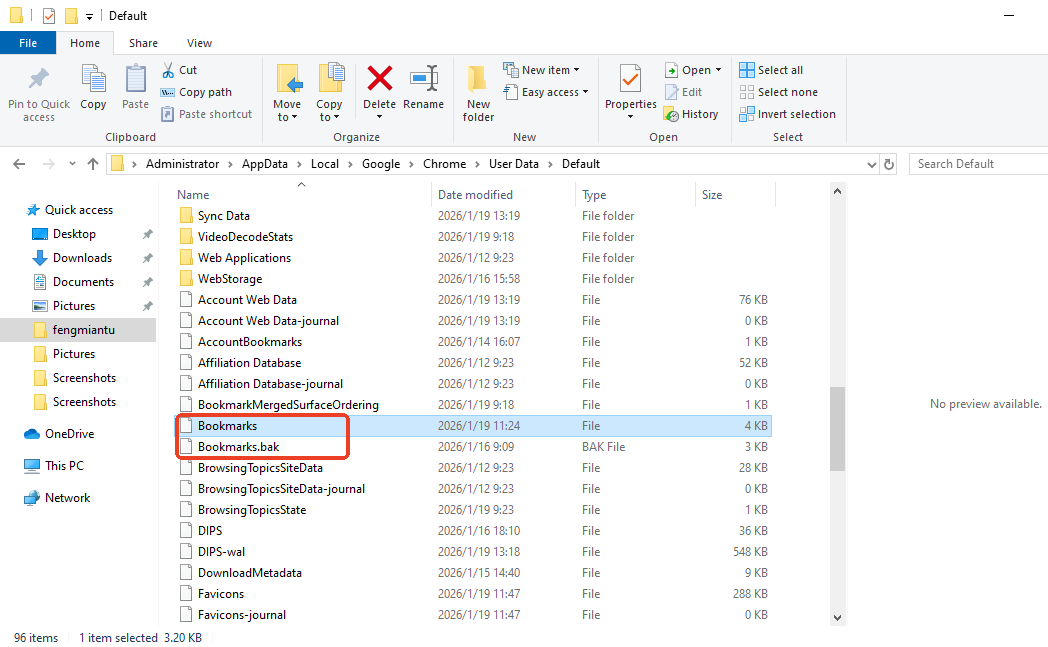
- Close Chrome completely (ensure it is not running in the background)
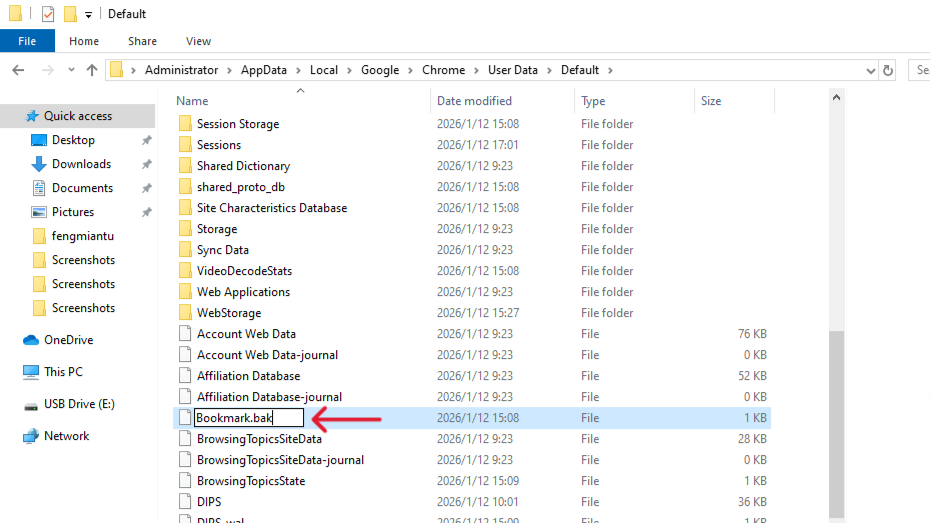
- Rename
Bookmarks→Bookmarks.old - Rename
Bookmarks.bak→Bookmarks - Relaunch Chrome
Professional Notes
- Chrome keeps only one
.bakfile - Reopening Chrome multiple times after deletion may overwrite the backup
- File timestamps and size are key indicators of usefulness
Method 3: PandaOffice Drecov (Professional Disk-Level Recovery)
Best for:
- Deletions discovered days or weeks later
- Missing or overwritten
.bakfiles - Chrome Sync conflicts
- SSD systems with limited recovery windows
- Accidental profile or user folder deletion
How PandaOffice Drecov Works (Technical Overview)
Unlike browser-native methods, PandaOffice Drecov operates at the file-system and disk level. It scans storage media for:
- Historical versions of
BookmarksJSON files - Orphaned or partially overwritten file fragments
- Related Chrome data files such as
FaviconsandHistory
By reconstructing these components, the software can often restore bookmark libraries even after browser-level recovery options have failed.
Step-by-Step Guide Using PandaOffice Drecov
- Step 1: Safe Installation
- Install PandaOffice Drecov on a drive other than the system partition (avoid C:).
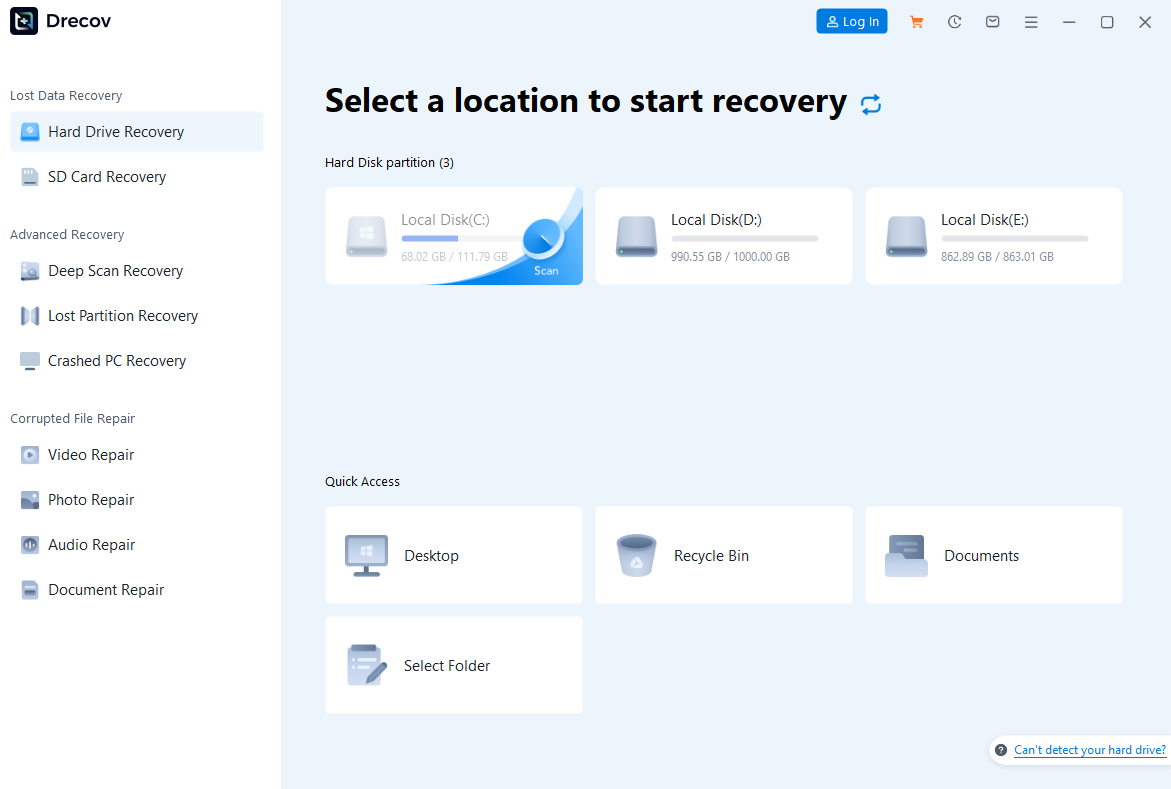
- Step 2: Select Scan Location
- Choose the drive containing your Chrome user profile.

- Step 3: Target Relevant Files
- Filter or search for:
BookmarksBookmarks.bakFavicons
- Step 4: Analyze Timestamps
- Preview file metadata and identify versions dated before deletion.

- Step 5: Recover Securely
- Export recovered files to an external drive.
- Step 6: Restore to Chrome Profile
- Copy recovered files into:
%LocalAppData%\Google\Chrome\User Data\DefaultRestart Chrome to load the restored data.
Recovery Boundaries and Failure Scenarios
Even professional tools have limits. Recovery may fail if:
- SSD TRIM has already cleared the relevant blocks
- The system drive experienced sustained high write activity
- Bookmark files were rewritten multiple times after deletion
Despite these constraints, PandaOffice Drecov remains the final recovery layer once browser-level and system-level mechanisms fail.
Method 4: Windows Previous Versions (System Snapshot Recovery)
Best for: Systems with File History or System Protection enabled
Steps
- Navigate to:
%LocalAppData%\Google\Chrome\User Data
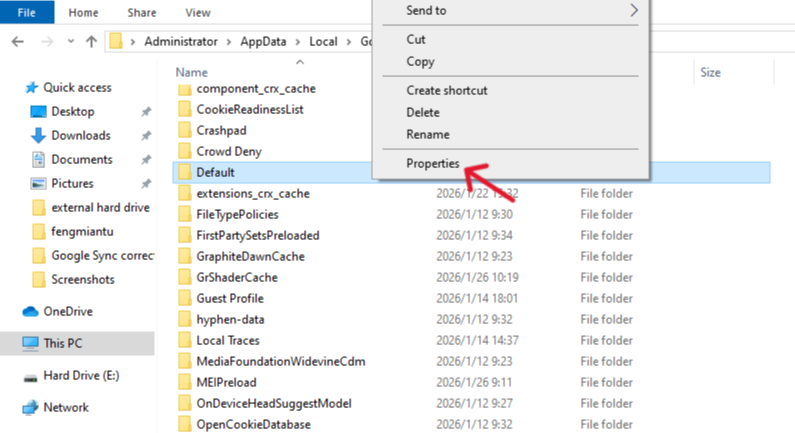
- Right-click the profile folder → Properties
- Open the Previous Versions tab
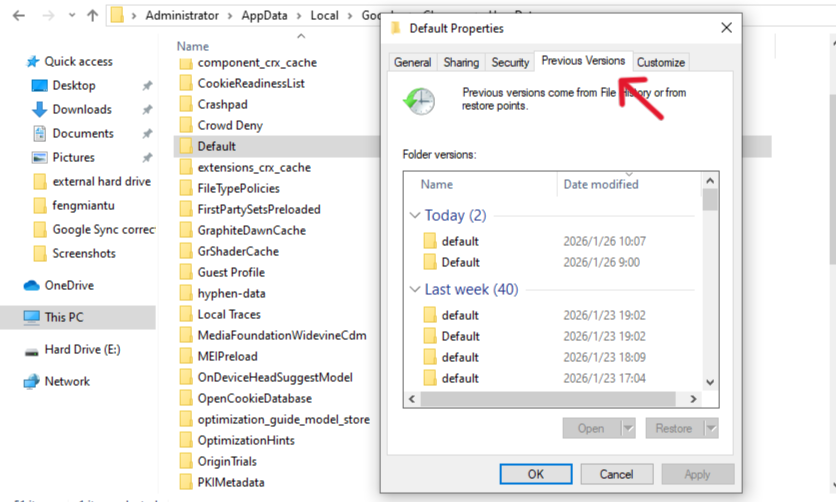
- Select a snapshot dated before deletion
- Click Open, locate
Bookmarks, and copy it to your active profile
Important Notes
- Avoid clicking “Restore” on the entire folder
- If no snapshots appear, switch to disk-level recovery immediately
Method 5: Google Sync Interception (Multi-Device Recovery)
Best for: Users signed into Chrome on multiple devices
If deletion has not yet propagated:
- Immediately disconnect secondary devices from the internet
- Check if bookmarks still exist locally
- Manually preserve critical URLs or export data
Sync Risk Warning
Chrome Sync deletions often propagate rapidly and may overwrite all remaining copies, eliminating recovery options.
Comparison Table: Choosing the Right Recovery Method
| Method | Success Rate | Overwrite Risk | SSD-Friendly | Skill Level |
|---|---|---|---|---|
| Ctrl+Z Undo | Low | None | Yes | Very Easy |
| .bak File | Medium | Low | Limited | Easy |
| PandaOffice Drecov | Very High | Minimal | Yes | Guided |
| Previous Versions | Medium–High | Low | Yes | Moderate |
| Google Sync | Low–Medium | High | Yes | Moderate |
Preventing Future Bookmark Loss: Professional Recommendations
1. Controlled Chrome Sync Management
Temporarily disable Sync during large-scale bookmark edits to prevent cloud-wide error propagation.
2. Enable Windows File History
Hourly snapshots provide versioned recovery without requiring disk-level scans.
3. Third-Party Bookmark Snapshot Tools
Extensions such as Bookmark Backup or EverSync maintain independent historical versions, reducing reliance on a single recovery method.
How to Restore Deleted Chrome Bookmarks FAQs
1.Can bookmarks be recovered after uninstalling Chrome?
Yes. Chrome often leaves the user data directory intact. Disk-level recovery can locate residual JSON files even if the browser application itself is removed.
2.Does clearing browsing history delete bookmarks?
No. Bookmark loss following cleanup typically indicates a sync issue, profile corruption, or accidental deletion.
3.Why are favicons missing after recovery?
Favicons are stored in a separate database. Recovering the Favicons file restores icons instantly; otherwise, Chrome regenerates them over time.
Conclusion:
Chrome bookmark recovery is not a single action but a progressive recovery process, and understanding How to Restore Deleted Chrome Bookmarks requires following this clear escalation path:
- Memory-level undo
- Local backup restoration
- System snapshot rollback
- Disk-level professional recovery
When browser-native mechanisms fail, PandaOffice Drecov functions as the definitive recovery layer, bridging the gap between logical deletion and permanent data loss.
By combining informed recovery strategies with proactive backup practices, learning How to Restore Deleted Chrome Bookmarks becomes far less stressful—allowing your Chrome bookmarks to evolve from a fragile collection of links into a resilient, fully recoverable knowledge system.






