







Imagine you are deep into a high-stakes research project or planning the vacation of a lifetime. For weeks, you have been meticulously “starring” essential pages, building a digital treasure map that represents hours of cognitive labor. Then, in a split-second lapse of concentration, you accidentally delete a folder, or a sudden browser sync glitch wipes your toolbar clean. That sinking feeling in your stomach is universal, leading many to search for a definitive How to Recover Deleted Bookmarks Chrome: Pro Guide.
Most users assume that once a link is deleted from a browser, it evaporates into the digital void. However, the reality is far more encouraging. If you act with precision, you can learn how to recover deleted bookmarks chrome and bring those lost stars back to your screen.
Why Deletion Isn’t Permanent?
Before we roll up our sleeves, let’s explore why there is still a significant chance of recovery. To a computer, “deleting” something is rarely an act of immediate destruction; instead, it is an act of “forgetting.”
The Restaurant Table Analogy
Think of your hard drive as a busy restaurant. Each of your bookmarks is a customer sitting at a table. When you “delete” a bookmark, the restaurant manager (your operating system) doesn’t physically throw the customer out of the building. Instead, the manager simply marks that table as “Available.”
The customer—your bookmark data—remains seated there until a new guest arrives and occupies that specific spot. If you continue using your computer, downloading movies, or saving new files, you are bringing in new guests who will eventually “overwrite” your old data. Consequently, if you catch the manager before the table is reassigned, the original data is still there, waiting to be rediscovered. This biological-like resilience of data is the fundamental secret behind how to recover deleted bookmarks chrome.
⚠️ Critical Precautions: The “Emergency Protocol”
To maximize your success rate, you must adhere to these two golden rules immediately. Neglecting these steps is the primary reason most recovery missions fail.
- 🚫 Cease All Disk Activity: Every second you spend browsing or downloading increases the risk of the system overwriting its internal backup files. In light of this, close all unnecessary programs immediately.
- 🛑 DO NOT RE-LAUNCH CHROME: This is a major technical trap. Chrome typically overwrites its local backup file (
Bookmarks.bak) every time the application starts. If you just realized your bookmarks are missing, keep the browser closed until you have manually secured the backup files.
Method 1: The Manual Rescue (Renaming Backup Files)
Chrome quietly maintains a secret “safety copy” of your bookmarks on your local drive. For many, this is the most direct way to how to recover deleted bookmarks chrome without external help.
- Step 1: Press Win + R, paste the following path, and hit Enter: LOCALAPPDATA \Google\Chrome\User Data\Default(Note: If you use multiple profiles, look for folders like “Profile 1” instead of “Default”.)
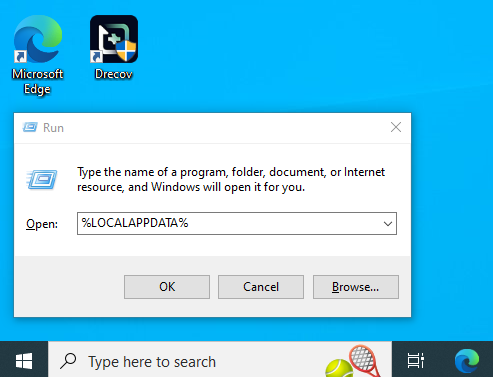
- Step 2: Locate two specific files:
BookmarksandBookmarks.bak.
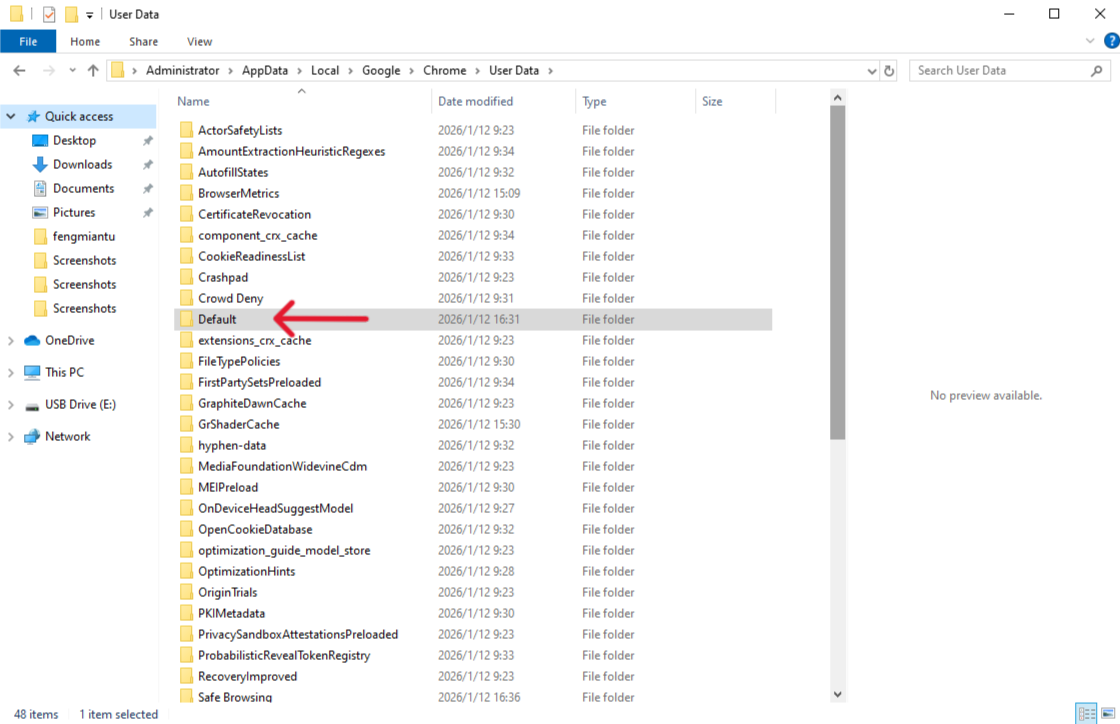
- Step 3 (Safety First): Copy both files to an external USB drive or your Desktop before proceeding.
- Step 4: Ensure Chrome is fully closed via Task Manager. Rename the current
Bookmarksfile toBookmarks.old, then renameBookmarks.bakto simplyBookmarks.
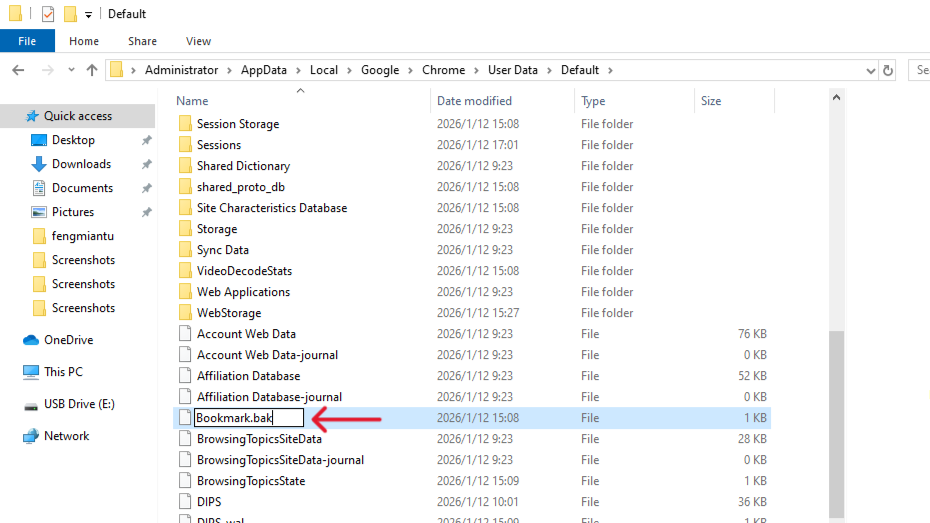
- Step 5: Relaunch Chrome. With luck, your toolbar will be restored to its previous state.
Method 2: Professional Retrieval with PandaOffice Drecov
Sometimes the manual backup file is already overwritten, or the file system itself is corrupted. When built-in methods fall short, you need a specialized engine that can dig into the disk’s history. PandaOffice Drecov Data Recovery Software is a premier choice for these complex scenarios.
Why is PandaOffice Drecov Highly Recommended?
This software is a favorite among IT professionals, maintaining strong reputations on Trustpilot and collaborating with industry leaders like the Microsoft Store, TechBullion, and Sourceforge. It serves as a comprehensive “safety net,” capable of retrieving everything from accidentally deleted desktop files to formatted SD cards.
- Versatility: It recovers photos, videos, audio, compressed files (ZIP/RAR), and even system files like EXEs.
- Accidental deletion from your computer desktop.
- Files lost after emptying the Recycle Bin.
- Data loss from disk formatting.
- Accidental deletion or formatting of SD cards/U disks.
- Simple for Beginners: You don’t need to know a single line of code. It’s a “point-and-click” experience.
- File Repair: It can often fix files that are “corrupted” or “unreadable” during the recovery process.
- Privacy First: All recovery happens locally on your machine, so you don’t have to worry about your private data leaking to the web.
How to Execute the Recovery (3-Step Process):
- 1️⃣ Select Location: Launch the software and select the C: Drive (or whichever drive hosts your OS).
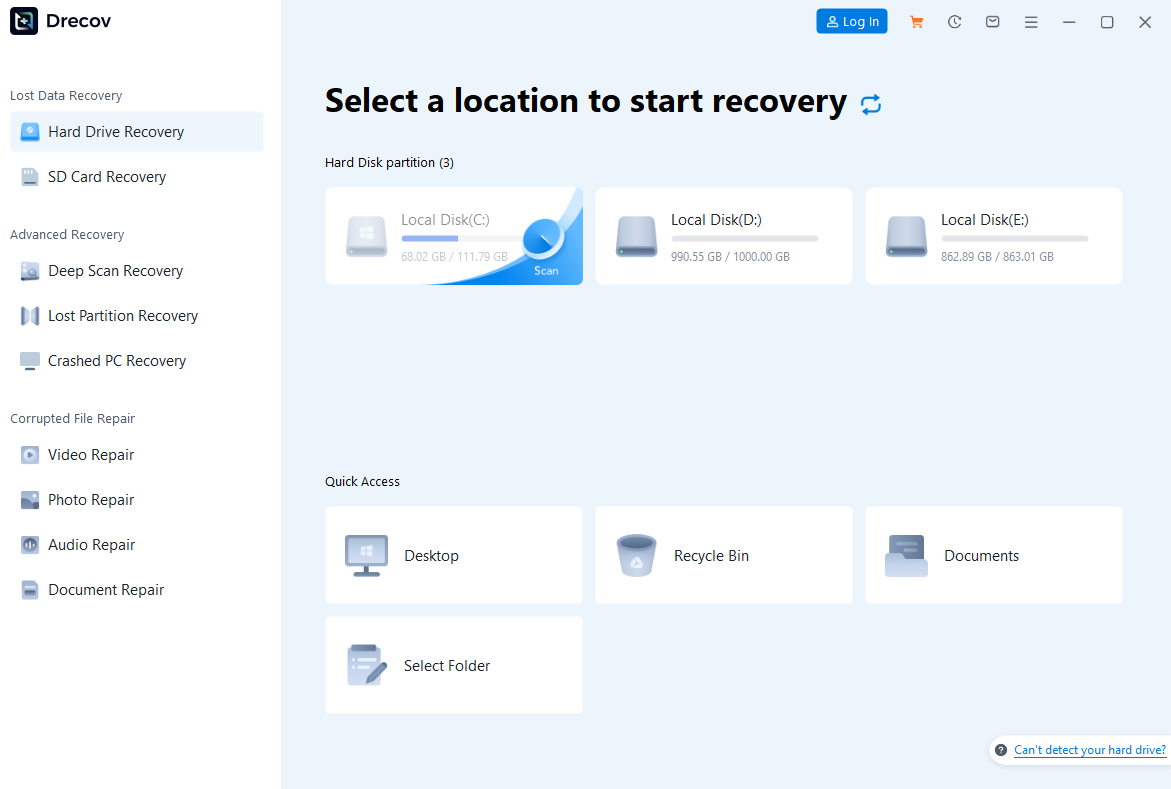
- 2️⃣ Deep Scan & Preview: Click “Scan.” Once the analysis completes, use the search bar to find files named “Bookmarks.” Drecov allows you to preview file contents to ensure you are restoring the correct version.
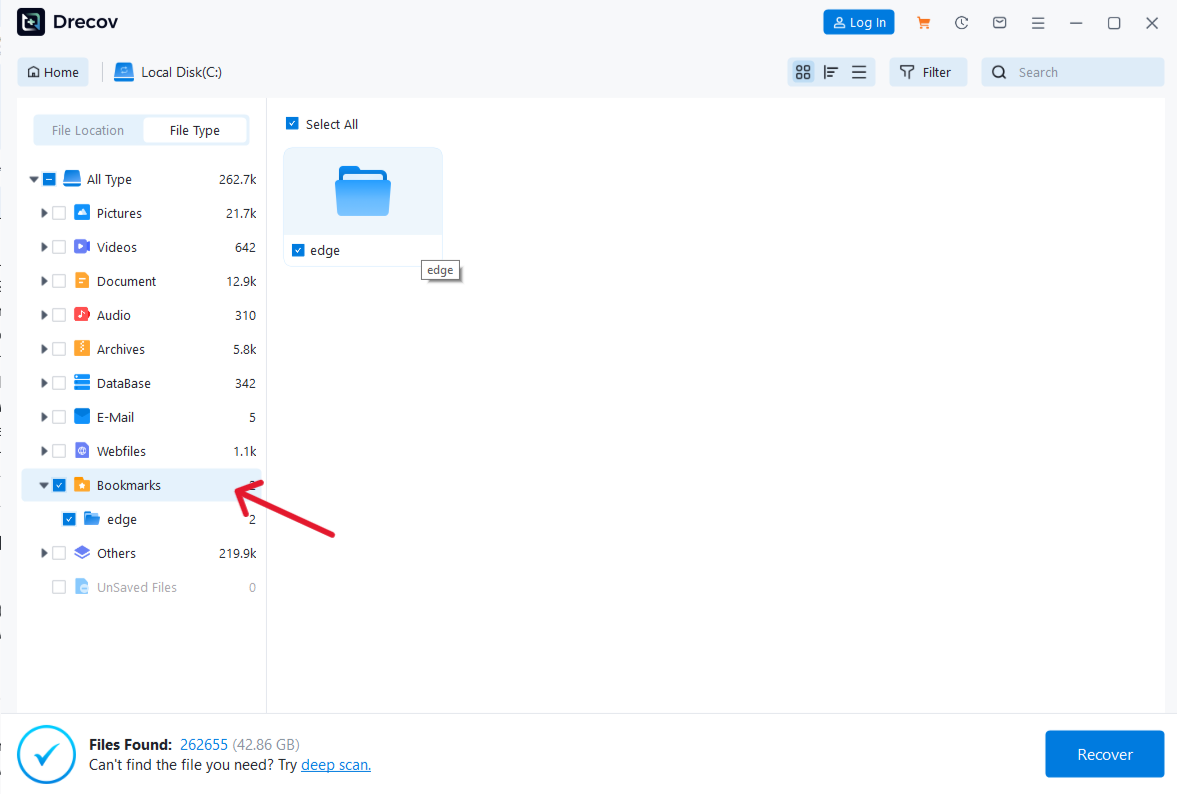
- 3️⃣ Recover & Save: Select your files and click “Recover.”
- 🔴 CRITICAL WARNING: Never save the recovered files back to the C: drive. Use an external drive or a different partition. Saving to the same location risks “killing” the very data you are trying to rescue.
Method 3: Using Windows “Previous Versions”
If you have “System Protection” turned on, Windows might have a snapshot of your Chrome folder from a few days ago.
- Step 1: Go back to the folder mentioned in Method 1
User Data.
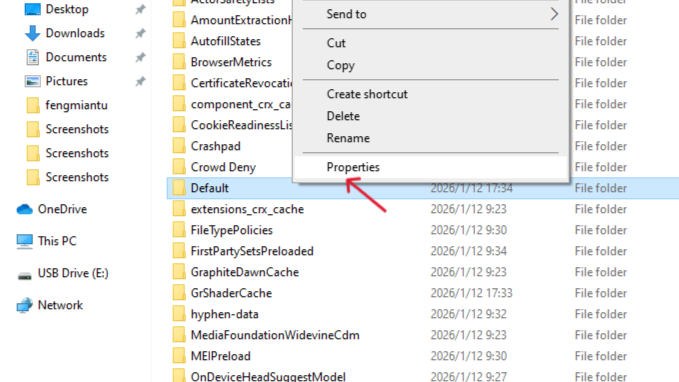
- Step 2: Right-click the
Default(or Profile) folder and select Properties. - Step 3: Click the Previous Versions tab.
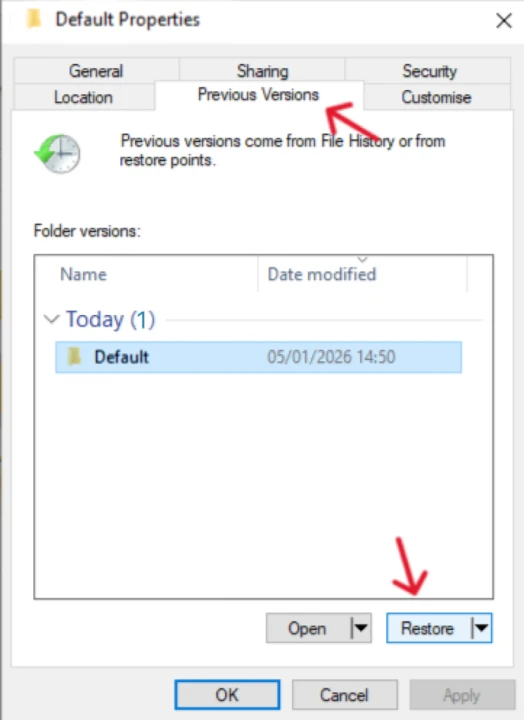
- Step 4: Select a version from a date before you deleted the bookmarks and click Restore. This will roll the folder back in time, hopefully bringing your bookmarks with it.
Method 4: Exploiting the “Sync Lag”
If you use Chrome on multiple devices (like a laptop and a smartphone), you might have a “window of opportunity” before the deletion syncs across your account.
- Step 1: Immediately disconnect your secondary device from the internet (turn off Wi-Fi or use Airplane Mode).
- Step 2: Open Chrome on that offline device. If the bookmarks are still visible, they haven’t been “deleted” locally yet.
- Step 3: Since you are offline, you can manually record the links or export the bookmarks as an HTML file to save them permanently.
Recover Deleted Bookmarks Chrome FAQs
❓ Can I recover deleted bookmarks if I wasn’t signed into a Google Account?
- Yes, absolutely. Chrome stores bookmark data locally on your hard drive regardless of whether you are synced to a Google account. The recovery process remains the same:
Bookmarks.bakAppDatayou either manually restore the local file from your folder or use a professional recovery tool to retrieve the deleted database files from your disk.
❓ I found the Bookmarks.bak file, but it’s the same size as the deleted one. What happened?
- This usually occurs if you re-opened Chrome multiple times after the deletion. Chrome automatically updates the file periodically. If both files are now identical, the manual “rename” method won’t work because the backup has already been overwritten with the “empty” version. In this specific case, you should immediately transition to using PandaOffice Drecov Data Recovery Software to scan for older deleted versions of the file that may still exist in the unallocated space of your hard drive
.bak.
❓ Why are my recovered bookmarks showing up as a “File” type that I can’t open?
- Chrome bookmarks are stored in a JSON format, not a standard document format like Word. If you recovered the file using software, do not try to “double-click” it to open. Instead, place the recovered file back into the Chrome folder (renamed as )
User Data\DefaultBookmarksand restart the browser. Chrome will then parse the code and display your links in the Bookmark Manager.
❓ Will “System Restore” help me recover my deleted Chrome bookmarks?
- While a full System Restore might work, it is often seen as “overkill” and can be risky because it rolls back your entire Windows configuration, including installed programs and system settings. A much safer and more surgical approach is to use the “Previous Versions” feature on just the Chrome folder, which restores only the specific files you need without affecting the rest of your operating system.
Conclusion
While discovering how to recover deleted bookmarks chrome can save your day, the ultimate goal should be total data immunity. Treat this experience as a wake-up call to start a proactive backup routine.
In conclusion, whether you use the manual .bak strategy or the powerful,小白-friendly interface of PandaOffice Drecov, speed is your greatest ally. Remember to periodically export your bookmarks to an HTML file and keep a copy in a secondary cloud service. By combining these advanced recovery techniques with disciplined backup habits, you can navigate the digital world with the confidence that your “stars” will always lead you home.






