







“Help! I just updated my Windows 11, and when I opened Chrome, all my bookmarks from the last three years were gone! I had dozens of folders for work, school, and travel planning. Does anyone know how to recover Chrome bookmarks on Windows 11, or am I out of luck?”
This plea, recently posted on a popular tech community forum, is a nightmare scenario many of us face. Whether it’s due to an accidental deletion, a buggy browser sync, or a sudden system crash, losing your digital library feels like losing a piece of your brain. In the Windows 11 ecosystem, Chrome bookmarks usually disappear due to unintentional account sign-outs, corrupted local profile folders, or aggressive “clean-up” software that wipes temporary files a bit too enthusiastically.
If you are currently staring at a blank bookmarks bar, don’t panic. This guide will walk you through exactly how to recover Chrome bookmarks on Windows 11 using everything from simple built-in tricks to professional-grade recovery tools.
The Secret Life of Deleted Data: How Recovery Actually Works
Before we dive into the “how-to,” let’s talk about the “why.” How can a computer find something you technically “deleted”?
Think of your Windows 11 hard drive like a massive Library. Your Chrome bookmarks are like a specific book kept in the “User Data” section. When you delete a bookmark, Windows doesn’t immediately put that book in a paper shredder. Instead, it simply removes the entry from the library’s Card Catalog (the File Table).
The book is still sitting on the shelf, but the shelf is now marked as “Empty/Available.” As long as you don’t bring in a new book (save new files) and put it on that exact same shelf, the old information remains intact. This is the golden rule of data recovery: The sooner you act, the better your chances. If you keep downloading files or browsing heavily, you might “overwrite” the very bookmarks you are trying to save.
Core Precautions Before You Start
- Stop Writing Data: Avoid installing large games or downloading massive files on your C: drive until the recovery is finished.
- Check Sync First: Ensure you haven’t simply logged out of your Google Account. Sometimes a simple re-login restores everything instantly.
- Don’t Close Chrome Repeatedly: Chrome keeps a “backup” file of your bookmarks that gets overwritten every time you launch the browser. If you just realized they are gone, leave the browser as it is or close it once and stay away from it.
Method 1: The “Undo” Shortcut (The Instant Fix)
If you just accidentally deleted a folder while your browser was open, you might not need complex tools to learn how to recover Chrome bookmarks on Windows 11.
- Step 1: While the Chrome window is active, press
Ctrl + Z. - Step 2: Check if the folder reappears. This only works if the deletion happened seconds ago and the browser hasn’t been closed.
Method 2: Professional Recovery with PandaOffice Drecov
When the manual “Undo” fails and the files seem gone from the system entirely, it is time to use a specialist tool. PandaOffice Drecov is a premier data recovery solution specifically optimized for the Windows 11 file system. It excels at finding “orphaned” browser files that the OS no longer recognizes.
Why choose PandaOffice Drecov? Unlike manual methods that require you to dig through hidden AppData folders, Drecov automates the search for the specific .bak files Chrome uses to store your data.Beyond just browser data, it provides a versatile safety net for various digital disasters:
- Accidental Desktop Deletions: Instantly retrieving files wiped from your local workspace.
- Disk Formatting Errors: Salvaging files from drives that have been completely wiped or reformatted.
- External Media Rescue: Recovering lost data from formatted or corrupted SD cards and USB flash drives.
- Sync Conflict Resolution: Reversing data loss caused by synchronization errors between your PC and the OneDrive cloud.
Tips: Install it on a drive other than your C: drive (like a USB stick) to prevent overwriting data.
Step by step using PandaOffice Drecov:
- Step 1: Launch the software and select the C: Drive (or whichever drive contains your Windows installation).

- Step 2: Use the “File Type” filter or search bar to look for files named
BookmarksorBookmarks.bak.

- Step 3: Preview the found files. Drecov allows you to see the date modified, helping you identify the version that contains your lost data.

- Step 4: Select the file and click Recover. Save the file to your Desktop.
- Step 5: Rename the recovered file to
Bookmarks(remove the .bak extension) and move it to the Chrome User Data path (detailed in Method 3).
Method 3: The Manual Local Backup Recovery
Windows 11 stores a backup of your bookmarks automatically. It is a file named Bookmarks.bak. To use this, you must navigate the labyrinth of hidden folders.
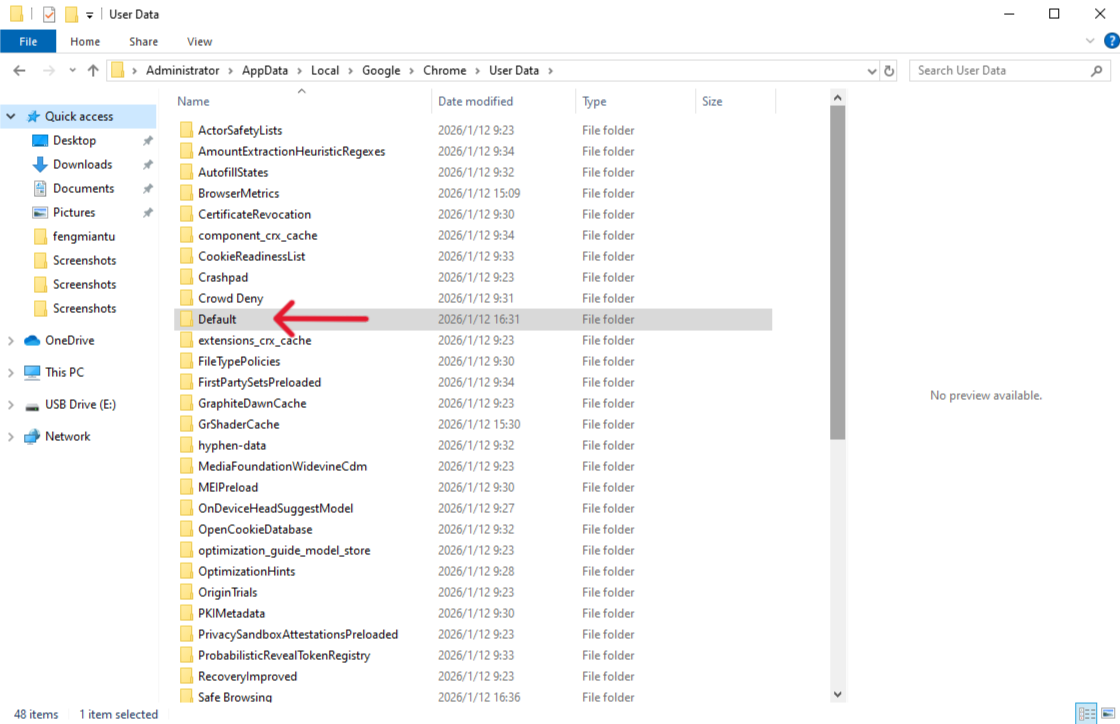
- Step 1: Open File Explorer and paste the following path into the address bar:
C:\Users\%USERNAME%\AppData\Local\Google\Chrome\User Data\Default(Note: If you use multiple Chrome profiles, the folder might be named “Profile 1” or “Profile 2” instead of “Default”).
- Step 2: Look for two files:
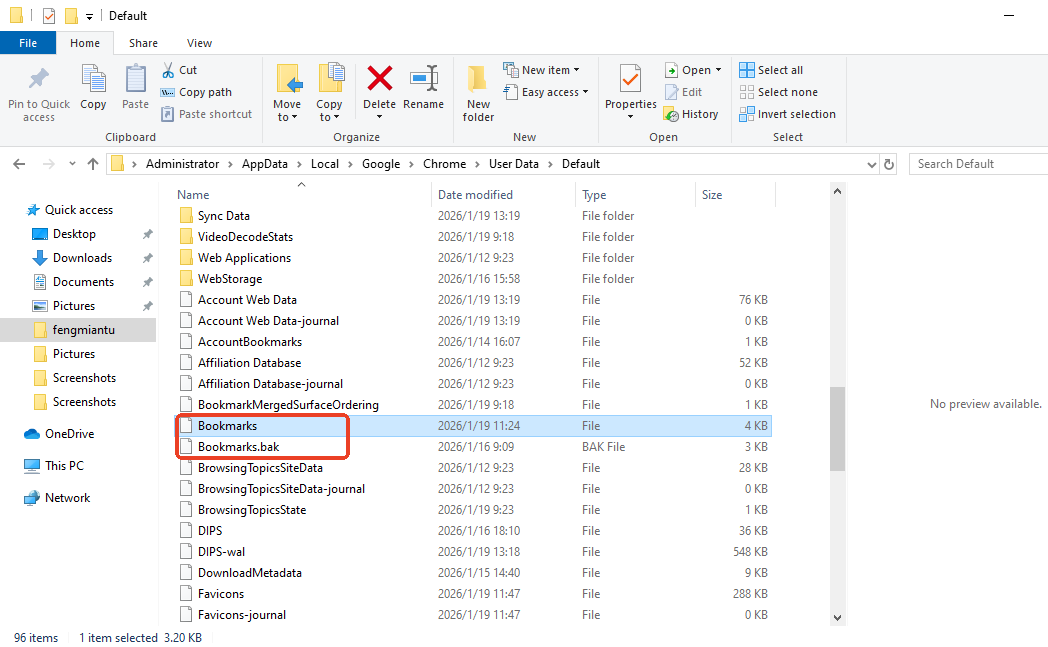
BookmarksandBookmarks.bak.
- Step 3: If you see
Bookmarks.bak, this is your lifeline. First, copy the currentBookmarksfile to a safe place as a backup. - Step 4: Delete the original
Bookmarksfile (the one that is currently empty).
- Step 5: Rename
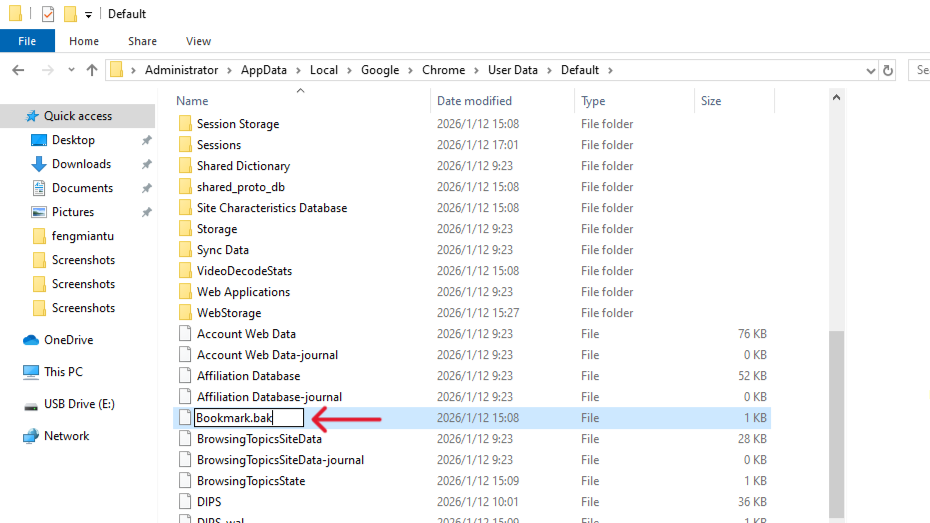
Bookmarks.bakto simplyBookmarks(remove the.bak). - Step 6: Relaunch Chrome. Your old bookmarks should now populate the bar.
Method 4: Using Google History (The Manual Reconstruction)
If the backup files are corrupted, you can still find your lost sites through your Google Account history, provided you were signed in.
- Step 1: Go to myactivity.google.com.
- Step 2: Filter by “Chrome.”
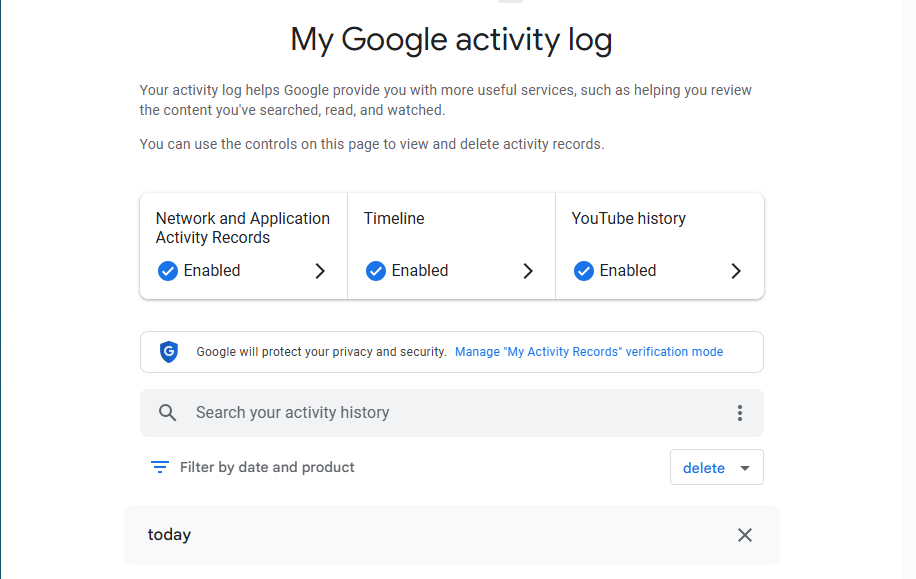
- Step 3: You will see a chronological list of every site you’ve visited. While this doesn’t “restore” the folders, it allows you to find the URLs and re-bookmark them manually.
Comparison of Recovery Methods
| Method | Success Rate | Difficulty | Best For… |
| Ctrl + Z | Low | Very Easy | Accidental clicks within the last 10 seconds. |
| PandaOffice Drecov | High | Easy | Deleted files, system crashes, or when .bak files are missing. |
| Manual .bak Swap | Medium | Moderate | When the backup file still exists in the local folder. |
| Google History | Low | Tedious | Finding specific links when all other files are gone. |
Key Advantage of PandaOffice Drecov: While manual methods rely on the Bookmarks.bak file still being present in the folder, Drecov can find deleted versions of that file from weeks ago, making it the most robust option for serious data loss.
Prevention: Mastering the Bookmarks Manager
The best way to “recover” data is to never lose it. Windows 11 users should be proactive with the Bookmarks Manager.
Importing and Exporting Bookmarks
You should manually back up your bookmarks at least once a month:
- Open Chrome and press
Ctrl + Shift + Oto open the Bookmarks Manager. - Click the three vertical dots (menu) in the top right corner.
- Select Export Bookmarks. Save the HTML file to a cloud service like Google Drive or OneDrive.
- To restore on a new machine, simply select Import Bookmarks from the same menu.
Enable Chrome Sync Correctly
Go to Settings > You and Google > Turn on sync. Ensure that “Bookmarks” is toggled ON. This ensures that even if your Windows 11 PC explodes, your bookmarks are safe in the cloud.
How to Recover Chrome Bookmarks on Windows 11 FAQs
1. Can I recover Chrome bookmarks on Windows 11 if I didn’t have a Google account?
A: Yes. Method 2 (PandaOffice Drecov) and Method 3 (Local .bak) do not require a Google account, as they rely on files stored locally on your hard drive.
2. Why is my Bookmarks.bak file missing?
A: This usually happens if Chrome was opened and closed multiple times after the bookmarks were lost. Each time Chrome closes, it overwrites the .bak file. In this case, professional software is your only hope.
3. Does Windows 11 “System Restore” bring back bookmarks?
A: Generally, no. System Restore focuses on system files and registry settings, not personal user data like browser profiles.
Conclusion
Learning how to recover Chrome bookmarks on Windows 11 doesn’t have to be a technical nightmare. Start with the simplest “Undo” command, then move to checking your local AppData folders for .bak files. If the situation is dire, tools like PandaOffice Drecov provide the heavy lifting needed to scan your disk for lost data segments. Finally, protect your future self by utilizing the export feature in the Bookmarks Manager.






