







Post title: “🆘 Help! All my Chrome bookmarks disappeared overnight”
“I opened Chrome this morning, and every single bookmark is gone. Years of work links, client resources, research materials—everything. I didn’t delete them on purpose. Is there any way to get them back?”
This kind of post appears almost daily on tech forums, Reddit threads, and browser support communities. Some users lose bookmarks after a Chrome update. Others notice the problem only after logging into a new computer. A few panic after clicking the wrong button while cleaning up their browser.
If you are reading this article, chances are you are facing the same issue—or you want to be prepared before it happens.
This guide is built around one clear goal: to explain how to recover Chrome bookmark in a way that actually works for real users, not just technically experienced ones. We will break down the causes, explain the recovery logic in plain language, and walk through multiple recovery methods step by step—from simplest to most powerful.
Part 1: Why Chrome Bookmarks Get Lost
Before learning how to recover Chrome bookmark, it helps to understand why they disappear in the first place. Bookmark loss is rarely random. In most cases, it follows a specific pattern.
Common Scenarios Where Chrome Bookmarks Disappear
Here are the most frequent situations users encounter:
- Accidental deletion
- You removed a bookmark folder while reorganizing
- You cleared browser data without realizing bookmarks were included
- Chrome Sync problems
- Sync overwrote local bookmarks with an empty cloud version
- You signed into a different Google account by mistake
- Chrome update or crash
- An update created a new browser profile
- Chrome crashed while writing bookmark data
- System-level issues
- Sudden power loss
- Disk errors
- Malware or aggressive cleanup software
- Profile corruption
- The Chrome “Default” profile folder became damaged
- Chrome silently created a fresh profile
These scenarios may feel different on the surface, but under the hood, they share similar mechanics.
How Bookmark Data Recovery Works
Think of your computer’s storage like a library index, not a paper shredder.
When Chrome “deletes” bookmarks, it usually:
- Removes references to the bookmark file
- Marks the space as reusable
- Does not immediately erase the underlying data
Imagine pulling a book’s card from the library catalog. The book may still sit on the shelf until another book takes its place.
This is why timing matters when learning how to recover Chrome bookmark:
- The sooner you act, the higher the success rate
- Continued browser use can overwrite recoverable data
Part 2: Critical Rules Before You Try Any Recovery Method
Before jumping into recovery steps, pause for a moment. Many bookmark recovery failures happen because users unknowingly make the situation worse.
What You Should Do Immediately
- Stop using Chrome as much as possible
- Do not reinstall Chrome
- Do not create new bookmarks
- Do not run system cleanup tools
These actions can overwrite the very data you are trying to recover.
Method 1: Recover Chrome Bookmarks from Local Backup Files
This is the simplest method and should always be your first attempt.
Why This Works
Chrome automatically creates local backup files for bookmarks. If the deletion was recent, these backups may still exist.
Step-by-Step Instructions (Windows)
- Step 1: Close Google Chrome completel. Make sure it is not running in the background.
- Step 2: Open File Explorer. Press Win + E
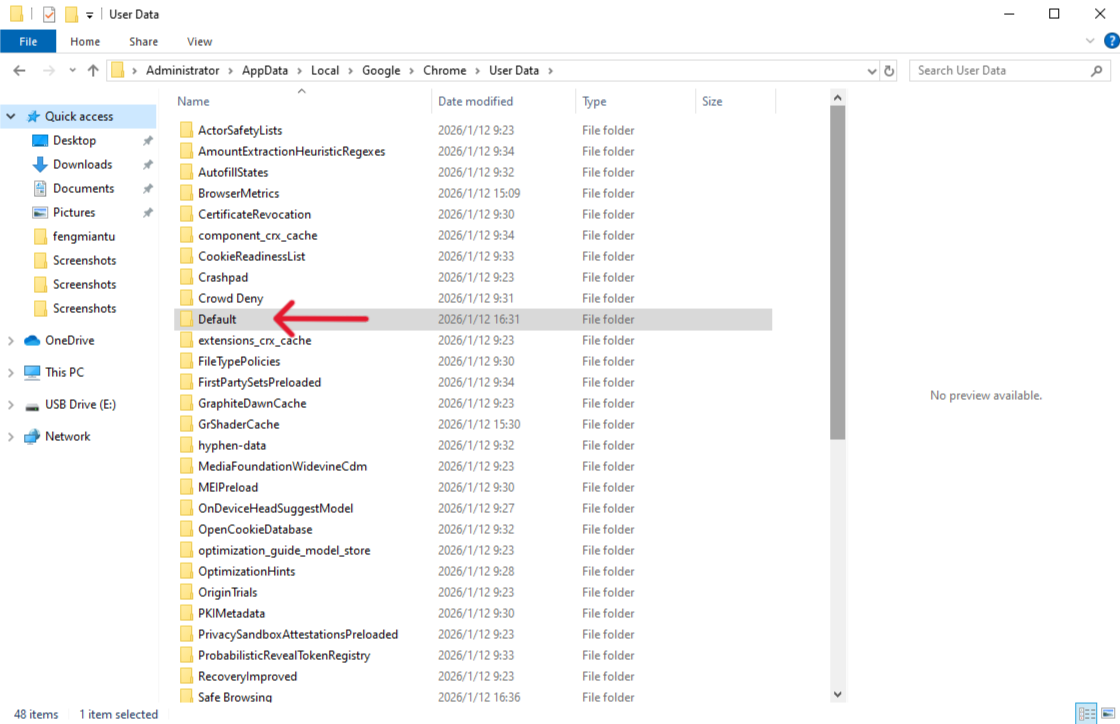
- Step 3: Navigate to the Chrome profile folder C:\Users\YourUsername\AppData\Local\Google\Chrome\User Data\Default
⚠️ If you don’t see the AppData folder, enable Hidden items from the View menu.
- Step 4: Locate these two files
BookmarksBookmarks.bak
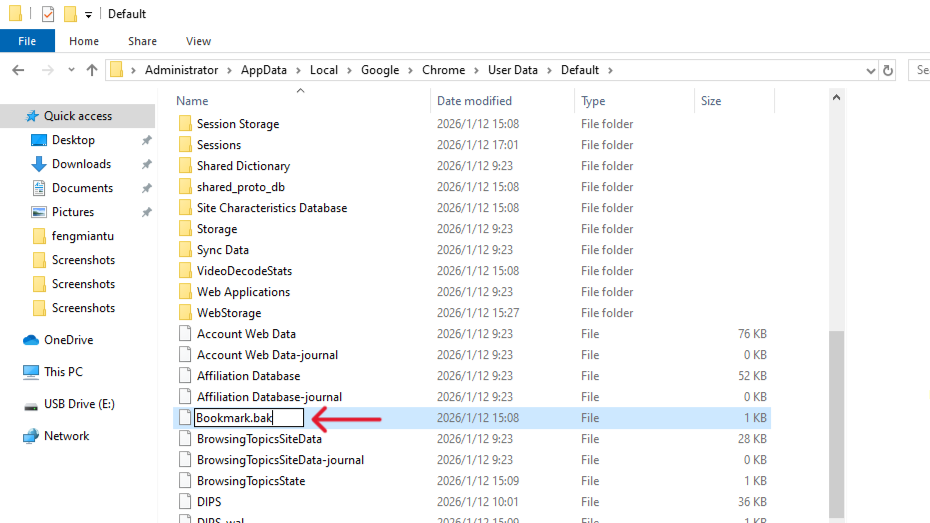
- Step 5: Rename files
- Rename
Bookmarks→Bookmarks.old - Rename
Bookmarks.bak→Bookmarks
- Rename
- Step 6: Restart Chrom. If successful, your bookmarks should reappear.
When This Method Works Best
- Bookmarks were deleted recently
- Chrome was not reopened many times after deletion
Method 2: How to Recover Chrome Bookmark Using PandaOffice Drecov
If local backups are missing or outdated, this is where professional recovery software becomes essential.
Why PandaOffice Drecov Is Different
Unlike manual methods, PandaOffice Drecov scans your disk at a deeper level. It looks for deleted Chrome bookmark files even if:
- Backups are overwritten
- Profiles were reset
- Chrome Sync caused data loss
This makes it one of the most reliable answers to how to recover Chrome bookmark when standard solutions fail.This tool handles it all, whether you are dealing with:
- Accidental Desktop Deletions: Instantly retrieving files wiped from your local workspace.
- Disk Formatting Errors: Salvaging files from drives that have been completely wiped or reformatted.
- External Media Rescue: Recovering lost data from formatted or corrupted SD cards and USB flash drives.
- Sync Conflict Resolution: Reversing data loss caused by synchronization errors between your PC and the OneDrive cloud.
Install it on a drive different from where Chrome is installed if possible
Step-by-Step Guide Using PandaOffice Drecov
- Step 1: Select the Scan Location
- Choose the system drive (usually C:)

- Step 2: Start Deep Scan
- Enable deep scan mode for better results
- Wait for the scan to complete (time depends on disk size)
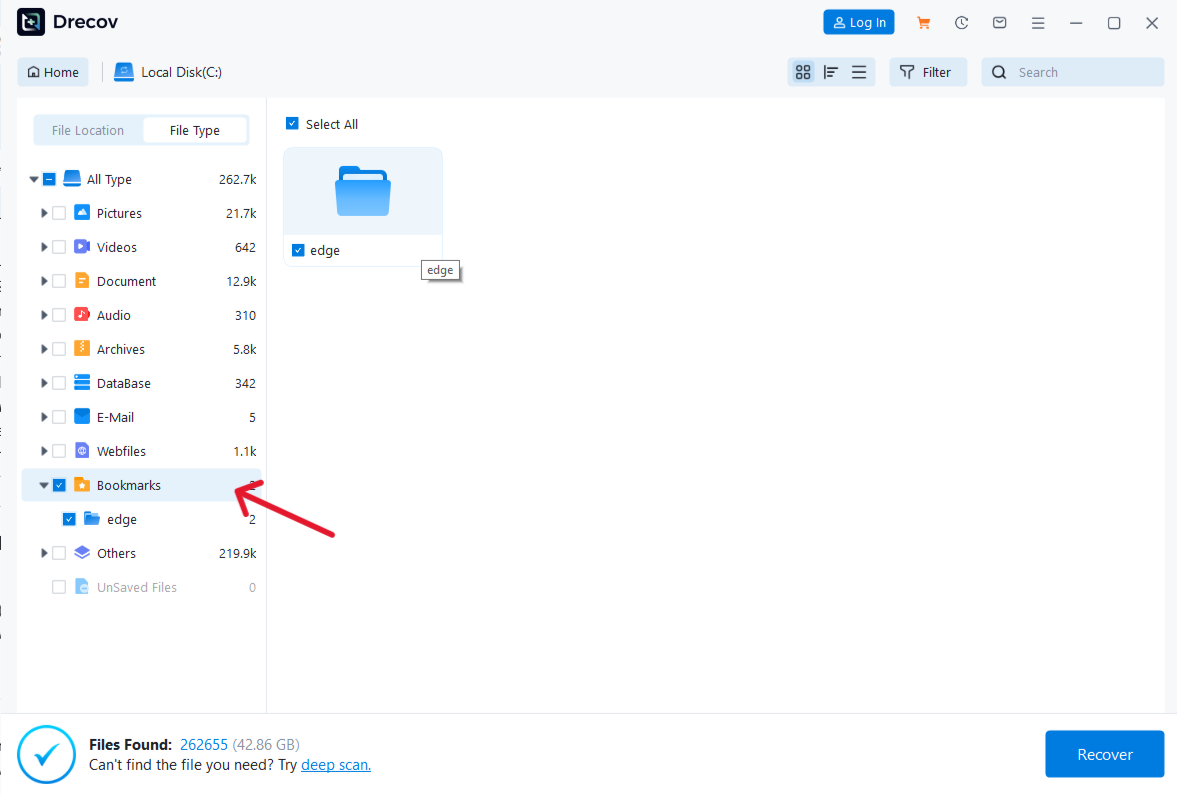
- Step 3: Filter and Preview ResultsLook for files named:
BookmarksBookmarks.bak
- Preview file content before recovery

- Step 4: Recover Files Safely
- Restore recovered files to an external drive or new folder
- Replace the existing Chrome bookmark file only after backup
Why This Method Has the Highest Success Rate
- Works even after system crashes
- Recovers data beyond Chrome’s built-in mechanisms
- Ideal for long-term or severe bookmark loss
Method 3: Restore Bookmarks Using Chrome Sync and Google Account Data
This method relies on cloud synchronization rather than local files.
Step-by-Step Instructions
- Step 1: Open Chrome Settings. Go to
chrome://settings/syncSetup - Step 2: Check Sync Status. Ensure you are logged into the correct Google account
- Step 3: Turn Sync Off
- Wait a few minutes
- Restart Chrome
- Step 4: Turn Sync Back On. Sometimes this triggers re-download of bookmark data
⚠️ Warning: If cloud data is empty, sync can overwrite local bookmarks permanently.
Which Chrome Bookmark Recovery Method Should You Choose?
| Method | Difficulty | Success Rate | Data Depth | Best Use Case |
|---|---|---|---|---|
| Local Backup Restore | Easy | Medium | Shallow | Recent deletions |
| PandaOffice Drecov | Moderate | High | Deep | Severe or old loss |
| Chrome Sync | Easy | Low–Medium | Cloud-only | Account-based issues |
Key Advantage of PandaOffice Drecov: It recovers data even when Chrome itself no longer can.
Preventing Bookmark Loss in the Future
Learning how to recover Chrome bookmark is useful—but prevention is better.
Use Chrome Bookmarks Manager Regularly
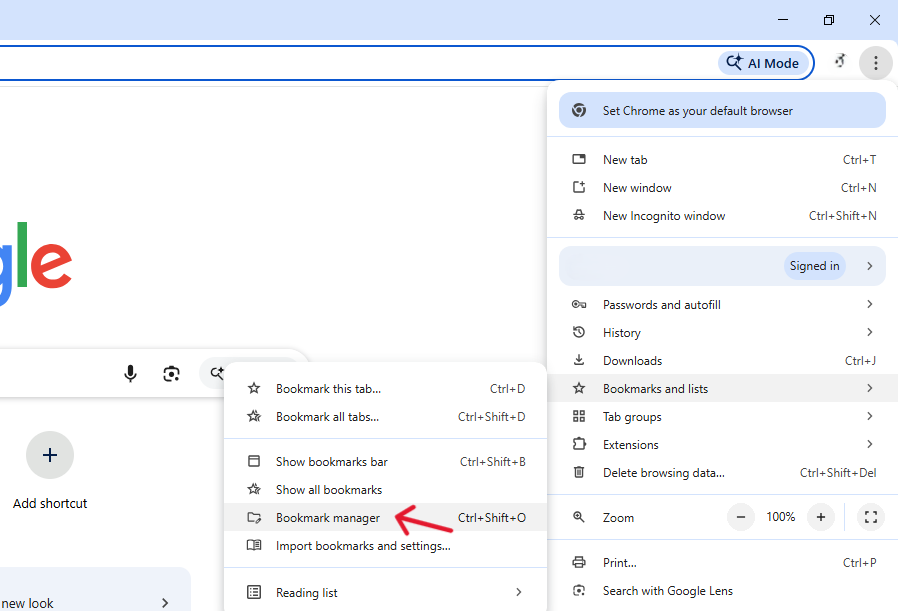
- Open via Ctrl + Shift + O
- Organize folders clearly
- Avoid mass deletion without review
Export and Import Bookmarks Manually
Export bookmarks
- Open Bookmarks Manager
- Click three-dot menu
- Choose Export bookmarks
- Save the HTML file securely
Import bookmarks
- Open Bookmarks Manager
- Click three-dot menu
- Choose Import bookmarks
This creates a portable backup you fully control.
Common Questions About Chrome Bookmark Recovery
1. Can I recover Chrome bookmarks after reinstalling Chrome?
Yes, but only if data was not overwritten. PandaOffice Drecov offers the best chance.
2. How long do deleted Chrome bookmarks remain recoverable?
It depends on disk activity. Recovery chances drop significantly after heavy usage.
3. Are bookmarks stored in the Windows registry?
No. Chrome bookmarks are stored as JSON files, not registry entries.
4. Does Incognito mode affect bookmark recovery?
No. Incognito does not store bookmarks differently.
5. Can I recover bookmarks from a formatted disk?
Yes, but only with deep-scan recovery software like PandaOffice Drecov.
Conclusion
Bookmark loss can feel devastating, especially when years of curated knowledge vanish in seconds. Fortunately, understanding how to recover Chrome bookmark gives you real control over the situation.
With the right method—and the right timing—most Chrome bookmark losses are not permanent. If you treat your bookmarks like valuable data (because they are), you’ll never feel helpless when something goes wrong again.






