







I’ve spent months organizing folders “Vacation Planning” in my Chrome browser. One morning, I open my laptop and they’re gone. Maybe I clicked “Delete” by mistake, or a sudden browser update disrupted my sync settings. That sinking feeling hits—has all that carefully curated information disappeared forever?
The short answer is No. Whether you are a casual surfer or a power user, knowing how to recover Chrome bookmarks is a vital digital skill. In this guide, we’ll go behind the scenes of how your computer handles data and show you exactly how to get your links back.
The Science of “Deleted” Data: Why Recovery is Possible
Before we dive into the steps, it’s helpful to understand a fundamental secret of computer systems. When you delete a file or a bookmark folder, your computer does not immediately shred those bits of data into nothingness.
Instead, the operating system simply marks the space occupied by that file as “Available.” It’s like removing an entry from a library’s catalog without actually burning the book. The data remains physically on your hard drive until it is overwritten by new information. This “ghost data” is exactly what allows professional recovery tools to find and restore your lost bookmarks.
Critical First Step: The “Golden Rule” of Data Recovery
Before attempting any method, follow this rule: Stop writing new data to your drive. Avoid downloading large files or installing new apps on the same partition where Chrome is installed. The less activity on your disk, the higher the chance that your bookmarks haven’t been overwritten yet.
Method 1: The Manual “Bookmarks.bak” Swap
Chrome creates a hidden backup file every time you launch the browser. If you act quickly, you can restore it manually.
- Step 1: Close all instances of Chrome.
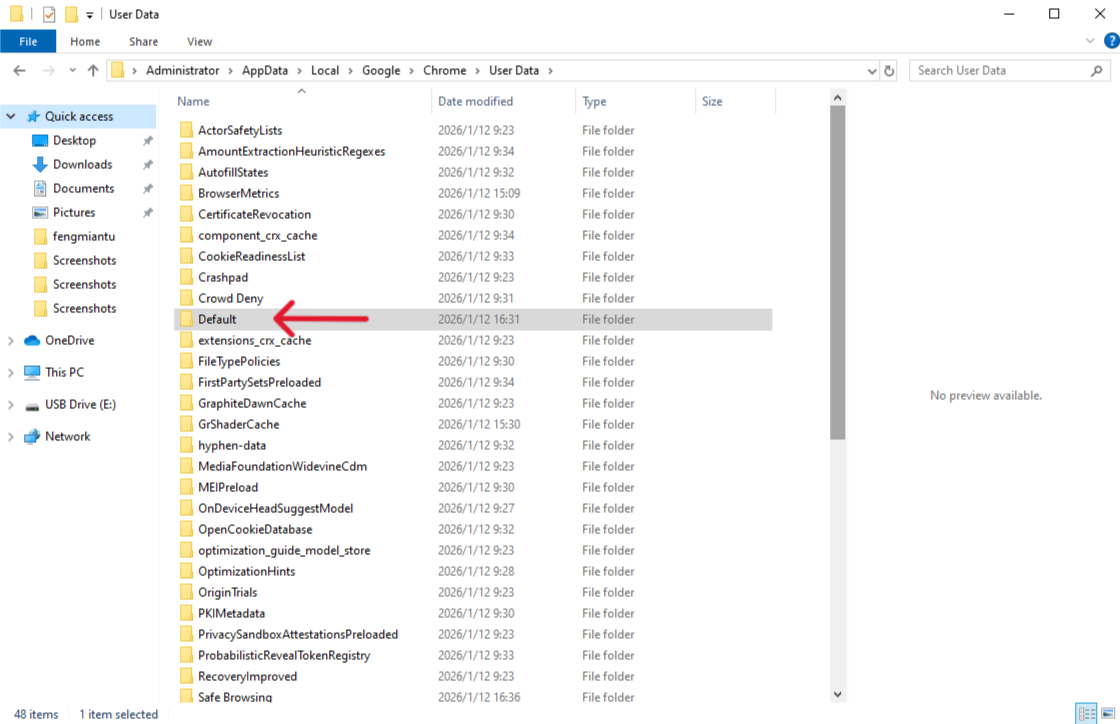
- Step 2: Open File Explorer and navigate to:
C:\Users\YourUserName\AppData\Local\Google\Chrome\User Data\Default
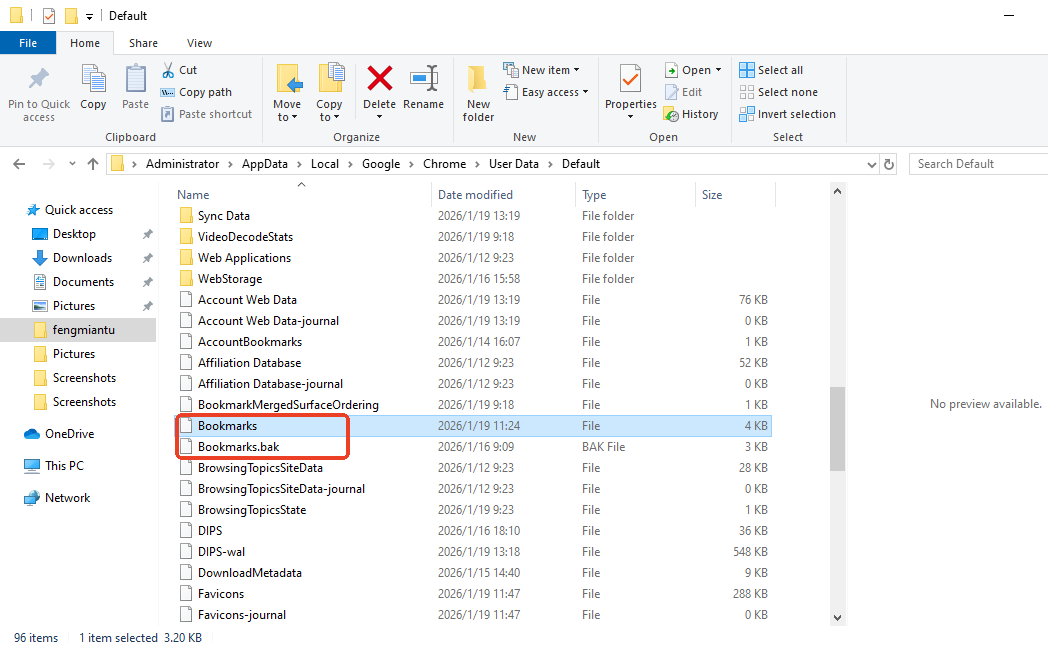
- Step 3: Find the files named
BookmarksandBookmarks.bak.
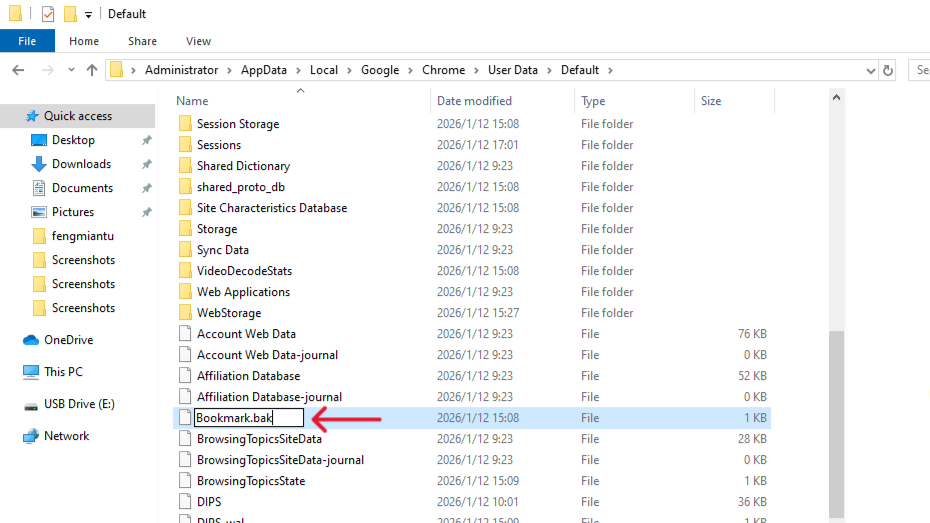
- Step 4: Rename
BookmarkstoBookmarks.old, then renameBookmarks.baktoBookmarks. - Step 5: Re-open Chrome. Your bookmarks should be restored to the state of the last backup.
🔔 Tip for Locating the Chrome Bookmark Folder
Warm Tip:
Enable “Show hidden files” in your system settings before navigating to the Chrome data directory.
Why it matters:
Chrome stores bookmark files in hidden system folders, which are not visible by default.
Method 2: Professional Recovery with PandaOffice Drecov
If the manual backup file was already overwritten or deleted, you need a tool that can “see” the ghost data we mentioned earlier. PandaOffice Drecov Data Recovery is the industry standard for this task.
Why PandaOffice Drecov is the Top Choice
Trusted by global leaders like Microsoft Store, Trustpilot, and TechBullion, this software simplifies complex data retrieval into a user-friendly experience.
- Scenario Coverage: Easily recovers data from emptied recycle bins, formatted disks, and even “unreadable” partitions.
- File Support: It restores over 100 common formats (Images, Videos, EXE, ZIP) and specializes in repairing corrupted or garbled files.
- Safe & Local: Unlike cloud tools, Drecov operates entirely on your local machine, ensuring your private data never leaks.
The 3-Step Recovery Blueprint
- Step 1: Select Location Open the software and select the C: Drive (or whichever drive contains your Chrome installation).
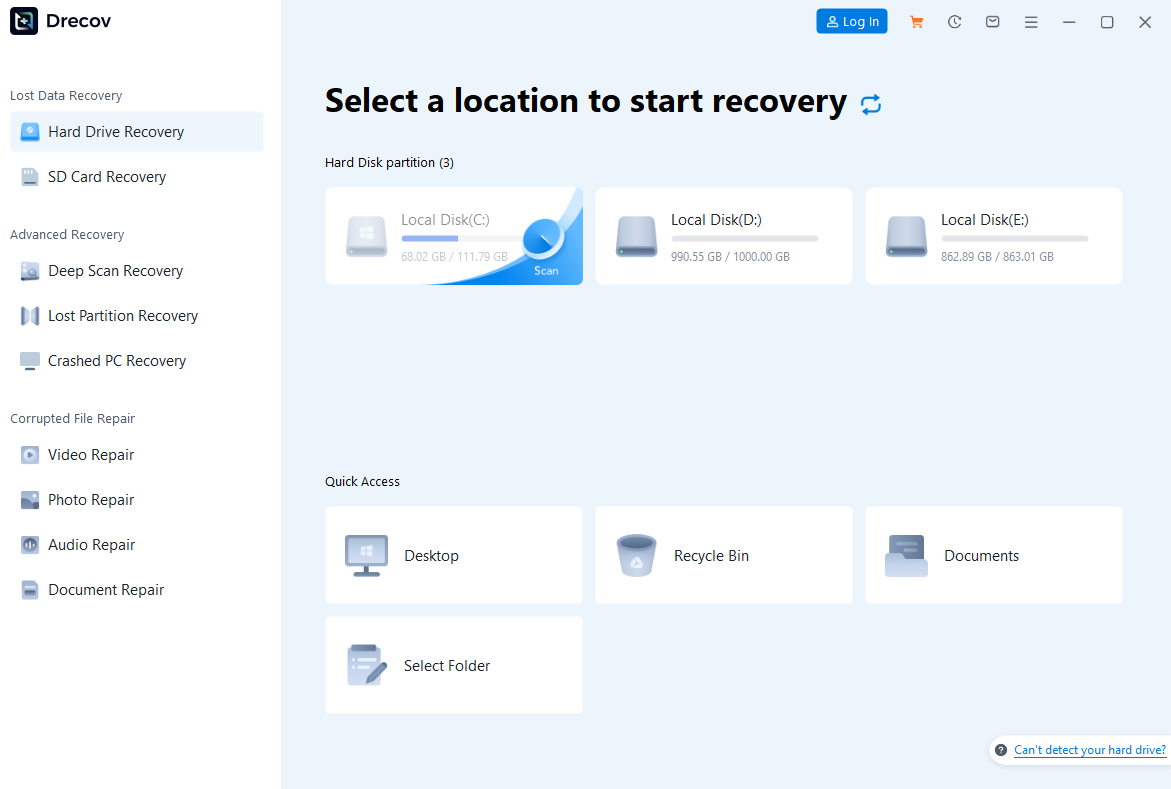
- Step 2: Scan & Preview Run a “Deep Scan.” Use the search bar to type
Bookmarks. You can click on the file to preview its contents and verify it is the correct version before recovering.
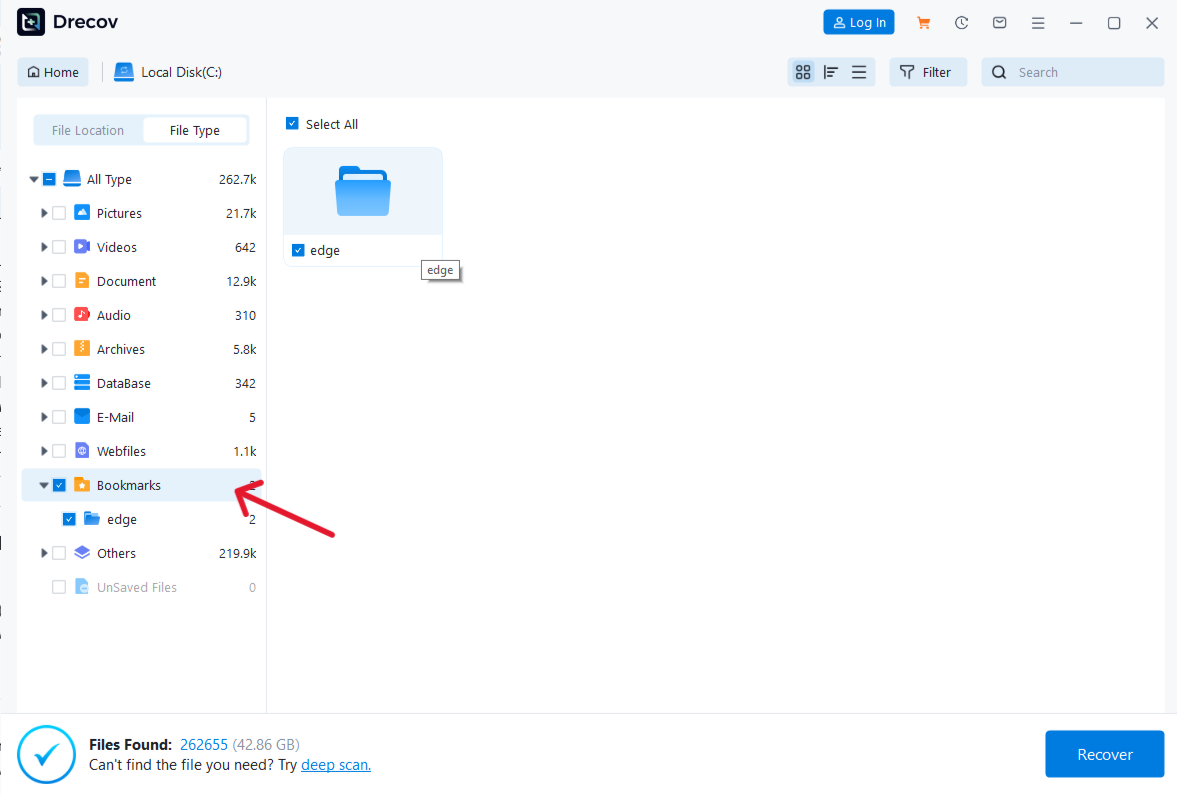
- Step 3: Recover & Save Select the files and hit Recover.

⚠️ Warning: To ensure a 100% success rate, do not save the recovered file back to the C: drive. Use a USB drive or a different disk partition to avoid overwriting the very data you are trying to save.
Method 3: Using Windows “Previous Versions”
If you have “System Protection” turned on, Windows might have a snapshot of your Chrome folder from a few days ago.
- Navigate to the Chrome User Data folder mentioned in Method 1.
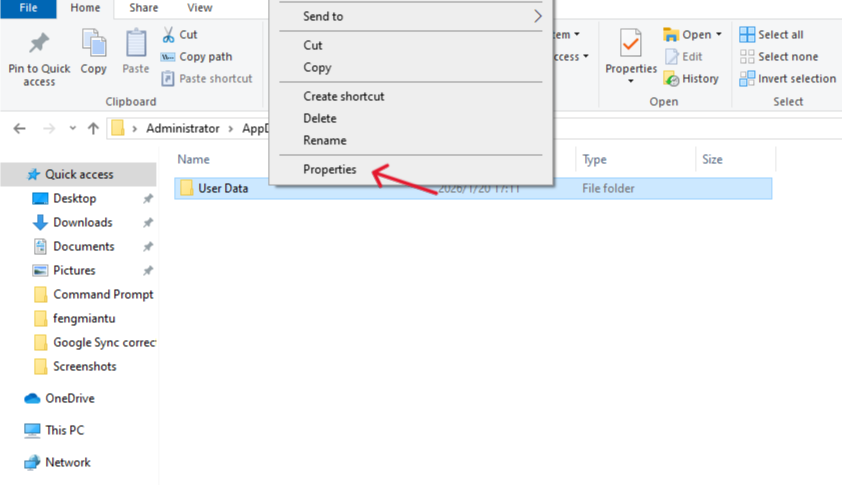
- Right-click the Default (or Profile 1) folder and select Properties.
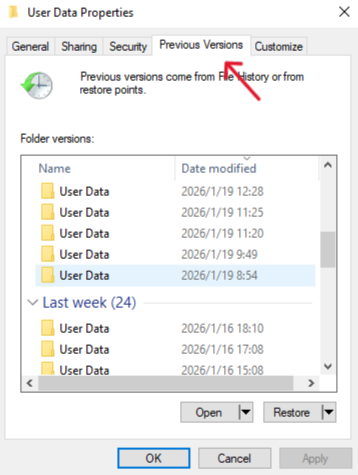
- Click the Previous Versions tab.
- Pick a date before the deletion and click Restore.
🔔 Tip forUsing Windows “Previous Versions”
Warm Tip:
Before clicking Restore, consider using Open or Copy to preview the folder contents first.
Why it matters:
Restoring replaces the current folder entirely. Previewing helps you confirm the snapshot actually contains the missing Chrome bookmarks.
How to Never Lose a Bookmark Again
Once you have successfully learned how to recover Chrome bookmarks, make sure you don’t have to do it again:
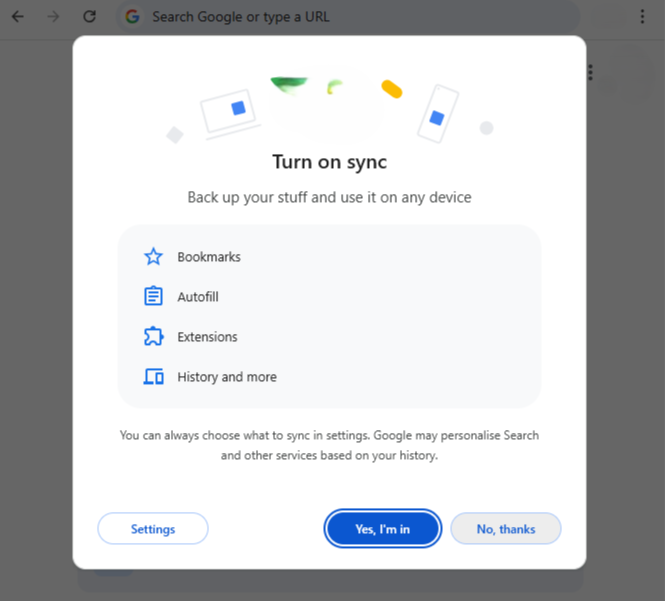
- Sync to Google: Ensure “Sync” is turned ON in your Chrome settings.
- Manual Export: Once a month, go to the Bookmark Manager > Export Bookmarks and save an HTML file to your cloud storage.
- Keep Recovery Ready: Keep PandaOffice Drecov installed so that if you ever lose photos, documents, or bookmarks again, you are only three clicks away from a full recovery.
FAQ: 5 Common Questions on How to Recover Chrome Bookmarks
1.I found the “Bookmarks” file, but it’s full of unreadable code/garbage characters. What should I do?
This usually means the file structure is corrupted. Standard text editors cannot parse the JSON format of a damaged bookmark file. In this case, use PandaOffice Drecov. Its built-in repair algorithm can reconstruct the internal logic of “garbled” files, allowing you to extract the URLs even if the file seems unreadable to the system.
2.Why can’t I find the “AppData” folder in my User directory?
By default, Windows hides system folders to prevent accidental changes. To see it, open File Explorer, click the View tab at the top, and check the box for “Hidden items.” You will then see the AppData folder appear, allowing you to proceed with the manual recovery steps.
3.I see multiple profile folders like “Profile 1” or “Profile 2.” Which one should I use?
Chrome creates a new folder for every Google profile you use. If you don’t see your bookmarks in the “Default” folder, check the others. A quick tip: sort the folders by “Date Modified.” The folder with the most recent activity is likely the one you were using when the bookmarks vanished.
4.If I recently reinstalled Windows, can I still recover my bookmarks?
Yes, but it is more difficult. Reinstalling Windows involves writing a massive amount of new data, which may overwrite the old bookmark files. You should immediately use PandaOffice Drecov to perform a “Deep Scan” of the unallocated space on your drive. If the sectors containing the old Bookmarks file haven’t been reused by the new OS, they can still be retrieved.
5.Can I recover bookmarks if I was using “Incognito Mode”?
No. Chrome does not save history, cookies, or bookmarks created during an Incognito session once the window is closed. To avoid this in the future, always ensure you are in a standard browsing window if you intend to save a site for later.
conclusion
In conclusion, understanding how to recover Chrome bookmarks can save you from permanent data loss. By acting quickly and following the three proven methods outlined in this guide, you can restore deleted bookmarks in most situations and prevent similar issues in the future.






