







Have you ever opened your browser only to find your meticulously organized folders of research, work tools, and favorite websites gone? It is a moment of pure panic. Whether a sudden system crash, a botched Chrome update, or an accidental “Delete” click caused the loss, you need to know how to recover bookmarks from chrome effectively.
In this exhaustive guide, we will walk you through every known method to retrieve your data. From simple “Undo” tricks to deep-system file recovery and professional software solutions, we have categorized these steps by difficulty and success rate.
1. Why Do Chrome Bookmarks Disappear?
Before we jump into the “how-to,” let us look at the “why.” Understanding the cause helps you choose the right recovery path.
- Accidental Deletion: The most common cause. A simple slip of the mouse can wipe a folder.
- Sync Issues: If you use Chrome on multiple devices, a sync error can sometimes “overwrite” your local bookmarks with an empty cloud profile.
- Browser Crashes: An unexpected power outage or a software hang can corrupt the
Bookmarksfile. - Chrome Updates: Occasionally, a major browser update resets user profiles.
- System Formatting: If you reinstalled Windows without a backup, your local browser data resides in the “old” files.
Pro Tip: If you just deleted a bookmark seconds ago, do not close Chrome yet! Closing the browser can trigger an overwrite of your backup files.
2. Decision Tree: Which Method Should You Use?
To save you time, follow this quick logic flow:
- Did it happen just now? -> Use Method 1 (The Undo Shortcut).
- Do you have a Google Account? -> Use Method 2 (Google Sync).
- Is it a permanent deletion? -> Use Method 3 (The .bak File Recovery).
- Is the file missing or the drive formatted? -> Use Method 4 (Professional Data Recovery).
3. Method 1: The “Secret” Undo Shortcut
Most users do not realize that the Chrome Bookmark Manager has its own temporary “Undo” memory. However, this only works if you have not closed the browser since the deletion.
How to execute:
- Open Chrome and navigate to the Bookmark Manager (Press
Ctrl + Shift + O).
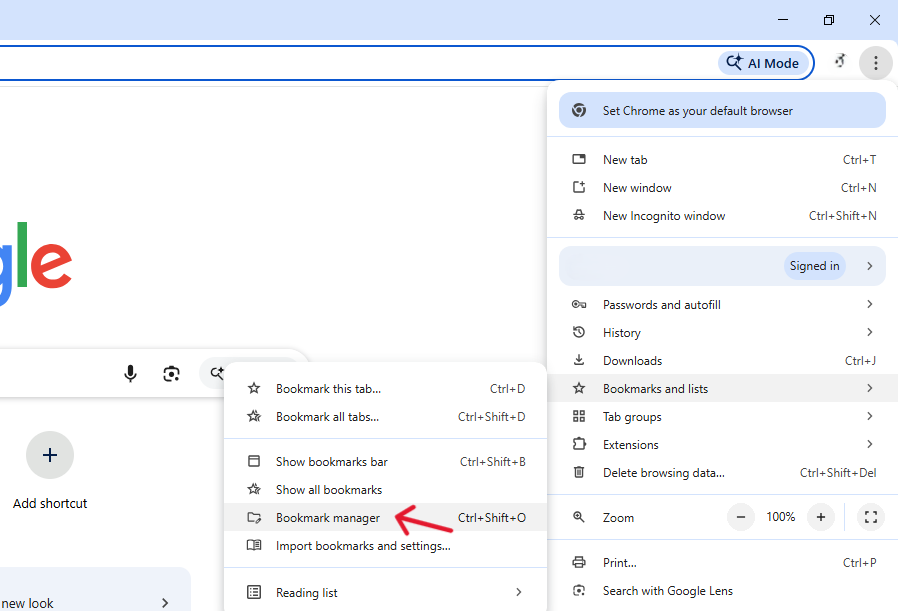
- If you just deleted a folder, try pressing
Ctrl + Zon your keyboard. - Often, the deleted folder will reappear instantly.
Transition: If this simple trick does not work because you already closed the tab or the browser, do not worry. We have much more powerful techniques below.
4. Method 2: Resetting Google Sync (Cloud Recovery)
If you are logged into a Google account, your bookmarks often live in the cloud. Sometimes the local browser “loses track” of them, but they still exist on Google’s servers.
Step-by-Step Instructions:
- Go to the Google Dashboard.
- Check the number of bookmarks listed. If the number looks correct, your data is safe in the cloud.
- On your local computer, go to Settings > You and Google > Turn Off Sync.
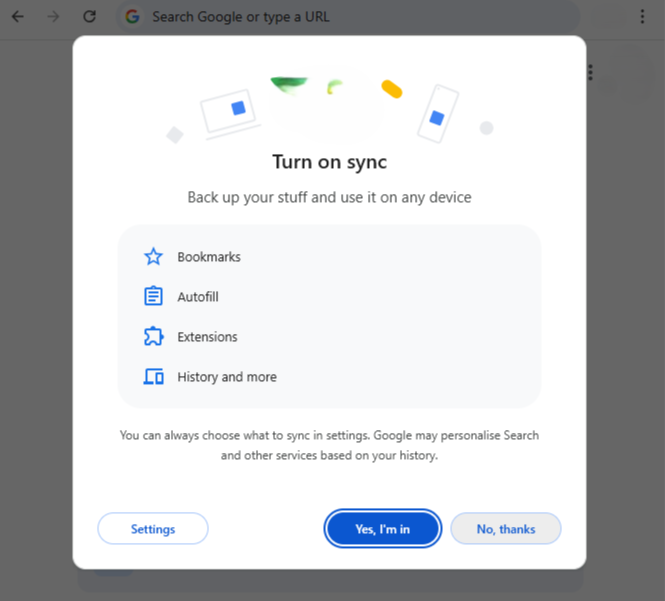
- Sign out of Chrome, then sign back in and Turn On Sync.
- Wait a few minutes. Chrome will pull your bookmarks from the server and repopulate your manager.
Warning: Only do this if you are sure the cloud version is the correct one. If the cloud also shows zero bookmarks, move to the next step immediately.
5. Method 3: The .bak File Method
This is the most reliable manual way to answer how to recover bookmarks from chrome. Chrome stores two versions of your bookmarks: the current one (Bookmarks) and a backup (Bookmarks.bak).
Finding the Path
First, you must find where Chrome hides these files. Copy and paste the following into your Windows File Explorer address bar:
%localappdata%\Google\Chrome\User Data\Default
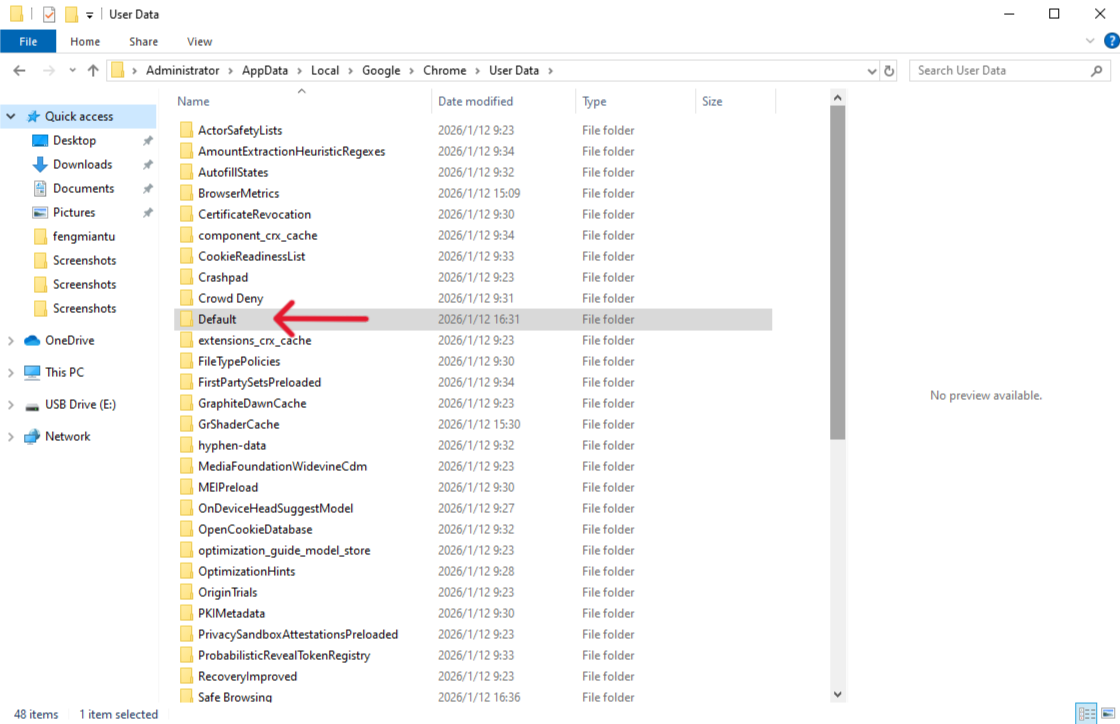
Note: If you use multiple Chrome profiles, the folder might be named “Profile 1” or “Profile 2” instead of “Default”.
The Recovery Process:
- Close all Chrome windows. This is vital to prevent Chrome from overwriting the backup.
- In the folder you opened, look for two files:
BookmarksandBookmarks.bak.
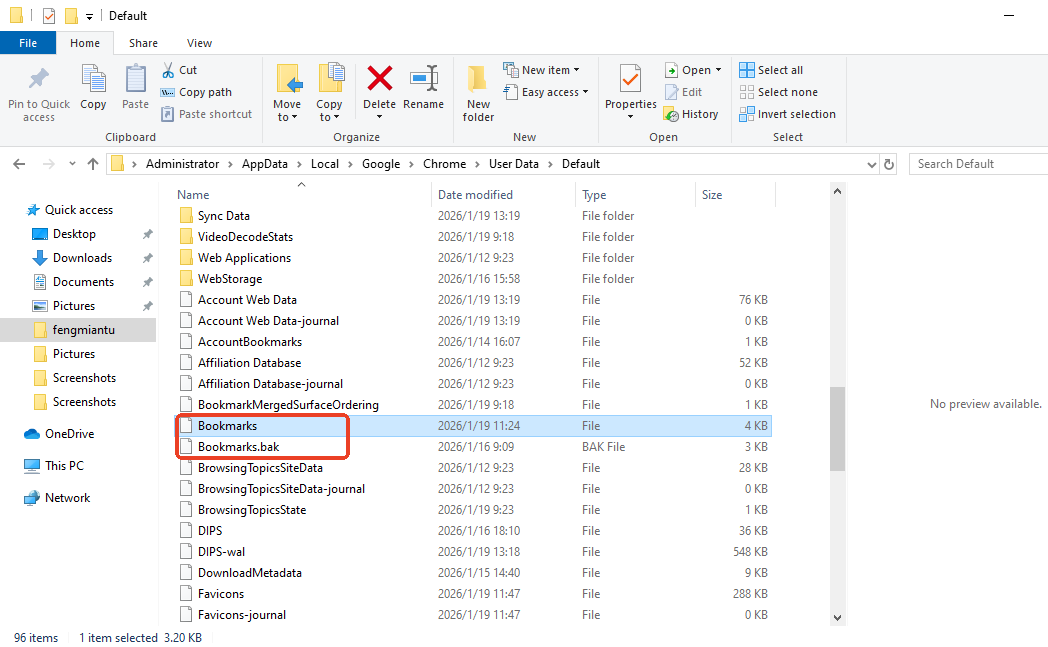
- Rename
BookmarkstoBookmarks.old.
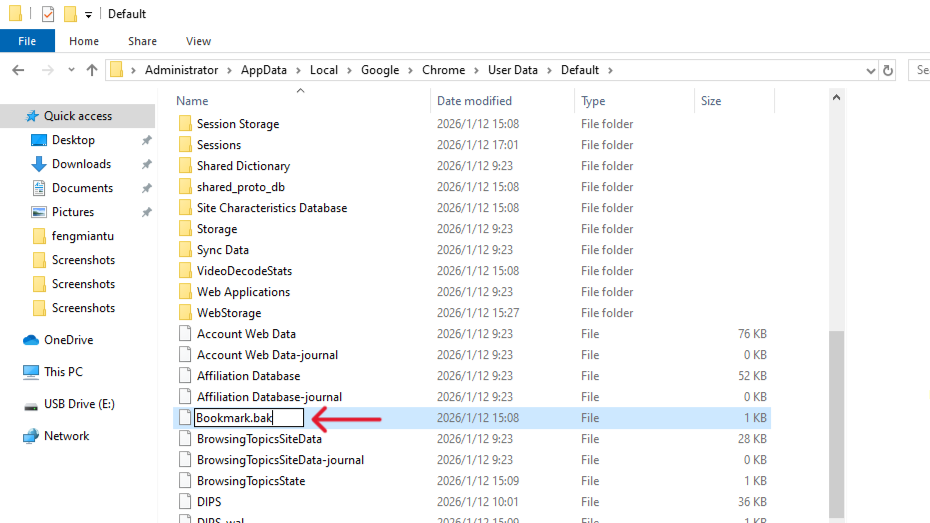
- Rename
Bookmarks.bakto simplyBookmarks(remove the .bak extension). - Relaunch Chrome. Your old bookmarks should now be restored to their previous state.
Why this works: Every time you launch Chrome, it takes the previous “Bookmarks” file and saves it as a “.bak.” By swapping them, you are essentially rolling back the clock to your last successful session.
6. Method 4: Professional Software Recovery
Sometimes, even the .bak file is missing. This happens if you have opened and closed Chrome multiple times after the loss, causing the backup to be overwritten with the “empty” version. Alternatively, a system crash might have deleted the entire “User Data” folder.
In these scenarios, manual methods fail. This is where professional tools like Pandaoffice Drecov become essential. These tools scan the raw sectors of your hard drive to find “deleted” files that the operating system no longer sees.PandaOffice Drecov is a versatile powerhouse designed to address almost any data loss scenario. This tool handles it all, whether you are dealing with:
- Accidental Desktop Deletions: Instantly retrieving files wiped from your local workspace.
- Disk Formatting Errors: Salvaging files from drives that have been completely wiped or reformatted.
- External Media Rescue: Recovering lost data from formatted or corrupted SD cards and USB flash drives.
- Sync Conflict Resolution: Reversing data loss caused by synchronization errors between your PC and the OneDrive cloud.
How to recover bookmarks from chrome using Drecov:
- Download and Install: Install a reputable data recovery tool on a drive other than the one where the loss occurred (to avoid overwriting data).

- Select Location: Choose the
C:drive and let the software run a deep scan. It will look for files with the “Bookmarks” name.

- Preview and Restore: Once the scan finishes, filter by “File Name.” Find the oldest
Bookmarksfile, preview it, and hit Recover.
Why Choose Drecov Over Manual Efforts?
| Feature | Manual (.bak) | PandaOffice Drecov |
| Complexity | High (Path finding) | Low (Wizard-based) |
| Success Rate | Moderate | High |
| Recovery Depth | Current backup only | Historical deleted files |
| Time Spent | 20+ Minutes | 5 Minutes |
7. Method 5: Using DNS Cache (The “Last Resort”)
If you recently visited the sites you bookmarked, you might find their URLs in your DNS cache. While this won’t restore your folder structure, it can help you find those lost URLs.
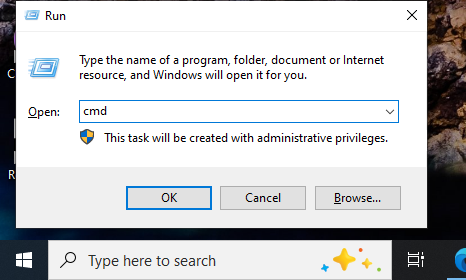
- Press
Win + R, typecmd, and hit Enter.
- Type
ipconfig /displaydnsand press Enter.
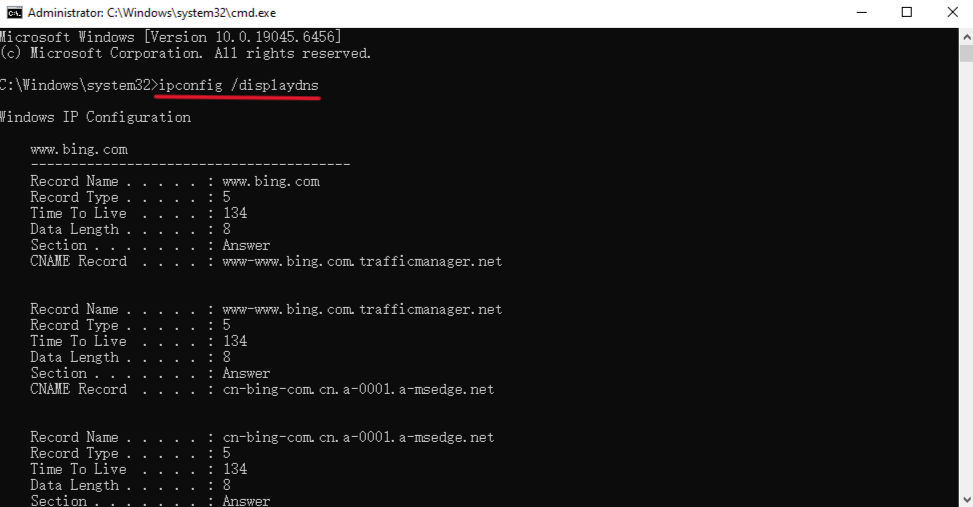
- You will see a long list of recently visited websites. You can manually copy these back into your bookmarks.
8. Comparisons: Manual vs. Automatic Recovery
When people ask how to recover bookmarks from chrome, they often debate whether to do it themselves or use a tool.
- Manual recovery is excellent for single-file errors where the user is tech-savvy. It costs nothing but requires precision. One wrong rename can lead to further data corruption.
- Automatic recovery (Software) is the “safety net.” If you have formatted your drive or the files are physically missing from the folder, software is the only way to retrieve the raw data bits.
9. How to Prevent Future Bookmark Loss
Recovery is stressful. Prevention is simple. To ensure you never have to search for how to recover bookmarks from chrome again, implement these three habits:
A. Export HTML Regularly
Every month, go to the Bookmark Manager > Click the three dots > Export Bookmarks. Save this HTML file to a cloud drive like Dropbox or Google Drive. This file is universal and can be imported into any browser (Firefox, Edge, Safari) instantly.
B. Use the “Bookmarks Clean Up” Extension
Extensions like “Bookmarks Clean Up” help you find duplicates and dead links, but they also offer a “Snapshot” feature that keeps a history of your bookmark states.
C. Enable Two-Factor Authentication on Google
Many users lose bookmarks because their Google account was compromised and the attacker deleted their data. Secure your account to secure your sync data.
10. How to Recover Bookmarks from Chrome FAQs
1.Can I recover Chrome bookmarks on Mac?
Yes. The process is identical, but the file path is different. On a Mac, navigate to:
Users/<YourUsername>/Library/Application Support/Google/Chrome/Default
2.Does Chrome have a “Trash Can” for bookmarks?
Unfortunately, no. Unlike Google Drive or Gmail, Chrome does not have a “Trash” folder for bookmarks. Once deleted and the browser closes, the change is permanent unless you use the .bak or software method.
3.How to recover bookmarks from chrome after formatting Windows?
If you formatted your PC, your local files are gone. You must use a deep-scan recovery tool to find the “unallocated space” where your old User Data folder used to be.
Conclusion
Losing your digital library is frustrating, but as we have shown, it is rarely permanent. Whether you use the .bak file swap, leverage Google Sync, or rely on professional recovery software, you now possess the knowledge of how to recover bookmarks from chrome.
Start with the simplest method—the Undo shortcut—and work your way down. In 90% of cases, your bookmarks are still sitting on your hard drive, waiting to be “unhidden.”






