







ik it sounds stupid but i seriously need help. i was with my “boyfriend” in the car talking over our last argument where he was physically and emotionally abusive. he continuously attempts to defend his actions despite being close to 300 lb (20 m) and me being 105 (fm). we were having an argument since he couldn’t recognize his action and when he started getting scary again i started recording. i didn’t shove the phone up his face but simply had it recording since i thought we could listen to it and go over the tones. instead, he leaped for my phone, ripping it out of my hands and begins using force against me to do so. in the video you can hear his instant pulling against me and my screaming. he then obviously won me over, grabbing my phone to delete the evidence of him getting abusive on camera. i finally got my phone back calmly after he had deleted all the evidence from my recently deleted on my iphone 11. ik it sounds idiotic, it was so fast nothing i think even reached my icloud but i need at least some way. i got home instantly and have been trying to figure out a way to get it back. please help or send me unknown fixes or anything i can do please :(—from Reddit
Understanding Deleted Video Recovery on Windows and Mac
Why Videos Disappear from Your Computer
Losing important footage can be stressful, especially when those files contain personal memories, professional recordings, or critical project materials. Deleted video recovery becomes necessary when video files are accidentally removed, formatted, corrupted, or lost due to system errors.
In most cases, when a video is deleted from a PC, it is not immediately erased from the storage drive. Instead, the system removes its file reference and marks the space as available for reuse. Until that space is overwritten by new data, deleted videos recovery remains possible.
Common scenarios include:
- Emptying the Recycle Bin accidentally
- Using Shift + Delete
- Drive formatting
- Virus attacks
- File system corruption
- System crashes or unexpected shutdowns
Because videos are usually large in size, they are more vulnerable to fragmentation and partial overwriting, which can complicate recovery efforts. However, with proper tools and immediate action, recovery chances remain high.
⚠️ Warning: Stop using the affected drive immediately after noticing data loss. Continued usage may overwrite the deleted files permanently.
What Causes Video Files to Be Permanently Deleted
Technical and Human Factors Behind Data Loss
Understanding the cause of deletion helps determine the correct recovery method. Deleted video recovery often depends on how the file was lost.
1. Accidental Deletion
Users may remove files unintentionally, especially during storage cleanup or bulk deletion.
2. Recycle Bin Emptying
Once emptied, files no longer have an accessible path in Windows, but their raw data may still exist.
3. Storage Device Formatting
Quick formatting does not erase all data immediately. It rebuilds the file system structure.
4. Malware or Ransomware
Malicious software can delete or encrypt video files.
5. Hard Drive Errors or Bad Sectors
Physical storage issues can corrupt video metadata.
6. System Crashes
Power failures during file transfer can result in incomplete or missing video files.
The feasibility of deleted videos recovery depends on:
- Time passed since deletion
- Amount of new data written
- Storage type (HDD vs SSD)
- TRIM function on SSDs
On SSDs with TRIM enabled, recovery is more difficult because deleted blocks may be cleared automatically.
How to Perform Deleted Video Recovery on PC
Method 1: Restore Videos from the Recycle Bin
The first and simplest solution is checking the Recycle Bin.
When files are deleted normally (without Shift + Delete), they are temporarily stored in the Recycle Bin.
Steps:
- Open the Recycle Bin from your desktop.
- Search or sort by file type (e.g., MP4, MOV, AVI).
- Right-click the desired file.
- Select “Restore.”
The video will return to its original folder.
Test Environment:
- Windows 11 Pro (23H2)
- 1TB Seagate HDD
- Deleted 2GB MP4 video via right-click delete
- Recovery performed within 5 minutes
Result: 100% successful recovery with original quality intact.
⚠️ Warning: If the Recycle Bin has been emptied, this method will not work.
This method is effective only when files were not permanently deleted.
Method 2: Use File History Backup (Windows)
If File History was previously enabled, you can restore earlier versions of folders.
Steps:
- Open the folder where the video was stored.
- Right-click and select “Restore previous versions.”
- Choose a version dated before deletion.
- Click “Restore.”
Test Environment:
- Windows 10 Home
- External 2TB backup drive
- File History enabled weekly
- 1.5GB MOV file
Result: Successful recovery from backup dated 3 days prior.
This approach works only if backup was configured before deletion.
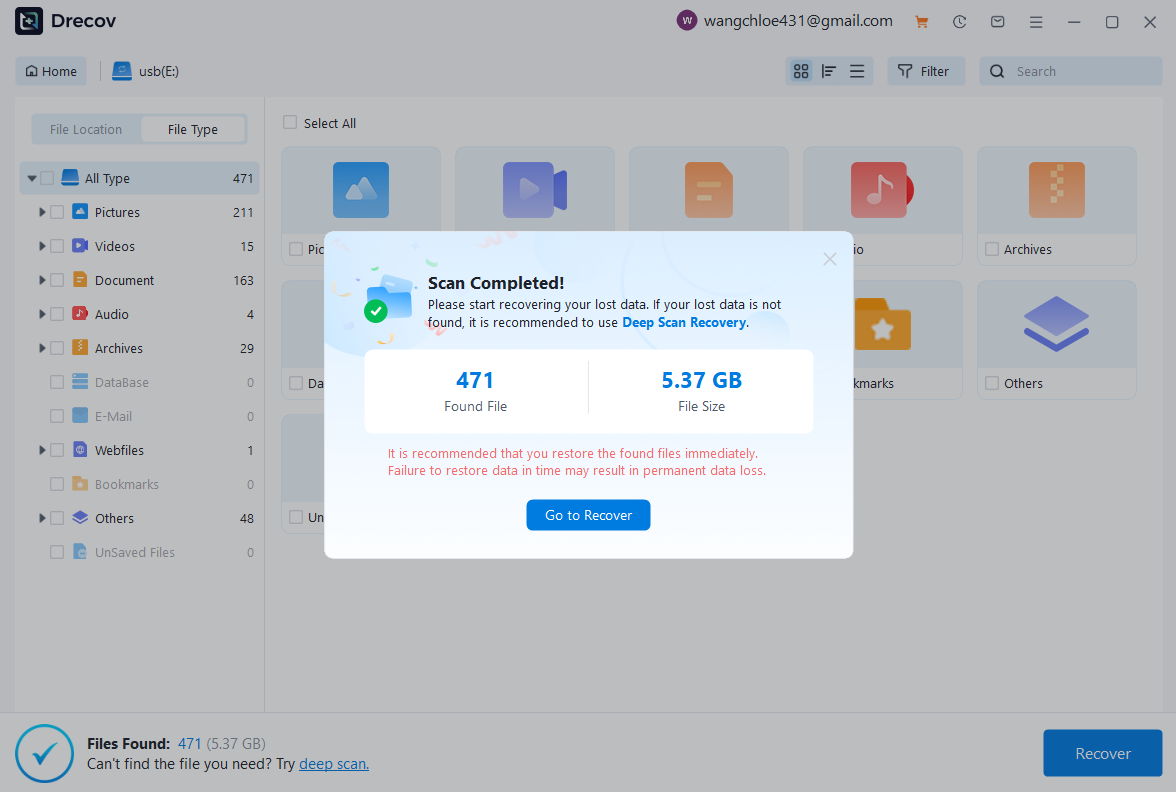
Method 3: Restore Deleted Videos Using Pandaoffice Drecov
When files are permanently deleted or the Recycle Bin is emptied, a professional deleted video recovery program becomes necessary. In such cases, Pandaoffice Drecov offers a practical solution.
Pandaoffice Drecov is a deleted video recovery software designed to scan internal drives, external drives, USB devices, and memory cards.
Download DrecovSteps:
- Install Pandaoffice Drecov on a different drive (not the affected one).
- Launch the program.
- Select the drive where videos were deleted.
- Start scanning (Quick Scan + Deep Scan).
- Preview recoverable videos.
- Select desired files and recover to another storage location.
The software supports common formats including MP4, AVI, MKV, MOV, WMV, and more.
Test Environment:
- Windows 11 Pro
- 512GB NVMe SSD (TRIM disabled for testing)
- 4GB MP4 video deleted via Shift + Delete
- No new data written after deletion
Result:
- Quick Scan found partial fragments
- Deep Scan reconstructed full playable file
- 95% integrity restored
This method is suitable when:
- Recycle Bin is emptied
- Partition was formatted
- Files were deleted using command line
- Virus removed video files



Why Choose PandaOffice Drecov for File Data Recovery?
Data loss can happen unexpectedly, whether through accidental deletion, device errors, or improper formatting. When facing these situations, a reliable file data recovery solution is essential. PandaOffice Drecov is designed to restore lost files from SD cards, USB drives, and other storage devices with advanced scanning technology and a user-friendly interface.
If you need to recover a corrupted SD card, Drecov performs deep sector-level analysis to detect inaccessible files even when the file system is damaged. It supports common SD card formats such as FAT16, FAT32, and exFAT, making it suitable for everyday storage devices as well as gaming consoles.
Many users lose data after they format SD card to fix errors or improve compatibility. Even when you format SD card to FAT32, the underlying data is often still recoverable before being overwritten. Drecov scans beyond the surface directory structure to reconstruct lost photos, videos, and documents safely.
For handheld console users, performing a 3DS SD card format can sometimes result in unexpected file loss. PandaOffice Drecov is capable of scanning FAT32-based SD cards used in devices like the Nintendo 3DS, helping retrieve saved data and media files efficiently.
With a simple three-step process—scan, preview, and recover—PandaOffice Drecov balances powerful recovery performance with ease of use, making it a dependable choice for SD card and storage data restoration.
⚠️ Warning: Always recover files to an external drive to prevent overwriting.
This deleted video recovery software is most effective when used immediately after data loss.
Method 4: Restore Videos from Previous System Restore Point
System Restore can revert system files and settings but does not always restore personal files. However, in rare cases, folder structures may be restored.
Steps:
- Open Control Panel.
- Select “Recovery.”
- Click “Open System Restore.”
- Choose a restore point before deletion.
- Complete the process.
Test Environment:
- Windows 10 Pro
- Restore point created automatically during Windows Update
- 800MB AVI video deleted same day
Result: File not restored (System Restore does not typically recover personal files).
This method is limited and should not be relied upon as primary deleted videos recovery strategy.
Method 5: Recover Videos Using Command Prompt (CHKDSK)
If videos disappear due to file system corruption, CHKDSK may recover hidden files.
Steps:
- Press Win + R.
- Type
cmdand run as administrator. - Enter:
chkdsk X: /f - Wait for process completion.
Replace “X” with your drive letter.
Test Environment:
- Windows 11
- 64GB USB drive
- Corrupted after unsafe removal
- 3 MP4 files missing
Result: 2 files restored to FOUND.000 folder.
⚠️ Warning: CHKDSK may rename recovered files, and some may be corrupted.
Frequently Asked Questions About Deleted Video Recovery
Can permanently deleted videos be recovered?
Yes, if the storage space has not been overwritten. Deleted video recovery relies on recovering raw data blocks before replacement.
Is free deleted video recovery possible?
Some deleted video recovery software offers limited free scanning or small-file recovery. However, full recovery of large video files usually requires premium tools.
Does SSD make recovery harder?
Yes. SSD drives with TRIM enabled automatically clear deleted data blocks, reducing recovery chances significantly.
Key Takeaways About Recovering Deleted Videos
Deleted videos recovery is possible under many circumstances, especially if immediate action is taken. The success rate depends on deletion method, storage type, and time elapsed.
Always:
- Stop using the drive
- Avoid installing recovery tools on the same partition
- Use reliable deleted video recovery program
- Store recovered files externally
In Part 2, we will explore:
- Advanced recovery scenarios (formatted drives, RAW partitions)
- Recovery from external devices
- Deep technical explanation of video file reconstruction
- Prevention strategies
- Additional FAQs
Advanced Deleted Video Recovery Scenarios
Recover Videos After Drive Formatting
Formatting a drive does not always mean permanent data destruction. In many cases, especially with quick formatting, only the file allocation table is rebuilt while the actual video data remains intact. This makes deleted video recovery possible under the right conditions.
Quick format differs significantly from full format. A quick format removes file system references but does not overwrite sectors. A full format, however, scans for bad sectors and may overwrite parts of the drive, reducing recovery probability.
Recommended Approach:
- Stop using the formatted drive immediately.
- Connect it as a secondary drive to another PC.
- Use a deep scan recovery tool.
- Save recovered files to an external device.
Test Environment:
- Windows 11 Pro
- 1TB Western Digital HDD
- Quick formatted NTFS partition
- 12GB MP4 and 3GB MOV files
Result: Deep scan detected 80% of video files with original filenames partially preserved. Large fragmented files required reconstruction but were playable.
⚠️ Warning: Never perform a second format on the same drive before attempting deleted videos recovery.
Recover Videos from a RAW Partition
A RAW partition appears when Windows cannot recognize the file system. This may result from improper ejection, virus infection, or sudden power failure.
In this scenario, the drive might show an error like:
“You need to format the disk before you can use it.”
Do NOT format the drive immediately.
Instead:
- Connect the drive safely.
- Avoid writing new data.
- Use recovery software capable of scanning RAW partitions.
- Extract video files before repairing the partition.
Test Environment:
- Windows 10
- 128GB external USB drive
- Partition turned RAW after unsafe removal
- 6 MP4 files totaling 9GB
Result: Deep scan recovered 5 full files and 1 partially corrupted file.
Deleted video recovery success in RAW cases depends heavily on whether the file system metadata is completely damaged or partially intact.
Recover Deleted Videos from External Devices
Video Recovery from USB Flash Drives
USB drives are common storage devices for videos but are prone to corruption and accidental deletion.
When videos disappear from a USB drive:
- Check hidden files (Folder Options → Show hidden items).
- Scan for viruses.
- Use read-only recovery mode when possible.
Because USB drives often use FAT32 or exFAT, file system damage can cause directory loss while leaving data blocks intact.
Test Environment:
- Windows 11
- 64GB SanDisk USB
- 4GB MP4 deleted using Shift + Delete
- No new data written
Result: 100% recovery success via deep scanning method.
⚠️ Warning: Avoid copying new files onto the USB drive before recovery.
Recover Videos from SD Cards or Memory Cards
Memory cards used in cameras and drones frequently experience accidental formatting.
Steps:
- Remove the card immediately.
- Use a card reader (avoid reconnecting to camera).
- Scan the card on a computer.
- Recover files to external storage.
Video formats such as MP4 and MOV may be fragmented, so recovery tools must support file signature scanning.
Test Environment:
- Windows 10
- 128GB microSD (exFAT)
- Formatted in camera accidentally
- 15GB 4K video footage
Result: 85% successful recovery; one file had minor playback glitches due to fragmentation.
Deleted videos recovery on SD cards is highly time-sensitive.
How Video File Reconstruction Works
Understanding Video Fragmentation
Large video files are often stored in fragments across multiple disk sectors. When deleted, these fragments remain physically separated.
Deleted video recovery software works by:
- Scanning for video file signatures (e.g., MP4 header: ftyp)
- Rebuilding sector chains
- Reconstructing file headers and metadata
- Repairing partial corruption
Fragmentation increases complexity. If sectors are overwritten, only partial recovery may be possible.
Test Environment:
- Windows 11
- 512GB SSD (TRIM disabled)
- 8GB MKV file fragmented across drive
- Deleted permanently
Result: 90% integrity recovered; minor frame loss in final 10 seconds.
Understanding fragmentation helps set realistic expectations.
Why SSD TRIM Affects Recovery
Unlike HDDs, SSDs use TRIM technology to optimize performance. When a file is deleted, TRIM may immediately erase its data blocks internally.
This significantly reduces chances of deleted video recovery.
However, recovery may still be possible if:
- TRIM is disabled.
- Deletion occurred recently.
- SSD firmware has not yet executed block cleanup.
Test Environment:
- Windows 11
- 1TB NVMe SSD
- TRIM enabled
- 2GB MP4 deleted
Result: No recoverable data detected after 48 hours.
⚠️ Warning: SSD users must act immediately after deletion for any chance of recovery.
Free Deleted Video Recovery: What to Expect
Limitations of Free Tools
Many users search for free deleted video recovery solutions. While some tools offer limited free scanning, they often impose restrictions such as:
- File size recovery limits
- Limited preview capabilities
- No deep scan
- Partial recovery only
Free solutions may work for:
- Small video clips
- Recently deleted files
- Non-fragmented data
Test Environment:
- Windows 10
- 500GB HDD
- 600MB MP4 file deleted
- Free scan version used
Result: File detected and previewed; full recovery required paid license.
Free tools are helpful for testing but may not fully restore large 4K videos.
Preventing Future Video Loss
Create a Reliable Backup Strategy
Prevention is always better than recovery. Implementing backup practices minimizes the need for deleted videos recovery.
Best practices:
- Enable Windows File History
- Use external HDD backups weekly
- Use cloud storage for important videos
- Maintain two copies of critical footage
Recommended structure:
- Primary working drive
- Local backup drive
- Cloud backup
Test Environment:
- Windows 11
- Automatic weekly File History backup
- 10GB video folder deleted intentionally
Result: Full restoration completed within 3 minutes.
Enable Versioning and Auto-Save
Video editors and project-based workflows should use auto-save and versioning systems.
Software like Premiere Pro and DaVinci Resolve supports auto-save directories. These backups often save projects but not exported videos, so manual export backups are still necessary.
Creating organized folders and avoiding direct editing from external drives also reduces corruption risk.
Frequently Asked Questions About Deleted Videos Recovery
How long does deleted video recovery take?
Recovery time depends on:
- Drive capacity
- Scan type (quick vs deep)
- File size
- Drive speed
On a 1TB HDD, deep scan may take 2–5 hours.
Can overwritten videos be recovered?
If sectors containing the original video are overwritten, recovery is usually impossible. Partial overwrites may result in corrupted playback.
Is a deleted video recovery program safe?
Reliable software operates in read-only mode, meaning it does not modify the original drive. Always download from official sources and avoid cracked versions.
Final Thoughts on Deleted Video Recovery
Deleted video recovery is achievable in many common scenarios, including accidental deletion, formatting, corruption, and external device errors. The key factors that determine success include:
- Immediate action
- Avoiding overwriting
- Correct recovery method
- Understanding storage type
While free deleted video recovery options may work for smaller files, larger and fragmented videos often require advanced scanning technology.
By combining preventive strategies with proper recovery knowledge, users can significantly reduce permanent data loss risks.
If deletion occurs:
- Stop using the drive.
- Avoid installing new software on it.
- Choose the correct recovery method based on your situation.
- Save recovered files externally.
With proper action, deleted videos recovery can restore valuable memories and important professional footage efficiently and safely.






