







Formatting an SD card is a common process for both beginners and experienced users, but many people ask, “what does format a SD card mean?” or “what does format mean on a SD card?” In simple terms, formatting prepares your SD card for use by erasing existing data and setting up a file system that your device can recognize. Whether you need to format SD card to FAT32, format SD card on Mac, or choose another file system, understanding the process is crucial. Proper formatting ensures optimal performance, prevents errors, and allows devices like cameras, smartphones, and computers to read and write data efficiently.
Formatting can be done intentionally to clear old data or improve compatibility, but accidental formatting can lead to data loss. That’s why it’s important to know how to safely format SD card, recover lost files, and avoid common mistakes. This guide will explain the meaning of SD card format, step-by-step formatting instructions for different devices, troubleshooting tips, and software solutions for recovering data after formatting.
Understanding SD Card Format and Its Purpose
What Does Formatting an SD Card Actually Do?
When you format an SD card, you are essentially creating a new file system. This process erases the addresses of files stored on the card, making the data invisible to your device. While the data may still exist physically on the memory cells, it is no longer accessible through normal methods. Formatting allows devices to store files efficiently, prevents file corruption, and ensures compatibility with multiple devices.
Common file systems include FAT32, exFAT, and NTFS, each with its advantages. For example, FAT32 is widely compatible across cameras, computers, and game consoles but has a 4GB file size limit. Understanding the file system is key to choosing the right format when you format SD card FAT32 or perform fat32 format SD card operations.
Reasons You Might Need to Format an SD Card
There are several scenarios where formatting is necessary:
- The card is new and uninitialized.
- File system errors prevent devices from reading the card.
- Compatibility issues arise when moving the card between devices.
- Accidental deletion or corruption requires a fresh start.
Formatting can be a solution to these problems but must be done carefully to prevent permanent data loss.
How to Format SD Card Safely
System-Level Methods on Windows
Windows users can easily format SD card without third-party software:
- Insert the SD card into your computer.
- Open This PC or File Explorer.
- Right-click the SD card and select Format.
- Choose a file system: FAT32, exFAT, or NTFS.
- Optionally, enable Quick Format.
- Click Start to begin formatting.
Pros: Built-in, quick, simple.
Cons: Quick Format may leave recoverable data, full format takes time.
Formatting SD Card on Mac
Mac users can format SD card on Mac using Disk Utility:
- Insert your SD card into the Mac.
- Open Disk Utility from Applications → Utilities.
- Select the SD card from the left panel.
- Click Erase.
- Choose the format: MS-DOS (FAT) for FAT32 or ExFAT for larger cards.
- Name the card and click Erase.
Tips: Always backup data before erasing. For advanced users, select Security Options to securely erase data.
How to Format SD Card as FAT32
Why Choose FAT32?
FAT32 is widely compatible across devices like cameras, Android phones, and gaming consoles. Choosing FAT32 is ideal when you need a format that works universally, especially for smaller SD cards (<32GB).
Step-by-Step: Formatting SD Card to FAT32
- Windows:
- Open Command Prompt as administrator.
- Type
format /FS:FAT32 X:(replace X with your SD card drive letter). - Press Enter and wait for completion.
- Mac:
- Use Disk Utility → Erase.
- Select MS-DOS (FAT) as the format.
- Click Erase.
Pros: Maximum device compatibility, simple.
Cons: Cannot store files larger than 4GB.
Common Problems After Formatting an SD Card
Accidental Formatting and Data Loss
Accidentally formatting an SD card can happen due to device errors or user mistakes. In these cases, all stored photos, videos, and files may seem permanently lost.
Corrupted SD Cards
Sometimes, the card may appear formatted but remains unreadable due to corruption. Causes include:
- Removing the card during file transfer
- Virus or malware attacks
- Physical damage
How to Recover Data After Formatting
If you accidentally formatted your SD card, professional recovery software can help. Drecov is highly recommended for recovering data safely:
Three-Step Recovery with Drecov:
- Install and launch Drecov on your computer.
2. Scan the formatted SD card for lost files.
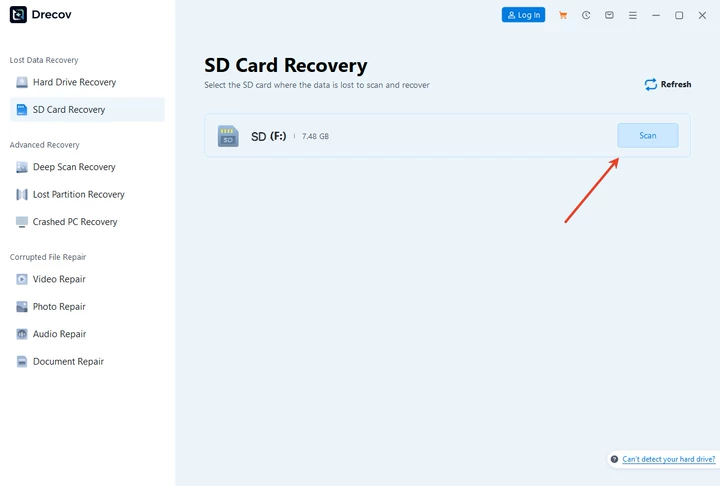
3. Preview and recover deleted photos, videos, or documents in a few clicks.
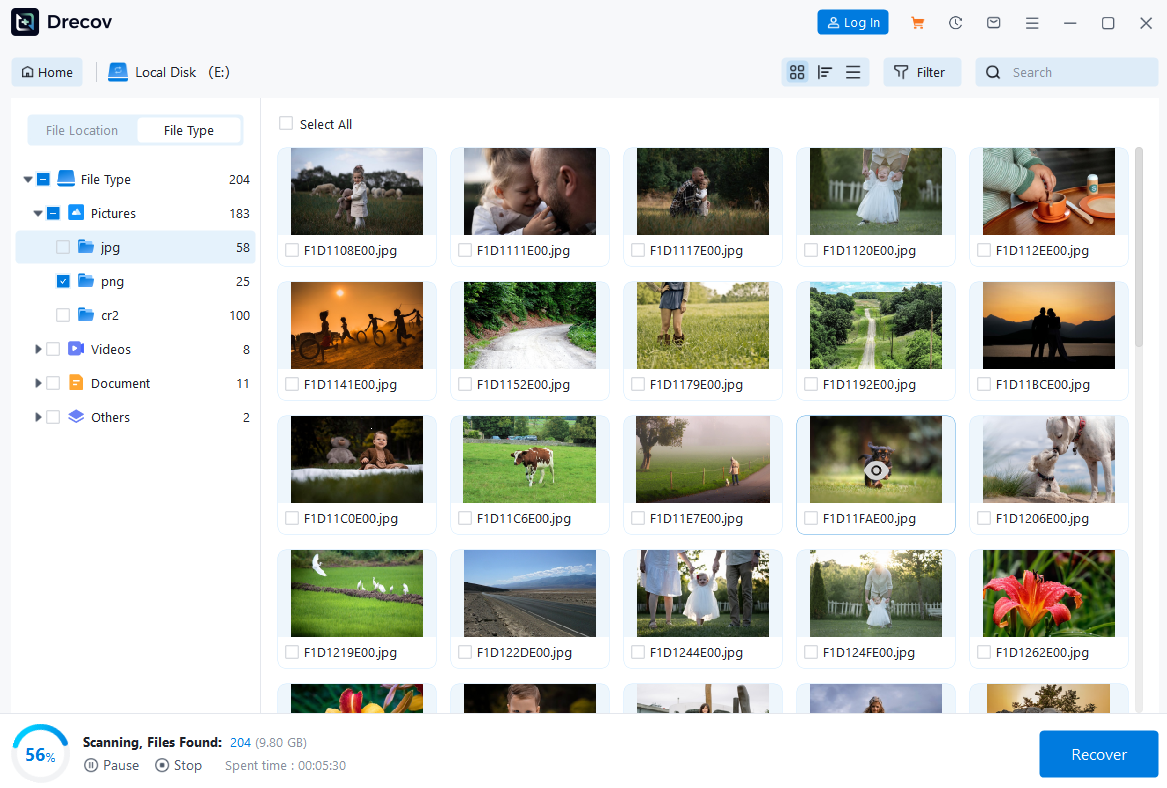
Pros: High recovery rate, supports FAT32, exFAT, and NTFS.
Cons: Full scan may take time depending on card size.
Comparison: System vs Software Recovery
| Method | Pros | Cons | Best Use Case |
|---|---|---|---|
| System Tools | Built-in, free, fast | Limited recovery, only works if not fully overwritten | Quick formats, minor deletions |
| Drecov | High recovery rate, supports multiple file types | Paid version may be needed for full recovery | Accidental formatting, corrupted SD cards |
FAQs
Q1: What does format a SD card mean?
Formatting an SD card means erasing its data and preparing it with a new file system for use.
Q2: What does format mean on a SD card?
It is the process of creating a structure that allows your device to read and write files efficiently.
Q3: How to format SD card on Mac?
Use Disk Utility, select the SD card, choose Erase, pick FAT32 or ExFAT, then click Erase.
Q4: How to format SD card as FAT32?
On Windows, use Command Prompt: format /FS:FAT32 X:. On Mac, choose MS-DOS (FAT) in Disk Utility.
Q5: Can I recover data after formatting an SD card?
Yes. Tools like Drecov can recover lost files in three steps: scan, preview, and restore.
Conclusion
Formatting an SD card is a routine yet critical process that ensures compatibility and performance. Whether you need to format SD card FAT32, format SD card on Mac, or recover accidentally lost data, understanding the process is essential. While system-level formatting is quick and easy, using a reliable solution like Drecov guarantees safe recovery of lost files in just three simple steps. Always backup important data and follow best practices to minimize the risk of permanent loss.
By mastering SD card formatting and recovery techniques, you can maintain your device’s efficiency while protecting your precious photos and files.





