







Losing important files from a corrupted SD card can be stressful and sometimes even devastating. Photos, videos, and documents stored on SD cards are often irreplaceable, and when a card becomes corrupted, accessing this data can feel impossible.
The good news is that there are several methods to recover a corrupted SD card, using both software tools and system features. This article focuses on practical solutions to help you restore lost data, including Drecov by PandaOffice, Microsoft’s official recovery tools, and system-based recovery options.
Introduction
SD cards are widely used in cameras, smartphones, drones, and other electronic devices due to their compact size and convenience. However, they are prone to corruption from improper use, physical damage, virus infections, or file system errors. When corruption occurs, users often find their SD card unreadable, files missing, or data inaccessible.
The goal of this guide is not marketing, but helping users solve real problems. You will learn how to repair a corrupted SD card, recover lost photos, and restore important files using safe and effective Data Recovery Software for Corrupted SD Card. Among these data recovery software, Drecov by PandaOffice is highlighted as a reliable and user-friendly sd card recovery software, but we also explore other free recovery options.
Problem Statement
Common Causes of SD Card Corruption
Understanding why SD cards become corrupted helps prevent future data loss. Common causes include:
- Physical Damage – SD cards can be damaged by bending, drops, or water exposure.
- File System Errors – Improper ejection, sudden power loss, or formatting issues can corrupt the card.
- Virus or Malware – Malicious software can interfere with the SD card’s file structure.
- Wear and Aging – SD cards have limited write cycles, and long-term use may cause failure.
Typical User Needs After Data Loss
After an SD card becomes corrupted, users typically seek to:
- Recover a corrupted SD card to regain access to important files.
- Restore deleted photos from an SD card for personal or professional reasons.
- Repair a corrupted SD card to make it functional again.
- Find free SD memory card recovery software that is safe and easy to use.
Professional data recovery services are effective but often expensive. Using software tools or system features can save time and costs while providing a safe recovery path.
Solution / How-to Guide: Free Methods to Recover Data
There are several ways to recover data from a corrupted SD card. Below we detail three main approaches: Microsoft official tool, system-based recovery, and Drecov software.
Method 1: System-Based Data Recovery Methods
Most operating systems provide built-in recovery features that can sometimes recover lost SD card data without additional software.
Windows Recovery Options:
- File History – If previously enabled, open File History and navigate to the SD card to restore lost files.
- CHKDSK Command – Open Command Prompt and type:
chkdsk E: /f /r(ReplaceE:with your SD card drive letter). This can repair file system errors and restore accessibility. - Recycle Bin – Some deleted files from SD cards may appear here if they were copied first.
Mac Recovery Options:
- Time Machine Backup – Connect your backup drive and restore files from your last backup.
- Finder Recovery – Open Finder, locate your SD card, and check the Recently Deleted or Trash folders.
Linux Recovery Options:
- Tools like
testdiskorphotoreccan recover lost files from SD cards with supported file systems. - Free and open-source, suitable for users comfortable with command-line tools.
System-based recovery methods are free and effective for minor corruption or accidental deletions, but may not work for severe damage.
Method 2: Using Drecov Data Recovery Software for Corrupted SD Card
Drecov is a specialized Data Recovery Software for Corrupted SD Card designed to recover lost or corrupted files efficiently. It is recognized on official platforms for safety and compatibility.
Steps to Use Drecov:
- Download and Install Drecov – Visit the Microsoft Store listing for Drecov or the PandaOffice official website to download the software. Installing via Microsoft Store ensures verified safety.
- Connect the SD Card – Insert your SD card into a card reader and open Drecov.
- Select Memory Card Recovery – Choose the SD card from the list of drives.
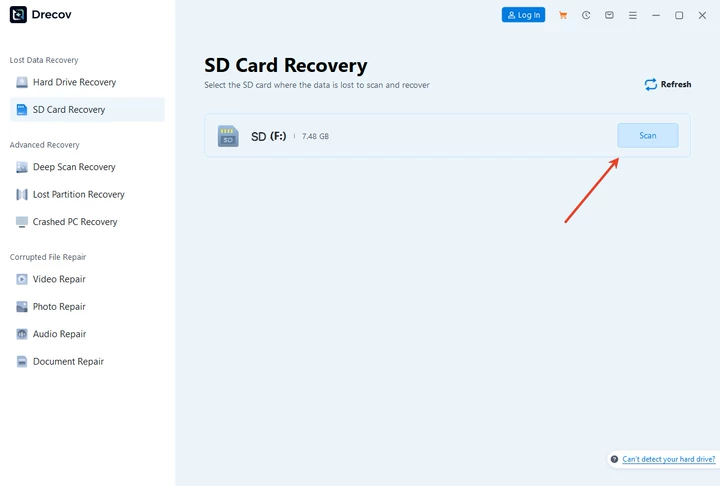
- Scan the SD Card – Click “Scan” to let Drecov search for recoverable files. The process may take several minutes depending on the card size.
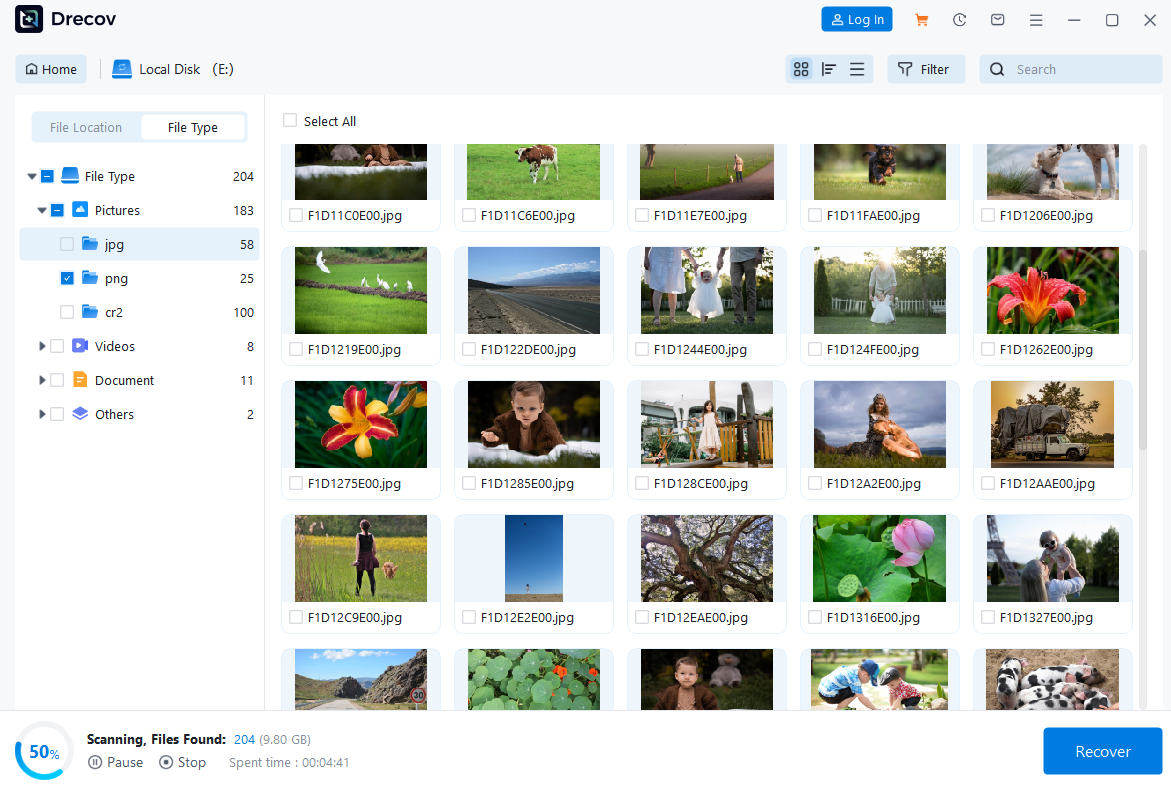
- Preview and Select Files – After scanning, preview the files to ensure they are intact.

- Recover Files – Select the files to recover and save them to a safe location on your computer.
By being listed on Microsoft Store, Drecov demonstrates its credibility as a safe and trusted sd card recovery software, giving users confidence in performing SD card recovery operations.
Video Tutorial: How to Recover Files from a Corrupted SD Card
To make the SD card recovery process even easier, you can watch this step-by-step video tutorial demonstrating how to recover files from a corrupted SD card by Drecov.
Following along with the video can help you visualize each step, from scanning your SD card to restoring deleted photos or other files safely. Even if you prefer written instructions, seeing the process in action can reduce mistakes and increase confidence in recovering your valuable data.
Method 3: Cloud Backup Recovery
If your SD card data was synced to the cloud, you can restore files without using Data Recovery Software for Corrupted SD Card. This is particularly useful for photos and documents.
1. Google Photos
- Open Google Photos and sign in with the Google account linked to your SD card backup.
- Navigate to the Trash/Recently Deleted folder.
- Select the photos or videos you want to restore.
- Click Restore to return them to your main library.
2. iCloud
- Open iCloud.com and sign in with your Apple ID.
- Go to Photos → Recently Deleted.
- Select the files to recover and click Recover.
- Synced devices will automatically reflect the restored files.
3. OneDrive
- Visit OneDrive and sign in with your Microsoft account.
- Open the Recycle Bin.
- Select files to recover and click Restore.
- Synced devices will receive the recovered files automatically.
Cloud recovery is safe, free, and fast, making it a practical solution if your SD card data was previously synced.
Method 4: Hardware-Level Recovery (Severe Physical Damage)
For extreme cases where software cannot detect the SD card (e.g., chip read/write failure), professional data recovery laboratories may be required.
Steps:
- Stop using the damaged SD card immediately to prevent further harm.
- Contact a certified data recovery laboratory.
- Follow their instructions to safely send the SD card.
- Technicians repair the chip and recover the data.
Advantages:
- Very high success rate for severe physical damage.
- Can recover data when software methods fail.
Disadvantages:
- High cost; not a free solution.
- Turnaround may take several days depending on damage severity.
Hardware-level recovery should only be considered if all other methods fail.
Comparison / Why Choose Each Method
| Method | Advantages | Limitations |
|---|---|---|
| System-Based Recovery | Free, built-in, no third-party software | Limited success for severe corruption |
| Drecov | High recovery success rate, user-friendly, Microsoft-verified | Need to download |
| Cloud Backup | Fast, free, safe, accessible | Only works for previously synced data |
| Hardware-Level Recovery | Very high success for physical damage | Expensive, not free, slower |
Each method fits different scenarios. Users should start with free and low-risk methods, then escalate to more advanced tools or professional recovery if needed.y.
FAQ
You can repair a corrupted SD card using system tools such as CHKDSK on Windows or Time Machine on Mac, cloud backups like Google Photos, iCloud, or OneDrive, or software like Drecov. Start by attempting file recovery before formatting the card.
Free methods include system-based recovery (File History, CHKDSK), cloud backup recovery (Google Photos, iCloud, OneDrive), and Drecov free edition. Always save recovered files to a separate location from the corrupted SD card.
Drecov by PandaOffice is highly recommended due to its ease of use, high recovery success rate, and verified listing on Microsoft Store. Other free options include PhotoRec or Recuva for more technical users.
To recover files safely, avoid writing new data to the corrupted card. Use trusted software or system/cloud tools, preview files before recovery, and save recovered data to a safe location on your computer.
Conclusion
Recovering data from a corrupted SD card requires prompt and careful action. Before turning to expensive professional recovery services, many users prefer to try reliable free tools to minimize cost and avoid further data loss. While professional data recovery services are effective, free solutions such as Drecov, Microsoft’s official tool, and system-based recovery options provide safe, efficient, and cost-effective alternatives.
By understanding the causes of corruption and following the proper recovery steps, users can restore deleted photos from an SD card, repair corrupted cards, and regain access to valuable files. Evaluate each method based on your technical comfort, the severity of corruption, and the file types you need to recover.
Recovering data from a corrupted SD card requires prompt and careful action. Before turning to expensive professional recovery services, many users prefer to try reliable free tools to minimize cost and avoid further data loss. While professional data recovery services are effective, free solutions such as Drecov, Microsoft’s official tool, and system-based recovery options provide safe, efficient, and cost-effective alternatives. For reliable, user-friendly recovery, Drecov by PandaOffice remains a top choice; however, combining multiple recovery approaches can maximize your chances of success. Always act promptly to prevent further data loss.





