







The Nintendo 3DS is one of the most popular handheld gaming consoles of all time, beloved for its expansive game library, portability, and multimedia capabilities. These systems rely heavily on SD cards for storing games, save data, system updates, photos, and videos. Knowing how to format an SD card for 3DS correctly is essential for anyone who wants to maintain smooth performance, prevent errors, and ensure compatibility. Improper formatting can result in a card that the 3DS cannot read, slow performance, or even corruption of important game data.
This guide provides a complete overview of 3DS SD card format, covering everything from SD card types, step-by-step formatting instructions for Windows, Mac, and Linux, to formatting directly on the 3DS console. Additionally, we discuss how Pandaoffice Drecov can help recover lost files after accidental formatting, providing a reliable safety net for your important game saves and multimedia files. By the end of this article, you will have all the knowledge needed to properly format your 3DS SD card and protect your data.
I got a new 3DS and the SD card seems to be having issues and I want to format it again but using the software nintendo recommends instead of the windows format function and then format my 3DS to factory defaults. What would be the proper process to do this so I can start fresh? I don’t need to transfer anything over.—from Reddit
Understanding 3DS SD Card Requirements
Nintendo 3DS consoles—including the 3DS, 3DS XL, New 3DS, New 3DS XL, and 2DS—support SD cards with specific limitations. The maximum officially supported capacity is 32GB, and all cards must be formatted to FAT32 to ensure compatibility. Cards exceeding 32GB, such as SDXC, need reformatting before the console can read them. Understanding these requirements is crucial when preparing a new SD card.
Key requirements include:
- Maximum capacity: 32GB
- File system format: FAT32
- Properly inserted, without physical damage or write protection
If you ignore these requirements, the 3DS may not detect the SD card, or you could encounter errors while saving games or transferring files. FAT32 is used because it is universally compatible across different devices, and Nintendo designed the 3DS specifically for this format. Backing up data is crucial before formatting, as the process will erase all content. In case of accidental deletion, Pandaoffice Drecov can recover files in three simple steps: scan, preview, and recover, ensuring that you never permanently lose important data.
Why You Should Format a 3DS SD Card
Formatting a 3DS SD card is more than just deleting files. It reorganizes the storage structure, corrects hidden errors, and ensures that the card works properly with your console. Common reasons to format a 3DS SD card include:
- Upgrading to a new SD card: Moving from a smaller card (16GB) to a larger one (32GB) often requires formatting.
- Fixing corrupted files: Cards with errors or unreadable sectors benefit from a full reformat.
- Cleaning old data: Removing outdated games, photos, and videos ensures smoother performance.
Formatting also prepares the card for use on other devices if necessary. However, formatting erases all data. If you accidentally delete game saves, media files, or documents, Pandaoffice Drecov provides an efficient 3-step recovery process that allows you to restore files safely. By maintaining a formatted SD card, you can prevent corrupted files, improve read/write speeds, and optimize gameplay.
Types of SD Cards Compatible with 3DS
The 3DS supports several SD card types, and choosing the right one is critical. Original 3DS and 3DS XL consoles use standard SD cards up to 2GB, while New 3DS, New 3DS XL, and 2DS consoles support SDHC cards up to 32GB. MicroSD cards can also be used with an SD adapter.
Standard SD cards are sufficient for small game libraries or limited multimedia use, but SDHC cards (4GB–32GB) are preferred for modern 3DS systems due to higher speeds and capacities. Using SDXC cards above 32GB requires reformatting to FAT32 on a computer, as the 3DS does not natively support exFAT or NTFS formats.
Card speed is another consideration. Slow cards may cause longer load times and delays when saving games or media. Labeling your SD cards by capacity and intended use can prevent confusion if you manage multiple cards. Should data become corrupted or accidentally formatted, Pandaoffice Drecov provides fast recovery of game saves, photos, and other files. This ensures you can confidently manage your SD cards without fear of losing valuable content.
Preparing Your SD Card for Formatting
Preparation is essential before formatting an SD card for 3DS. Follow these steps:
- Backup all essential data – Save game saves, photos, videos, and other important files to a computer, external drive, or cloud storage.
- Verify card compatibility – Confirm the card is under 32GB and suitable for use in a 3DS console.
- Inspect for physical damage – Avoid formatting cards with visible damage or faulty connections to prevent corruption.
- Check write protection – Some SD cards have a physical lock switch; ensure it is disengaged.
By following these precautions, you reduce the risk of permanent data loss. Even if an error occurs, Pandaoffice Drecov can restore deleted files using its simple 3-step recovery process, making it an invaluable tool for gamers who manage multiple SD cards. Proper preparation ensures smooth formatting and reliable card performance.
How to Format SD Card for 3DS on Windows PC
Formatting an SD card for 3DS on a Windows PC is straightforward and gives you full control over the 3DS SD card format.
- Insert the SD card using a card reader.
- Open File Explorer, right-click on the SD card, and select Format.
- Select FAT32 as the file system format.
- Check Quick Format for faster processing.
- Click Start to format the card.
Windows will then erase all files and organize the card with the FAT32 structure compatible with 3DS. It’s essential to double-check the selected drive before starting, as formatting deletes all content permanently.
In case files are lost, Pandaoffice Drecov allows recovery using three steps: scan, preview, and recover. This ensures your game saves, media, and documents are not permanently lost even after a full format. Regular use of recovery software alongside proper formatting prevents data disasters and keeps your 3DS SD card ready for gaming.
How to Format SD Card for 3DS on Mac
For Mac users, formatting an SD card for 3DS is straightforward using Disk Utility. Insert your SD card into the Mac via a built-in reader or an external USB card reader. Open Disk Utility, located in Applications > Utilities, and select the SD card from the sidebar. It is essential to choose the correct drive to avoid accidentally formatting other devices.
Click Erase, then set Format to MS-DOS (FAT) and Scheme to Master Boot Record (MBR). Confirm the operation by clicking Erase again. Mac will format the card to the proper 3DS SD card format, making it ready for use.
Formatting on Mac is particularly useful for SDXC cards that exceed 32GB, as the 3DS requires FAT32. After formatting, any lost files can be recovered using Pandaoffice Drecov. Its 3-step process—scan, preview, and recover—ensures game saves, photos, and videos are restored safely. Mac users benefit from this method when preparing new cards or maintaining older cards for optimal performance.
How to Format SD Card for 3DS on Linux
Linux users can format SD cards using GUI tools like GParted or via the terminal. Insert the SD card and open GParted. Select the SD card, delete existing partitions, create a new partition, and format it as FAT32.
Alternatively, using the terminal, the command sudo mkfs.fat -F 32 /dev/sdX formats the card, replacing /dev/sdX with your SD card device identifier. After formatting, the SD card is ready for the 3DS console.
As with other systems, accidental deletion of files can happen. Pandaoffice Drecov allows Linux users to recover formatted files safely. Its 3-step process ensures even deep-scanned files can be restored, including game saves, photos, and videos. Linux formatting gives users control and flexibility while keeping recovery options open.
Formatting SD Card Directly on the 3DS Console
Nintendo 3DS consoles allow direct formatting without a computer. Insert the SD card and navigate to System Settings > Other Settings > Format SD Card. The console warns that all data will be deleted. Confirm the action to allow the 3DS to format the card to FAT32.
Direct formatting is convenient for users who do not have access to a computer or want to ensure full compatibility. However, any lost data must be recovered using Pandaoffice Drecov. Using its 3-step recovery—scan, preview, and restore—users can recover accidentally deleted files efficiently. Regularly formatting the SD card directly on the 3DS helps prevent corruption and maintains optimal read/write performance, especially when switching between multiple cards or after transferring large files.
Recovering Files After Accidental Formatting
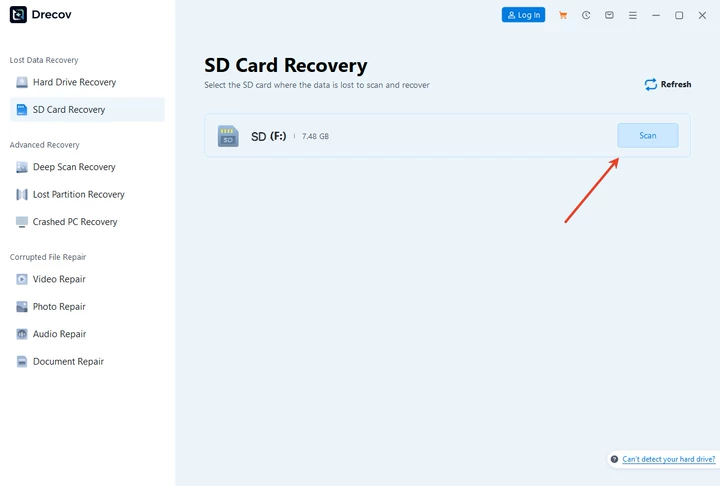
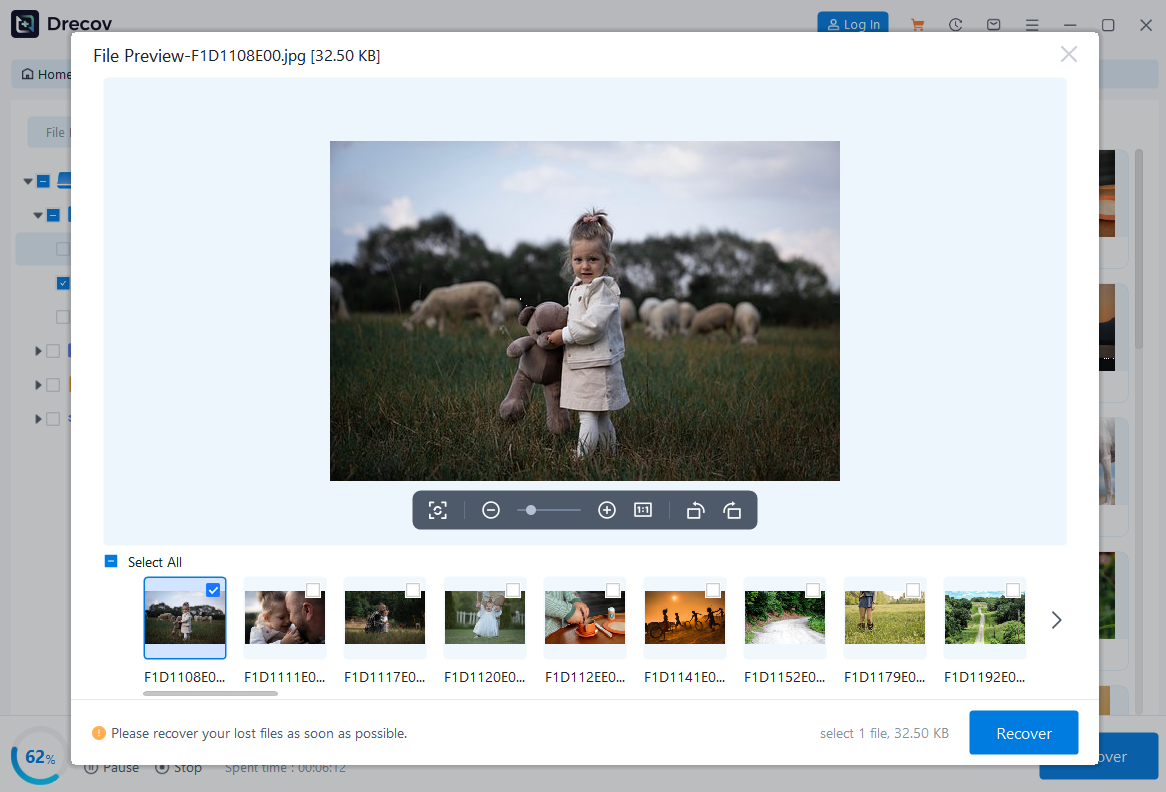
Accidental formatting is common and stressful, but losing your files permanently is avoidable with Pandaoffice Drecov. The software allows 3DS users to restore game saves, photos, videos, and other important files in three easy steps:
- Scan the SD Card – Connect the card to your computer and launch Drecov. It automatically detects the formatted card and performs a deep scan to locate all recoverable files.
- Preview Files – After scanning, preview all items, including game saves, multimedia files, and documents. Select what you want to restore.
- Recover Safely – Click Recover to save files to a secure location on your computer, without overwriting existing data.
This recovery works even after multiple formats or partial corruption, making Drecov a reliable safety net for gamers who use SD cards for storing games and media.
Common Issues and Troubleshooting
Even with proper formatting, users may encounter issues:
- Card not recognized – Ensure the card is under 32GB and formatted to FAT32. SDXC cards require reformatting.
- Write-protected card – Check the lock switch or system settings.
- Formatting fails – Try another computer or card reader.
- Data loss – Always back up data. If lost, use Pandaoffice Drecov to recover files.
Addressing these issues promptly ensures minimal disruption. Regularly scanning SD cards for errors and performing proper formatting helps avoid corruption.
Advanced Recovery Scenarios with Pandaoffice Drecov
Sometimes SD cards suffer from corruption, accidental deletion, or repeated formatting. Pandaoffice Drecov handles complex recovery cases:
- Multiple accidental formats – Drecov can recover files even after the card has been formatted more than once.
- Corrupted or unreadable cards – Deep scan functionality identifies partially damaged files for recovery.
- Specific file types – Recover only game saves, photos, or videos by filtering during preview.
Its simple 3-step process—scan, preview, recover—makes it easy for anyone, including non-technical users, to restore files safely. This is especially important for 3DS users who store valuable game progress and media on SD cards.

Best Practices for 3DS SD Cards
To maximize SD card life and avoid data loss:
- Backup regularly – Copy important saves, photos, and videos to a computer or cloud service.
- Safely eject the card – Abrupt removal may corrupt files.
- Maintain free space – Keep 10–15% free for optimal performance.
- Use reliable recovery software – Pandaoffice Drecov ensures quick restoration of lost files.
- Inspect the card – Periodically check for bad sectors and reformat if needed.
Following these best practices ensures smooth gameplay, reliable storage, and protection against data loss.
Conclusion
Properly formatting a 3DS SD card is essential for system performance, compatibility, and data management. Using Windows, Mac, Linux, or the console itself, you can ensure the SD card is ready for gaming and multimedia use.
Accidental formatting or data loss is not catastrophic. Pandaoffice Drecov offers a simple 3-step process to recover formatted files safely, including game saves, photos, and videos. By combining proper formatting techniques with reliable recovery software, 3DS users can confidently manage SD cards without risking the loss of valuable data.
With careful preparation, following best practices, and leveraging Pandaoffice Drecov, your 3DS SD card storage can remain reliable, organized, and fully protected.





