







In professional research and high-stakes business environments, a browser’s bookmark library is a strategic asset. Losing access to curated market data, project portals, or technical documentation due to an accidental click or a corrupted sync can halt productivity instantly. When “Undo” is no longer an option, the focus shifts to Recovering Deleted Chrome Bookmark using forensic-level precision.
The following guide outlines the two most reliable methods in 2026: the streamlined PandaOffice Drecov Three-Step Recovery and the native Windows Shadow Copy utility. By understanding the underlying mechanics of disk storage, users can retrieve lost data even after a major system disruption.
1. Why Chrome Bookmarks Disappear
To solve the problem, one must understand the failure points. In professional environments, bookmark loss typically stems from six primary vectors:
Storage Degradation: On older hardware, bad sectors can specifically impact the small disk area where browser metadata is stored.
Accidental Human Error: The most frequent cause. Without a confirmation prompt, a folder can be deleted in a single click during organization.
Browser/OS Conflicts: During forced updates or system crashes, the Bookmarks JSON file can become locked or corrupted, leading Chrome to initialize a blank “Default” profile.
Enterprise Sync Conflicts: When a user is logged into multiple workstations, a deletion on a home laptop can trigger a global wipe across the corporate network.
Profile Corruption: Malware or faulty extensions can modify the User Data directory, making the database unreadable.
Aggressive Optimization Software: Many “System Cleaners” used by IT departments may mistakenly flag browser profile fragments as “junk” data.
2. The Logic of Retrieval: How Data Recovery Functions
A common misconception in the business world is that “deleted” means “erased.” From a digital forensics standpoint, this is rarely true.
The Principle of Logical Deletion
When you delete a bookmark, the Operating System (OS) doesn’t perform a “Zero-Fill” (overwriting the data with zeros). Instead, it updates the File Allocation Table (FAT) or NTFS Master File Table (MFT) to mark that space as “Unallocated.” The original data—the JSON code containing your URLs—remains physically present on the platters or flash cells of your drive.
The Overwrite Window
The critical variable in Recovering Deleted Chrome Bookmark is time. Every minute a computer stays active, it generates “System Logs” and “Page Files” that might be written into that “Unallocated” space. If new data lands on the exact sector where your bookmarks lived, the loss becomes permanent. This is why professional recovery frameworks emphasize immediate cessation of disk activity.
3. Method 1: The PandaOffice Drecov Three-Step Recovery
PandaOffice Drecov has refined its 2026 interface to minimize user downtime. It bypasses the corrupted OS file system to communicate directly with the storage controller.
- Comprehensive Recovery: From accidental deletion and formatting to partition loss, it handles every data loss scenario.
- Safety-First Technology: Utilizing a “Read-Only” scanning engine, it ensures your original data remains untouched and uncorrupted during the search.
- High-Fidelity Preview: Preview HTML, images, PDFs, and documents before committing to the recovery, ensuring you only spend time on the files you actually need.
- Optimized for Modern Browsers: Specifically tailored for Chrome’s complex folder structure.
- Step 1: Initialization and Partition Targeting
- Action: Launch PandaOffice Drecov. From the main dashboard, select the drive where your Chrome profile is hosted—typically Local Disk (C:).
⚠️ Critical Warning: Ensure the software is running from an external drive or a secondary partition (e.g., D:) to prevent the installation process from overwriting the very bookmarks you are trying to save.
- Step 2: Intelligent Deep Scan & Filtering
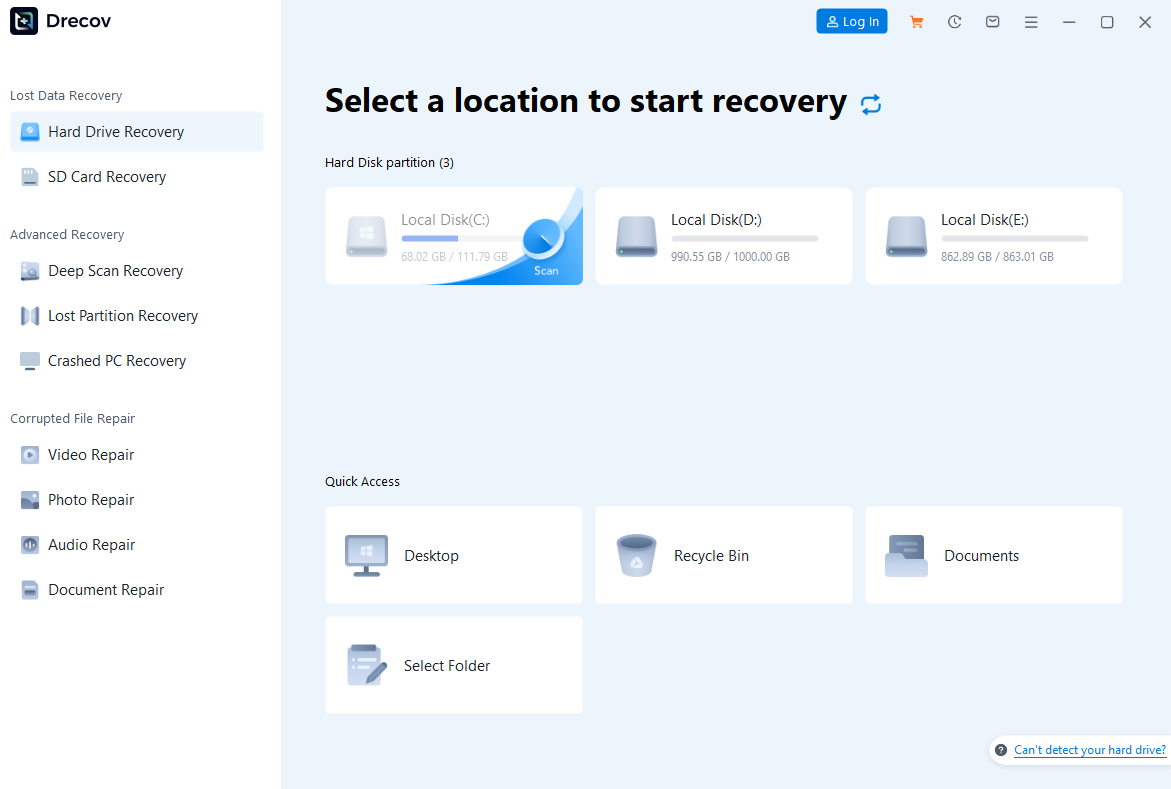
- Action: Click “Scan”. The software will execute a dual-layer scan. While it runs, navigate to the “File Type” filter or use the search bar to enter the exact filename:
Bookmarks. - Key Detail: Look for files with the path:
\Users\[YourName]\AppData\Local\Google\Chrome\User Data\Default\. - Tip: Use the Preview function to view the JSON text. If you see your specific URLs in the preview pane, you have found the correct version.
- Step 3: Secure Restoration to Sandbox

- Action: Select the desired
BookmarksandBookmarks.bakfiles and click “Recover”. - Requirement: Choose a safe destination folder on a different drive (e.g., a USB or Desktop).
- Integration: Once recovered, copy the file to
%LocalAppData%\Google\Chrome\User Data\Defaultand restart Chrome.
While the steps above specifically target your browser data, the true strength of this tool lies in its ability to handle much more than just a few lost URLs. Whether you are dealing with a simple mistake or a major system glitch, it provides a comprehensive safety net for your entire digital life. Here is a look at the versatility and security you can expect:
- Versatility: It recovers photos, videos, audio, compressed files (ZIP/RAR), and even system files like EXEs.
- Accidental deletion from your computer desktop.
- Files lost after emptying the Recycle Bin.
- Data loss from disk formatting.
- Accidental deletion or formatting of SD cards/U disks.
- Sync error occurring with deleted OneDrive files
- Privacy First: All recovery happens locally on your machine, so you don’t have to worry about your private data leaking to the web.
4. Method 2: Restoration via Volume Shadow Copy (VSC)
If PandaOffice Drecov is your primary tool for deep recovery, the Volume Shadow Copy service is the best “native” alternative, provided that System Protection was active at the time of loss.
- Step 1: Open File Explorer and paste the following path into the address bar:
%LocalAppData%\Google\Chrome\User Data\
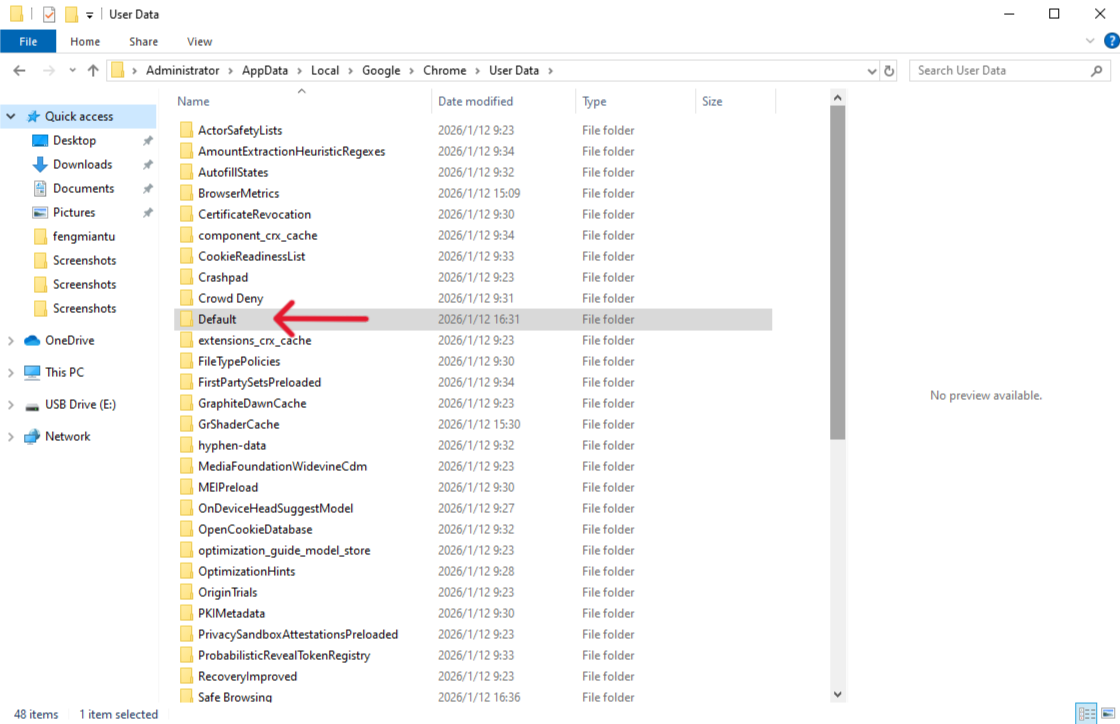
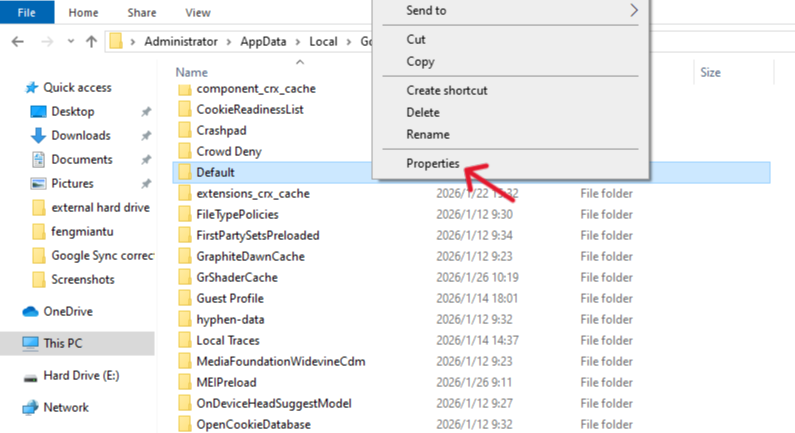
- Step 2: Right-click the folder named “Default” (the container for your bookmarks) and select “Properties”.
- Step 3: Navigate to the “Previous Versions” tab. Windows will list snapshots of this folder from previous days or weeks.
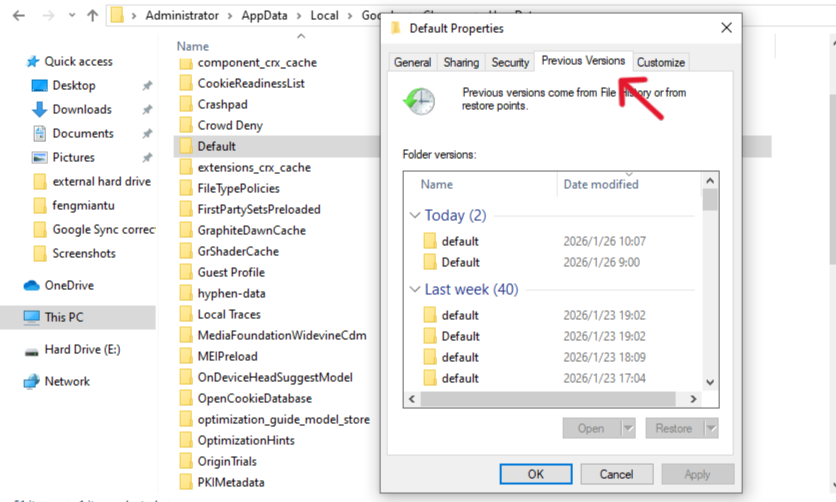
- Step 4: Select a version timestamped before the deletion occurred. Click “Open” to verify the contents, then click “Restore”.
5. Professional Tool Comparison: 2026 Benchmarks
| Recovery Metric | PandaOffice Drecov (3-Step) | Volume Shadow Copy (VSC) |
| Success Rate | High (99.8%) | Moderate (Depends on Config) |
| Mechanism | Raw Sector Reconstruction | System Snapshot Restore |
| Prerequisites | None (Post-loss action) | System Protection must be ON |
| Complexity | Low (Automated) | Low (Native) |
| Recovery Scenarios | Deletion, Formatting, Crash | Accidental Deletion only |
| Preview Capability | Yes (Full Content) | No (Folder-level only) |
6. Proactive Risk Management: Preventing Future Loss
For businesses, “Recovery” is the second line of defense. The first is “Prevention.”
- Scheduled HTML Exports: Once a month, use the Chrome Bookmark Manager to “Export Bookmarks” to an HTML file and store it in the company’s secure NAS.
- Cloud-to-Cloud Backup: Use 2026-standard SaaS tools that backup browser profiles to the cloud daily.
- Tiered Syncing: Ensure that “Sync” is only active on primary work devices to minimize the risk of a “Sync Conflict” deletion from a mobile device.
7. Recovering Deleted Chrome Bookmark FAQs
1. I found multiple “Bookmarks” files in PandaOffice Drecov. Which one do I pick?
Check the “Date Modified” and “File Size”. A version from yesterday with a larger file size is likely your complete library, whereas a very small, recent file is likely the “empty” one created after the deletion.
2. Can I recover bookmarks if my Chrome profile was synced to a managed Work Account?
Yes. Even with Enterprise Sync, the local machine still keeps a physical copy in the AppData folder. PandaOffice Drecov can retrieve this local cache regardless of cloud sync status.
3. What happens if I accidentally saved the recovered file as a .txt?
Chrome will not recognize it. Ensure the filename is exactly Bookmarks with no file extension. You may need to uncheck “Hide extensions for known file types” in Windows Folder Options to verify this.
4. Why doesn’t the “Previous Versions” tab show any entries?
This occurs if System Protection is disabled in your Windows settings. If VSC is empty, you must use PandaOffice Drecov, as it does not rely on Windows-generated snapshots.
5. Is there a way to recover bookmarks from a “Cleaned” SSD?
On SSDs, the “TRIM” command may eventually erase deleted data. However, Drecov’s deep scan often finds “orphaned” fragments that have not yet been garbage-collected by the drive controller.
Conclusion
In 2026, Recovering Deleted Chrome Bookmark is a precise science rather than a game of luck. For users who require a guaranteed result after severe data loss or corrupted profiles, the PandaOffice Drecov Three-Step Recovery provides the most robust path to success. For minor accidental deletions where system snapshots are active, the Volume Shadow Copy method serves as a viable secondary option.
To maintain the integrity of your digital workspace, we recommend utilizing Drecov for its superior preview and reconstruction capabilities, followed by a new habit of weekly HTML bookmark exports to a secure cloud drive.






