







Imagine this: You have spent years meticulously organizing a “Research” folder in your Google Chrome browser. It contains hundreds of links—rare academic papers, critical work resources, and inspiration for your next big project. While trying to move a single link, your hand slips. You right-click, hit “Delete” on the entire folder, and before you can process the mistake, you close the browser.
When you reopen Chrome, the folder is gone. It isn’t in your computer’s Recycle Bin because Chrome handles its own data internally. For many, this feels like a digital house fire. However, the data isn’t truly “gone” the moment you click delete. Whether you are a student or a professional, understanding how to recover Chrome bookmarks is a vital digital literacy skill that can save weeks of lost work.
The Digital Librarian: How Bookmarks “Disappear”
To understand recovery, we must understand how Chrome stores data. Think of your Chrome profile as a massive library.
When you save a bookmark, the “Librarian” (Chrome) writes the title and URL into a specific ledger file called Bookmarks. When you delete a bookmark, the Librarian doesn’t immediately burn the pages of that ledger. Instead, it simply marks that entry as “Available Space.” The information remains written in faint pencil until you save new bookmarks that overwrite that specific spot.
This is why the golden rule of recovery is: Stop using the browser immediately. The more you browse, the more “new ink” you splash over the old data you are trying to save.
Essential Precautions Before You Begin
Before we dive into the technical steps, keep these three rules in mind to maximize your success rate:
- Avoid Relaunching: Closing and reopening Chrome can trigger an automatic overwrite of your backup files.
- Disable Sync: If you use Google Sync, turn it off on other devices immediately so the “deletion” command doesn’t spread to your phone or tablet.
- Check the Backup: Chrome automatically saves a file called
Bookmarks.bak. This is your primary lifeline.
Method 1: The Manual “Undo” via Chrome Backup Files
Windows and macOS users have a hidden safety net. Chrome keeps a single backup of your bookmarks from the last time you launched the browser.
Steps for Windows Users:
- Step 1: Open File Explorer and navigate to the following path (replace
UserNamewith your actual account name):C:\Users\UserName\AppData\Local\Google\Chrome\User Data\Default
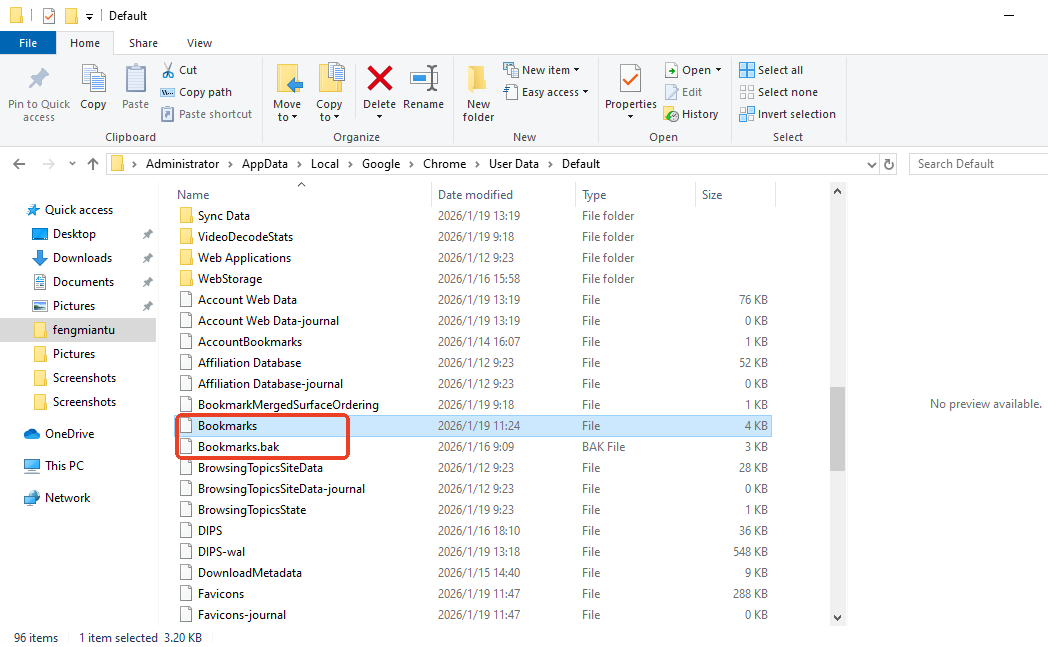
Note: If you have multiple profiles, the folder might be named “Profile 1” instead of “Default”.)
- Step 2: Locate two files:
BookmarksandBookmarks.bak. - Step 3: To protect your current state, copy both files to a folder on your Desktop.
- Step 4: Delete the file named
Bookmarksin the original folder.
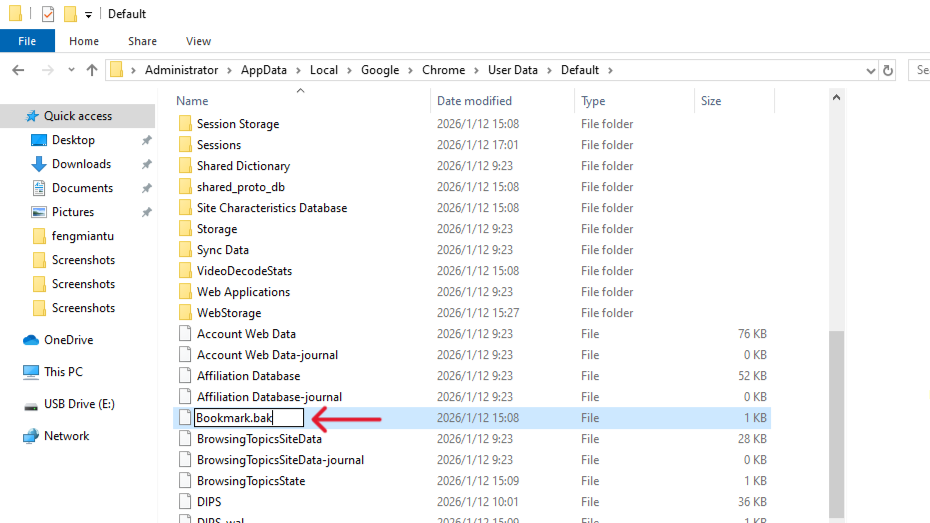
- Step 5: Rename
Bookmarks.bakto simplyBookmarks(remove the extension). - Step 6: Restart Chrome. Your old bookmarks should reappear.
Method 2: Professional Recovery with PandaOffice Drecov
If the manual backup method fails—perhaps because you closed and opened Chrome too many times, overwriting the .bak file—you need a more powerful solution. This is where a specialized Chrome bookmarks recovery tool like PandaOffice Drecov becomes essential.
Unlike manual searching, PandaOffice Drecov scans the “unallocated space” of your hard drive to find older versions of the Bookmarks JSON file that the operating system hasn’t overwritten yet.This makes it an indispensable tool for a wide range of data loss scenarios, including:
- Accidental Desktop Deletions: Instantly retrieving files wiped from your local workspace.
- Disk Formatting Errors: Salvaging files from drives that have been completely wiped or reformatted.
- External Media Rescue: Recovering lost data from formatted or corrupted SD cards and USB flash drives.
- Sync Conflict Resolution: Reversing data loss caused by synchronization errors between your PC and the OneDrive cloud.
Download and install PandaOffice Drecov on a drive different from where Chrome is installed (e.g., an external USB) to prevent overwriting.
Steps to use PandaOffice Drecov:
- Step 1: Launch the software and select the C: Drive (or whichever drive hosts your User AppData).

- Step 3: Use the “Deep Scan” feature. Filter your results by searching for the file name
Bookmarks.

- Step 4: Look for files with an older “Date Modified” timestamp that matches the time before your deletion.

- Step 5: Select the file and click Recover. Save it to your Desktop.
- Step 6: Move this recovered file back into your Chrome User Data folder as described in Method 1.
Why PandaOffice Drecov? It excels because it can see “ghost” files that Windows Explorer ignores. It is specifically optimized to recognize the structure of JSON-based browser data.
Method 3: Using Google History and Cache (The Manual Rebuild)
If no backup files exist, you can rebuild your collection through your browsing history.
- Step 1: Press
Ctrl + Hin Chrome to open your history. - Step 2: Search for keywords related to your lost folders.
- Step 3: While tedious, you can re-open these pages and bookmark them again.
- Step 4: If you have Google Account Sync enabled, visit Google Dashboard to see if your synced data still holds a count of your bookmarks from a previous session.
Method 4: Windows “Previous Versions” (System Protection)
If you have System Restore or File History turned on, Windows might have a snapshot of your folder.
- Step 1: Navigate to the Chrome
User Datafolder mentioned in Method 1.
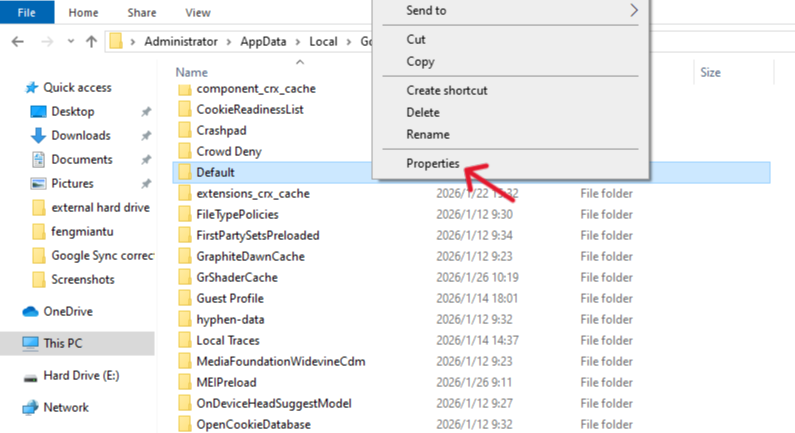
- Step 2: Right-click the
Defaultfolder and select Properties. - Step 3: Click the Previous Versions tab.
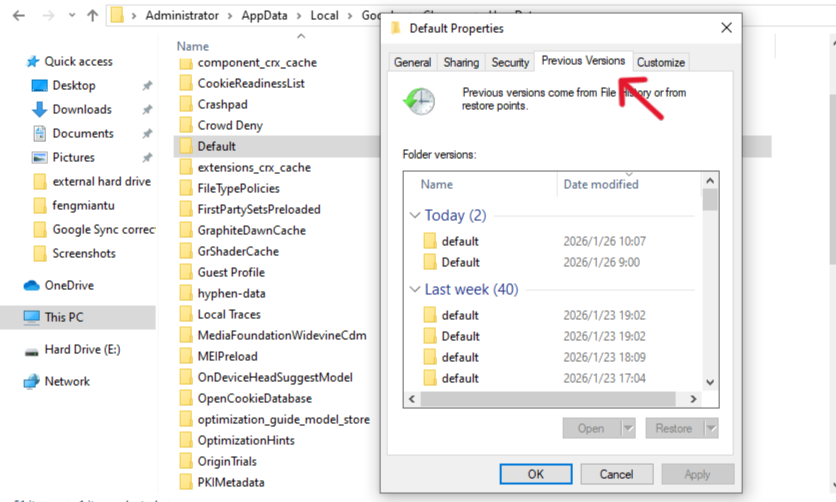
- Step 4: If a version exists from yesterday or last week, select it and click Restore.
Comparison of Chromes Bookmark Recovery Tool
| Method | Success Rate | Difficulty | Best For… |
| Manual .bak Rename | Medium | Moderate | Immediate recovery after a crash/deletion. |
| PandaOffice Drecov | High | Easy | When files are deleted from the disk or overwritten. |
| Windows File History | Low | Hard | Users with proactive system backups. |
| Google Sync | Variable | Easy | Users with multiple devices (Phone/PC). |
Proactive Defense: How to Never Lose Bookmarks Again
Recovery is stressful. Prevention is simple. Follow these steps to safeguard your data:
- Export Regularly: Every month, go to Bookmarks Manager (
Ctrl+Shift+O) > click the three dots > Export Bookmarks. Save this HTML file to the cloud. - Use a Dedicated Extension: Install extensions that auto-backup your bookmark tree to GitHub or Google Drive.
- Enable Chrome Sync: Ensure you are signed in so your bookmarks live on Google’s servers, not just your local drive.
Google Chrome Bookmarks Recovery Tool FAQs
A: If Chrome Sync was on, your best bet is to check your PC’s Bookmarks.bak file immediately before it syncs the “deletion” from your phone.
A: On macOS, the path is ~/Library/Application Support/Google/Chrome/Default. You can use Time Machine or PandaOffice Drecov for Mac to retrieve the files.
A: No. History and Bookmarks are stored in separate files. Clearing history is safe.
Conclusion
Losing your Chrome bookmarks can feel like losing a map in the middle of a journey. However, by acting quickly and using the right Chrome bookmarks recovery tool, the situation is rarely permanent. Start with the .bak file rename; if that fails, leverage the deep-scanning power of PandaOffice Drecov to dig into your drive’s history.






