







In the modern digital workspace, cloud storage is the backbone of productivity. Microsoft OneDrive, integrated deeply into the Windows 10 ecosystem, serves as the primary repository for millions of users’ documents, photos, and project files. However, technology is rarely flawless. One of the most frustrating hurdles a professional or student can face is the realization that OneDrive Windows 10 not syncing correctly.
When synchronization fails, it doesn’t just stall your workflow; it creates a dangerous gap in your data protection strategy. If your local machine crashes while your files aren’t updated in the cloud, you face potential data loss. In this comprehensive guide, we will explore why OneDrive Windows 10 not syncing occurs and provide a tiered approach to fixing it, ranging from simple settings checks to advanced data recovery using professional tools like PandaOffice Drecov.
Understanding Why OneDrive Windows 10 Not Syncing Happens
Before diving into the fixes, it is crucial to understand the mechanics of the sync engine. OneDrive operates as a bridge between your local “OneDrive” folder and Microsoft’s servers. When you save a file, the sync client detects the change and uploads the delta. If you see a red “X” or a permanent “Processing changes” icon, you are likely dealing with onedrive windows 10 not syncing issues.
Common culprits include:
- Account credential errors: Your session has expired, but the app hasn’t prompted a re-login.
- Path length limitations: Windows has a 260-character limit for file paths.
- Storage quotas: You’ve hit your 5GB (free) or 1TB (Microsoft 365) limit.
- Conflicting software: Antivirus or firewalls blocking the connection.
Basic Fixes: Resolving OneDrive Files Not Syncing
If you notice onedrive files not syncing, start with these low-complexity steps. Often, the simplest solution is the most effective.
Check Your Internet Connection and Account Status
- Step 1: Ensure your device is connected to a stable Wi-Fi or Ethernet network.
- Step 2: Click the OneDrive icon in the system tray (bottom right corner). If it’s greyed out, you aren’t signed in.
- Step 3: Click “Settings” > “Account” and verify that the correct email address is listed.
Update OneDrive to the Latest Version
Microsoft frequently releases patches to fix bugs that cause onedrive windows 10 not syncing.
- Step 1: Visit the official OneDrive download page to ensure you have the latest build.
- Step 2: Download and run the installer. It will automatically update the existing client without deleting your files.
Intermediate Solutions: Troubleshooting OneDrive Not Synching Windows 10
When a simple restart doesn’t work, we need to look deeper into the application settings. Persistent issues with onedrive not synching windows 10 often stem from folder selection errors or file size restrictions.
Verify Folder Selection
Sometimes, a folder appears “missing” or “not syncing” simply because it wasn’t selected to stay on the device.
- Step 1: Right-click the blue or white cloud icon in the taskbar.
- Step 2: Select Settings, then go to the Account tab.
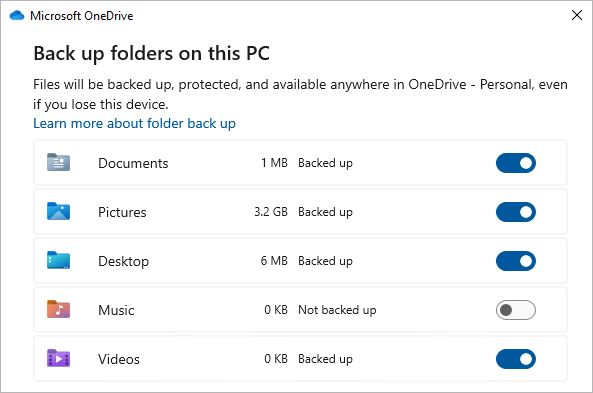
- Step 3: Click Choose folders. Ensure that the checkboxes for the folders you need are actually ticked. If a folder is unchecked, it will be removed from your PC but remain in the cloud.
Manage File Name and Path Restrictions
OneDrive has specific rules for file naming. If you have onedrive files not syncing, check for these illegal characters: <, >, :, ", |, ?, *, /, \.
- Step 1: Open File Explorer and navigate to your OneDrive folder.
- Step 2: Look for files with very long names. The total path (e.g.,
C:\Users\Name\OneDrive\Documents\Project\Subfolder\File.docx) must not exceed 260 characters. - Step 3: Rename any files or folders to shorten the path and remove special characters.
Advanced Fixes: Resetting the Sync Engine
If you have tried the above and are still stuck with onedrive windows 10 not syncing, it’s time to reset the application. This forces OneDrive to re-index all your files. Note that this does not delete your data, but it will take time to re-sync everything.
Executing the Reset Command
- Step 1: Press Windows Key + R to open the Run dialog box.
- Step 2: Copy and paste the following path:
%localappdata%\Microsoft\OneDrive\onedrive.exe /reset. - Step 3: Press Enter. The OneDrive icon will disappear from your taskbar for a minute or two.
- Step 4: If the icon doesn’t reappear, open the Run box again and enter:
%localappdata%\Microsoft\OneDrive\onedrive.exe.
Note: For a deeper dive into this specific process, you can learnhow to reset OneDrive like a proto ensure no registry errors remain.
The Worst-Case Scenario: Recovering Lost Files with PandaOffice Drecov
Sometimes, the “fix” for onedrive windows 10 not syncing comes too late. If you deleted a file locally thinking it was backed up, only to find the sync failed, you need professional data recovery software. PandaOffice Drecov is specifically designed to handle these “sync gap” data loss events.
How to Recover OneDrive Files Using PandaOffice Drecov
PandaOffice Drecov excels at retrieving files that were emptied from the Recycle Bin or lost during a failed sync operation.
⚠ Warning: Install it on a drive different from the one where your data was lost to prevent overwriting.
- Step 1: Select the Location. Launch the program. Select the drive where your local OneDrive folder is located (usually the C: Drive).

- Step 2: Run the Scan. Choose the “Deep Scan” mode. This is highly recommended for onedrive files not syncing scenarios because it looks for file fragments that the operating system no longer recognizes.

- Step 3: Filter Results. Use the search bar to look for specific file extensions like
.docx,.pdf, or.jpg. You can also filter by “Date Modified.”

- Step 4: Preview and Recover. Select the files you wish to restore. Click Recover and choose a safe destination—preferably an external hard drive.
Warning: Never save recovered files back to the same partition where they were lost. This can cause permanent data corruption.
Proactive Data Management and Version Control
Fixing onedrive not synching windows 10 is only half the battle. To prevent future heartaches, you should master the built-in safeguards Microsoft provides.
Using Version History
If a file syncs incorrectly and overwrites a good version with a corrupted one, OneDrive’s version history is a lifesaver.
- Step 1: Log into OneDrive.com via your browser.
- Step 2: Right-click the problematic file.
- Step 3: Select Version History. You can view and restore versions from the last 30 days.
For more details on this, see our guide on how to use OneDrive version history to save your work.
Safe Disconnection
If you need to stop using the service on a specific machine, don’t just delete the folders. You must unbind the account properly. Failing to do so is a common reason for onedrive windows 10 not syncing on subsequent log-ins. Follow the steps to turn off OneDrive sync without losing your files to keep your local data intact.
Conclusion
Dealing with onedrive windows 10 not syncing can be stressful, especially when deadlines are looming. By following the hierarchy of solutions—from basic updates to resetting the sync engine and finally employing PandaOffice Drecov—you can ensure your digital life remains organized and safe.
Remember that cloud storage is a supplement to, not a replacement for, a robust backup strategy. Always keep a secondary copy of your most critical files on physical hardware or a separate cloud service. With the right tools and knowledge, you can overcome any sync error and keep your data flowing smoothly.






