







In the modern digital workspace, data is the most valuable currency we possess. Whether you are a student finishing a dissertation, a creative professional editing a high-resolution video, or a business manager handling sensitive financial spreadsheets, the fear of losing progress is real. Have you ever accidentally saved over a complex document, only to realize your mistake seconds later? Or perhaps a collaborative project went off the rails because someone made unauthorized changes?
This is where the magic of OneDrive version history comes into play. Microsoft’s cloud storage doesn’t just hold your files; it acts as a digital time machine. In this comprehensive guide, we will explore everything from basic built-in features to advanced recovery using professional tools like PandaOffice Drecov.
Understanding the Power of OneDrive Version History
Before we dive into the “how-to,” we must understand the “what.” OneDrive version history is a feature that automatically saves older snapshots of your files every time you hit save (or when AutoSave triggers). For Personal Microsoft accounts, OneDrive typically keeps the last 25 versions. For Work or School accounts, this limit can be significantly higher, often reaching 500 versions depending on your organization’s settings.
This feature is a lifesaver because it protects you against:
- Accidental Overwrites: Saving a blank template over a finished report.
- File Corruption: When a file becomes unreadable due to a software crash.
- Malicious Edits: Reverting changes made by someone else in a shared folder.
Why Versioning is Better than a Simple Backup
A backup is a static copy. If you back up a corrupted file, you have a copy of a corrupted file. However, onedrive version history allows you to step back through time to a moment before the corruption occurred. It is dynamic, accessible, and integrated directly into your workflow.
Level 1: The Quickest Fix – How to OneDrive Restore Previous Version via Web
The most reliable way to access your file history is through the OneDrive web portal. This method works regardless of whether you are on a Mac, PC, or even a public computer.
Step 1: Log in to the OneDrive Web Portal
First, navigate to the official OneDrive website and sign in with your Microsoft credentials. Ensure you are using the account where the file was originally stored.
Step 2: Locate Your File
Browse through your folders to find the specific document you need to revert. If the file was deleted, check the Recycle Bin first, but for overwrites, stay in the main file directory.
Step 3: Access Version History
Right-click on the file and select Version History from the dropdown menu. Alternatively, you can select the file and click the three vertical dots (More options) in the top toolbar.
Step 4: Pick Your Timeline
A pane will open on the right side of the screen listing all available versions, labeled by date, time, and the person who modified them. To onedrive restore previous version, click the three dots next to the desired timestamp.
Step 5: Restore or Download
You have two primary choices here:
- Restore: This will overwrite the current version with the old one.
- Open/Download: This allows you to view the old version without changing the current live file—highly recommended if you only need to copy a specific paragraph from the past.
Pro Tip: Always choose “Download” first to verify the content before you commit to a full “Restore.”
Level 2: Desktop Integration – Using OneDrive Previous Versions in File Explorer
If you have the OneDrive app installed on your Windows 10 or Windows 11 PC, you don’t even need to open a browser. You can manage onedrive previous versions directly from your local file system.
Step 1: Open File Explorer
Navigate to your OneDrive folder on your PC. You can usually find this in the left-hand navigation pane of any folder window.
Step 2: Right-Click the Target File
Find the file you wish to revert. Right-click it to open the context menu. If you are on Windows 11, you might need to click “Show more options” at the bottom to see the full legacy menu.
Step 3: Select Version History
Look for the entry with the blue OneDrive cloud icon labeled Version History. Clicking this will open a dedicated pop-up window.
Step 4: Identify the Correct Version
The window will display a list of all saved snapshots. Microsoft provides the file size and the date modified for each entry.
Step 5: Execute the Restore
Click the three dots next to the version you want. Select Restore. OneDrive will instantly sync the old data to your local folder and the cloud.
Level 3: Restoring a Whole Library – OneDrive Restore Previous Versions at Scale
Sometimes, a single file isn’t the problem. If you’ve been hit by ransomware or a mass sync error, you might need to onedrive restore previous versions for your entire library. This is known as “Files Restore.”
Step 1: Go to Settings
Log in to OneDrive on the web. Click the Settings (gear icon) at the top right and select Options.
Step 2: Choose Restore your OneDrive
On the left sidebar, click on Restore your OneDrive. You may be asked to verify your identity through two-factor authentication (2FA) for security.
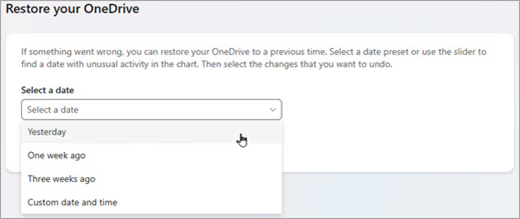
Step 3: Select a Time Frame
You can choose a preset time (e.g., “Yesterday,” “One week ago”) or select a “Custom date and time.”
Step 4: Use the Histogram
A chart will appear showing file activity over the last 30 days. You can slide the bar to a point in time before the disaster occurred.
Step 5: Click Restore
Once you’ve selected the point in time, click the Restore button. OneDrive will begin undoing all actions that happened after that specific moment.
Warning: This is a nuclear option. It will undo all changes made since that time, including new files you might have created. Make sure you have a temporary copy of your most recent work before proceeding.
Level 4: When Cloud Features Fail – Advanced Recovery with PandaOffice Drecov
What happens if the onedrive version history is missing? Or perhaps you permanently deleted the file and emptied the Recycle Bin? In these critical scenarios, cloud-side versioning won’t help. You need to turn to local disk forensics.
When OneDrive syncs files to your computer, it creates local caches. Even if the cloud “forgets,” the magnetic or flash traces on your hard drive might still exist. This is where PandaOffice Drecov shines.
⚠ Warning: Install it on a drive different from the one where your data was lost to prevent overwriting.
Why Choose PandaOffice Drecov?
PandaOffice Drecov is a professional-grade data recovery tool designed for high success rates. It can scan your local storage for “lost” fragments of OneDrive files that were deleted before they could sync or were removed by system errors.
Step 1: Select the Location
Launch the program. On the main interface, you will see a list of drives. Select the drive where your OneDrive folder is located (usually the C: drive).

Step 2: Deep Scan for OneDrive Fragments
Click the Scan button. PandaOffice Drecov will perform a “Quick Scan” followed by a “Deep Scan.” The Deep Scan looks for file signatures and hex patterns to find files that no longer appear in the file system table.

Step 3: Filter by File Type
Since a deep scan can return thousands of files, use the filter sidebar. You can search for specific extensions like .docx, .xlsx, or .pdf. You can also type “OneDrive” in the search box to find localized sync folders.

Step 4: Preview and Recover
One of the best features of PandaOffice Drecov is the preview function. Before you spend time recovering a file, double-click it to see if the content is intact. If it looks good, click Recover and choose a safe destination (like an external USB drive).
Key Operation Point: If you realize data is missing, stop using your computer immediately. Every new file you create or webpage you visit could overwrite the deleted OneDrive data.
The Technical Side: How OneDrive Versioning Actually Works
To truly master onedrive version history, you should understand the mechanics behind it. Microsoft uses a process called differential sync. Instead of uploading the entire file every time you make a change, it only uploads the “delta” or the pieces that changed.
Storage Quotas and Versions
Does an old version count against your storage limit?
- Personal Accounts: Yes, versions count toward your total storage quota. If you are near your limit, OneDrive might prune older versions more aggressively.
- Business Accounts: Usually, only the current version counts toward the user’s quota, though this depends on the SharePoint backend configuration.
The Role of the Local Cache
On your Windows PC, OneDrive uses a hidden folder located at %LocalAppData%\Microsoft\OneDrive. This folder manages the database of your files. If this database becomes corrupted, your onedrive previous versions might not show up correctly in File Explorer, even if they exist on the web.
Troubleshooting Common Issues with Versioning
Even with a robust system, errors occur. Here are some common hurdles users face when trying to onedrive restore previous version.
1. “No Version History Available”
If you see this message, it is likely because:
- The file is not stored in a OneDrive folder.
- The file is a type that doesn’t support versioning (though most do).
- You are looking at a “Shortcut” rather than the actual file.
2. Version History is Greyed Out
This often happens if your OneDrive app is not signed in or is currently “Paused.” Ensure the little cloud icon in your taskbar is blue (or white) and doesn’t have a red “X” or a pause symbol.
3. Conflicts in Collaborative Files
When two people edit a file at the same time, OneDrive creates a “conflict copy.” Instead of losing work, you will see the file name appended with the computer’s name. In this case, you can use onedrive version history on both files to merge the changes manually.
Maximizing Your Data Safety: Best Practices
Recovery is a cure; prevention is the health regimen. To ensure you never lose a file again, follow these SEO-vetted data management tips:
Keep AutoSave On
In Microsoft Word, Excel, and PowerPoint, ensure the AutoSave toggle in the top-left corner is always “On.” This ensures that your changes are pushed to the cloud in real-time, creating frequent points in your onedrive previous versions timeline.
Regularly Audit Your Recycle Bin
OneDrive has a two-stage Recycle Bin. If you delete a file, it stays in the first bin for 30 days. If you empty that, it goes to a “Second-stage recycle bin” (for business users) for another 60 days. Checking these regularly can save you from a full system restore.
Use Descriptive File Names
Versioning works best when you know what you are looking for. Avoid naming files “Document1,” “Document2,” etc. Use dates and project codes so that when you look at your onedrive restore previous versions list, you have context for the changes.
Advanced: Registry and System Tweaks for OneDrive
For the power users, there are ways to ensure OneDrive stays healthy at a system level.
Checking the Sync Status via Command Prompt
You can force a sync refresh by using the following command:
%localappdata%\Microsoft\OneDrive\onedrive.exe /reset
This won’t delete your files, but it will restart the sync engine and re-index your onedrive version history.
Checking Registry Keys
If OneDrive is not starting with Windows, check the registry key:
HKEY_CURRENT_USER\Software\Microsoft\Windows\CurrentVersion\Run
Ensure there is a string value named “OneDrive” pointing to the correct executable path.
More Data Recovery Resources
Mastering your cloud storage involves more than just knowing how to look at old versions. To become a true expert in managing your digital environment, explore these specialized guides:
- Secure Your Environment: If you are having sync issues, you might need to start fresh. Learn how to logout from OneDrive: the complete step-by-step guide to ensure a clean disconnection.
- Accidental Deletions: If the version history isn’t enough because the file is gone entirely, check out this 2026 recovery guide for deleted OneDrive files.
- Resetting the Engine: Sometimes the software itself glitches. Here is how to reset OneDrive like a pro to fix persistent versioning errors.
Conclusion
The ability to onedrive restore previous versions is one of the most significant advantages of cloud computing. It transforms the way we interact with our data, replacing the “save as” anxiety with a sense of security. Whether you are using the built-in web tools for a quick fix, the File Explorer integration for convenience, or the powerful scanning capabilities of PandaOffice Drecov for emergency situations, you are now equipped to handle any data loss scenario.
Remember, technology is a tool, but your habits are the foundation. Keep your OneDrive synced, stay aware of your onedrive version history, and always have a professional recovery tool like Drecov ready for the unexpected.






