







Cloud storage has revolutionized how we manage our digital lives, yet even the most robust systems encounter glitches. If you find your files aren’t syncing, the blue cloud icon has disappeared, or you are facing persistent error messages, learning how to reset OneDrive is often the single most effective solution.
In this comprehensive guide, we will explore the nuances of OneDrive management, from basic troubleshooting to advanced data recovery using professional tools like PandaOffice Drecov. Whether you are a casual user or an IT professional, these steps will ensure your data remains safe and accessible.
Understanding the Need for a OneDrive Reset
Before we dive into the technical steps, it is essential to understand what happens when you reset the application. A reset essentially restarts the synchronization engine and clears the local cache without deleting your actual files from the cloud.
Common Scenarios Requiring a Reset
- Stuck Syncing: The “Processing changes” message persists for hours.
- Icon Disappearance: The OneDrive icon is missing from the system tray.
- Error Codes: Specific codes like 0x8004de40 or 0x80049d61 appear during login.
- File Conflicts: Multiple versions of the same file are being created unexpectedly.
If you are also experiencing issues with your account session, you might want to learn how to logout from OneDrive before performing a full reset.
The Universal Method: Using the OneDrive Reset Command
For most Windows users, the quickest way to resolve sync issues is through the command line. This method bypasses the standard UI and forces the application to re-initialize its settings.
How to Use the OneDrive Reset Command Effectively
Follow these steps carefully to ensure the command executes correctly.
- Step 1: Press the Windows Key + R on your keyboard to open the Run dialog box.
- Step 2: In the text field, copy and paste the following path:
%localappdata%\Microsoft\OneDrive\onedrive.exe /reset - Step 3: Press Enter or click OK. You might notice the OneDrive icon in the taskbar disappear and then reappear after a minute or two.
- Step 4: If the icon does not reappear automatically, open the Run box again and enter:
%localappdata%\Microsoft\OneDrive\onedrive.exe
Note: Executing the onedrive reset command will not delete your files. However, it will cause OneDrive to perform a full sync after the restart, which may take some time depending on the number of files you have stored.
Advanced Troubleshooting: Resetting OneDrive on macOS
While OneDrive is a Microsoft product, it is widely used on macOS. If you are a Mac user wondering how to reset OneDrive, the process is slightly different but equally straightforward.
- Step 1: Quit OneDrive by clicking the cloud icon in the top menu bar, selecting Settings, and then choosing Quit OneDrive.
- Step 2: Open your Applications folder.
- Step 3: Find OneDrive, right-click it, and select Show Package Contents.
- Step 4: Navigate to the Contents > Resources folder.
- Step 5: Double-click the file named ResetOneDriveApp.command (or ResetOneDriveAppStandalone.command depending on your version).
- Step 6: Restart OneDrive and sign in again.
Data Recovery: Using PandaOffice Drecov for Lost Files
Sometimes, a sync error or a faulty reset can lead to the realization that certain files are missing. While OneDrive has a built-in recycle bin, it isn’t always foolproof—especially if files were deleted locally while the app was offline. This is where PandaOffice Drecov becomes your most valuable asset.
PandaOffice Drecov is a high-performance data recovery tool designed to retrieve lost, deleted, or formatted files from your local hard drive, including the local OneDrive sync folder.
⚠ Warning: Install it on a drive different from the one where your data was lost to prevent overwriting.
Step-by-Step Data Recovery with PandaOffice Drecov
- Step 1: Select the LocationLaunch the software. On the main dashboard, select the drive or specific folder where your OneDrive files were stored (usually
C:\Users\[Username]\OneDrive). - Step 2: Start the ScanClick the Scan button. The tool will perform a “Quick Scan” followed by a “Deep Scan” to locate fragmented or hidden files that the OS can no longer see.
- Step 3: Preview and FilterOnce the scan is complete, use the sidebar to filter by file type (e.g., .docx, .jpg). PandaOffice Drecov allows you to preview files before recovery to ensure they aren’t corrupted.
- Step 4: Recover Your DataSelect the files you wish to restore and click Recover.
Warning: Always save the recovered files to an external drive or a different partition to ensure data integrity.
For a more detailed look at cloud-specific recovery, check out this 2026 recovery guide for deleted OneDrive files.
Alternative Solutions: Reinstalling the OneDrive Client
If the onedrive reset command fails to fix the issue, the installation files themselves might be corrupted. In this case, a clean reinstallation is the next logical step.
- Step 1: Press Windows Key + I to open Settings.
- Step 2: Navigate to Apps > Installed Apps.
- Step 3: Search for Microsoft OneDrive, click the three dots, and select Uninstall.
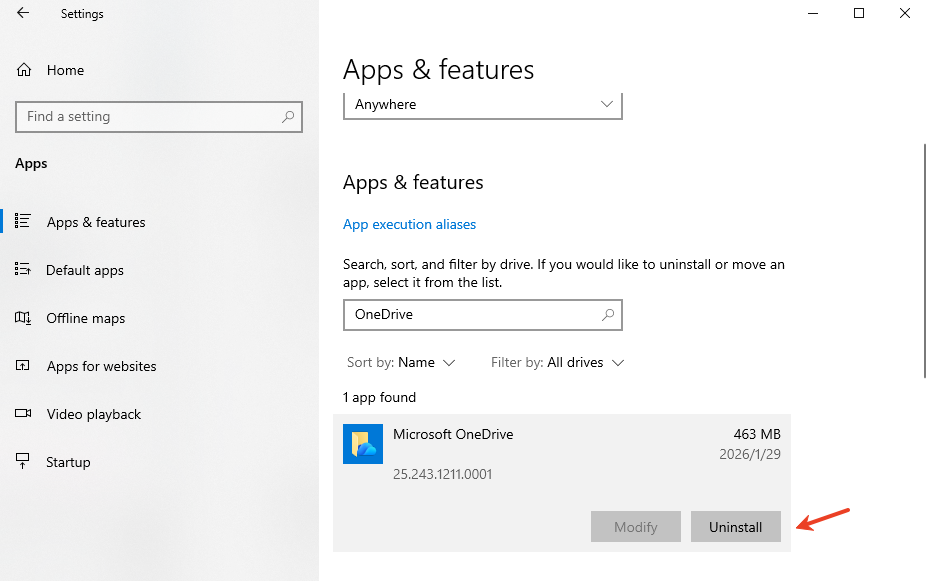
- Step 4: After the process finishes, go to the Official Microsoft OneDrive Download Page to get the latest version.
- Step 5: Run the installer and sign in with your Microsoft account credentials.
Protecting Your Data: Best Practices for OneDrive Users
Knowing how to reset OneDrive is a reactive measure. To be proactive, you should implement a strategy that minimizes data loss risks.
1. Enable Version History
OneDrive keeps a version history for most file types. If a file becomes corrupted during a sync, you can right-click the file in the web interface and select Version History to restore a previous state.
2. Monitor Sync Status Icons
- Blue Clouds: File is online only (not taking up space).
- Green Checkmark: File is available offline.
- Circular Arrows: Sync in progress.
- Red X: Sync error—this is your cue to check your connection or perform a reset.
3. Regular Local Backups
Cloud storage is not a replacement for a true backup. Use PandaOffice Drecov periodically to ensure your local drives are healthy, and keep an offline copy of critical documents on an external SSD.
Reset OneDrive FAQs
Beyond the basic operation of how to reset OneDrive, users often encounter specific edge cases. These FAQs address deeper technical concerns regarding the reset process.
1. How is sync priority determined after running the onedrive reset command?
Once you complete the reset and restart the program, OneDrive enters a “Processing Changes” phase. During this time, the system compares local data with the cloud server. Crucial point: OneDrive uses incremental sync logic. If a file has been modified on both ends, resulting in a conflict, the system usually creates a duplicate file appended with the computer’s name. It is recommended to maintain a stable internet connection and let the directory tree scan finish before moving large folders.
2. Will resetting OneDrive force changes to my “Files On-Demand” settings?
Generally, executing the onedrive reset command preserves your existing “Files On-Demand” preferences. This means files set to “Online-only” will not suddenly download and consume your local disk space. However, if the reset triggers a client auto-update, you should verify these settings in Settings > Sync and Backup > Advanced settings once the process is complete to ensure your storage remains optimized.
3. What should I do if the computer crashes or loses power during the reset?
If the reset command is interrupted, the OneDrive configuration files may become corrupted. To resolve this:
- Step 1: Navigate to the
%localappdata%\Microsoft\OneDrive\settingsdirectory. - Step 2: Move all subfolders in this directory to the Recycle Bin.
- Step 3: Re-run the reset command. This ensures the sync engine restarts in a “clean” state, preventing infinite loops caused by configuration conflicts.
No. The reset only impacts the local client’s sync path and cache. It does not alter permission logic on the cloud servers. Folders you have shared with others, or those shared with you, will reappear in your sync list once the process finishes. Note that sync icons might temporarily show “Syncing” (circular arrows) while the system re-indexes these shared directories.
5. Why did duplicate folders appear after the reset?
This typically happens if you previously moved your OneDrive folder to a non-default location (e.g., from the C: drive to the D: drive). The reset command sometimes defaults back to the original path.
Prevention: When signing back in after a reset, the system will ask, “Is this your OneDrive folder?”
Key Action: Click “Change location” and point it to the actual path you were using instead of clicking “Next” blindly. This prevents the system from creating redundant, empty folders in the default directory.
Conclusion and Final Thoughts
Mastering how to reset OneDrive is an essential skill in the modern digital workplace. By using the onedrive reset command, you can resolve the majority of synchronization headaches without needing professional IT support. However, when software glitches lead to actual data loss, tools like PandaOffice Drecov bridge the gap, ensuring that your hard work is never truly gone.
Remember to keep your software updated and always verify your sync status before closing your laptop for the day. A few seconds of prevention can save hours of recovery later.






