







In the modern digital workspace, data is the lifeblood of our productivity. Whether you are a student finishing a thesis, a creative professional managing high-resolution assets, or a business analyst handling complex spreadsheets, losing progress on a file is a nightmare scenario. Fortunately, cloud storage has evolved. Microsoft OneDrive isn’t just a place to store files; it is a powerful time machine, allowing you to use onedrive restore previous version to recover your work in seconds.
Understanding how to use the onedrive restore previous version feature can save you hours of rework. This comprehensive guide will walk you through every nuance of version control, from simple undo actions to advanced recovery using professional tools like PandaOffice Drecov.
Understanding the Power of Version History in OneDrive
Before we dive into the technical “how-to,” it is crucial to understand what happens behind the scenes. When you enable OneDrive, it doesn’t just save the most recent version of your document. It creates a “shadow copy” every time a significant change is saved. This means that if you accidentally delete a paragraph in a Word doc or break a formula in Excel, the previous state of that file still exists on Microsoft’s servers.
The onedrive restore previous version functionality is built on the principle of Delta Syncing, where only the changes are uploaded, but the history of those changes is preserved.
How to Restore Previous Version in OneDrive: The Web Portal Method
The most reliable way to access your data history is through the official web interface. This method is universal—it works whether you are on a Mac, a Windows PC, or even a Linux machine. Because the web portal communicates directly with the OneDrive server, it often shows the most up-to-date version history.
Steps to Restore via the Web Browser
- Step 1: Open your preferred web browser and navigate to the official OneDrive login page.
- Step 2: Sign in using your Microsoft account credentials (email and password).
- Step 3: Navigate to the My Files section or use the search bar to locate the specific file you need to revert.
- Step 4: Once you find the file, do not open it. Instead, right-click the file name.
- Step 5: From the context menu, select Version history. A side panel will slide out from the right.
- Step 6: You will see a list of timestamps and the names of people who modified the file. Identify the version you want based on the date and time.
- Step 7: Click the three vertical dots (More options) next to the desired version.
- Step 8: You have two primary choices: Restore or Download.
- Restore: Overwrites the current version with the old one.
- Download: Saves the old version as a separate file on your computer, keeping your current version intact.
Pro Tip: Always choose “Download” first if you aren’t 100% sure the old version is the correct one. This prevents you from accidentally overwriting recent work that you might actually want to keep.
How to Restore OneDrive File to Previous Version via Windows File Explorer
For many users, the convenience of the desktop app is unmatched. If you have the OneDrive sync client installed on your Windows 10 or Windows 11 machine, you don’t even need to open a browser to use the onedrive restore previous version feature.
Step-by-Step Desktop Recovery
- Step 1: Press Windows Key + E to open File Explorer.
- Step 2: Click on the OneDrive icon in the left-hand navigation pane.
- Step 3: Locate the file that requires recovery.
- Step 4: Right-click the file. If you are on Windows 11, you may need to click “Show more options” to see the full legacy menu, though “Version history” is usually visible in the primary menu.
- Step 5: Select Version history. A dedicated pop-up window will appear.
- Step 6: Browse the available versions. OneDrive typically tracks the last 25 to 500 versions depending on your account type.
- Step 7: Click the three dots next to the version you need and select Restore.
This method is incredibly efficient because it uses the local integration of the shell extension. However, ensure your OneDrive is “Online” (the blue cloud icon is visible in the taskbar) to ensure the version list is fully updated.
Advanced Disaster Recovery: Restoring Your Entire OneDrive
Sometimes, the problem isn’t just one file. If you have been hit by ransomware or if a sync error corrupted hundreds of files simultaneously, individual restoration isn’t practical. In these cases, you need a site-wide rollback.
Steps for a Full Account Rollback
- Step 1: Log in to OneDrive on the web.
- Step 2: Click the Settings (gear icon) in the top right corner.
- Step 3: Select Options and then click on Restore your OneDrive from the left sidebar.
- Step 4: On the restoration page, you will be asked to verify your identity (usually via MFA).
- Step 5: Select a date from the dropdown menu (e.g., Yesterday, One week ago, or a Custom date).
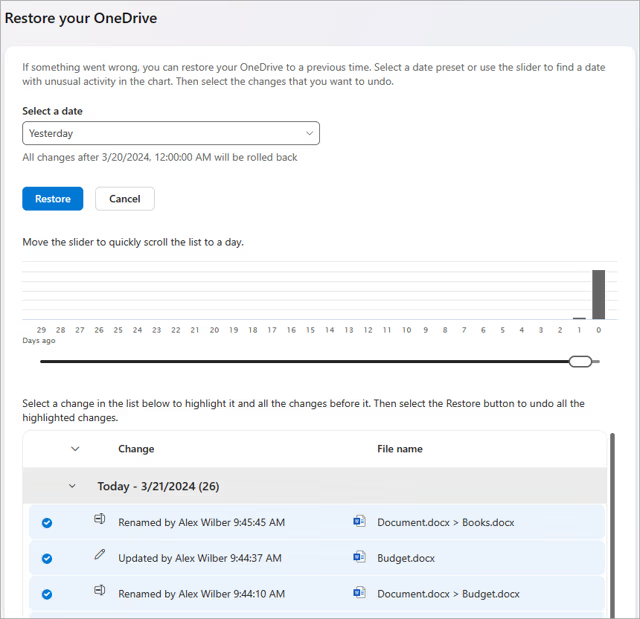
- Step 6: Use the activity chart to see when the massive changes occurred. This helps you pinpoint the exact moment before the “disaster” happened.
- Step 7: Click Restore to begin the process.
Warning: This is a nuclear option. Any files created after the restore point will be moved to the Recycle Bin. Ensure you have backed up any brand-new files before proceeding with a full account restoration.
When Cloud Tools Fail: Using PandaOffice Drecov for Deep Recovery
While the built-in onedrive restore previous version tools are excellent, they have limitations. What happens if you emptied the OneDrive Recycle Bin? Or what if your local OneDrive folder was deleted and the changes synced to the cloud before you could stop them?
This is where PandaOffice Drecov becomes essential. It is a professional-grade data recovery suite designed to recover files that have been “permanently” deleted from your local drive—including the local cache of your OneDrive files.
Why Choose PandaOffice Drecov?
Unlike standard undelete tools, PandaOffice Drecov uses deep-sector scanning technology to reconstruct file fragments. If the data once lived on your hard drive (which it does if you use the OneDrive sync app), Drecov can find it.
⚠ Warning: Install it on a drive different from the one where your data was lost to prevent overwriting.
How to Recover Local OneDrive Files with PandaOffice Drecov
- Step 1: Select the Location. Launch the program. On the main dashboard, you will see a list of drives. Select the partition where your local OneDrive folder resides (usually the
C:\Users\[YourName]\OneDrivepath).

- Step 2: Deep Scan. Click the Scan button. PandaOffice Drecov will perform a “Quick Scan” followed by a “Deep Scan.” The Deep Scan is vital for finding previous versions of files that the operating system has marked as “free space.”

- Step 3: Filter and Search. Use the search bar to type the name of the file you want to recover. You can also filter by file type (e.g., .docx, .xlsx, .pdf).
- Step 4: Preview. One of the best features of Drecov is the preview pane. Before committing to a recovery, click on a file to see its content. This ensures you are restoring the correct previous version.

- Step 5: Execute Recovery. Once you have found the correct version, select the checkbox next to the file and click Recover. Choose a safe destination folder (not the original OneDrive folder) to save the recovered data.
Important Warning: If you realize you have lost data, stop using your computer immediately. Every new file saved or webpage browsed writes new data to the disk, which could overwrite the “deleted” fragments of your OneDrive files.
Troubleshooting Common OneDrive Version Issues
Even with the best tools, you might encounter hurdles when trying to onedrive restore previous version. Here is how to handle them:
1. “Version History” is Missing
If you right-click a file and don’t see the version history option, it is likely because the file is not currently synced. Ensure the file has a green checkmark or a blue cloud icon next to it in File Explorer. If it is a “Local Only” file that hasn’t been moved into the OneDrive directory, OneDrive cannot track its history.
2. Personal Account Limitations
Note that personal Microsoft accounts have a limit (usually 25 versions). If you are a heavy editor, older versions may be purged to make room for new ones. Business and Enterprise accounts usually have a much higher threshold (up to 500 versions).
3. Collaborative Overwrites
If you are sharing a folder, someone else might have restored an old version, overwriting your recent work. In the onedrive restore previous version panel, check the “Modified By” column to see who triggered the change. You can always revert their restoration by selecting your more recent version from the history list.
Best Practices for Data Integrity in OneDrive
To ensure you never lose work again, follow these SEO-proven data management strategies:
- Enable AutoSave: In Word, Excel, and PowerPoint, ensure the “AutoSave” toggle in the top-left corner is ON. This ensures changes are pushed to OneDrive in real-time, creating more frequent version recovery points.
- Check Sync Status: Periodically check the OneDrive icon in your system tray. If there is a red “X” or a permanent “Processing changes” message, your versions aren’t being backed up.
- Use Descriptive File Names: Instead of
Report_v1,Report_v2, rely on the onedrive restore previous version system. It keeps your folders cleaner and makes it easier for search algorithms (and you!) to find the primary file.
Expanding Your Data Recovery Knowledge
Data recovery is a broad field, and OneDrive is just one piece of the puzzle. Sometimes, managing your cloud storage is the best way to prevent data loss in the first place. Whether you are dealing with a stuck sync or need to clean up your drive, these resources provide expert guidance:
- If you find that OneDrive is syncing too many unnecessary files, you should learn how to disable a folder from OneDrive and recover lost files. This helps in keeping your storage optimized and prevents version history clutter.
- Users often face technical glitches where the system defaults to cloud storage against their will. If you are experiencing issues with your saving path, check this guide on how to fix Windows Save As default location stuck on OneDrive.
- Sometimes, the best way to fix a corrupted sync engine is a fresh start. Learn the proper way to uninstall OneDrive on Windows or Mac without losing your local data.
Conclusion: Your Safety Net is Ready
In conclusion, the ability to onedrive restore previous version is one of the most significant advantages of using cloud-based storage. By combining the native features of Windows and the web portal with the advanced recovery capabilities of PandaOffice Drecov, you create a multi-layered safety net for your digital life.
Accidents happen—files get corrupted, humans make mistakes, and malware can strike. However, with the steps outlined above, you are no longer a victim of data loss. You are an empowered user with the tools to turn back the clock.






