







Losing precious video files can be incredibly stressful, whether they are irreplaceable family memories or critical project assets for your business. Because video files are often large and complex, many users panic when they accidentally hit delete, assuming those files are gone forever. Fortunately, understanding how to restore deleted videos is much simpler than it seems. This comprehensive guide will walk you through the exact steps required to reclaim your lost media. We will also introduce PandaOffice Drecov data recovery software, a premier, highly reliable solution engineered to restore deleted video files with minimal effort.
Understanding the Basics of How to Restore Deleted Videos
When you delete a file from your storage drive, the operating system does not immediately erase the actual video data. Instead, it marks the storage space as “free” or available to be overwritten by new data. Consequently, your file remains intact but invisible until new files claim that space.
Common Challenges in Video Recovery
Restoring videos presents unique technical hurdles compared to restoring simple text documents.
- Fragmentation: Large video files like 4K or 1080p clips are often scattered across different physical sectors of a drive. If a drive becomes fragmented, piecing the video back together requires sophisticated algorithms.
- Overwriting: If you continue using the device after data loss, the system may overwrite those hidden sectors. Consequently, this permanently destroys the chance to restore deleted videos.
Why Choose PandaOffice Drecov Data Recovery Software?
To overcome these challenges, utilizing professional tools is highly recommended. PandaOffice Drecov data recovery software is uniquely optimized to handle deep-sector scanning and advanced video reassembly. It supports virtually all file systems and handles diverse video formats including MP4, MOV, AVI, and MKV.
Whether your data loss occurred due to an accidental shift-delete, a formatted SD card, a sudden power surge, or a corrupted storage drive, this utility provides an efficient path to restore video files smoothly.
⚠ Warning: Install it on a drive different from the one where your data was lost to prevent overwriting.
Proven Ways to Restore Deleted Videos
Depending on how the file was lost, different recovery methods apply. Below, we break down the solutions by technical difficulty, starting with standard system features and moving into professional recovery architecture.
Method 1: Check System Trash Bins
Before moving to advanced software, check your system’s temporary storage.
- Windows Users: Double-click the Recycle Bin icon on your desktop. Search for your video file, right-click it, and select Restore.
- Mac Users: Open the Trash icon on the dock, locate your file, right-click, and select Put Back.
If you frequently lose general files, you might find our guide on how to restore deleted files from the Recycle Bin incredibly useful.
Method 2: Use PandaOffice Drecov Data Recovery Software
If the files are not in the trash, or if you emptied it, you must use a dedicated utility. Follow these step-by-step instructions to restore deleted video segments safely.
⚠ Warning: Install it on a drive different from the one where your data was lost to prevent overwriting.
Step 1: Select the Target Location
Launch the application. On the clean, user-friendly home dashboard, you will see a list of connected drives. Select the specific drive, partition, or external device where your videos used to reside.

Step 2: Initiate the Deep Scan
Click the Scan button. The software automatically initiates a Quick Scan followed by an advanced Deep Scan. Meanwhile, the software’s signature file carving algorithm works in the background to piece fragmented video blocks back together.

Step 3: Filter and Preview Video Files
Once the scan finishes, use the sidebar filter to sort files by file type. You can also type specific extensions like .mp4 or .mov into the search bar. Click on any discovered video file to view a real-time thumbnail preview. This ensures the file integrity is sound before proceeding.
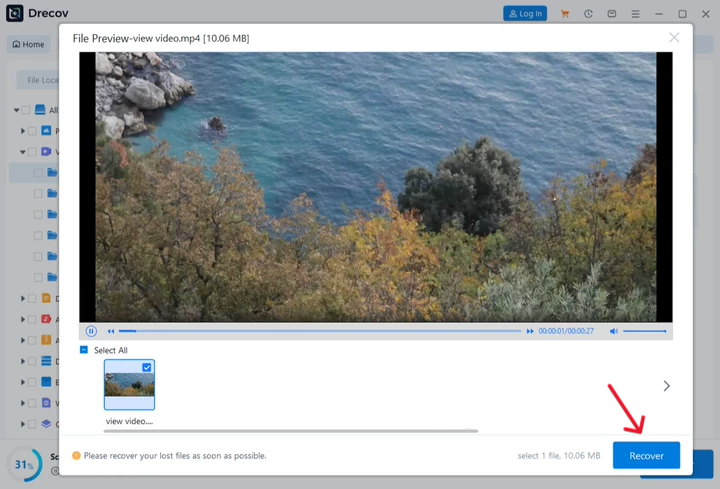
Step 4: Save and Recover
Tick the checkboxes next to the items you want to retrieve. Click the Recover button. Choose a secure destination path on a completely separate drive to finalize the process.
Method 3: Command Prompt and Attribute Adjustment
Sometimes, system malware or file system glitches alter file attributes, making videos invisible rather than truly deleted. You can force the OS to show these files using the command line interface.
Step 1: Open CMD as Administrator
Press the Windows Key + R hotkey combination, type cmd, and press Ctrl + Shift + Enter to launch the Command Prompt with elevated administrator privileges.
Step 2: Run the Attribute Command
Type the drive letter followed by a colon (e.g., E:) and hit Enter to target your drive. Next, enter the following exact command string:
attrib -h -r -s /s /d *.*
- -h: Clears the Hidden attribute.
- -r: Clears the Read-only attribute.
- -s: Clears the System attribute.
Furthermore, if your primary issue involves image assets rather than videos, refer to our detailed instructions on how to get recently deleted photos back.
Alternative or Complementary Methods
While PandaOffice Drecov data recovery software provides an all-in-one automated pipeline, alternative technical avenues exist depending on your infrastructure setup.
1. Windows File Recovery
Microsoft provides a command-line utility available via the Microsoft Store called Windows File Recovery.
| Feature / Metric | Windows File Recovery | PandaOffice Drecov |
| Interface | Command Line Only (Text) | Graphical User Interface |
| Video Preview | No | Real-time Video Thumbnail |
| Success Rate | Moderate | High |
| Learning Curve | High | Low |
2. Restoring from Cloud Backups
If you use automated synchronization tools, your files might still exist in cloud storage architecture. Check your Google Drive, OneDrive, or Dropbox trash bins. For cloud platform specifics, you can learn more about managing cloud multimedia assets through our walkthrough on how to delete all photos from Google Photos.
Tips & Best Practices for Maximizing Recovery Success
To ensure a high success rate when trying to restore deleted videos, consider the following technical rules:
- Stop Using the Storage Media Immediately: As soon as you notice a video is missing, cease all write operations on that device. Avoid browsing the web, saving new files, or running background disk defragmentation tools.
- Avoid Restoring Data to the Source Drive: Always save recovered videos to an external hard drive, network-attached storage, or a different internal partition. Saving them back to the original drive can corrupt remaining unrecovered sectors.
- Keep Regular Backups: Implement a 3-2-1 backup strategy (3 copies of data, across 2 different media types, with 1 copy stored off-site).
- Verify System Health: Check the S.M.A.R.T. status of your drives regularly using built-in system utilities to catch hardware degradation early.
How to restore deleted videos FAQs
1. Is it possible to learn how to restore deleted videos if the drive was formatted?
Yes. When a drive undergoes a quick format, the file allocation table is wiped, but the raw video blocks remain on the drive sectors. Using PandaOffice Drecov data recovery software, you can perform a Deep Scan to bypass the missing file table and extract the raw video data directly.
2. Why do some restored videos appear corrupted or unplayable?
This happens due to file fragmentation or partial overwriting. Because videos are large, their data fragments might be scattered. If a single block gets overwritten by new system data, the entire video container can break. Using an advanced program to restore video files minimizes this risk through deep reassembly technology.
3. Can I restore deleted video files from an external camera SD card?
Absolutely. Connect the SD card to your computer via a card reader. Launch your file recovery utility, select the external drive letter associated with the card, and run a scan to restore deleted videos safely.
4. What is the difference between a Quick Scan and a Deep Scan?
A Quick Scan quickly skims the file system directory for recently deleted records. In contrast, a Deep Scan analyzes the storage media sector-by-sector, searching for specific file signatures to reconstruct files that have lost their directory entries.
5. Does Windows have a built-in automated tool to restore deleted video files?
Windows includes the File History feature. However, this feature only works if you proactively enabled it prior to losing your files. If File History was turned off, a third-party tool like PandaOffice Drecov is necessary. For a broader overview of data loss mechanisms, you can consult authoritative industry resources like the Microsoft Support Documentation.
Conclusion
Learning how to restore deleted videos does not require an advanced degree in computer forensics. By acting quickly, avoiding drive usage, and employing the right utilities, you can securely recover your valuable footage. PandaOffice Drecov data recovery software provides a powerful, highly secure, and intuitive platform designed to scan, preview, and restore deleted video files from almost any data loss event. Protect your digital assets by downloading a reliable recovery utility today and setting up automated backups to safeguard your files against unexpected errors.






