







TikTok has evolved far beyond a simple short-video app. In 2026, it stands as a global discovery powerhouse. Millions of users make TikTok search tab in Chrome to find tutorials, recipes, and trending news faster than on traditional platforms. Because TikTok functions as a visual search engine, integrating it into your desktop workflow via Google Chrome is a game-changer for creators and casual scrollers alike.
Imagine opening a new Chrome tab and instantly searching for “2026 fashion trends” without manually navigating to the site. This guide explores every method to optimize your browser, from search engine shortcuts to safeguarding your data with tools like PandaOffice Drecov.
Why You Should Customize Your TikTok Desktop Experience
Using TikTok on a desktop provides a larger screen, faster typing, and better multitasking. By learning how to make TikTok search tab in Chrome, you bridge the gap between mobile entertainment and desktop productivity. Whether you are conducting market research or simply looking for the next viral recipe, these optimizations ensure your favorite content is always one click away.
How to Add TikTok as a Search Engine in Chrome
The most efficient way to browse is by turning your browser’s address bar (Omnibox) into a direct portal. This method allows you to skip the TikTok homepage entirely and jump straight to the results.
- Step 1: Open Google Chrome and click the three-dot menu in the upper-right corner. Select Settings.
- Step 2: On the left sidebar, click Search engine, then select Manage search engines and site search.
- Step 3: Scroll down to the Site search section and click the Add button.
- Step 4: In the “Search engine” field, type TikTok. In the “Shortcut” field, type a small keyword like tt.
- Step 5: In the “URL with %s in place of query” field, enter the following:
[https://www.tiktok.com/search?q=%s](https://www.tiktok.com/search?q=%s) - Step 6: Click Save.
Now, you can simply type “tt” followed by your search term in the address bar to make TikTok search tab in Chrome functionality work instantly.
Fix Chrome Address Bar Search Not Working
Sometimes, your custom shortcuts might fail to trigger. If you find your custom search isn’t responding, follow these troubleshooting steps to fix Chrome address bar search not working efficiently.
- Step 1: Check for Keyword Conflicts. Ensure the shortcut “tt” isn’t being used by another search engine or extension. Navigate back to
chrome://settings/searchEnginesand verify unique keywords. - Step 2: Clear Browser Cache. Corrupted data often interferes with browser functions. Press Ctrl + Shift + Del, select “Cached images and files,” and click Clear data.
- Step 3: Reset Search Settings. If the issue persists, you may need to reset Chrome to its default state. In Settings, go to Reset settings and click Restore settings to their original defaults.
- Step 4: Update Chrome. Ensure you are using the latest version. Visit the Official Google Chrome Update Page to check for pending installations.
Advanced Data Protection: PandaOffice Drecov Data Recovery Software
While optimizing your browser, it’s vital to remember that digital stability is fragile. Whether you are a creator saving TikTok drafts or a researcher with local archives, data loss can strike at any time. This is where PandaOffice Drecov data recovery software becomes an essential part of your toolkit.
PandaOffice Drecov is a professional-grade recovery solution designed to retrieve lost, deleted, or corrupted files with a 99.8% success rate. If you accidentally delete your TikTok video backups or lose browser configuration files, this tool is your safety net.
⚠ Warning: Install it on a drive different from the one where your data was lost to prevent overwriting.
How to Use PandaOffice Drecov for File Recovery
- Step 1: Scanning. Click the Scan button. The software will perform a “Quick Scan” followed by a “Deep Scan” to locate over 2,000 different file types.

- Step 2: Preview and Filter. Use the preview window to view images, videos, or documents before recovering them. This ensures you are restoring the correct version.
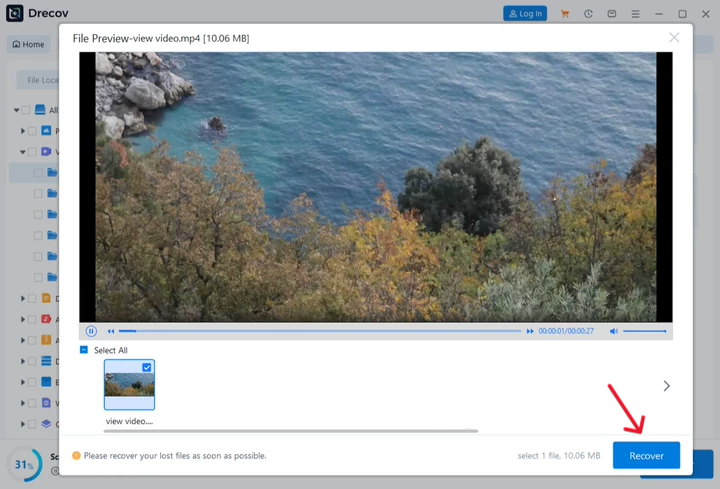
- Step 3: Recovery. Select the files you need and click Recover. Always save the recovered data to a different drive than the original one to prevent data overwriting.
Warning: If you suspect data loss on your main drive, stop writing new data immediately. Installing new software on the same drive could overwrite the very files you are trying to save!
Seamless Data Management and Internal Resources
Once you have secured your search workflow and protected your files with PandaOffice Drecov, you might want to further optimize your Windows environment. Proper system maintenance prevents the lag that often hinders search performance.
For users looking to clean up their OS for better browser speeds, check out our guide on how to remove OneDrive from Windows 11. Additionally, protecting your entire system is easier when you create a recovery partition in Windows 10. If you are looking for alternative tools, you can also explore our master guide to Recuva for Windows.
Creating a TikTok Desktop Shortcut for One-Click Access
If you prefer a visual icon rather than typing commands, creating a desktop shortcut is the best way to make TikTok search tab in Chrome feel like a native application.
- Step 1: Visit the Official TikTok Website.
- Step 2: Click the Chrome menu (three dots) > Save and Share > Create Shortcut.
- Step 3: Name it “TikTok” and check the box Open as window. This makes TikTok open in a clean, distraction-free interface without the standard browser address bar.
- Step 4: Click Create. You will now see a TikTok icon on your desktop and taskbar.
Frequently Asked Questions
Here are five of the most common queries users have when attempting to make TikTok search tab in Chrome or manage their data while browsing.
1. Can I make TikTok the default search engine for my entire Chrome browser?
Yes, but it is generally not recommended. While you can make TikTok search tab in Chrome your primary search engine by going to Settings > Search Engine > Manage Search Engines and selecting “Make Default” next to TikTok, this will cause every query (even “weather” or “Google Maps”) to search TikTok instead of Google. It is much more efficient to use the “tt” shortcut method described in the guide.
2. Why does TikTok look different when I open it via the Chrome desktop shortcut?
If you selected “Open as window” when creating your shortcut, Chrome removes the address bar, bookmarks, and extensions to provide an “app-like” experience. This is known as a Progressive Web App (PWA). It provides more screen real estate for videos and reduces distractions, making it the preferred way to make TikTok search tab in Chrome feel like a native desktop application.
3. Does using PandaOffice Drecov data recovery software affect my browser performance?
Not at all. PandaOffice Drecov is a standalone application that operates on your hardware’s storage level. It does not run in the background of your browser. It is best used as a reactive tool to fix data loss or as a proactive measure to back up important TikTok creator assets.
4. Will clearing my Chrome cache delete my saved TikTok login or “For You” preferences?
Clearing your “Cache” will not log you out, but clearing your “Cookies” will. Your “For You” page algorithm is tied to your account profile on TikTok’s servers, so clearing your local browser data won’t “reset” your interests, though it might temporarily make the site load slightly slower the first time as it re-downloads images.
5. How do I fix Chrome address bar search not working if the shortcut triggers a Google search instead?
This usually happens if you haven’t pressed “Space” or “Tab” after your shortcut. To fix Chrome address bar search not working, type tt and then immediately press the Tab key. You should see the address bar change to “Search TikTok.” If it still doesn’t work, ensure there isn’t a space before the tt keyword in your settings.
Conclusion
To make TikTok search tab in Chrome is to embrace the future of information discovery. By setting up custom search engines, pinning tabs, and maintaining your system’s health, you transform a simple browser into a high-octane research tool.
Remember that efficiency is nothing without security. Keeping PandaOffice Drecov ready ensures that even if a system crash or accidental deletion occurs, your hard work and downloaded TikTok assets remain safe. Stay updated, stay organized, and enjoy the speed of modern search!






