







In the modern digital landscape, data is the lifeblood of our personal and professional lives. We capture thousands of memories on our phones and store critical documents on our computers. However, the ease of a “single tap” also makes accidental deletion a common nightmare. If you have ever mistakenly hit delete, you know that immediate sinking feeling. Fortunately, most modern operating systems have a built-in safety net. Learning how to go to recently deleted folders is the first and most vital step in protecting your digital assets.
This guide provides a comprehensive walkthrough on locating these hidden repositories across various platforms, ensuring you never lose a precious file again.
What Is the Recently Deleted Folder?
Why It Exists and How It Works
The “Recently Deleted” folder—often referred to as the Trash, Recycle Bin, or Bin—is a temporary storage area designed to prevent permanent data loss. When you delete a file, the operating system doesn’t immediately scrub the data from your hard drive or flash storage. Instead, it moves the file pointer to a designated “holding zone.”
This design exists primarily because human error is the leading cause of data loss. By creating a buffer zone, developers give users a “cooling-off period” to realize they made a mistake. According to data recovery experts, this feature reduces successful “accidental” permanent deletions by over 90% for the average user.
How Long Files Stay There
While this safety net is powerful, it isn’t infinite. Most systems operate on a 30-day retention policy. After this window expires, the system automatically triggers a permanent deletion process to free up storage space. On some platforms, such as Windows, files might stay indefinitely until the bin reaches a certain size limit, but on mobile devices, the 30-day rule is almost universal. Understanding this timeline is crucial; if you wait too long to learn how to go to recently deleted areas, the system may have already performed its scheduled cleanup.
How to Go to Recently Deleted on iPhone
Step-by-Step Instructions
Apple’s iOS handles deleted media with extreme care. Whether you are using the latest iPhone 15 or an older model, the process to find your missing photos remains consistent within the Photos app.
- Step 1: Launch the Photos app from your home screen.
- Step 2: Tap on the Albums tab located at the bottom navigation bar.
- Step 3: Scroll all the way to the bottom of the screen to find the Utilities section.
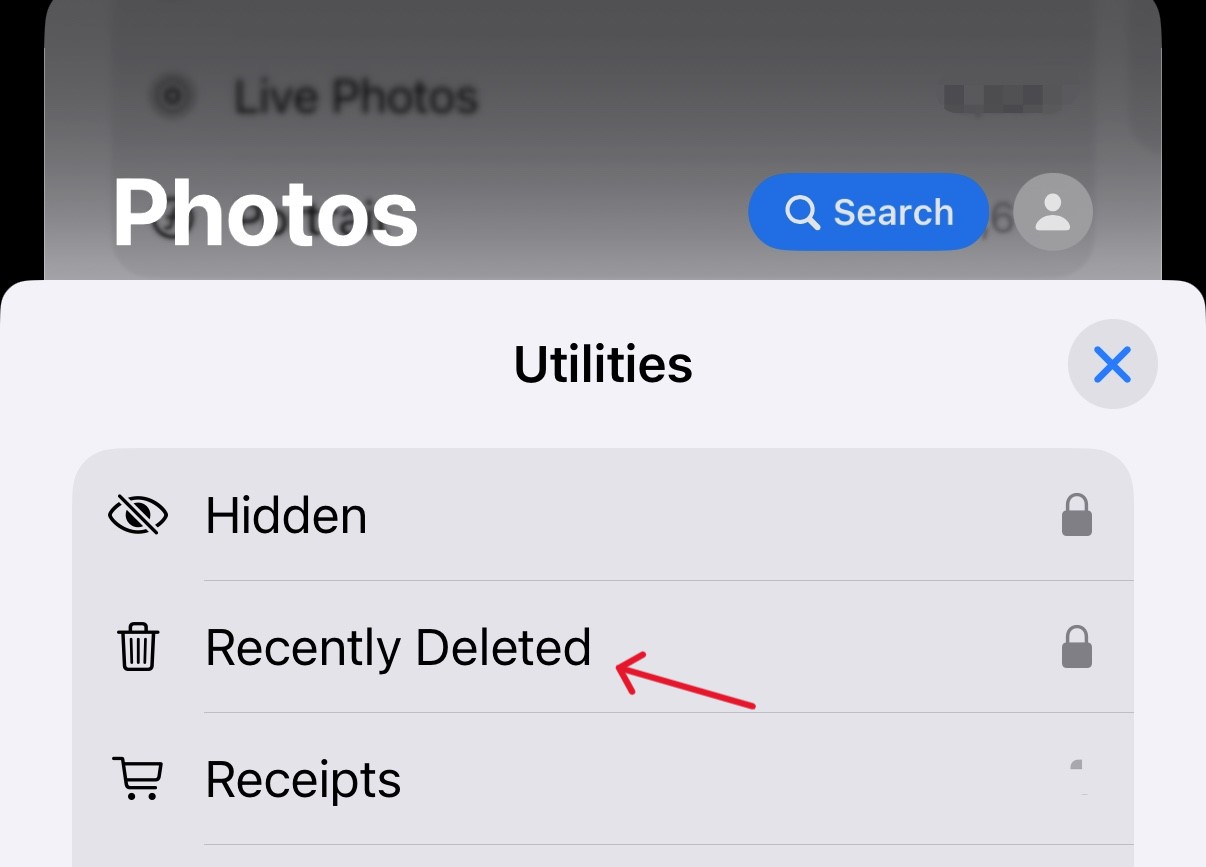
- Step 4: Select Recently Deleted.
- Step 5: Use Face ID, Touch ID, or your Passcode to unlock the folder.
Once unlocked, you will see a grid of all photos and videos deleted within the last 30 days. Each thumbnail displays a countdown (e.g., “29 Days”) indicating how much time remains before it is gone forever.
How to Recover or Delete Permanently
After you have mastered how to go to your recently deleted album, managing the content is simple.
- To Recover: Tap “Select” in the top right, choose your items, and tap “Recover.” The file will return to its original place in your library.
- To Delete Permanently: If you need to free up space immediately, you can select items and tap “Delete.”
Warning: This action is irreversible through standard iOS settings.
How to Find Recently Deleted on Android
Using Gallery App
Android’s diversity means that the “Recently Deleted” location can change based on your manufacturer (Samsung, Google, Xiaomi, etc.). However, most modern Android versions (Android 11 and above) have standardized this.
- Step 1: Open your Gallery or Google Photos app.
- Step 2: Tap the Library or Menu (three horizontal lines/dots) icon.
- Step 3: Look for the icon labeled Trash or Bin.
- Step 4: Browse the deleted items and long-press to select what you wish to restore.
Differences Across Brands
On Samsung devices, the path is usually: Gallery > Menu (three lines) > Trash. On Google Pixel or devices using the stock Google Photos app, it is: Library > Trash. It is important to note that if you use a third-party file manager, it may have its own internal trash system that operates independently of the system gallery.
How to Access Recently Deleted on Windows
Using Recycle Bin
Windows has utilized the Recycle Bin since its earliest iterations. It remains the most reliable way to retrieve documents, folders, and executables.
- Step 1: Locate the Recycle Bin icon on your Desktop.

- Step 2: If the icon is missing, press
Win + Sand type “Recycle Bin” to find it. - Step 3: Once open, you can sort files by “Date Deleted” to find recent items quickly.
- Step 4: Right-click the desired file and select Restore.
Restore vs Permanent Delete
When you click “Restore,” Windows sends the file back to the exact folder it was in before deletion. If you are unsure where it went, you can check the “Original Location” column within the Recycle Bin interface. Conversely, “Emptying” the bin or using the shortcut Shift + Delete bypasses this folder entirely, making the files invisible to the operating system.
How to Go to Recently Deleted on Mac
Using Trash Folder
macOS stores deleted files in the Trash (or Bin in newer versions).
- Step 1: Click the Trash/Bin icon located at the far right of your Dock.
- Step 2: Find your file and right-click it.
- Step 3: Select Put Back. This is the Mac equivalent of Windows’ “Restore.”
Photos App Recently Deleted Album
Similar to the iPhone, the Mac Photos app maintains its own internal database. If you delete a photo within the app, it won’t appear in the system Trash. Instead, go to:
- Step 1: Open Photos.
- Step 2: Look at the left-hand sidebar under the Library or Photos section.
- Step 3: Click Recently Deleted. You may need to provide your Mac user password or Touch ID to view these items.
Recently Deleted on Cloud Services
iCloud Photos
If you have iCloud enabled, deleting a photo on your iPhone removes it from all your Apple devices. However, you can still recover it via a web browser.
- Go to iCloud.com and log in.
- Click on Photos.
- In the sidebar, click the Recently Deleted album.This is a lifesaver if your phone is lost or broken and you need to retrieve recently deleted memories.
Google Photos
Google Photos is even more generous, often keeping “trashed” items for 60 days if they were backed up to the cloud.
- Navigate to photos.google.com.
- Click Trash on the left menu.
- Select and restore your images.
What if the Files are Not in Recently Deleted?
Sometimes, despite knowing how to go to recently deleted, the folder is empty. This happens if the 30-day limit has passed, the “Empty Trash” command was run, or the files were deleted using permanent shortcuts. This is the point where standard user methods fail and professional technical solutions become necessary.
Introducing PandaOffice Drecov Data Recovery Software
When the built-in safety nets of Windows or macOS fail, you need a high-performance tool that can scan the physical sectors of your storage drive. PandaOffice Drecov data recovery software is a professional-grade utility designed for exactly this scenario. It can bypass the operating system’s file directory and find “ghost” data that has been marked as deleted but hasn’t yet been overwritten by new files.
⚠ Warning: Install the software on a different drive than the one you are trying to recover from to avoid overwriting your lost data.
Using PandaOffice Drecov for Advanced Recovery
If you have realized that your files are gone from the Recycle Bin or Trash, follow these steps to use PandaOffice Drecov data recovery software to get them back.
- Step 1: Select the Location. Launch the program. You will see a list of drives (C:, D:, External USBs, etc.). Select the drive where the deleted files were originally stored.

- Step 2: Deep Scan. Click the “Scan” button. The software will perform a Quick Scan followed by a Deep Scan. The Deep Scan is vital because it reconstructs file headers for items no longer in the “Recently Deleted” index.

- Step 3: Preview and Filter. One of the best features of this tool is the preview window. You can actually see the photos or read the documents before you decide to recover them. This ensures you aren’t wasting time on corrupted files.

- Step 4: Recover. Select the files you need and click Recover. Choose a secure destination (like an external hard drive) to save the restored data.
Pro Tip: As soon as you realize a file is missing and not in the “Recently Deleted” folder, stop using that device immediately. Every minute of use increases the risk that the system will write new data over your deleted file.
Common Issues When Finding Recently Deleted
Folder Missing
If you cannot find the Recently Deleted folder, it is often due to a settings change. On Android, some “Clean Up” or “Optimization” apps automatically empty the trash every day to save space. On Windows, if your drive is nearly full, Windows may bypass the Recycle Bin entirely and delete files permanently to protect system stability.
Files Not Showing
A common point of confusion is “Syncing.” If you delete a file on your laptop while it is offline, and then turn on your phone, the phone might sync the “deletion” before it syncs the “file.” Always check your primary cloud account (Google, iCloud, OneDrive) via a web browser, as the web version often holds the “master” version of the Trash.
What Happens After Deleting from Recently Deleted
Permanent Deletion Explained
When a file is removed from the Recently Deleted folder, the operating system performs a “Logical Deletion.” It tells the hard drive: “This space is now available for anything else.” The data is still there, but the “address” to find it is gone. This is why tools like PandaOffice Drecov are effective—they look for the data itself rather than the address. However, once you save a new movie or download a big app, that new data might land right on top of your old file. Once overwritten, the data is physically destroyed.
Tips to Avoid Losing Files
Backup Strategies
Knowledge of how to go to recently deleted is your first line of defense, but a backup is your fortress.
- The 3-2-1 Rule: Keep 3 copies of your data, on 2 different types of media, with 1 copy stored off-site (cloud).
- Automated Backups: Use Time Machine (Mac) or File History (Windows) to automatically save versions of your work every hour.
- Cloud Sync: Ensure your smartphone is set to “Back up & Sync” over Wi-Fi so that your photos are safe even if you drop your phone in a lake.
Further Reading and Specialized Guides
If you have successfully navigated to your recently deleted folders but found them empty, or if you are looking for specific types of data, these specialized guides can help:
- How to recover deleted photos after deleting from recently deleted – A deep dive into photo recovery.
- How to find recently deleted apps on iPhone & Android – Recovering your app data and configurations.
- Can you see recently deleted messages on Instagram? – Social media specific recovery tips.
Go to Recently Deleted FAQs
1. Where is Recently Deleted on iPhone?
It is located in the Photos App > Albums > Utilities > Recently Deleted. You will need to authenticate with Face ID or your passcode to see the contents.
2. How long do files stay in Recently Deleted?
The industry standard is 30 days. Some cloud services like Google Photos may keep them for up to 60 days if the files were backed up.
3. Can I recover files after deleting from Recently Deleted?
Yes, but you cannot do it using standard system settings. You will need a professional recovery tool like PandaOffice Drecov to scan the drive for traces of the data.
4. Why can’t I find Recently Deleted?
You might be looking in the wrong app. For example, on a Mac, there is a “Trash” for the whole system, but a separate “Recently Deleted” folder specifically inside the Photos app.
5. Is Recently Deleted the same as Trash or Recycle Bin?
Essentially, yes. They are all “buffer zones” where files live before being permanently erased from the storage hardware.
Conclusion
Understanding how to go to recently deleted folders is an essential digital literacy skill. Whether you are on a smartphone or a high-end workstation, these safety nets are your first point of contact after an accidental deletion. By following the steps outlined for iPhone, Android, Windows, and Mac, you can confidently manage your data.
Remember, timing is your biggest enemy. If you find your trash folders empty, don’t lose hope—utilize professional tools like PandaOffice Drecov data recovery software to perform a deep scan. With the right habits and the right software, almost no digital loss is truly permanent.






