







Losing a critical video file can be incredibly stressful, whether it is a priceless family memory, a client’s wedding footage, or a marketing asset. Consequently, many creators and professionals find themselves desperately searching for a reliable video recovery solution. Video data loss happens for many reasons, including accidental deletion, storage card corruption, or sudden system crashes. Fortunately, file storage physics means that “deleted” rarely means permanently gone.
If you are currently facing data loss, PandaOffice Drecov data recovery software offers a powerful, dependable solution to retrieve your files securely. In this comprehensive guide, we will explore how video data recovery works, provide actionable step-by-step methods to restore your media, and evaluate the best video recovery software techniques to get your files back intact.
Understanding the Basics of Video Recovery
Before diving into the restoration steps, it is essential to understand what happens when a video file disappears. When you delete a video from a hard drive or SD card, the operating system does not immediately erase the actual video data. Instead, it marks the space occupied by that file as “available” for new data.
The Challenges of Video Data Recovery
Recovering videos is uniquely challenging compared to simple text documents or photos. Because video files are large, operating systems frequently break them apart and store them across non-contiguous clusters on your drive. This phenomenon is known as fragmentation. If a drive becomes fragmented, traditional recovery tools might only piece together parts of the video, resulting in a corrupted, unplayable file. Therefore, utilizing specialized video recovery software that understands complex video file structures is critical to success.
When to Use PandaOffice Drecov Data Recovery Software
PandaOffice Drecov data recovery software features advanced deep-scanning algorithms designed specifically to handle heavily fragmented media files. It reconstructs broken video streams by matching signatures, making it highly effective across various data loss scenarios:
- Accidental Deletion: Emptying the Recycle Bin or using
Shift + Deletekeys. - External Media Rescue: Recovering lost data from formatted or corrupted SD cards and USB flash drives.
- Sync Conflict Resolution: Reversing data loss caused by synchronization errors between your PC and the OneDrive cloud.
- Browser Metadata Recovery: Restoring lost Chrome bookmarks and other essential application data.”
⚠ Warning: Install it on a drive different from the one where your data was lost to prevent overwriting.
Comprehensive Solutions for Video Data Recovery
Depending on how your files were lost, you can approach the restoration process through different technical tiers. We recommend starting with the easiest native methods before moving to advanced data reconstruction.
Level 1: Native OS Recovery
Before running specialized software, verify if the files are still cached by your operating system.
Method A: Checking the Windows Recycle Bin
If you simply hit the Delete key, your file is likely resting in your system’s temporary trash storage.
- Double-click the Recycle Bin icon on your desktop.
- Locate your deleted video file by typing the file extension (e.g.,
.mp4) in the top-right search bar. - Right-click the file and select Restore. The video will return to its original folder location.
Tip: If you cannot find the Recycle Bin icon on your desktop, follow this quick guide on where is Recycle Bin in Windows 10 to locate it instantly.
Method B: Restoring from File History Windows 10/11
If you have Windows backup systems enabled, you can roll back your folder state.
- Navigate to the folder where your video files were originally stored.
- Right-click inside the folder and select Properties.
- Switch to the Previous Versions tab.
- Select a folder state that predates the deletion, then click Restore.
Level 2: Using PandaOffice Drecov
When native system tools fail, dedicated video recovery software is required to dig into the storage blocks. Follow these exact steps using PandaOffice Drecov data recovery software.
Step 1: Select the Target Location
On the home dashboard, you will see a clean visual breakdown of your connected drives. Select the specific drive letter or a specific directory path, such as the system browser folder.

Step 2: Execute the Deep Scan
Click the Scan button. The software automatically initiates a Quick Scan, followed instantly by an automated Deep Scan. The Deep Scan reads the raw sectors of your storage device to identify fragmented video signatures.

Step 3: Filter and Preview the Video Files
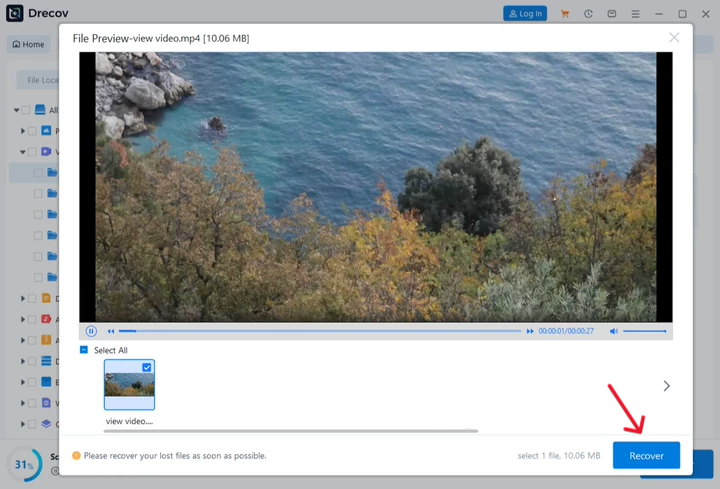
Instead of sorting through thousands of system files, use the sidebar filter. Click on Type and check the box for Video. Drecov supports real-time previewing for major formats including MP4, MOV, MKV, and AVI. Double-click a file to verify its playback integrity before recovering it.
Step 4: Securely Export Your Recovered Videos
Mark the checkboxes next to the videos you want to salvage. Click the Recover button in the bottom right corner. A file path prompt will appear.
Crucial: Choose a separate storage drive e.g., save to an external drive if recovering from the internal C: drive to finalize the process.
Level 3: Fixing Corrupted Video Codecs
Sometimes a file is successfully recovered, but it won’t open because the file header is broken. Here is how to restore corrupted video files using advanced command-line tools and media players.
Method A: Forcing Digital Re-indexing via VLC Media Player
VLC possesses built-in capabilities to fix broken index blocks on AVI and MP4 files.
- Open VLC Media Player.
- Navigate to Tools > Preferences (or use the hotkey
Ctrl + P). - Click on the Input / Codecs tab.
- Scroll down to the Files section. Locate the dropdown menu for Damaged or incomplete AVI file and change it to Always fix.
- Click Save and attempt to open your choppy or broken video file.
Method B: Rebuilding Headers using FFmpeg Command Line
For severe file structure damage, the open-source command-line tool FFmpeg can copy streams without re-encoding, effectively rebuilding corrupted metadata containers.
- Download FFmpeg and extract it to your system path.
- Press
Win + R, typecmd, and hit enter to launch the Command Prompt. - Change directories to the location of your broken video using the
cdcommand. - Type the following command precisely to map the audio and video streams into a new container:
$$\text{ffmpeg -i corrupted\_input.mp4 -c copy fixed\_output.mp4}$$
- Press
Enter. FFmpeg will discard the broken header blocks and output a clean, readable video file labeledfixed_output.mp4.
Alternative or Complementary Methods
While PandaOffice Drecov data recovery software provides a comprehensive automated solution, understanding alternative methodologies helps you adapt to unique hardware environments.
Technical Software Comparison
| Feature / Criteria | PandaOffice Drecov | Open-Source CLI Tools | Manual Hex Editing |
| User Interface | Graphical, intuitive UI | Command-line interface only | Raw hexadecimal matrix |
| Success Rate | High | Moderate | Low |
| Time Investment | 5 to 15 minutes | Variable | Several hours per file |
| Risk Factor | Low | Low to Medium | High |
Analyzing the Pros and Cons of Manual Alternatives
Using command-line utilities or hardware-level hex editors offers granular control. However, these tools lack automated sorting features. For example, locating complex application structures requires manual tracking. If you are tracking browser histories or cloud app caching paths to find temporary media files, it can be incredibly tedious.
For instance, finding cache files manually is as complex as tracking down hidden web data directories, similar to locating the Firefox bookmarks location. For the vast majority of content creators, automated commercial software remains the safest and fastest option.
Tips & Best Practices for Maximizing Recovery Success
The steps you take immediately after realizing a video is missing directly dictate your ultimate success rate. To maximize the efficiency of your video data recovery efforts, implement these strict data safety practices:
- Stop Writing Data Immediately: The moment a file disappears, eject the storage card or close running applications. Downloading new software, streaming web content, or recording new footage onto that same drive can permanently overwrite the unallocated spaces holding your old video.
- Work from a Drive Image: Advanced professionals use bit-stream imaging tools to clone a failing drive. Running your video recovery software scans against the cloned image ensures that a physically dying hard drive doesn’t completely fail during a deep scan.
- Maintain Proper Temperature Controls: Solid-state drives (SSDs) and mechanical hard drives subjected to intense thermal stress can experience rapid block degradation. Keep your hardware cool during long recovery passes.
Frequently Asked Questions
Can I recover a video file that was deleted years ago?
It depends entirely on drive usage. If the storage device has sat securely in a drawer without being written to, a tool like PandaOffice Drecov data recovery software can easily retrieve it. Conversely, if the drive has been actively used daily, the old files have almost certainly been overwritten.
Why do my recovered videos show a black screen or throw an error code?
This happens when the metadata container or index of the video file is fragmented. While the raw data chunks are recovered, the structural instructions telling your media player how to read the file are missing. Utilizing the FFmpeg method outlined above can often reconstruct these broken links.
Is it safe to use free online video recovery tools?
Be incredibly cautious. True data recovery requires deep, read-only hardware access that cannot be executed through a standard web browser. Websites claiming to recover files online usually require you to upload your files or download unverified, malware-laden executables.
How do I know if my video files can be recovered successfully?
For comprehensive details on how operating systems cache and index missing media before it is permanently removed, you can consult technical data preservation guides on recognized reference resources like the Microsoft Support Documentation.
Conclusion
In conclusion, encountering a data loss disaster does not mean your hard work is gone forever. By acting quickly, avoiding writing new data to your device, and deploying an effective video recovery software program, you can safely reconstruct your lost media.
With its advanced deep-scanning capabilities and tailored video reconstruction algorithms, PandaOffice Drecov data recovery software takes the guesswork out of complex data retrieval. Do not let accidental deletions or file corruption ruin your production schedule. Take a proactive approach to your media workflow, back up your assets regularly, and download a reliable recovery solution today to secure your digital peace of mind.






