
When a Windows utility reports “unable to open device. GetLastError: 32,” pause before formatting anything. Error 32 identifies a sharing violation: another process has access that conflicts with the request. Close normal users of the device, check whether any writing already happened, and protect needed files before retrying the original task.
A failed attempt to obtain access can prevent an unsafe write. Treat that refusal as information, not permission to remove every safeguard. Aim to release the access conflict without forcing a write to a device whose contents you have not checked.
Read the complete failure before changing the device
Confirm the number and the application
Save the full message, application name, and log entries immediately before the failure. Microsoft lists decimal 32, or hexadecimal 0x20, as ERROR_SHARING_VIOLATION. Error 5 is access denied; error 33 is a different locking error. Similar-looking dialogs do not establish the same cause.
GetLastError is a Windows reporting mechanism, not the name of a recovery application. Different utilities can display its result. Avoid assuming that a copied message came from Rufus or another particular writer unless the actual program and log confirm that context.
Establish whether the failed operation changed anything
Look for the stage shown in the log: opening the device, locking a volume, preparing partitions, or writing image data. A failure before access may leave contents untouched. Earlier attempts could still have modified the target, so do not judge the whole session from its final line alone.
Open existing files only if the device remains stable and no write is running. Familiar filenames and successful opening help determine the next action, but they do not prove that every folder survived. Missing content after an earlier attempt requires recovery, not another round of media creation.
Release normal users of the device in a controlled order
Start with applications you recognize. A photo viewer, media player, terminal, backup job, or virtual machine may still reference the target. Closing their windows normally is safer than ending unrelated processes. Save work first, particularly when an editor has an unsaved document on that device.
Finish transfers and close open files
Let any active copy finish or cancel it through its own interface. Close documents, photographs, and videos opened from the target. Exit a terminal whose current directory is on the removable volume. Navigate away from the device in Explorer and close extra windows, including a preview pane displaying one of its files.
Wait for the application to finish closing before trying again. A visible window disappearing does not necessarily mean a background backup or synchronization job has completed. Check that program’s status instead of immediately terminating its service.
Disconnect deliberate consumers through their settings
A virtual machine can capture a USB device, making it unavailable in the way the host utility expects. Release it through the virtual machine’s device menu after finishing guest activity. For backup software, pause or finish the task using its supported controls. Do not unplug storage while another environment is writing to it.
Security software can also participate in device access. Review any explicit notification or application log, but do not switch off protection blindly. On a managed computer, provide IT with the exact code and the tool’s name. An approved exception or supported workflow is preferable to disabling an organizational safeguard.
Retry only after confirming both the target and its backup
Use a fresh session when the owner remains unclear
Close the failing utility after saving its log. A normal Windows restart can clear ordinary application handles, provided you have saved work and no transfer remains active. Once you have signed in again, leave programs that use the target closed. Launch only the approved utility and inspect its selected device before proceeding.
This is a controlled diagnostic step, not a guarantee. Background software may reopen the device, and managed policies may remain in effect. If the same error returns immediately, retain that result instead of repeating restarts indefinitely.
Compare identity, not just the drive letter
Check the target’s capacity, model or label where available, and current contents. Removable-drive letters can change after reconnection. Disconnect unrelated removable devices when safe to reduce confusion, but never treat that as a substitute for checking the selected target.
If the intended operation creates installation media or writes an image, it may erase existing partitions and files once access succeeds. Copy needed content to another healthy location and open representative files there. A folder that exists on the target is not its own backup.
Know what a successful retry actually means
The sharing problem is resolved when the intended application obtains access without the conflict returning. You still need to verify that the write completed and, if applicable, that the resulting media boots. Follow the utility’s completion and verification procedure separately, using the correct source image and intended destination.
Do not click Start merely to see whether the error has disappeared when you are not ready for its destructive consequences. A successful lock can lead directly into writing. Finish your backup and destination checks before testing that button.
When the error persists, gather evidence rather than force access
Some tools identify the process or service holding a volume. Read that information within the context of the reported error. A warning naming a familiar editor suggests closing that editor; an unfamiliar system service deserves investigation before termination. Do not infer malicious activity from a process name alone.
Give support the useful details
Prepare the application version shown on your PC, Windows version, device identity, exact failure stage, and complete error text. Describe whether files still open and which ordinary programs you already closed. Redact personal paths, license data, and confidential filenames before sharing a log publicly.
A support technician can help trace an open handle when ordinary closure does not work. Forcing an individual handle closed can interrupt its owner’s work; first identify the application and close it normally. That can interrupt writes or leave the application in an inconsistent state, defeating the reason exclusive access matters.
Stop treating changing errors as the same fault
A later “device not ready,” repeated disappearance, or serious read error changes the diagnosis. Preserve the new message alongside the original. Unstable storage needs a stability assessment and possibly imaging or professional recovery, not a longer hunt for a software lock.
DiskPart clean, initialization, formatting, and partition deletion are not ways to politely release another process. They modify storage and may destroy useful recovery information. Leave them out of a sharing-conflict investigation, especially when the files matter.
If an earlier write removed files, protect them before another attempt
Use this branch only when actual local content disappeared. Check independent backups before scanning. For a USB target, the USB recovery page covers the broader loss scenario. Do not create installation media on that target while you still need its previous files.
For lost local files, Drecov can examine a stable Windows-accessible source. Releasing another program’s handle is a separate task. Its read-only recovery mode, Quick Scan, Deep Scan, filtering, and supported previews help locate candidates on stable readable storage. Lost Partition Recovery is relevant when a previous operation removed a partition, but it does not rebuild the partition table or repair hardware.
Prepare a safe source and a separate destination
Stop further writes and prepare another healthy device with enough space. Do not install Drecov on the affected partition. Repeated disconnections or severe read errors warrant imaging advice or specialist help before more direct scans. Overwriting and SSD TRIM can limit what software can retrieve.
⚠ Warning: Install it on a drive different from the one where your data was lost to prevent overwriting.
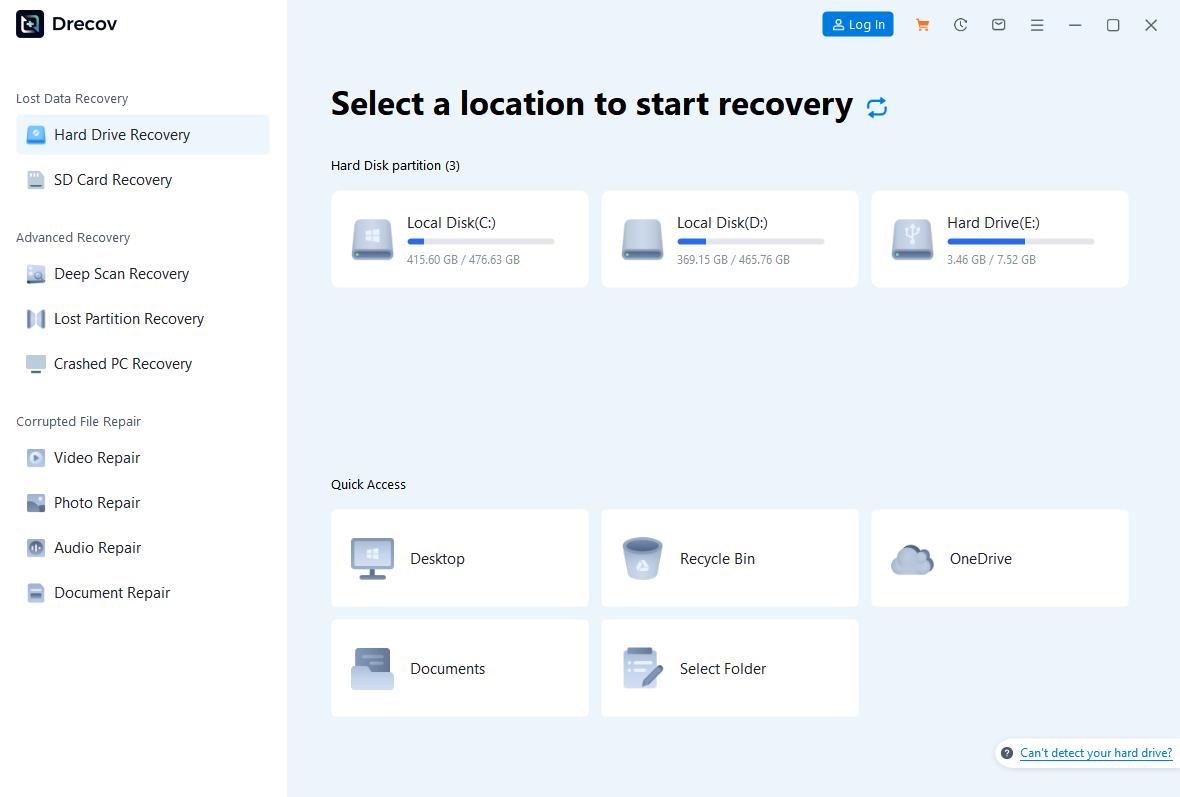
Step 1: Open Drecov and choose the original loss location
Select the stable device or volume that held the documents before the attempted write. Use the applicable Lost Partition Recovery mode when the original partition disappeared. Confirm the source by its identity and previous contents rather than an old drive letter alone.
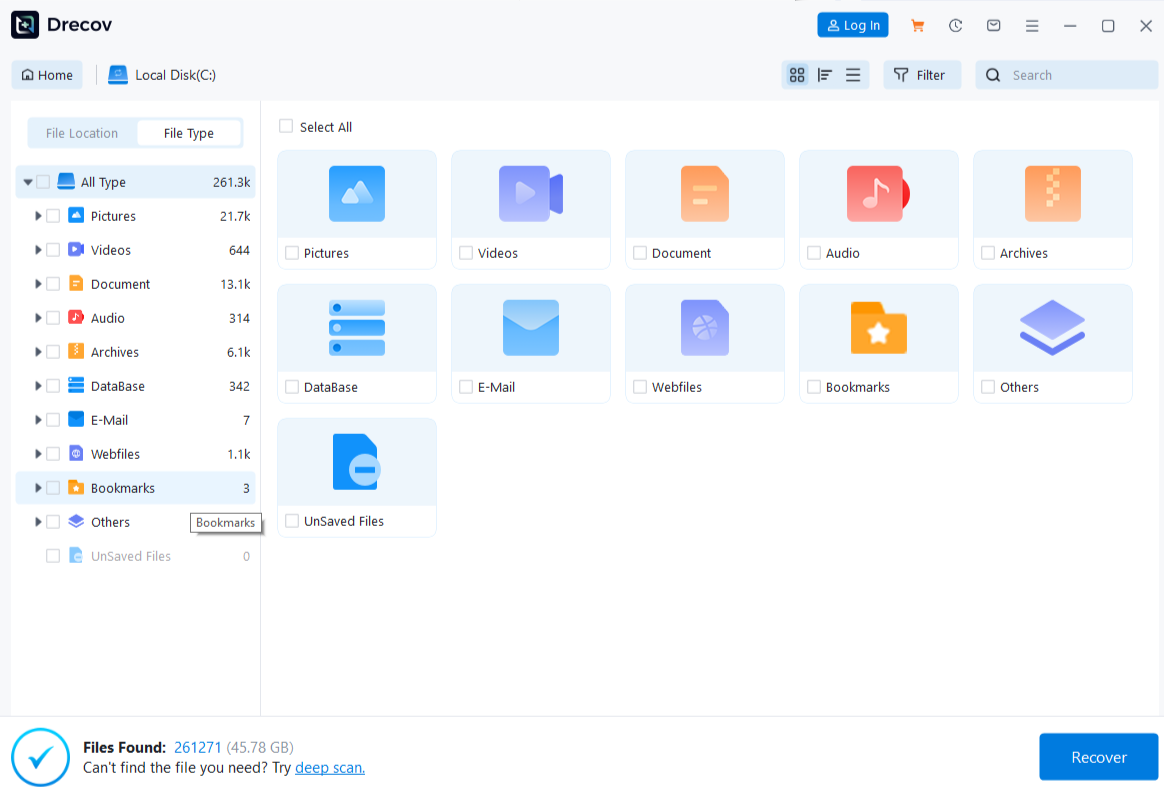
Step 2: Run Quick Scan and compare the results
Look for familiar folders, filenames, and expected file types. A media-creation target may now contain new setup files; those are not the missing personal originals. Use your backup list or remembered project names to distinguish the two groups.
Step 3: Use Deep Scan when needed on stable storage
Continue only if Quick Scan does not locate the desired files and the source remains reliable. Stop on worsening read errors. The file recovery page explains other local loss cases. No scan can promise to reconstruct fully overwritten content.
Step 4: Narrow candidates and inspect supported previews
Use available names, types, paths, and dates to locate the files you need. Preview representative supported documents and photographs. A preview confirms only what it displays, not every page or archive member. For a photo collection, compare recognizable details and consult photo recovery guidance if necessary.
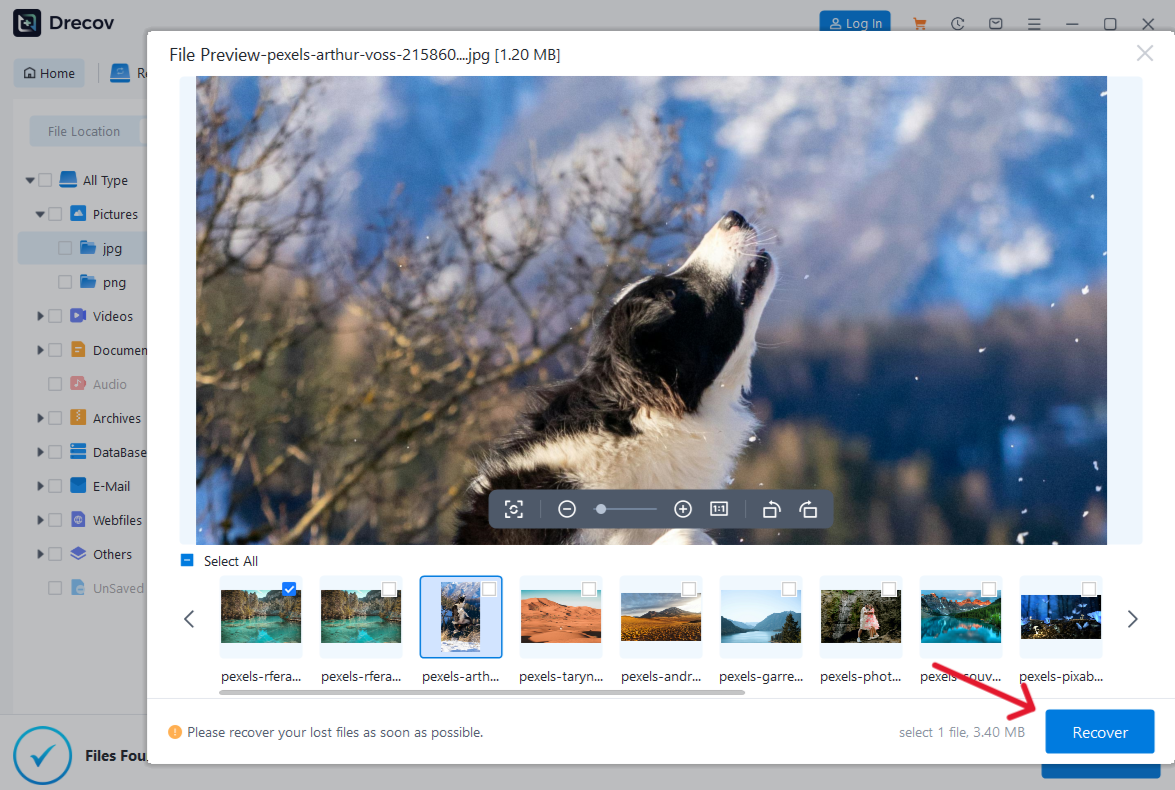
Step 5: Recover elsewhere and test before writing again
Save selected results to the healthy destination, never the source. Check Drecov Folder or Recovery Folder when output is not where expected. Open documents, inspect important pages, and test archives with their normal application. Verify the saved files before reconsidering formatting or writing a fresh installation image.
⚠ Warning: Install it on a drive different from the one where your data was lost to prevent overwriting.
FAQs about GetLastError 32
Does error 32 mean the USB device is broken?
Not by itself. It reports a sharing conflict. Repeated disconnections or unreadable files provide different evidence and require a separate stability assessment.
Will running as administrator always fix it?
Elevated rights do not necessarily remove conflicting access held by another program. Use the utility’s required permissions, but still close the actual consumer normally.
Should I format to release the device?
Formatting is a modifying operation, not a lock-release procedure. Protect any needed data and resolve the process conflict before attempting an intentional write.
Is this message specific to Rufus?
No. Windows applications can report GetLastError results in different contexts. Confirm the program and complete log instead of inferring the tool from the code alone.
Can I safely retry until it works?
Repeated retries add little information and can become destructive when access finally succeeds. Verify the target and backup first, then make a controlled attempt.
Conclusion
Error 32 calls for identifying conflicting access, not erasing the device. Close known consumers, confirm the target, and verify a backup before a write can start. If a previous attempt already removed files, use Drecov only on a stable source, recover to another device, and test the results before resuming media creation.
⚠ Warning: Install it on a drive different from the one where your data was lost to prevent overwriting.