
An NTFS file system BSOD is a reason to pause file-system changes, not immediately run every repair command you can find. Record the exact stop code, check whether Windows can stay running, and protect important files. If storage disconnects or produces serious read errors, stop repeated restarts and scans before attempting repair.
NTFS_FILE_SYSTEM corresponds to stop code 0x24. It involves the Windows component that handles NTFS access, but that name alone does not identify the root cause. A storage problem, file-system damage, or a related driver can lead Windows through the same code path.
Choose your first action by what the computer can still do
Windows starts and remains usable
Save work to a separate healthy destination and copy the most important personal files before testing fixes. Open representative copies there. Note whether the crash occurred during a particular copy, backup, application launch, or update. One event during a known task offers more direction than a list of unrelated utilities.
Do not start a large stress test while your only copy remains on the affected system. A normal desktop is an opportunity to protect data, not proof that all storage is healthy. Existing backups should be checked for usable content and recent dates.
Windows returns to the same blue screen
A boot loop changes the available tools. Use an existing Windows Recovery Environment when available, with the BitLocker recovery key ready if required. Safe Mode may help distinguish a normal-session component from the limited startup environment. Avoid repeated forced power-offs simply to see whether the next boot behaves differently.
If you cannot obtain a usable Windows session, arrange access to the source from another working compatible Windows computer with authorized technical help. Connection, encryption access, and source identification must all be possible first. Do not install a fresh Windows copy over files you still need.
The device itself becomes unreliable
Disappearance, repeated disconnects, severe read failures, or physical symptoms outweigh a software troubleshooting checklist. Stop direct scanning and seek advice about an appropriate image or specialist recovery. A Windows stop code does not make unstable storage safe to exercise repeatedly.
Secure missing personal files before modifying NTFS
Ordinary readable files should first be copied or restored from a known-good backup. Use recovery when documents have disappeared, the original folder is inaccessible, or a lost partition contains the only copy. The file recovery page covers that separate data-loss task. Do not confuse a reset that starts Windows with a verified return of your work.
For missing local files, Drecov provides Windows data recovery. It does not repair blue-screen errors or drivers. Read-only recovery mode, Quick Scan, Deep Scan, filters, and supported previews help identify lost files on stable accessible storage. Lost Partition Recovery is available for a missing partition; it does not repair the partition table, ntfs.sys, or physical hardware.
Prepare access and a healthy destination
Stop avoidable writes and prepare another healthy device. Do not install recovery software on the affected partition. If using another computer, confirm that you can access the source and supply legitimate encryption keys where needed. Recovery software does not bypass BitLocker. Overwriting and SSD TRIM may reduce recovery prospects.
⚠ Warning: Install it on a drive different from the one where your data was lost to prevent overwriting.
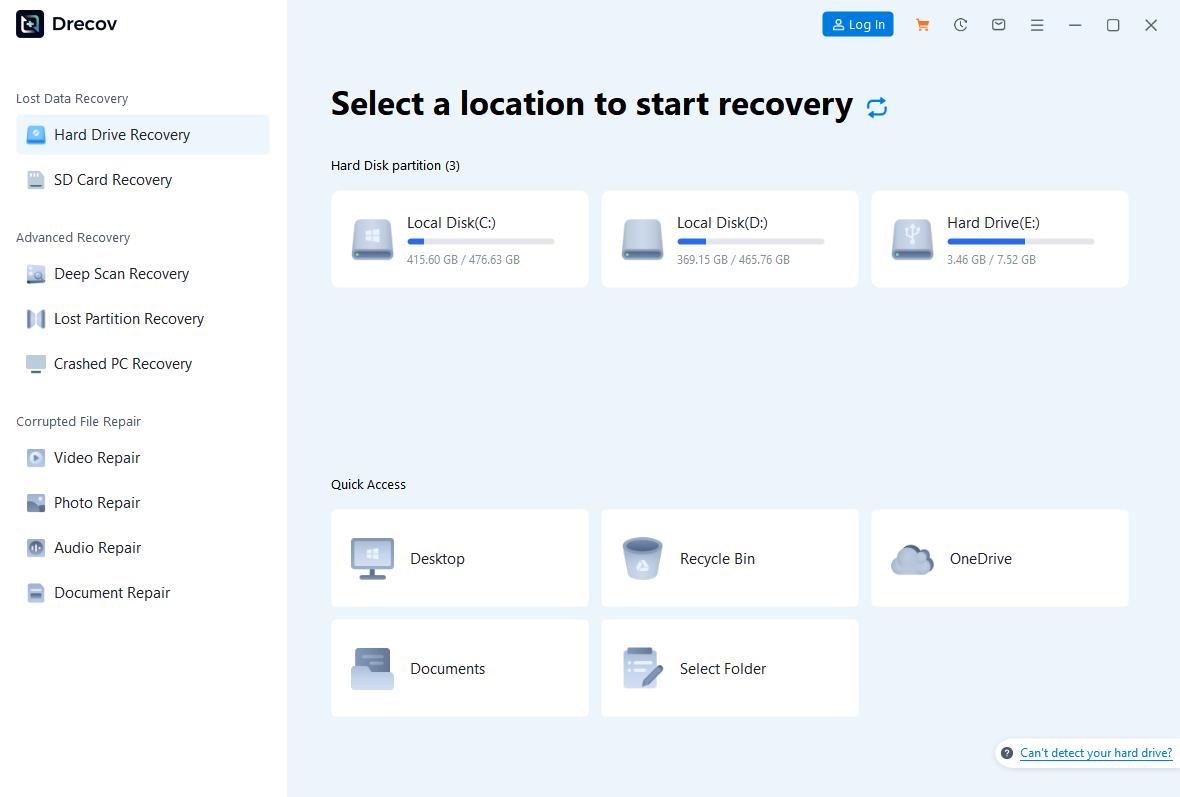
Step 1: Open Drecov and identify the original volume
Select the stable location that held the lost user folders or use the applicable lost-partition mode. A volume attached to another PC may have a different letter, so check its identity and expected contents. Your original Documents folder is the target, not the new computer’s similarly named folder.
Step 2: Use Quick Scan for recognizable files
Start Quick Scan and look for recent work, original folders, or familiar names. Prioritize files you cannot replace, such as project documents and family photographs. For photo recovery, distinguish actual full images from cached thumbnails.
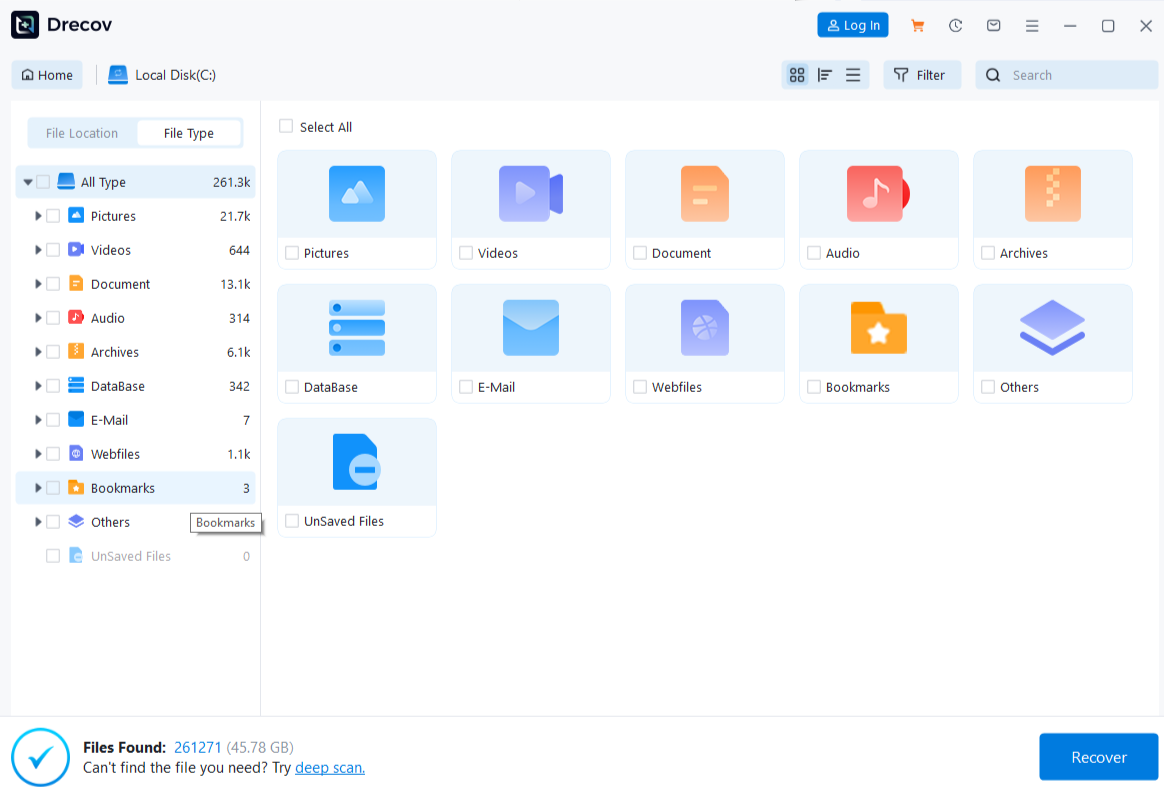
Step 3: Continue with Deep Scan only when appropriate
If the needed files remain absent and the source reads reliably, use Deep Scan. Stop when access deteriorates. Repeated passes on unstable media are not a substitute for imaging. A scan can search what remains, but it cannot guarantee recovery of overwritten information.
Step 4: Locate and preview important candidates
Use available type, name, path, and date details to narrow results. Preview representative supported files and inspect useful content. One successful preview does not validate every page or project dependency. For PDF recovery, check important pages after saving rather than relying solely on a cover image.
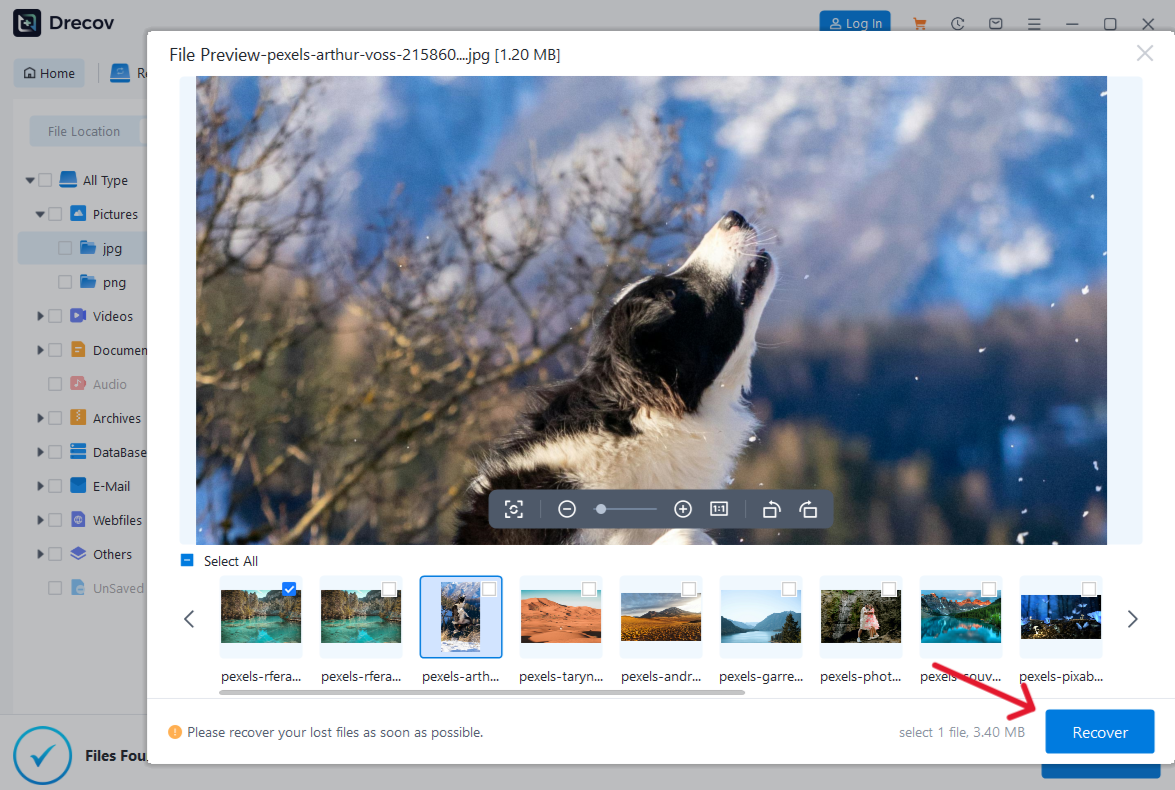
Step 5: Recover elsewhere and validate
Save selected results to the separate healthy device, never the source. Check Drecov Folder or Recovery Folder if output is not where expected. Open saved files in their normal applications and compare key content with known versions. Complete this verification before CHKDSK, partition changes, formatting, resetting, or reinstallation.
⚠ Warning: Install it on a drive different from the one where your data was lost to prevent overwriting.
Use crash evidence to narrow the suspect
Record the exact code and trigger
Keep a photograph of the stop screen and note the time. A later crash with another code is additional evidence, not automatically the same NTFS fault. Record recent storage utilities, backup software, security changes, drivers, and power interruptions. Do not treat every application installed that week as equally likely.
Microsoft’s 0x24 reference explains the NTFS_FILE_SYSTEM code and possible storage or driver involvement. A mention of ntfs.sys identifies where the failure surfaced, not necessarily the component you should replace.
Look near the crash time, not through every log
When Windows is stable, search Start for Event Viewer. Open Windows Logs, then System, and inspect entries around the recorded time. Note storage, controller, or file-system messages and their device details. Save relevant information before changing software so a technician can compare before and after.
A general unexpected-shutdown entry can describe the crash’s consequence rather than its cause. Look for earlier related messages. If interpretation is unclear, share a limited, redacted report with support instead of deleting drivers according to the first unfamiliar event name.
Undo a supported recent change before broad repair
Use Safe Mode as a comparison
From a usable Windows session, hold Shift while selecting Restart. In Windows RE, choose Troubleshoot, Advanced options, Startup Settings, then Restart, and select Safe Mode. Keep the BitLocker key available. If Startup Settings is absent, check your device’s recovery instructions before trying a different route.
A stable Safe Mode session suggests that something absent from that limited environment may contribute. It does not prove a particular driver is guilty or establish storage health. Use the result to investigate a recent change rather than launching a large workload in Safe Mode.
Reverse one identified change using its normal controls
If the first crash followed a specific driver update, open Device Manager, locate the correct device, and inspect its Driver tab. Roll Back Driver is useful only when a previous package is available and the device matches your evidence. Otherwise obtain the supported package from the computer or device manufacturer.
For a recently added backup or storage-filter utility, use its documented update or removal process. Coordinate security-software changes with IT instead of disabling protection indefinitely. Test one change at a time; removing several components together makes the result difficult to interpret.
Consider an existing restore point only after data protection
System Restore can revert system changes when a suitable point exists. From Windows, open Recovery in Control Panel and choose Open System Restore. Review the selected date and affected programs before confirming. In Windows RE, System Restore is under Troubleshoot and Advanced options when available.
This is not a personal-file backup and not the same as Reset this PC. Preserve current work first. A restore point older than the suspected change may help the system, but it does not prove your missing documents returned.
Keep repair targeted and define a meaningful success test
After verifying data protection, decide whether evidence supports a file-system check, a manufacturer diagnostic, or Windows component repair. CHKDSK with repair switches changes file-system structures. Avoid a blanket command aimed at C: when the affected volume may be different, particularly in another recovery environment.
Do not turn repair into a destructive experiment
Confirm the intended volume and understand the proposed tool’s effects before running it. Stop if a technician or utility reports unstable reading that requires an image first. Formatting can make a new file system; it does not diagnose why the previous one failed or restore its personal files.
Driver Verifier and debugger commands are specialist tools, not beginner shortcuts. Some diagnostic settings can deliberately provoke crashes. Provide the collected stop code and logs to a qualified technician if the simpler evidence-led steps do not identify a safe path.
Repeat the relevant activity, not an arbitrary stress test
After one supported correction, restart normally and perform a modest version of the activity associated with the crash, using expendable copies. Check whether the same stop code or earlier storage messages return. A single successful boot is encouraging but does not certify the whole system.
Keep the verified backup or recovered files separate during observation. Persistent 0x24 failures despite a controlled software rollback need further diagnosis. Do not cycle through reset, format, and reinstall while the original cause remains unexplained.
FAQs about the NTFS blue screen
Does ntfs.sys on the screen mean I should download that file?
No. Do not replace Windows components with files from unofficial download sites. The module name does not by itself identify the underlying cause.
Should CHKDSK always come first?
Important data and source stability come first. Repair switches modify storage, so verify a backup or recovery and confirm the target before proceeding.
Can Windows still start with a storage problem?
Yes. A temporary usable session is a chance to protect data and gather evidence, not a guarantee that the source is healthy.
Will Drecov stop the blue screen?
Drecov retrieves files from suitable storage. It does not repair drivers, Windows startup, or failing hardware; those require their own diagnosis.
What if the source asks for a recovery key?
Obtain the legitimate encryption key through the account or organization that manages it. Scanning software is not a way to bypass encrypted access.
Conclusion
Handle an NTFS_FILE_SYSTEM crash according to boot access, storage stability, and a specific recent change. Protect files before modifying the file system. Drecov can help retrieve genuinely missing data from a stable accessible source, but verification on another device must come before repair. A lasting fix needs evidence about the cause, not merely a successful restart.
⚠ Warning: Install it on a drive different from the one where your data was lost to prevent overwriting.