







Managing your digital life often feels like a balancing act between convenience and privacy. For many Windows users, Microsoft’s cloud storage is a double-edged sword. While it offers seamless syncing, there are many reasons you might want to turn off OneDrive backup. Perhaps your 5GB free storage limit is constantly screaming at you, or maybe you prefer keeping your sensitive documents strictly on local hardware.
Whatever your motivation, disabling this feature requires a bit more than just clicking an “off” switch. In this comprehensive guide, we will explore the nuances of cloud synchronization, provide a detailed walkthrough on how to turn off OneDrive backup, and ensure you have a safety net like PandaOffice Drecov ready if things go sideways during the process.
Understanding the Risks and Rewards of Cloud Syncing
Before we dive into the technical steps, let’s establish why someone would want to turn off OneDrive backup in the first place. Microsoft designs Windows to encourage cloud usage. During initial setup, the OS often defaults to backing up your Desktop, Documents, and Pictures folders.
Why You Might Want to Disable Backup
- Storage Limits: Once you hit that 5GB ceiling, Windows will nag you with notifications.
- Privacy Concerns: Some users don’t want their personal files residing on external servers.
- Performance: Constant syncing can consume bandwidth and CPU cycles, slowing down older machines.
- File Deletion Confusion: One of the biggest risks of OneDrive is that deleting a file on your PC often deletes it in the cloud, and vice versa. This “mirroring” behavior is why many people eventually look for ways to turn off OneDrive backup to regain manual control.
How to Turn Off OneDrive Backup: The Standard Method
The most direct way to handle this is through the OneDrive application settings. This method is the “cleanest” because it tells the software to stop monitoring specific folders without necessarily breaking the application itself.
Step 1: Open OneDrive Settings
Locate the blue or white cloud icon in your Windows Taskbar (near the clock). If you don’t see it, click the upward-pointing arrow to show hidden icons. Right-click the icon and select the Settings (gear icon).
Step 2: Access the Backup Tab
In the settings window, navigate to the Sync and backup tab on the left sidebar. Click on the Manage backup button. This is the primary interface for anyone wondering how to turn off OneDrive backup for their main user folders.
Step 3: Toggle Off Specific Folders
You will see toggles for Documents, Pictures, and Desktop. Switch these to Off.
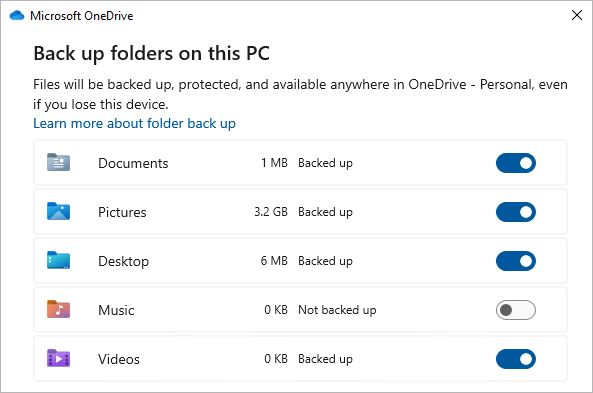
Warning: When you do this, OneDrive will stop syncing new changes. However, it often moves your existing files into a “OneDrive” subfolder on your hard drive. You might notice your desktop icons disappear—don’t panic! They are still on your disk, just tucked away in the OneDrive folder path.
Step 4: Confirm Changes
Click Save changes. Windows may prompt you to confirm that you want to stop backing up these folders. Once confirmed, the files will remain in the cloud, but the local “live” versions will no longer upload automatically.
Advanced Options: Unlinking Your PC or Uninstalling
If the standard folder-level toggle isn’t enough, you might want a more “permanent” divorce from the cloud.
Unlinking the Account
This is a great middle-ground. It stops all syncing and removes the account from the PC without deleting the software itself.
- Step 1: Go to OneDrive Settings.
- Step 2: Click the Account tab.
- Step 3: Select Unlink this PC.
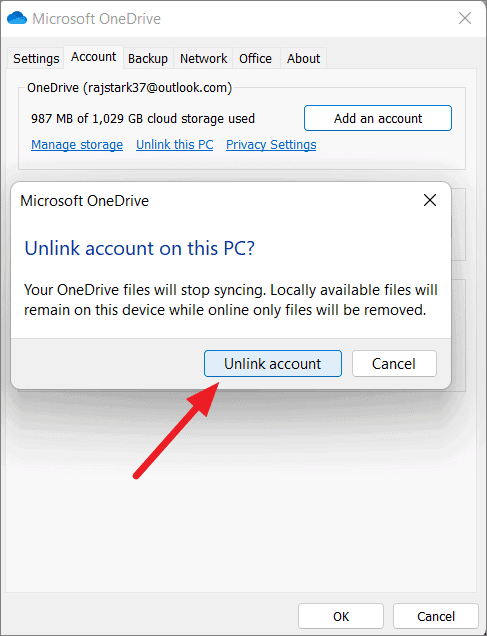
- Step 4: Confirm the action. Your files stay on the PC (in the OneDrive folder) and stay in the cloud, but the connection between them is severed.
Completely Uninstalling OneDrive
For those who are 100% sure they never want to see a cloud icon again:
- Step 1: Open the Settings app on Windows.
- Step 2: Go to Apps > Installed Apps.
- Step 3: Search for “Microsoft OneDrive.”
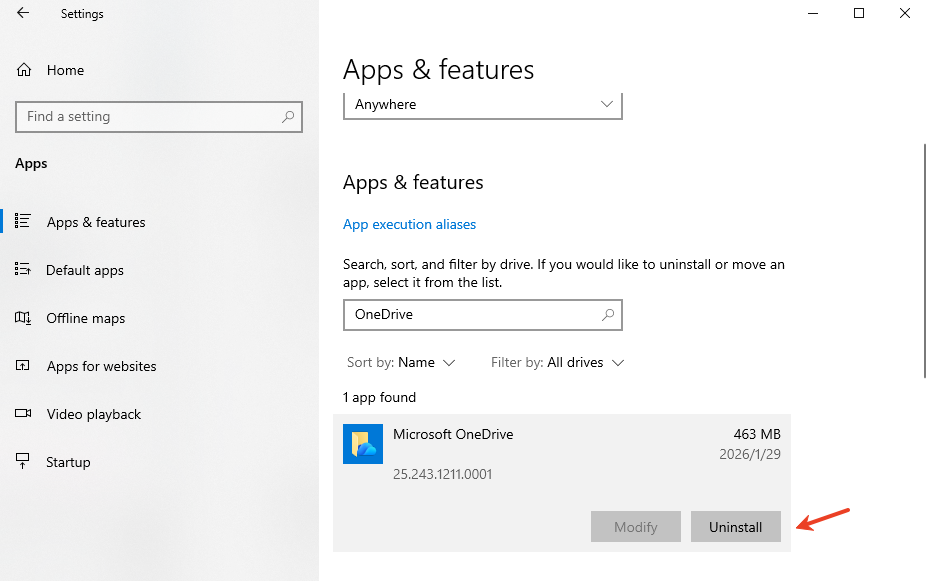
- Step 4: Click the three dots and choose Uninstall.
For more official troubleshooting, you can visit the Microsoft Support page for OneDrive.
The Hidden Danger: Data Loss During Disconnection
When you turn off OneDrive backup, the way Windows handles file paths can be confusing. Many users report that their “Documents” folder suddenly appears empty. This happens because Windows redirects your library paths. If the redirection fails or if you accidentally delete the “online-only” placeholders, your data could vanish.
This is where a professional data recovery mindset becomes essential. You should never perform significant system changes—like choosing to turn off OneDrive backup—without a contingency plan.
Recovering Lost Files with PandaOffice Drecov
If you discovered that files went missing after you decided to turn off OneDrive backup, don’t despair. PandaOffice Drecov is a high-performance recovery tool designed to scan your physical disk sectors to find files that the operating system no longer sees.
Why Use PandaOffice Drecov?
Unlike basic undelete tools, PandaOffice Drecov uses deep-scan algorithms to reconstruct file fragments. It is particularly effective for recovering files lost during sync errors or folder redirection mishaps.
⚠ Warning: Install it on a drive different from the one where your data was lost to prevent overwriting.
Step-by-Step Recovery Process
Step 1: Select the Scan Location
Launch the program. You will see a list of drives. Select the drive where your OneDrive folder was located (usually the C: Drive).

Step 2: High-Speed Scan
Click Scan. PandaOffice Drecov will first perform a Quick Scan to find recently deleted items, followed by a Deep Scan to locate files lost during the re-indexing that happens when you turn off OneDrive backup.

Step 3: Filter and Preview
Once the scan is complete, use the file type filter (e.g., .docx, .jpg) to narrow down the results. One of the best features of PandaOffice Drecov is the Preview function. You can click on a file to see its content before committing to the recovery.

Step 4: Recover to a Secure Location
Select the checkboxes for the files you need. Click Recover and choose a destination folder.
Warning Prompt: Always save recovered files to a different physical drive than the one they were lost from. This prevents data corruption.
Proactive Data Management and Troubleshooting
Knowing how to turn off OneDrive backup is only half the battle. You also need to know how to maintain your system’s health. Many users encounter errors where OneDrive won’t close or sync properly, leading them to force-disable it.
If you are experiencing technical glitches before you even get the chance to turn off OneDrive backup, you might find these resources helpful:
- For sync issues: Fixing OneDrive Windows 10 Not Syncing
- For connectivity problems: How to Fix the OneDrive Isn’t Connected Error
- For better backup habits: How to Backup OneDrive and Recover Lost Data
Registry and Group Policy: For Power Users
If you are an IT administrator or a power user who wants to turn off OneDrive backup across multiple machines or ensure it never turns itself back on after an update, you can use the Registry Editor.
Using the Registry Editor
- Step 1: Press Win + R, type
regedit, and hit Enter. - Step 2: Navigate to
HKEY_LOCAL_MACHINE\Software\Policies\Microsoft\Windows\OneDrive. - Step 3: If the key doesn’t exist, create it.
- Step 4: Create a new DWORD (32-bit) Value named
DisableFileSyncConfig. - Step 5: Set its value to
1.
This hard-coded approach ensures that the “Manage Backup” settings are locked, effectively forcing the system to turn off OneDrive backup at the kernel level.
Proactive Strategies to Protect Your OneDrive Data from Permanent Loss
While learning how to turn off OneDrive backup gives you more control, it also shifts the responsibility of data integrity entirely onto your shoulders. Without the automated safety net of the cloud, a hardware failure or accidental deletion could be catastrophic. To ensure your files remain safe during and after you turn off OneDrive backup, consider these multi-layered protection strategies:
1. Enable “File Requests” and Version History
Before you fully turn off OneDrive backup, ensure you have exported your Version History. Microsoft stores older versions of your documents for 30 days. If you find a file corrupted after disabling the sync, you can often revert to a previous state via the OneDrive web portal before the link is completely severed.
2. Implement the 3-2-1 Backup Rule Locally
Once you turn off OneDrive backup, you should replace it with a local alternative.
- 3 Copies: Keep three copies of your data (Original, Local Backup, Offsite).
- 2 Media Types: Use different storage media, such as an internal SSD and an external HDD.
- 1 Offsite: Keep one copy in a different physical location or a different, non-syncing cloud service like encrypted cold storage.
3. Use Windows “File History”
Windows has a built-in tool that acts as a local version of OneDrive backup.
- Step 1: Connect an external hard drive.
- Step 2: Go to Settings > System > Storage > Advanced storage settings > Backup options.
- Step 3: Select Add a drive under “Back up using File History.” This allows you to turn off OneDrive backup without losing the ability to recover older versions of your files.
4. Regular Health Checks with PandaOffice Drecov
Even if you haven’t lost data yet, it is wise to keep PandaOffice Drecov installed. Periodically running a quick scan can help you identify “ghost” files—fragments of data that were improperly moved when you decided to turn off OneDrive backup. Spotting these early makes full recovery much more likely if a drive partition fails later.
Frequently Asked Questions About Managing OneDrive
Q1: Will I lose my files if I turn off OneDrive backup?
No, you will not lose your files, but their location might change. When you turn off OneDrive backup for folders like Desktop or Documents, Windows often moves the existing files into a sub-folder named “OneDrive.” You will need to manually move them back to your local user folders (C:\Users[YourName]\Documents) to see them in their original spots.
Q2: Why does OneDrive keep turning itself back on after I disable it?
This usually happens during major Windows Updates. Microsoft often resets system defaults to “recommended” settings, which includes cloud syncing. To permanently turn off OneDrive backup, you may need to use the Registry Editor method or the Group Policy Editor (available in Windows Pro) to disable the FileSyncConfig permanently.
Q3: Can PandaOffice Drecov recover files that were “Online-Only”?
If a file was marked as “Online-Only” (indicated by a blue cloud icon) and never fully downloaded to your hard drive, PandaOffice Drecov cannot recover it from the physical disk because the data bits were never there. However, if the file was ever opened or synced locally (green checkmark), the software can scan the disk sectors to reconstruct it even after you turn off OneDrive backup.
Q4: Is it better to unlink the account or uninstall the app?
If you want to turn off OneDrive backup but might need it in the future, Unlinking is better. It stops the sync but keeps the software ready. Uninstalling is best for users who use third-party backup tools and want to save system resources and eliminate all Microsoft cloud integration.
Q5: How do I fix the “Folder contains other important files” error when trying to stop the backup?
This error occurs when Windows detects system-critical files (like Outlook PST files or game saves) inside the folder. To fix this and successfully turn off OneDrive backup, you must move those specific files to a non-synced location first, then toggle the backup setting in the OneDrive menu.
Conclusion
Taking the step to turn off OneDrive backup is an act of reclaiming your data sovereignty. While cloud services offer a safety net, they also introduce a layer of complexity that can lead to data loss if not managed correctly. By following the steps outlined above, you can successfully disconnect from the cloud while keeping your local files organized.
Always remember that data recovery is a reactive measure. While tools like PandaOffice Drecov are incredibly powerful and user-friendly, the best strategy is a “3-2-1” backup plan: 3 copies of your data, on 2 different media types, with 1 copy offsite (perhaps a different cloud provider or a physical drive at a different location).
Whether you are trying to save disk space or simply want to stop the constant notifications, knowing how to turn off OneDrive backup is a vital skill for the modern Windows user. Keep your software updated, your local backups current, and your recovery tools ready.






