







Cloud storage has transformed from a luxury into a fundamental necessity for modern digital workflows. Among the giants of the industry, Microsoft OneDrive stands as a titan, seamlessly integrating with the Windows ecosystem to keep our documents, photos, and projects synchronized across devices. However, technology is rarely flawless. At some point, you may encounter that frustrating greyed-out icon or a notification stating OneDrive isn’t connected.
When this happens, the panic often sets in. “Are my files safe?” “Did the sync fail halfway through?” “Why can’t I access my cloud data?” As an SEO expert with years of experience in data recovery, I have seen every iteration of this issue. This comprehensive guide will walk you through why OneDrive isn’t connected, how to troubleshoot the connection, and most importantly, how to use professional tools like PandaOffice Drecov to recover data if the connection failure leads to file loss.
Understanding Why Your OneDrive Isn’t Connected
Before diving into the “how-to,” we must understand the “why.” Syncing is a delicate dance between your local hardware, your internet service provider (ISP), and Microsoft’s global servers. When OneDrive isn’t connected, the chain has broken at one of these links.
Common culprits include:
- Expired Credentials: Your Microsoft account password was changed, but the app hasn’t updated.
- Network Constraints: Firewalls or VPNs blocking the specific ports OneDrive uses.
- Software Glitches: A corrupted cache or a pending Windows Update.
- Server Outages: Occasionally, the problem isn’t on your end at all.
Troubleshooting Connection Errors: We’re Having Trouble Connecting to the OneDrive Service
One of the most frequent errors users report is a specific popup stating: “We’re having trouble connecting to the OneDrive service.” This message usually points toward an authentication or network-level handshake failure.
If you see this, do not panic. Follow these steps in order, moving from the simplest to the more complex.
Step 1: Check the Service Status
Before tweaking your registry or reinstalling software, verify if Microsoft is having a bad day.
- Visit the Official Microsoft Service Status page.
- Look for the OneDrive icon. If there is a red “X” or a yellow warning sign, the issue is global. In this case, your only option is to wait for Microsoft to fix it.
Step 2: Restart the OneDrive Process
Sometimes the background process simply hangs.
- Right-click the Start button and select Task Manager (or press
Ctrl + Shift + Esc). - Under the Processes tab, find Microsoft OneDrive.
- Right-click it and select End Task.
- Open your Start menu, type “OneDrive,” and relaunch the app.
Step 3: Reset Your Internet Options
OneDrive relies heavily on Internet Explorer’s (now legacy Windows) underlying network settings.
- Press
Windows Key + R, typeinetcpl.cpl, and hit Enter. - Go to the Advanced tab.
- Click Restore advanced settings, then click Reset.
- Check the “Delete personal settings” box and click Reset again.
- Restart your computer and check if the OneDrive isn’t connected error persists.
Deep Dive: OneDrive There Was a Problem Connecting to OneDrive
Another variation of this headache is the message: “OneDrive: There was a problem connecting to OneDrive.” This often occurs during the login phase or when the local app tries to re-establish a link after a period of inactivity.
Step 1: Unlink and Relink Your PC
This is the “soft reset” of the OneDrive world. It clears the local configuration without deleting your files.
- Click the OneDrive icon in the system tray (near the clock).
- Click the Gear icon (Settings) > Settings.
- Go to the Account tab.
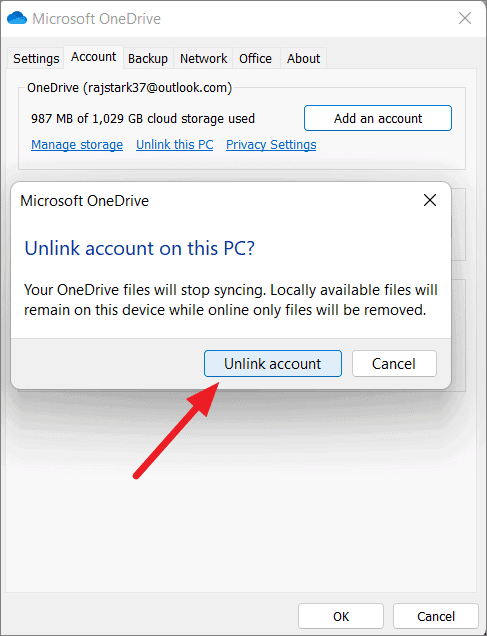
- Click Unlink this PC. Confirm the choice.
- The OneDrive setup screen will appear. Re-enter your email and password. This often clears the OneDrive isn’t connected loop.
Step 2: Clear the Cache via Command Prompt
If the GUI (Graphical User Interface) isn’t responding, we use the command line to force a reset.
- Press
Windows Key + R. - Copy and paste the following command:
%localappdata%\Microsoft\OneDrive\onedrive.exe /reset - Press Enter. The icon will disappear for a minute.
- If it doesn’t reappear, type
%localappdata%\Microsoft\OneDrive\onedrive.exein the Run window to start it manually.
When Sync Fails: Data Recovery with PandaOffice Drecov
What happens if OneDrive isn’t connected and you realize your local “buffer” files—those files that were supposed to upload—have vanished? Or perhaps you accidentally deleted a folder while trying to fix the connection?
In the field of data recovery, we call this “sync-conflict loss.” When the cloud and local drive stop talking, data can fall through the cracks. This is where PandaOffice Drecov becomes your most valuable asset. Unlike standard undelete tools, Drecov is designed to handle complex file systems and fragmented data often found in cloud-synced folders.
Why Choose PandaOffice Drecov?
- Deep Scan Technology: It reaches into sectors of the hard drive that the OS marks as “empty” but still contain your data.
- File Preview: You can see your photos or documents before you commit to the recovery.
- Safe Recovery: It operates in a “read-only” mode, meaning it won’t overwrite other data while searching.
⚠ Warning: Install it on a drive different from the one where your data was lost to prevent overwriting.
Step-by-Step Guide to Recovering OneDrive Files via PandaOffice Drecov
Step 1: Select the Scan Location
Launch the program. You will see a list of drives. Since OneDrive typically lives in C:\Users\[YourUsername]\OneDrive, select the C: Drive.

Step 2: Initiation of the Scan
Click the Scan button. PandaOffice Drecov will perform a “Quick Scan” followed by a “Deep Scan.” For issues related to OneDrive isn’t connected errors, the Deep Scan is essential as it reconstructs file headers that might have been corrupted during the sync failure.

Step 3: Filter and Locate
Once the scan is complete, use the search bar or the file type filters (Documents, Photos, etc.) on the left sidebar. Look specifically for your OneDrive folder structure within the results.

Step 4: Preview and Recover
Double-click a file to preview it. If it looks correct, check the box next to the file and click Recover. Choose a destination folder—ideally on a USB drive—to save your recovered data.
Advanced Fixes for the “OneDrive Isn’t Connected” Persistent Issue
If the basic steps didn’t work and your data is safe thanks to PandaOffice Drecov, we can now look at more aggressive technical fixes to ensure OneDrive isn’t connected doesn’t happen again.
Method 1: Checking Proxy and DNS Settings
OneDrive struggles with manual proxy configurations.
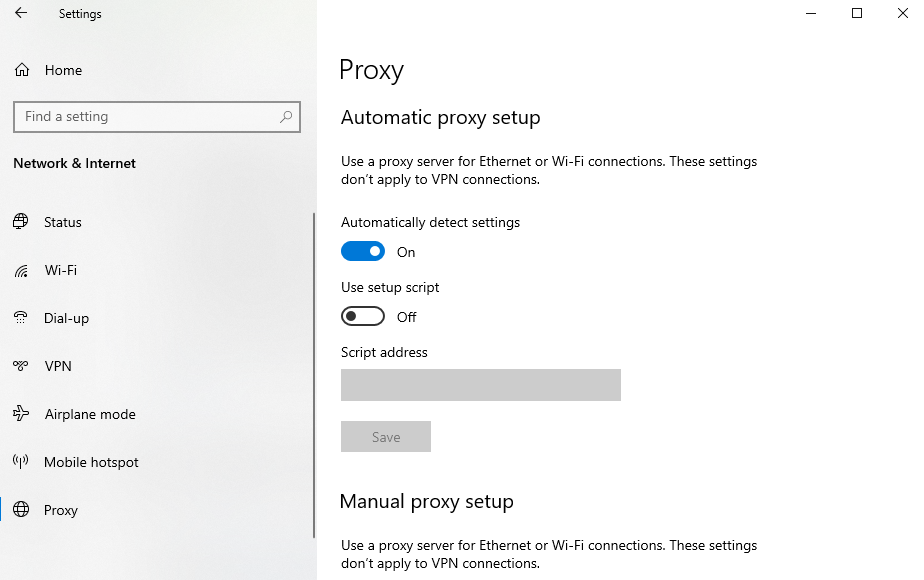
- Open Settings > Network & Internet > Proxy.
- Ensure Automatically detect settings is turned On.
- Turn Use a proxy server to Off.
- Switch your DNS to Google’s Public DNS (
8.8.8.8and8.8.4.4) if your ISP’s DNS is unstable.
Method 2: Registry Editor Adjustment (For Experts Only)
Sometimes the “DisableFileSyncNGSC” key is accidentally set to 1, preventing the connection.
- Press
Win + R, typeregedit, and hit Enter. - Navigate to:
HKEY_LOCAL_MACHINE\Software\Policies\Microsoft\Windows\OneDrive - If you see a key named
DisableFileSyncNGSC, right-click it and set its value to 0. - Warning: Modifying the registry can be risky. Always export a backup of the registry key before changing it.
Preventing Future OneDrive Connection Failures
Maintaining a healthy cloud environment requires proactive care. To avoid seeing OneDrive isn’t connected in the future, follow these “best practice” habits:
- Keep Windows Updated: Microsoft frequently patches OneDrive bugs via Windows Update.
- Monitor Storage Limits: If your OneDrive is 99% full, it often begins to lag or disconnect during handshake protocols.
- Manage Large Files: Syncing files larger than 250GB (the current limit) can cause the entire client to crash or show as “not connected.”
- Check Third-Party Antivirus: Some aggressive firewalls flag OneDrive’s background telemetry as suspicious. Whitelist
OneDrive.exein your security suite.
Additional Resources for OneDrive Mastery
Once you have restored your connection, you might want to learn more about managing your data effectively. A connected OneDrive is powerful, but knowing how to manipulate its features prevents data loss before it starts.
- If you’ve managed to reconnect but find that some files were overwritten by older versions, you should learn how to use OneDrive version history to save your work.
- Sometimes, the best way to fix a persistent connection error during a critical project is to pause the sync. Check out this guide on how to turn off OneDrive sync without losing your files.
- Specifically for those on older builds, technical hitches are common. Read more about resolving OneDrive Windows 10 not syncing to keep your OS and cloud in harmony.
Conclusion
Encountering the message that OneDrive isn’t connected is a nuisance, but it doesn’t have to be a disaster. By methodically checking your network, resetting the application, and ensuring your system settings are optimized, you can restore your workflow in minutes.
However, the most critical takeaway for any professional is the importance of a safety net. Syncing is not the same as a backup. When sync fails, data can be corrupted or deleted across all connected devices. Having a tool like PandaOffice Drecov in your digital toolkit ensures that even when the cloud fails, your local data recovery options remain robust.
Remember:
- Identify the specific error message (We’re having trouble connecting to the OneDrive service vs. OneDrive: There was a problem connecting to OneDrive).
- Try the “Soft Reset” (Unlink PC).
- Try the “Hard Reset” (Command line /reset).
- Use PandaOffice Drecov if any files are missing.
By following this guide, you are no longer at the mercy of connection errors. You are now equipped to troubleshoot, resolve, and recover.






