







In the modern digital landscape, data is more than just files; it is the culmination of our professional achievements and personal memories. Whether you are a student saving a thesis or a business professional managing sensitive client data, understanding how to backup OneDrive is a critical skill. While Microsoft OneDrive is a powerhouse for cloud storage and synchronization, many users mistake “syncing” for a “backup.”
As a data recovery expert, I have seen countless individuals lose access to their accounts due to synchronization errors, accidental deletions, or ransomware attacks. This guide is designed to walk you through the nuances of cloud security, offering practical solutions ranging from built-in Windows features to professional-grade recovery tools like PandaOffice Drecov.
Understanding the Difference: Syncing vs. Backing Up
Before we dive into the technical steps, we must clarify a common misconception. When you use OneDrive, the service creates a “mirror” of your files across devices. If you delete a file on your laptop, OneDrive’s synchronization engine ensures it is deleted from the cloud and your tablet as well.
A true backup, however, is an independent copy of your data stored in a separate location. If the original is lost or corrupted, the backup remains untouched. Learning how to backup OneDrive ensures that even if your cloud account is compromised, your data remains safe.
How to Backup to OneDrive: Setting Up Automatic PC Folder Backup
For most users, the first step in data protection is moving local files into the cloud ecosystem. Microsoft has made it incredibly simple to ensure your most important folders—Desktop, Documents, and Pictures—are constantly uploaded.
Why use this method?
It provides an immediate safety net against hardware failure. If your hard drive crashes tomorrow, these files are already waiting for you in the cloud.
Step-by-Step Implementation
- Step 1: Locate the OneDrive icon (the blue or white cloud) in your Windows Taskbar notification area (bottom right corner). If it isn’t there, type “OneDrive” in the Start menu to launch it.
- Step 2: Right-click the icon and select the Settings gear icon, then click on Settings again from the pop-up menu.
- Step 3: Navigate to the Sync and backup tab on the left-hand sidebar.
- Step 4: Click the Manage backup button. This will open a window showing your main PC folders.
- Step 5: Toggle the switches for Documents, Pictures, and Desktop to the “On” position.
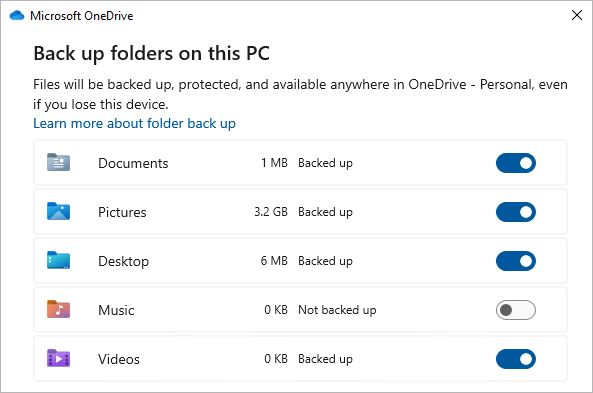
- Step 6: Click Start backup.
Pro Tip: Always check your storage quota at onedrive.live.com before starting. A standard free account only offers 5GB, which can fill up quickly with high-resolution photos.
How to Backup with OneDrive: Using the Version History Feature
One of the most powerful, yet underutilized, tools in the Microsoft arsenal is Version History. This is your first line of defense against accidental edits or unwanted changes. If you are wondering how to backup with OneDrive in a way that protects against human error, this is it.
The Technical Mechanics
OneDrive keeps a record of previous versions of your files for up to 30 days (for personal accounts) or longer for business subscriptions. This allows you to “roll back” time.
Step-by-Step Recovery
- Step 1: Open File Explorer and navigate to the OneDrive folder containing the file you need to revert.
- Step 2: Right-click the specific file and select Version history from the context menu.
- Step 3: A list of dated versions will appear. You can see who modified the file and when.
- Step 4: Click the three vertical dots (ellipsis) next to the version you want.
- Step 5: Choose Restore to overwrite the current version, or Open version to view it first without making changes.
How to Backup Files on OneDrive to an External Hard Drive
Relying solely on the cloud is a “single point of failure” risk. To achieve a “3-2-1” backup strategy (3 copies of data, 2 different media types, 1 offsite), you should learn how to backup files on OneDrive to a physical external drive.
Method 1: The Manual Export
This is best for users with a smaller amount of data who want a quick “snapshot” of their files.
- Step 1: Connect your external hard drive to a USB port.
- Step 2: Open your OneDrive folder in File Explorer (usually found at
C:\Users\[YourUsername]\OneDrive). - Step 3: Press Ctrl + A to select all folders and files.
- Step 4: Right-click and select Copy, or press Ctrl + C.
- Step 5: Navigate to your external drive, create a folder named “OneDrive Backup [Date]”, and press Ctrl + V to paste the files.
Method 2: Using Windows Backup (File History)
For a more automated approach, you can use the built-in Windows File History tool to target your OneDrive folder.
- Step 1: Go to Settings > System > Storage > Advanced storage settings > Backup options.
- Step 2: Select Add a drive and choose your external hard disk.
- Step 3: Click More options and ensure the OneDrive path is included in the “Back up these folders” list.
Backup OneDrive Data: Leveraging Third-Party Cloud-to-Cloud Tools
For power users and businesses, manual copies aren’t enough. You need a system that backups your cloud with another cloud. This ensures that if Microsoft experiences a massive outage or your account is locked, you can still access your work.
The Benefits of Cloud-to-Cloud (C2C) Backup
- Automation: Set it and forget it.
- Encryption: Most C2C providers use AES-256 encryption.
- Independence: Your backup is physically stored in a different data center (e.g., AWS or Google Cloud) than OneDrive.
Recommended Workflow
- Step 1: Choose a reputable provider (like Mover.io, which is owned by Microsoft, or MultCloud).
- Step 2: Authenticate your OneDrive account as the source.
- Step 3: Authenticate your destination (such as Google Drive, Dropbox, or a private FTP server).
- Step 4: Schedule a weekly “Sync” task to backup OneDrive data automatically.
Advanced Data Recovery: When the Backup Fails
Sometimes, despite our best efforts, disasters happen. Maybe you accidentally emptied the OneDrive Recycle Bin, or perhaps a virus encrypted your local files before they could sync. This is where professional data recovery software becomes indispensable.
In my years of experience, PandaOffice Drecov has emerged as one of the most reliable tools for retrieving lost cloud-synced data from local disks.
Introducing PandaOffice Drecov
PandaOffice Drecov is a sophisticated data recovery suite designed to scan your local storage for “traces” of files that have been deleted or corrupted. Because OneDrive stores local cached copies of your files, Drecov can often find these fragments even after the cloud version is gone.
⚠ Warning: Install it on a drive different from the one where your data was lost to prevent overwriting.
How to Recover OneDrive Files Using PandaOffice Drecov
- Step 1: Select the LocationLaunch the application. You will see a list of available drives. Select the drive where your OneDrive folder was mapped (usually the C: Drive).

- Step 2: Deep ScanClick the Scan button. PandaOffice Drecov will perform a Quick Scan followed by a Deep Scan. The Deep Scan is essential for OneDrive recovery as it looks for file signatures rather than just directory entries.

- Step 3: Filter by File TypeOnce the scan is complete, use the sidebar to filter results. You can search for specific extensions like
.docx,.pdf, or.jpgto find your missing documents quickly.

- Step 4: Preview and RecoverDouble-click a file to see a preview. If the file looks intact, select it and click Recover. Choose a save destination that is different from the original source (e.g., a USB stick).
Expert Warning: If you suspect data loss, stop using the computer immediately. Every minute the PC is on, Windows writes temporary files to the disk, which could permanently overwrite your recoverable OneDrive data.
The Hidden Risks: Registry and Sync Errors
Sometimes, you can’t backup your data because OneDrive simply won’t work. One common technical hurdle involves the Windows Registry or corrupted sync paths.
If you encounter the “OneDrive isn’t connected” error or if the app refuses to start, you might need to check the following registry path:
HKEY_CURRENT_USER\Software\Microsoft\OneDrive
Ensure that the UserFolder string accurately points to your current user directory. If you are uncomfortable editing the registry, it is always safer to perform a “Reset” of the OneDrive app.
How to Reset OneDrive for Better Backups
- Step 1: Press Windows Key + R to open the Run dialog.
- Step 2: Paste the following command:
%localappdata%\Microsoft\OneDrive\onedrive.exe /reset - Step 3: If OneDrive doesn’t restart automatically after a few minutes, type
OneDrivein the Start menu to launch it manually.
Expanding Your Data Recovery Knowledge
Learning how to backup OneDrive is just one piece of the digital security puzzle. To truly become a master of your data, you should explore these related scenarios:
- Handling Sync Conflicts: What happens when two versions of a file exist? Understanding how to merge changes prevents data loss during the backup process.
- Turning Off Sync Safely: If you need to stop using the cloud, you must do it correctly to avoid losing local copies. Learn how to turn off OneDrive sync without losing your files.
- Troubleshooting Windows 10 Issues: Older operating systems can sometimes struggle with modern OneDrive updates. Fix OneDrive Windows 10 not syncing issues here.
- Connection Errors: If your internet is fine but the app is offline, you can’t backup. Follow this guide to fix the OneDrive isn’t connected error.
Frequently Asked Questions About OneDrive Backups
1. If I delete a file from my PC, is it also deleted from my OneDrive backup?
Answer: Yes, if you are using the standard synchronization settings. Because OneDrive operates as a mirroring service, any deletion on your local device is instantly synced to the cloud to keep both locations identical. To prevent this, you should either move the file to a folder that is not synced or ensure you have a secondary backup OneDrive data routine involving an external hard drive or a dedicated recovery tool like PandaOffice Drecov.
2. How can I backup OneDrive to another cloud service like Google Drive or Dropbox?
Answer: The most efficient way to do this is by using a Cloud-to-Cloud (C2C) migration tool.
- Step 1: Sign up for a service like Mover.io or MultCloud.
- Step 2: Connect your OneDrive account as the “Source.”
- Step 3: Connect your Google Drive or Dropbox as the “Destination.”
- Step 4: Run a “Transfer” or “Sync” task. This process happens on the server side, meaning you don’t need to keep your computer on while the data moves between clouds.
3. What should I do if my OneDrive backup is stuck on “Processing changes”?
Answer: This is a common sync error often caused by a hidden temporary file or a filename that exceeds the 260-character limit.
- Step 1: Check for files with names containing restricted characters like
<,>,:,",/,\,|,?,*. - Step 2: Ensure no file is larger than the 250GB individual file limit.
- Step 3: If the issue persists, reset the application by running
%localappdata%\Microsoft\OneDrive\onedrive.exe /resetin the Windows Run dialog (Win + R). Knowing how to backup with OneDrive effectively requires keeping the sync engine healthy.
4. Can I backup my OneDrive files if I don’t have enough local disk space?
Answer: Yes, by using the Files On-Demand feature. This allows you to see all your files in File Explorer without them taking up space on your hard drive.
- Step 1: Right-click the OneDrive icon and select Settings.
- Step 2: Under Sync and backup, go to Advanced settings.
- Step 3: Turn on Files On-Demand.
- Note: While this saves space, these files are only “online.” To truly backup files on OneDrive for offline safety, you must right-click important folders and select “Always keep on this device.”
5. Is it possible to recover OneDrive files that were deleted more than 30 days ago?
Answer: Standard OneDrive personal accounts empty the Recycle Bin automatically after 30 days. If you’ve passed this window, your best chance is using PandaOffice Drecov.
- Step 1: Open PandaOffice Drecov and select your primary hard drive.
- Step 2: Run a Deep Scan to search for the local cache of the deleted file.
- Step 3: Use the preview function to verify the file’s integrity before restoring. Professional software can often find data that the operating system no longer recognizes.
Conclusion
Mastering how to backup OneDrive is not a one-time task; it is a habit. By combining the automated “PC Folder Backup” feature with external physical drives and professional recovery tools like PandaOffice Drecov, you create a multi-layered defense system.
Remember, the best time to backup your data was yesterday. The second best time is right now. Don’t wait for a hardware failure or a sync error to realize the value of your files. Implement these steps today, and enjoy the peace of mind that comes with knowing your digital life is secure.






