







Few things are more annoying than opening YouTube, clicking a video you are excited to watch, and being greeted by nothing but a black screen in youtube. The audio may continue playing while the video remains invisible, or the entire player may freeze completely with no playback at all. Whether you are watching tutorials, music videos, gaming streams, podcasts, or movies, a black screen in youtube can instantly ruin the experience.
The good news is that most black screen in youtube problems are temporary and fixable without advanced technical skills. Think of YouTube playback like a movie projector. If even one small component stops working correctly—whether it is the internet connection, browser, graphics settings, or app permissions—the screen can suddenly go dark even though the system itself is still running. This complete guide explains the most common causes of black screen in youtube issues and provides step-by-step solutions for Windows, Mac, Android, iPhone, and smart TVs.
Understanding the Root Causes of Video Playback Errors
YouTube is one of the largest video streaming platforms in the world, serving billions of users across computers, smartphones, smart TVs, and tablets. Because the platform works across so many devices and browsers, a black screen in youtube can happen for many different reasons. Sometimes the problem comes from your browser cache. Other times hardware acceleration, outdated graphics drivers, browser extensions, internet instability, corrupted cookies, or app glitches are responsible.
YouTube relies on several technologies working together simultaneously. If any one of these components fails, you might encounter a black screen in youtube. Identifying the root cause makes troubleshooting much easier. Common culprits include:
- Browser cache corruption: Damaged temporary files prevent the player from loading correctly.
- Slow internet: Incomplete video buffering leads to a dark display.
- Hardware acceleration: Conflicts between your browser and GPU rendering.
- Browser extensions: Ad blockers or privacy tools interfering with scripts.
- Outdated graphics drivers: Video rendering failure at the system level.
Fixing YouTube Black Screen with Sound
One particularly strange issue happens when the audio works perfectly, but the video remains entirely dark. This specific youtube black screen with sound usually points toward a rendering conflict rather than a network problem. Since the audio data is arriving, the browser is struggling to “paint” the visual frames onto your screen.
Solution 1: Disable Hardware Acceleration
Hardware acceleration uses your graphics card (GPU) to improve video playback. However, if the driver is incompatible, it results in a youtube black screen with sound.
- Step 1: Open your browser (e.g., Google Chrome) and click the three vertical dots in the top-right corner to enter Settings.
- Step 2: On the left sidebar, click on System.
- Step 3: Locate the toggle for “Use hardware acceleration when available” and turn it off.
- Step 4: Click the Relaunch button to apply the changes and check if the black screen in youtube is resolved.
Solution 2: Update Graphics Drivers
If the GPU cannot communicate with the browser, you will see a black screen in youtube.
- Step 1: Right-click the Start button and select Device Manager.
- Step 2: Expand the Display adapters section.
- Step 3: Right-click your graphics card (e.g., NVIDIA, AMD, or Intel) and select Update driver.
- Step 4: Choose Search automatically for drivers and follow the prompts.
Clear YouTube Cache and Cookies for Black Screen
Browsers store temporary data to load websites faster. Unfortunately, when these files become “stale” or corrupted, they cause the black screen in youtube. To ensure a fresh connection to the YouTube servers, you must clear youtube cache and cookies for black screen issues.
How to Perform a Deep Clean in Chrome
- Step 1: While in Chrome, press the hotkey
Ctrl + Shift + Deleteon your keyboard to open the Clear browsing data menu. - Step 2: Set the Time range to All time to ensure every corrupted file is removed.
- Step 3: Check the boxes for Cookies and other site data and Cached images and files.
- Step 4: Click Clear data. Note that you will need to log back into your Google account after this step.
- Step 5: Visit the YouTube Official Site to verify if the videos now load correctly.
Using Incognito Mode to Test
If you don’t want to clear all your data yet, try opening YouTube in Incognito Mode (Ctrl + Shift + N). Because this mode ignores existing cookies, it is a great way to confirm that a clear youtube cache and cookies for black screen procedure is indeed what you need.
Recover Lost Data After Computer Freeze While Watching YouTube
Sometimes, a black screen in youtube is so severe that it causes your entire Windows operating system to hang or crash (Blue Screen of Death). If you were working on important documents or downloading files when the system froze, you might suffer from data loss. In these scenarios, you need to recover lost data after computer freeze while watching youtube.
When a system crashes due to a video rendering error, the file directory can become corrupted. To safely retrieve your files, we recommend using professional tools.
Step-by-Step Recovery with PandaOffice Drecov
PandaOffice Drecov data recovery software is a powerful utility designed to scan deep into your hard drive sectors to find files that disappeared after a system freeze or sudden shutdown.
⚠ Warning: Install it on a drive different from the one where your data was lost to prevent overwriting.
- Step 1: Select the Location: Launch the software. On the main interface, select the drive (usually C: or D:) where your missing files were stored before the black screen in youtube caused the crash.

- Step 2: Scan for Files: Click the Scan button. PandaOffice Drecov will perform a Quick Scan followed by a Deep Scan to locate every recoverable fragment of data.

- Step 3: Preview and Filter: Once the scan is complete, browse through the results. You can filter by file type (e.g., .docx, .jpg, .mp4).
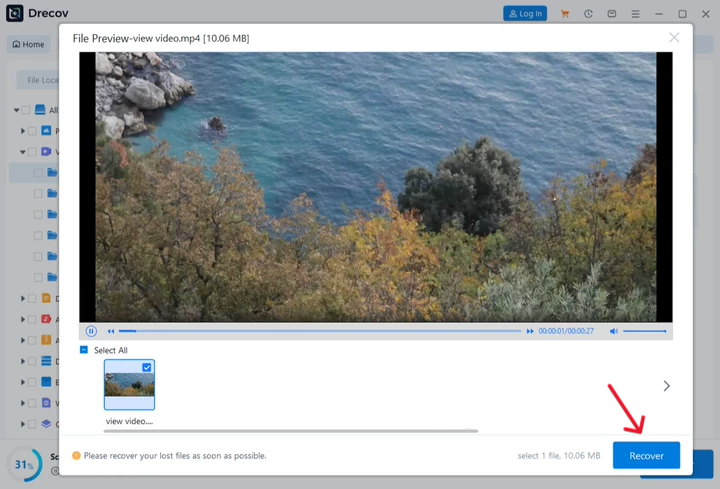
- Step 4: Recover: Select the files you need and click Recover. Choose a safe destination, such as an external USB drive, to save the recovered data.
Warning: Never save recovered files back to the same partition where they were lost, as this can lead to permanent data destruction.
Recover Downloaded YouTube Videos from Cache After Error
Many users utilize premium features or third-party tools to save videos for offline viewing. If a black screen in youtube occurs during a download or while accessing your offline library, the files might become inaccessible or “disappear” from the temporary storage folder. You can recover downloaded youtube videos from cache after error using advanced recovery techniques.
Locating the Cache Path
YouTube desktop browser cache is typically buried deep in the AppData folder. For Chrome users, the path is usually:
C:\Users\[YourUsername]\AppData\Local\Google\Chrome\User Data\Default\Cache
Using PandaOffice Drecov for Video Retrieval
If the manual search fails, PandaOffice Drecov data recovery software can identify video fragments (like .tmp or .m4v files) that were cached during the session.
- Step 1: Open PandaOffice Drecov and select the “Video Recovery” or “Specific Folder” option.
- Step 2: Target the browser’s installation directory.
- Step 3: Use the Filter tool to look specifically for large file sizes, which usually indicate video content.
- Step 4: Select the identified video files and hit Recover.
After you have successfully secured your files, you may find these resources helpful for future system maintenance:
- Learn where browser data is kept to better manage your backups.
- Create a Windows 10 recovery disk to handle future system freezes.
- Setup a recovery partition for a quick way to restore your OS if YouTube errors persist.
Always keep your software updated. Google frequently releases patches for the Chrome Browser to address streaming bugs, and Microsoft provides regular updates for Windows Media components via Windows Update.
Advanced Troubleshooting for Persistent Black Screens
If the standard methods do not resolve the black screen in youtube, the problem might reside within your network configuration or the YouTube app itself.
Flush DNS Settings
Network “clutter” can prevent the video player from connecting to the correct content delivery network (CDN).
- Step 1: Type
cmdin the Windows search bar, right-click Command Prompt, and select Run as Administrator. - Step 2: Type the following command exactly:
ipconfig /flushdnsand press Enter. - Step 3: You should see a message stating “Successfully flushed the DNS Resolver Cache.” Restart your browser and try the black screen in youtube fix again.
Resetting the YouTube App (Mobile Devices)
On Android or iPhone, a black screen in youtube is often caused by a bloated app cache.
- Step 1: Go to your phone’s Settings > Apps > YouTube.
- Step 2: Tap on Storage.
- Step 3: Select Clear Cache. If the issue persists, select Clear Data (this will reset your app settings).
PandaOffice Drecov Data Recovery Software: Your Safety Net
Throughout this guide, we have emphasized that technical glitches like a black screen in youtube are often symptoms of deeper software conflicts. When these conflicts lead to system instability, PandaOffice Drecov data recovery software serves as the ultimate safety net.
Whether you need to recover lost data after computer freeze while watching youtube or you accidentally deleted your downloaded video library while trying to clear youtube cache and cookies for black screen issues, this software provides a user-friendly way to get your digital life back.
Why Choose PandaOffice Drecov?
- High Success Rate: Advanced algorithms reconstruct fragmented files.
- Versatility: It supports over 1,000 file formats, including videos, documents, and emails.
- Safety: It performs a read-only scan, ensuring your existing data remains untouched.
Conclusion
Dealing with a black screen in youtube requires a methodical approach. Start by checking the simplest factors—your internet connection and browser extensions. If you experience a youtube black screen with sound, focus your attention on hardware acceleration and graphics drivers. For those who encounter crashes, remember that you can recover downloaded youtube videos from cache after error with the right tools.
By following the steps outlined in this guide, you can eliminate the black screen in youtube and ensure your computer remains a reliable portal for entertainment and information. Whether the fix is as simple as a cache clear or as involved as using PandaOffice Drecov data recovery software, you now have the expertise to handle any YouTube playback emergency.





