






To fix a corrupted PDF, preserve the file before trying to change it. Copy it to a healthy location and check whether the source can provide a clean download or earlier version. A file that fails in one browser may be fine in another reader; a zero-byte PDF has no document content in that copy. If several viewers reject the same normal-sized file, the document itself may be damaged. Work on duplicates, not the only original, and decide whether you need a complete PDF or simply readable information from it.
Confirm the damage before attempting repair
Start with the exact symptom. Does the file refuse to open, display only some pages, show blank sections, or stop at a particular page? Note its size and where it came from. Open another trusted PDF in the same viewer. If that second file also fails, the application or browser may be the problem. Try the suspect file in a current, trusted reader on a healthy computer. Do not upload a confidential document to a random web tool just to perform this check.
A file with a .pdf extension is not automatically a valid PDF. An incomplete download, interrupted transfer, or incorrect attachment may leave a short or zero-byte file. Compare the size with the sender’s original or another copy. If you can download it again from a trusted source, do that to a new folder and test the fresh copy. Keep the failed download until you know the replacement contains the same pages; the source may have changed.
If the PDF lives on a USB drive that repeatedly disconnects, address the device state before testing many readers. Copy readable files to another healthy device, and stop repeated direct reads if the drive clicks or reports severe errors. The document may be fine while the storage fails to supply all its bytes. A file-repair attempt cannot fix a physical drive. For a viewer-only issue, the separate PDF not working checklist covers that diagnostic path in more detail.
Find a known-good source rather than rebuilding bytes
Ask where the document originated. A sender may still have the source PDF. A website may allow a fresh download. Your email may contain the same attachment in an older message, or a cloud service may retain a previous version. Search for the document under another filename, especially if an application exported it more than once. A clean source is usually preferable to trying to reconstruct a damaged file.
In Windows, check available previous versions or a backup of the folder. Restore a candidate to another location instead of overwriting the damaged copy. Open several pages and verify that the version is the one you need. An old invoice or contract can be valid but outdated. Compare dates and any identifying details before treating it as the replacement. Keep the damaged copy until you are sure no unique annotations or pages remain in it.
Adobe’s guidance on damaged PDFs similarly points to earlier versions and extracting content where possible, while noting that repair has limits. That distinction matters: saving some text is not the same as restoring the original layout, signatures, forms, or embedded objects. Define success for your document. A family photo album may require full images; a reference paper may be useful even when only the text survives.
Salvage readable content from a copy
If no intact source exists, make a duplicate and test whether a trusted PDF application can open part of it. If some pages display, export or save a separate copy of the accessible pages where the application supports it. Check the output carefully: page order, pictures, tables, and annotations may change. Do not assume that a successful save repaired the invisible parts. Retain the damaged original for a later attempt or professional assessment if the missing material is important.
When text is the priority, try selecting and copying the readable passages or exporting to another format through a trusted local application. A converted document may lose page layout, image position, forms, signatures, and embedded attachments. Do not use an online converter for confidential financial, legal, medical, or business records unless you understand and accept its data handling. A local export of a duplicate is easier to control.
For a PDF that opens but fails while saving annotations, remove the problematic operation from your test. Open the unannotated original if one exists, then export a new copy. If the document contains digital signatures, any change may invalidate their verification. In that case, obtain a clean signed copy from the sender rather than presenting an edited file as equivalent. The goal is trustworthy content, not merely a file that opens without an error message.
Know when the problem is a missing file instead
A repair tool needs a file to inspect. If the intact PDF was accidentally deleted and only a broken copy remains, search for the missing clean version. Check the Recycle Bin, backups, email attachments, and cloud history first. The PDF recovery overview addresses lost documents, while this article focuses on a file whose bytes appear damaged. Do not confuse these two tasks just because both end with “I cannot read my PDF.”
If a local copy disappeared from a Windows drive, stop new writes to that source. Avoid installing tools there or saving converted output on it. A stable drive may still hold data from the deleted copy, but subsequent activity can reuse the space. An unstable drive that clicks, disappears, or shows a wrong capacity needs an imaging or specialist path rather than repeated direct scans. A routine software search cannot repair that hardware.
Drecov is Windows data-recovery software that can look for a missing intact PDF on a stable, recognized PC drive or external device. Quick Scan, Deep Scan, filters, and preview help locate candidates before saving them to another healthy destination. Lost Partition Recovery can search data in a disappeared partition; it is not a PDF-byte repair or partition-table fix. Drecov does not turn the damaged copy into a perfect file, nor can it restore fully overwritten data. Its role here is finding a separate older or deleted local PDF.
⚠ Warning: Install it on a drive different from the one where your data was lost to prevent overwriting.
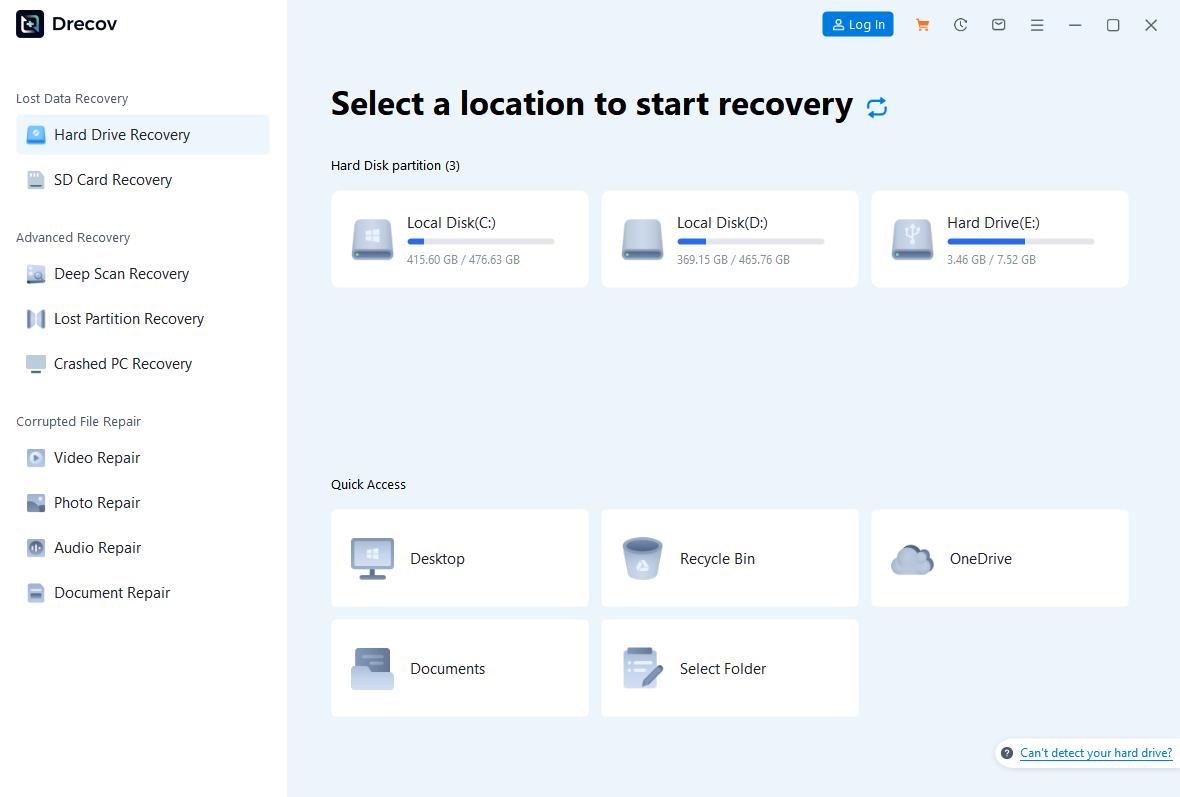
Step 1: select the location of the missing clean copy
Open Drecov and choose the original drive or partition where the intact PDF last existed. Confirm whether it was on the PC, a USB drive, or an external disk. Prepare another healthy device to receive results. Do not install the software on the affected partition. If the source repeatedly disconnects or has serious read errors, stop instead of scanning it directly.
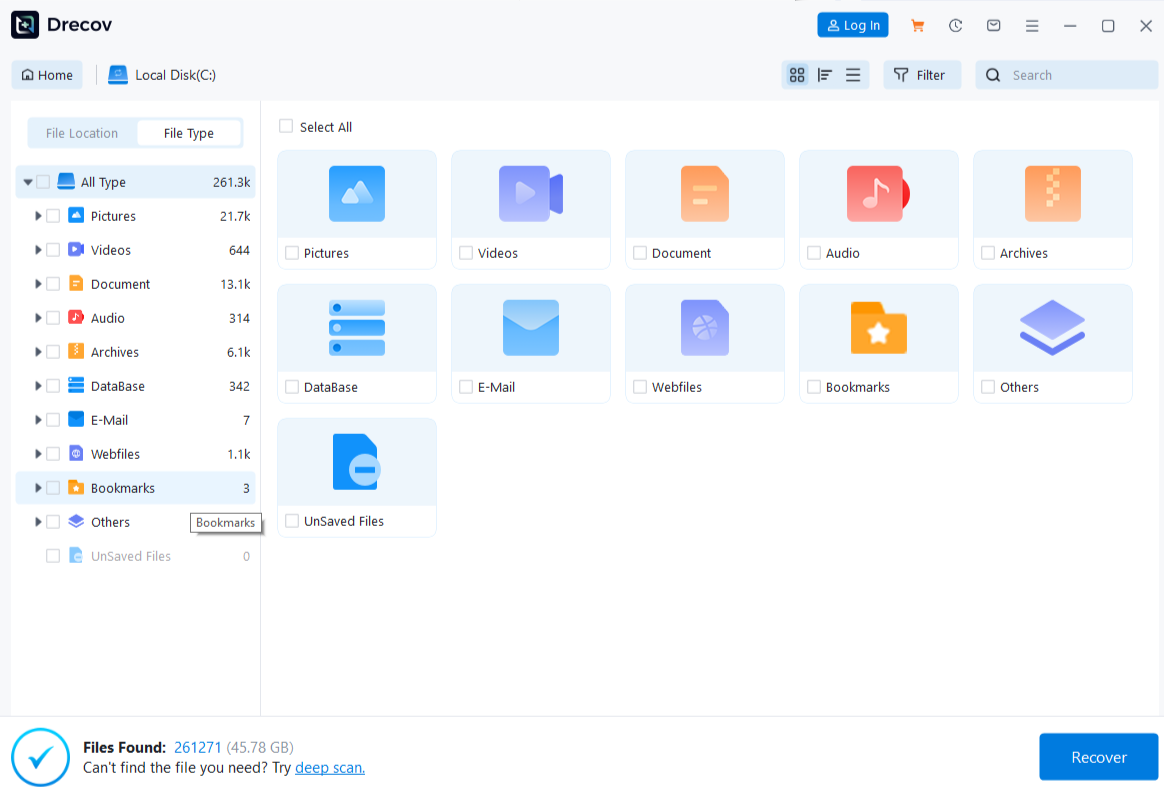
Step 2: search for the right document
Run Quick Scan first. If the needed PDF is absent and the source stays stable, use Deep Scan. Filter by document type, filename, or former folder. Preview several plausible results, but remember that one displayed page does not prove the rest is complete. Compare page counts, dates, and identifying text with what you know about the original.
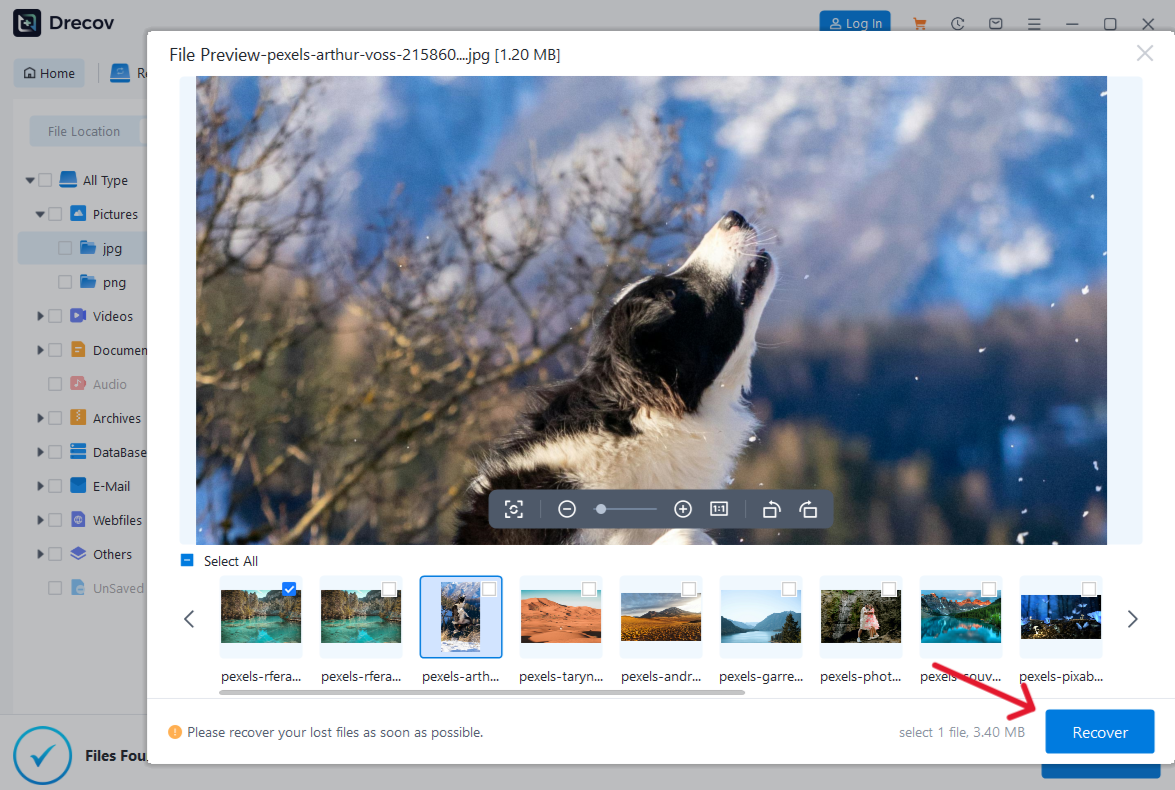
Step 3: save the candidate away from the source
Recover selected PDFs to the separate healthy device, not the original drive. If output is not in the expected folder, check Drecov Folder or Recovery Folder on that destination. Open the recovered PDF in a trusted reader and inspect the first, middle, and last pages plus any critical forms or images. Only after verification should you decide whether to repair, format, or replace storage. For broader local-file loss, see the file recovery guide.
⚠ Warning: Install it on a drive different from the one where your data was lost to prevent overwriting.
What to do if nothing fully opens
List which copies and sources you have checked. Include the sender, website, backup dates, cloud history, and local devices. Record whether the damaged file has a plausible size and whether any pages remain readable. This prevents you from repeating the same failed test. If the document is legally or financially important, an incomplete extraction may not be an acceptable substitute for the original. Ask the issuer for a new authoritative copy.
Do not assume that an automated repair result is trustworthy just because it creates a new .pdf file. Check page count, order, text, images, and any fields you rely on. If only some content survives, label the result as partial and keep the original separate. A partially readable file can still help you reconstruct the information, but it should not silently replace an official record.
After you secure what you can, investigate the cause. Repeatedly truncated downloads suggest a transfer or source issue. Multiple damaged files on one drive suggest a storage problem. A single PDF that fails in one app but works elsewhere points to the viewer. The prevention step should match that cause: use a reliable source, preserve versioned copies, or replace failing storage rather than installing another repair application by default.
FAQs
Can every corrupted PDF be repaired?
No. Some files lack bytes needed to rebuild pages or objects. A clean source or earlier version often gives a better result than modifying the damaged copy. Keep expectations tied to what you can actually open and verify.
Why does a PDF open on one computer but not another?
The reader, version, security settings, or transfer copy may differ. Test the exact same file in another trusted reader and compare its size. If it opens elsewhere, troubleshoot the viewer before treating the document as corrupted.
Is a zero-byte PDF repairable?
That copy contains no document data. Look for another download, attachment, previous version, or backup. Repair software cannot extract pages from an empty file.
Should I upload a confidential PDF to an online repair site?
Not by default. The document may contain private or regulated information. Prefer a clean source, local trusted application, or your organization’s approved process. Understand the service’s handling of uploaded files before sharing anything sensitive.
Can data recovery fix the PDF’s internal damage?
It searches for a different local copy that may still be intact. It does not reconstruct damaged pages inside the broken file. Verify any recovered candidate in a trusted viewer before relying on it.
Conclusion
To fix a corrupted PDF, first prove that the file itself is damaged and preserve the original. A fresh source or older version is usually the safest route; extraction from a copy may salvage only part of the content. If an intact local PDF was deleted, protect its source drive before a scan. On stable Windows storage, Drecov can search for that missing copy, preview candidates, and recover one to another device. The result is useful only after you inspect the pages and confirm that the document is the version you need.
⚠ Warning: Install it on a drive different from the one where your data was lost to prevent overwriting.