






Yes, Dropbox may keep deleted files for a limited period, but the window depends on your plan and account policies. Sign in to the correct account and open Deleted files before trying a Windows recovery scan. If the file still exists but you need yesterday’s contents, check version history instead. A permanently deleted item or one outside the available window is a different case. The quickest useful move is to identify the file, its former folder, and roughly when it disappeared.
The recovery clock belongs to your account
Dropbox’s published help currently lists standard deleted-file windows of 30 days for Basic, Plus, and Family accounts; 180 days for Professional, Essentials, Standard, and Business; and 365 days for Advanced, Business Plus, Enterprise, and Education. Add-ons and organizational policies can change the practical window. These figures are not a promise about a particular item. Verify your plan, the date of deletion, and any team retention policy before relying on a number you saw in an older article.
The clock usually matters because Deleted files is a cloud-side holding area. It is not the same as the Recycle Bin on one PC. An item removed from a synced folder may disappear from connected devices, yet remain restorable through the account for a while. Conversely, an item that was never successfully uploaded may not appear on the website at all. Distinguish these situations before deciding that Dropbox has lost your data.
The current Dropbox recovery instructions also note that certain data-disposition policies can remove files earlier. If this is a work or school account, an administrator may control retention or have access to team-specific filters. Ask about those settings rather than assuming a personal plan’s window applies. Save the file name, approximate deletion date, and folder path before contacting support or an administrator.
Use the right place for the right kind of loss
The whole file was deleted
On dropbox.com, sign in to the account that owned the file. Select Deleted files in the left sidebar, locate the item, and choose Restore while it remains within the available period. Dropbox normally returns it to the folder from which it was deleted. Check that folder after restoration; a large set may take time to finish. If you cannot see it immediately, look for restoration status rather than repeating the same action several times.
The file exists, but its contents changed
Use version history instead of Deleted files. This applies when a document was overwritten, edited incorrectly, or saved without important content. Open the existing file’s history and inspect dated versions. Download or restore the right one according to the account’s available history. Avoid replacing the current version until you have checked which draft contains the work you need. A readable older copy may still lack the latest edits.
Check whether you still have access to that folder. A change in sharing permissions can look like deletion. Dropbox says members with Can edit access may be able to restore a deleted shared item; view-only members need help from an owner or someone with suitable rights. Ask the folder owner whether the file was moved, unshared, or actually deleted. Do not make a fresh folder with the same name and assume that it reconnects the old shared history.
When Deleted files shows nothing
Start with the least dramatic explanation: you may be in the wrong account. Many people have separate personal and work sign-ins. Check the email address shown by Dropbox and repeat the search in the account that held the original folder. Next, clear restrictive filters in Deleted files and search for part of the name. If an item was renamed, its last known name may differ from the one you remember.
Look at recent activity for a move, rename, or change to the shared folder. A file can be present under a new path while its old shortcut fails. The desktop application may also show a sync problem, meaning a local edit never reached the website. Compare the website and the local folder rather than assuming they are identical. If your account is managed by a team, ask an administrator to check the relevant member and policy filters.
Dropbox states that a permanently deleted file cannot be recovered through the normal service, and its support cannot restore files that were permanently deleted or fell outside available history. That limitation concerns Dropbox’s cloud-side copy. It does not prove that no separate copy exists in an email, device backup, or another person’s folder. Search those places without making new writes to a Windows drive that might still hold a locally deleted copy.
For the full interface walkthrough, see our existing guide to recover deleted Dropbox files. This page concentrates on how long the opportunity lasts, which account controls it, and why an item may not appear. Keeping those questions separate makes it easier to decide whether to restore from Dropbox or investigate another source.
What a synced Windows copy changes
Suppose a document existed in a local Dropbox folder on your Windows PC, then disappeared there and from the website. First check the account’s Deleted files and version history. If neither helps, determine whether the PC ever stored the complete file locally. A placeholder for an online-only item is not the same as a full local copy. A scan of the PC cannot retrieve bytes that never lived on its storage.
If a real local copy was deleted, stop unnecessary activity on its original drive. Avoid installing tools there or downloading replacements into that folder. Check the Windows Recycle Bin and any separate backup. The Recycle Bin recovery path applies to a local deletion, not to a file held only by Dropbox’s servers. Keep the cloud and local timelines distinct: restoring from Dropbox may be possible even when the PC’s deleted sectors are gone.
A clicking or repeatedly disconnecting drive needs special care. Do not keep scanning it directly because the account’s retention window is running out. Use the cloud-side options from another healthy device, then consider suitable imaging or professional help for the unstable hardware. On a stable drive, a cautious local search may be useful when the cloud-side copy is unavailable and a complete local file once existed.
Drecov for a missing local copy, not a cloud account
Drecov is Windows data-recovery software that can search a stable PC drive for locally lost files. Quick Scan, Deep Scan, filters, and preview help identify candidates before recovering to another healthy device. Lost Partition Recovery is available if the local source partition itself disappeared, but it does not repair the partition table. Drecov cannot access Dropbox’s servers, extend account retention, undo a permanent cloud deletion, or replace a missing online-only file that never had a complete local copy.
⚠ Warning: Install it on a drive different from the one where your data was lost to prevent overwriting.
Step 1: identify the last full local location
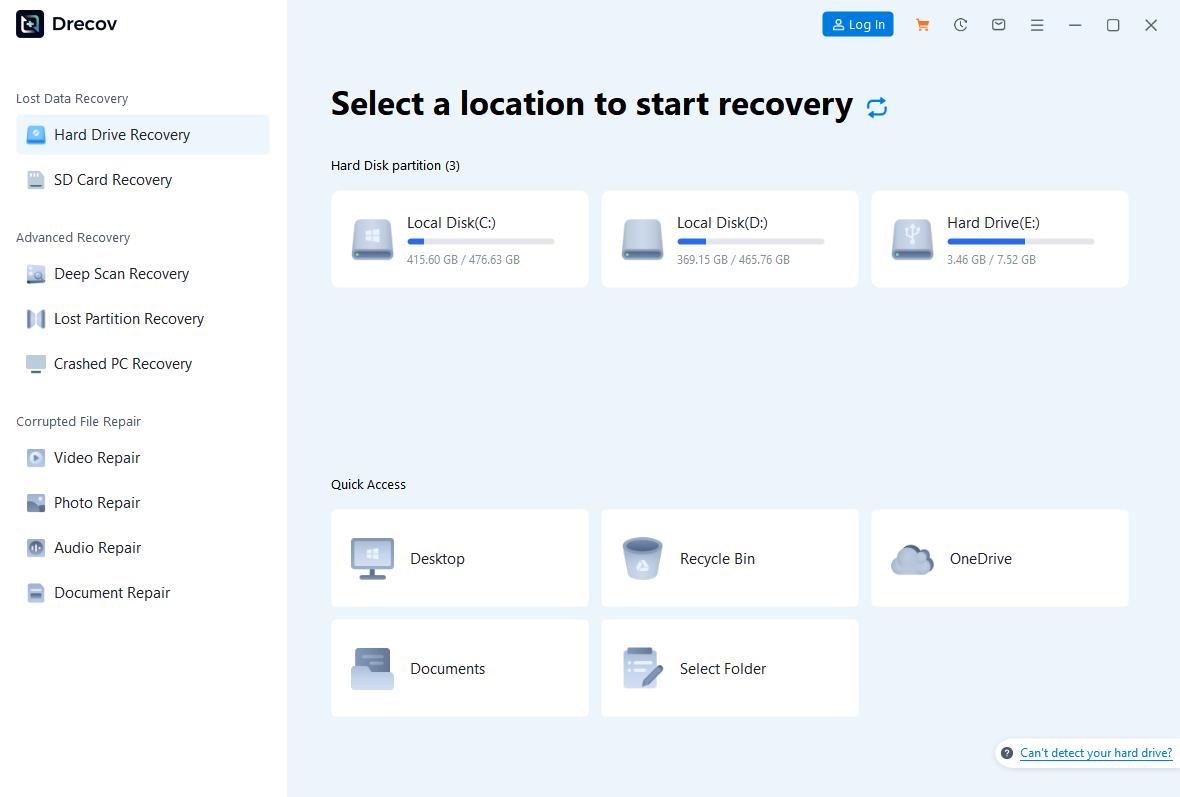
Open Drecov and choose the drive or partition that stored the full synced copy before it was lost. Confirm the Windows account and former Dropbox folder so you do not scan an unrelated volume. Prepare a different healthy drive for results. If installation is necessary, keep it off the affected partition. Stop direct scanning if the original device disconnects or reports severe read errors.
Step 2: search for the version you actually need
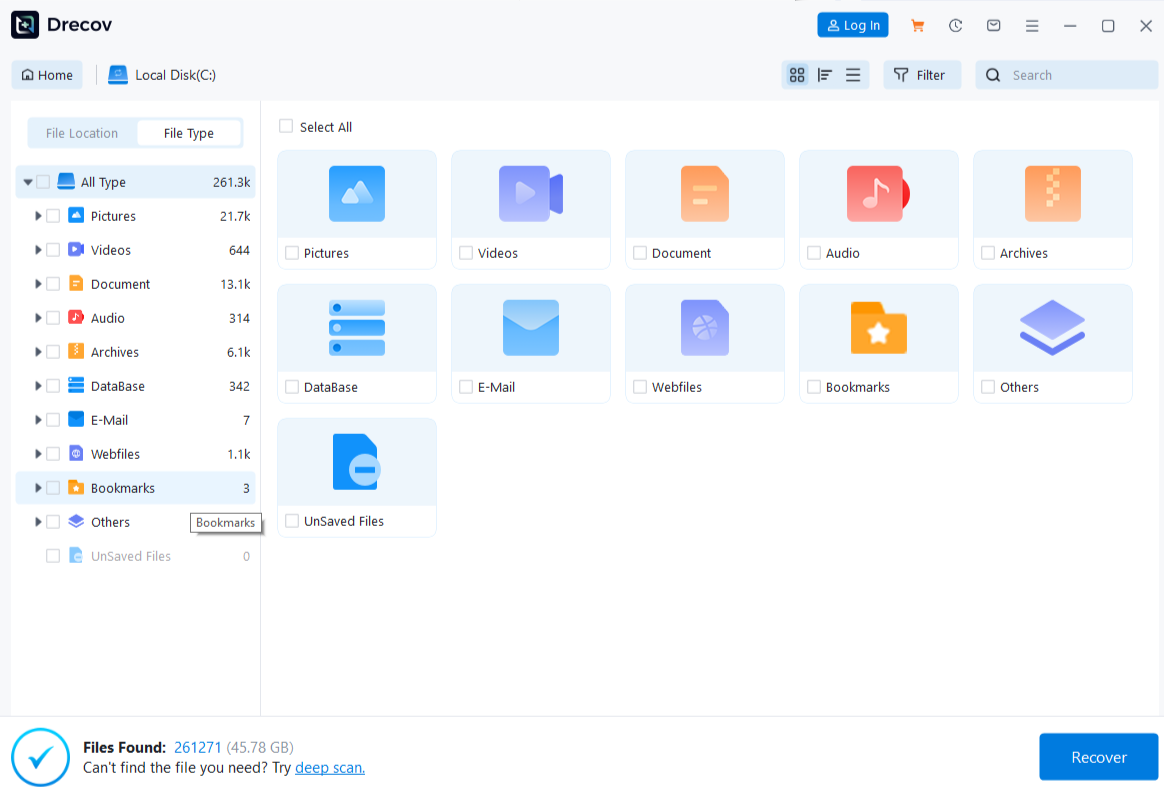
Run Quick Scan first. If it misses the file and the drive remains stable, run Deep Scan. Narrow results by filename, document type, or former path. Preview several plausible candidates. A preview can show that one sample opens, but it cannot prove that every page or embedded object survived. Compare dates and contents so that an old synced version is not mistaken for the most recent work.
Step 3: recover outside the sync folder
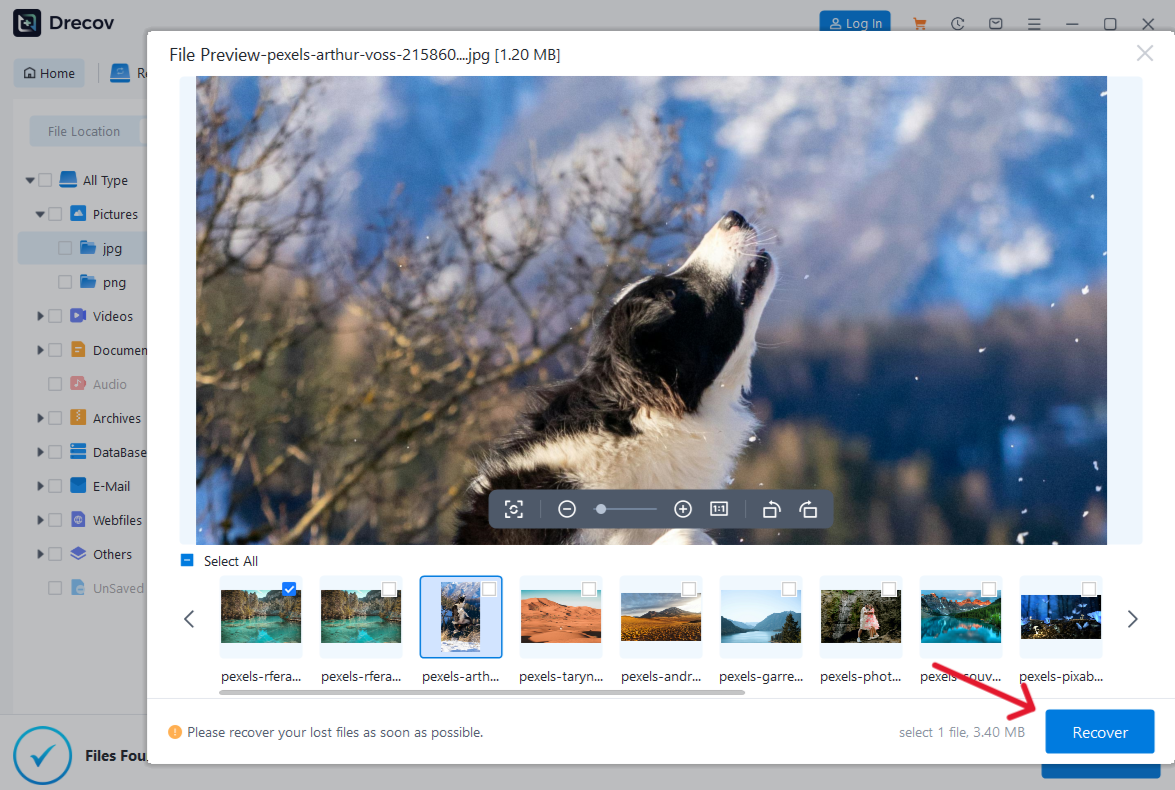
Save selected files to the separate healthy drive, not the source or the live Dropbox folder. If the files are not in the expected output path, check Drecov Folder or Recovery Folder on the selected destination. Open and verify them before moving anything back into a synchronized folder. Otherwise, an incorrect or incomplete version might propagate to other devices. For other locally missing files, consult the broader file recovery overview.
⚠ Warning: Install it on a drive different from the one where your data was lost to prevent overwriting.
FAQs
Does Dropbox keep deleted files forever?
No. The standard period depends on the account plan and may be affected by organizational policy. Check the current Dropbox help and your own account settings. Act promptly if the file is important; a plan change later should not be treated as a way to recreate an expired copy.
Is version history the same as Deleted files?
No. Deleted files handles items removed from the account within the applicable window. Version history helps when the file still exists but an earlier state is needed. Use the one that matches what happened to the item.
It depends on permissions. A member with editing access may be able to restore it, while someone with view-only access generally needs the owner or another authorized editor. Ask about access changes before assuming the file itself was erased.
What if the file was permanently deleted?
Dropbox’s normal restoration cannot bring it back. Look for genuinely independent copies, such as an attachment, backup, or full local synced file that once existed on a PC. A local scan is relevant only to that last type of copy.
Will restoring the cloud file overwrite my current local work?
Sync can affect connected devices. Before restoring or replacing a version, save any newer local work under a distinct name in a separate location. After Dropbox finishes, compare both versions and keep the one with the content you need.
Conclusion
Dropbox may keep deleted files for a plan-dependent period, so check Deleted files in the right account while the window is open. Use version history for an overwritten file and ask an authorized owner about shared-folder changes. If the service cannot restore the item but a complete local Windows copy was deleted, protect that drive before scanning. On stable storage, Drecov can search the former local location, preview candidates, and save a verified copy to another device; it cannot change Dropbox’s cloud retention rules.
⚠ Warning: Install it on a drive different from the one where your data was lost to prevent overwriting.