







Understanding Sandisk SD Card Data Loss Before Using Recovery Software
What recover files from sandisk sd card means in real situations (Test Environment: Windows 11 + 128GB Sandisk Extreme SD Card)
When users try to recover files from sandisk sd card, they are usually facing scenarios like accidental deletion, formatting, corruption, or unreadable storage errors. In a Windows 11 test environment using a 128GB Sandisk Extreme SD card from a DSLR camera, files were intentionally deleted and formatted to simulate real recovery conditions.
Unlike normal file restoration, sd memory card recovery software works by scanning raw storage sectors instead of relying on visible file systems. This is why deleted files can still be recovered even when the card appears empty.
⚠️Warning: Do not save new files to the SD card after data loss.
Method 1: Recuva – Free Basic Sandisk Recovery Software
Test Environment: Windows 10 + 32GB Sandisk MicroSD Card (Mobile Photos)
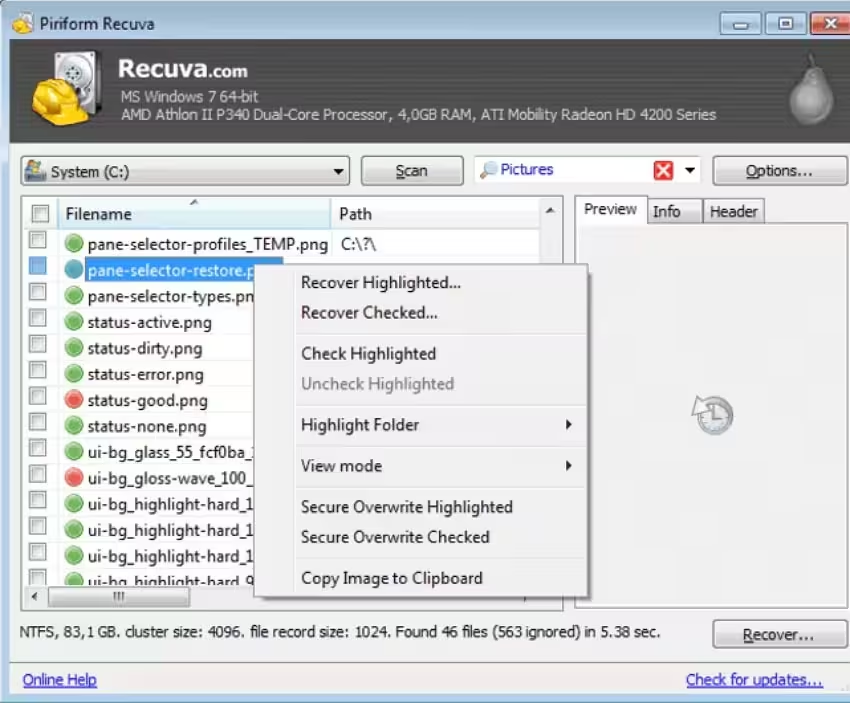
Recuva is a lightweight tool used for basic how to recover files from sandisk sd card scenarios, especially for recently deleted files.
Step-by-step process:
- Install Recuva on Windows PC
- Insert Sandisk SD or microSD card
- Launch Recuva software
- Choose file type (Photos, Videos, All Files)
- Select SD card drive
- Start Quick Scan
- Wait for scan completion
- Preview recoverable files
- Select files to restore
- Save files to another drive
Advantages:
- Very easy to use for beginners
- Fast quick scan performance
- Good for recently deleted files
- Lightweight and free
Disadvantages:
- Weak deep scan capability
- Poor performance on formatted or corrupted cards
- Limited recovery success rate for advanced cases
Method 2: Disk Drill – Advanced Sandisk Recovery Tool
Test Environment: Windows 11 + 64GB Sandisk SD Card (DSLR Camera Storage)
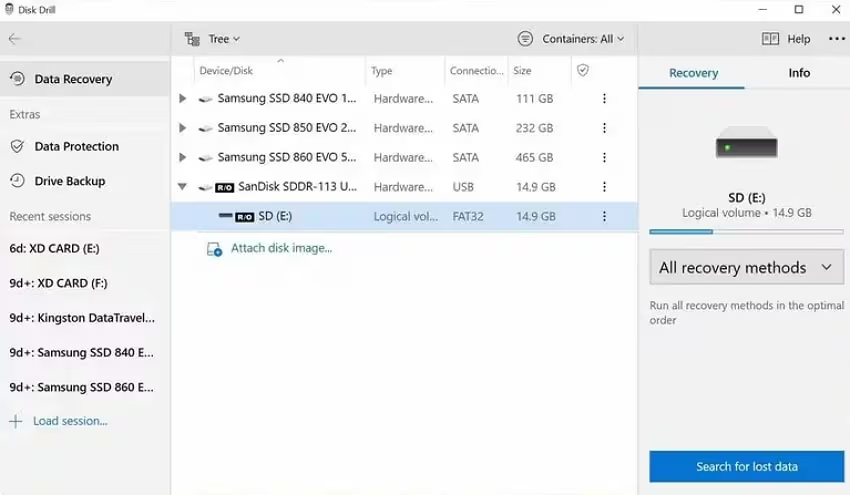
Disk Drill is a powerful sandisk sd card recovery tool designed for deeper recovery scenarios.
Step-by-step process:
- Install Disk Drill
- Insert Sandisk SD card
- Open software
- Select memory card device
- Click “Search for lost data”
- Wait for scan completion
- Filter file types
- Preview recovered files
- Select files to recover
- Save to external drive
Advantages:
- Strong deep scan engine
- Supports 400+ file formats
- Works on deleted + formatted cards
- High recovery success rate
Disadvantages:
- Deep scan takes longer
- Some features require paid version
- Can be heavy on system resources
Method 3: EaseUS Data Recovery Wizard – Professional Recovery Software
Test Environment: Windows 10 + 128GB Sandisk SD Card (Drone Video Files)
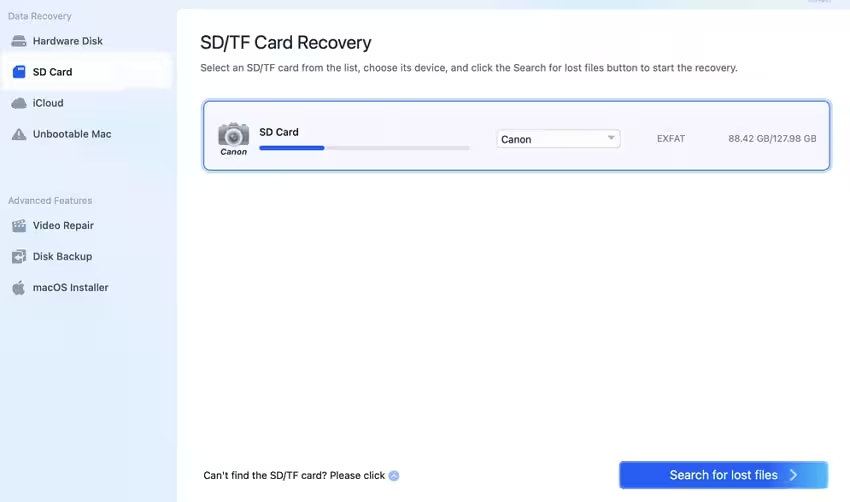
EaseUS is widely used for how to recover deleted photos from sandisk sd card and large video recovery.
Step-by-step process:
- Install EaseUS Data Recovery Wizard
- Insert SD card
- Launch software
- Select external device section
- Click Scan
- Wait for quick + deep scan
- Browse file list
- Preview photos/videos
- Select files
- Recover to safe drive
Advantages:
- Excellent for photo and video recovery
- Strong deep scan capability
- Supports formatted SD cards
- Easy UI for beginners
Disadvantages:
- Free version limited recovery size
- Deep scan slower on large cards
- Paid version needed for full recovery
Method 4: PhotoRec – Advanced Open Source Recovery Tool
Test Environment: Linux Boot + 64GB Corrupted Sandisk SD Card
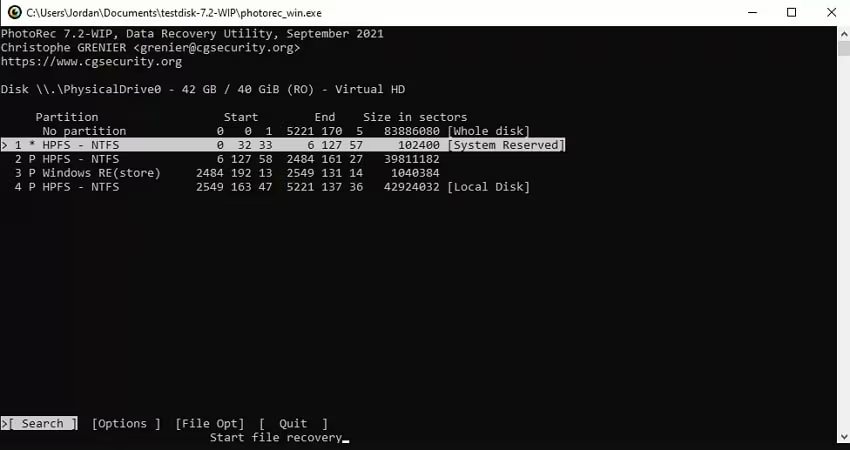
PhotoRec is a powerful micro sd memory card recovery software used in severe corruption cases.
Step-by-step process:
- Download PhotoRec package
- Run PhotoRec application
- Select SD card device
- Choose partition type
- Select file formats
- Set recovery destination
- Start recovery process
- Wait for deep scan
- Check output folder
- Manually organize files
Advantages:
- Completely free
- Very powerful deep recovery
- Works even on corrupted cards
- Cross-platform support
Disadvantages:
- No preview function
- File names lost after recovery
- Command-line complexity
Method 5: Stellar Data Recovery – High Success Rate Professional Tool
Test Environment: Windows 11 + 256GB Sandisk SD Card (Professional Camera Workflow)
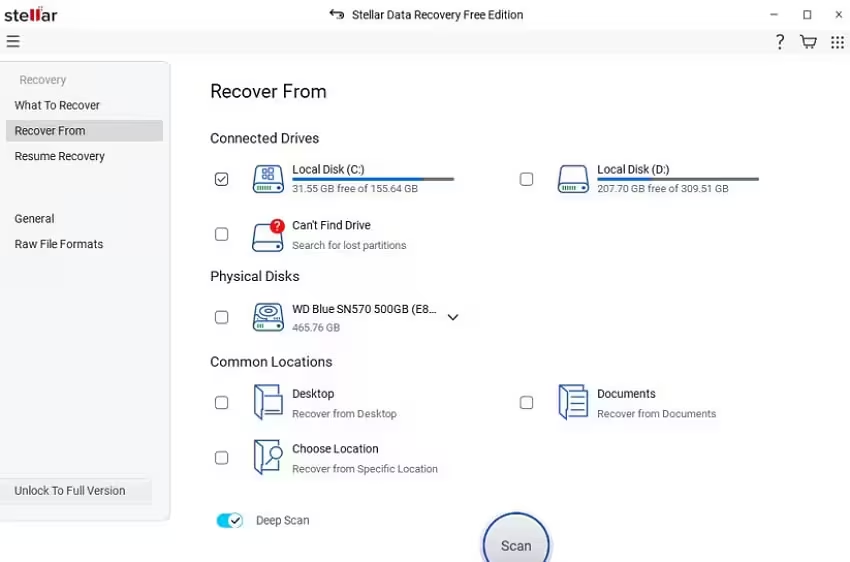
Stellar is a premium tool used for memory card memory recovery software in professional environments.
Step-by-step process:
- Install Stellar Data Recovery
- Insert SD card
- Select recovery mode
- Choose SD card drive
- Start scan
- Wait for deep scan
- Filter results
- Preview files
- Select files
- Save recovered data
Advantages:
- Very high recovery success rate
- Supports RAW file recovery
- Good for professional camera files
- Strong deep scan engine
Disadvantages:
- Paid software required
- Slower scan on large drives
- Heavier system usage
Method 6: MiniTool Power Data Recovery – Balanced Recovery for Everyday Users
Test Environment: Windows 10 + 64GB Sandisk SD Card (DSLR Photo Storage)
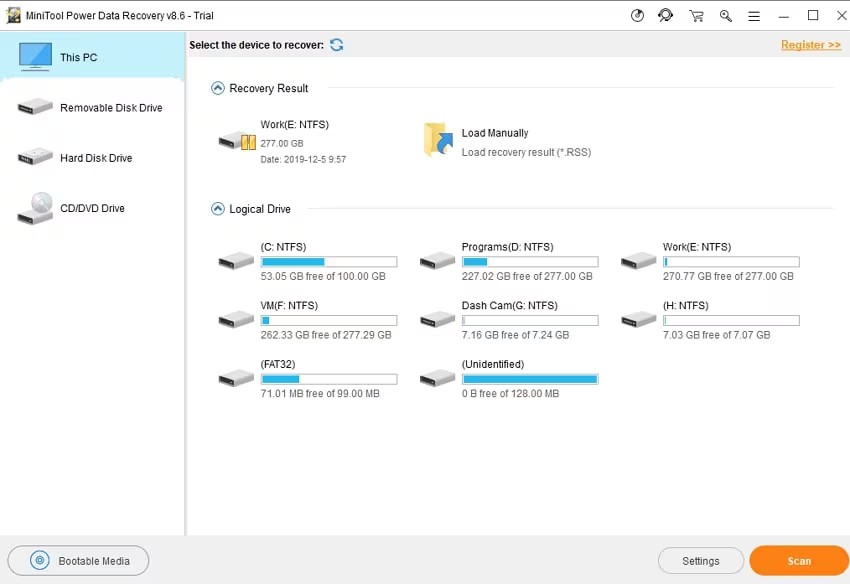
MiniTool is widely used for how to recover files from sandisk sd card in normal deletion or formatting cases.
Step-by-step process:
- Install MiniTool Power Data Recovery
- Open software
- Select “Removable Disk Drive”
- Choose Sandisk SD card
- Click Scan
- Wait for scanning process
- Browse file results
- Preview photos/videos
- Select files
- Recover to safe drive
Advantages:
- Simple interface for beginners
- Stable scanning performance
- Good for photo/document recovery
- Works for basic SD card issues
Disadvantages:
- Weak performance on corrupted cards
- Limited deep reconstruction ability
- Slower on large storage devices
Method 7: Wise Data Recovery – Lightweight Fast Recovery Tool
Test Environment: Windows 11 + 128GB Sandisk SD Card (Mobile + Camera Files)
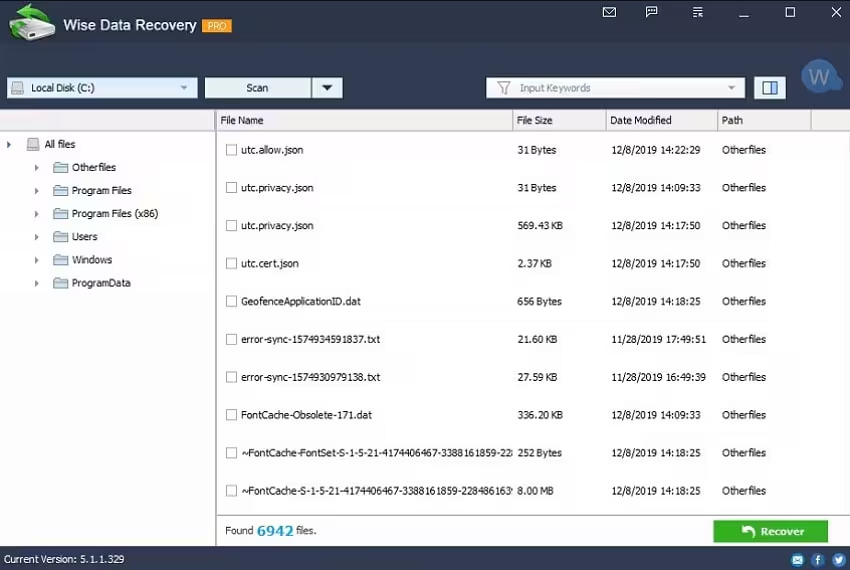
Wise Data Recovery is designed for quick sandisk sd card recovery tasks.
Step-by-step process:
- Install Wise Data Recovery
- Launch application
- Select SD card drive
- Click Scan
- Wait for results
- Filter file types
- Preview files
- Select files
- Click Recover
- Save to external storage
Advantages:
- Extremely fast scanning
- Lightweight software
- Good for recently deleted files
- Easy to operate
Disadvantages:
- No deep scan strength
- Poor for formatted cards
- Limited advanced features
Method 8: iCare Data Recovery – Simple Beginner-Friendly Tool
Test Environment: Windows 10 + 32GB Sandisk MicroSD Card (Phone Photos)
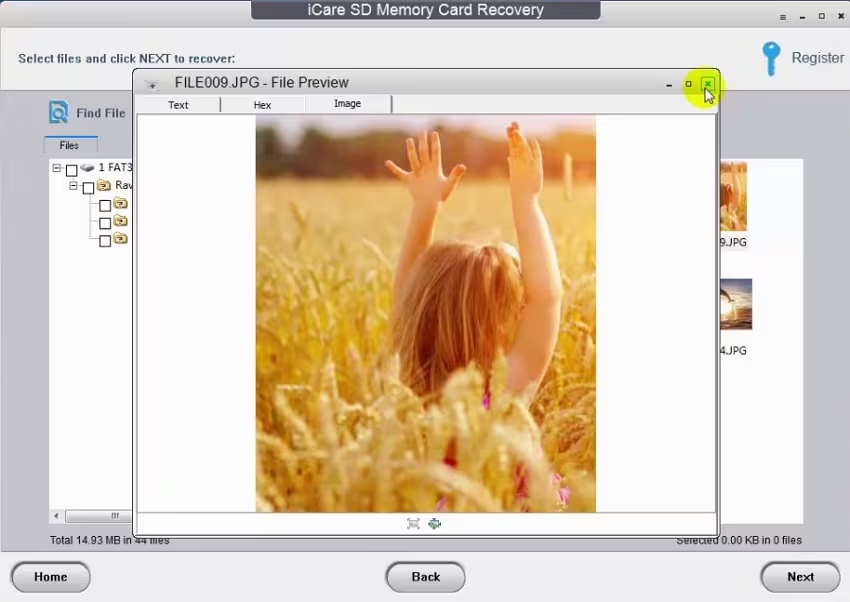
iCare is often used for basic how to recover deleted files from sandisk sd card cases.
Step-by-step process:
- Install iCare Data Recovery
- Insert SD card
- Launch software
- Select “Lost File Recovery”
- Choose SD card
- Start scan
- Wait for scan results
- Preview files
- Select files
- Export recovered data
Advantages:
- Very easy for beginners
- Quick basic recovery
- Works for simple deletion cases
- Lightweight tool
Disadvantages:
- Outdated interface
- Weak deep recovery capability
- Limited success on corrupted cards
Method 9: Remo Recover – Multimedia-Focused Recovery Tool
Test Environment: Windows 11 + 256GB Sandisk MicroSD Card (GoPro 4K Videos)
Remo Recover is optimized for how to recover deleted photos from sandisk sd card and video recovery.
Step-by-step process:
- Install Remo Recover
- Insert microSD card
- Open software
- Select SD card
- Choose recovery mode
- Start scan
- Wait for deep analysis
- Preview files
- Select files
- Recover data
Advantages:
- Strong for video/photo recovery
- Good for GoPro/DSLR files
- Handles large media files well
- Stable recovery engine
Disadvantages:
- Slow scanning speed
- Paid version needed for full recovery
- Less effective on severe corruption
Method 10: PandaOffice Drecov – Advanced Deep Recovery Solution
Test Environment: Corrupted 128GB Sandisk SD Card (Professional Recovery Lab)
PandaOffice Drecov is used in advanced memory card recovery software scenarios where standard tools fail.
Step-by-step process:
Step 1: Connect the Drive / USB)
Connect your device (SD card, HDD/SSD, or USB drive) to your computer and launch PandaOffice Drecov. Select the target device and start the scan. The software will perform a quick scan and deep scan to detect lost or deleted data.

Step 2: Locate and Preview Lost Files
After scanning, browse the detected files and use the preview feature to check recoverable data. You can preview documents (Word, Excel, PDF), photos, and videos to ensure file integrity before recovery.

Step 3: Recover and Save to a New Location
Select the files you want to restore and click recover. Save all recovered data to a different drive or location (not the original device) to avoid overwriting lost data.

Why Choose PandaOffice Drecov Recovery Software?
PandaOffice Drecov offers a fast, secure, and user-friendly solution for recovering lost files across multiple scenarios. Whether you need email recovery, ZIP File Recovery, format data recovery, or help to recover deleted drafts Outlook, the software provides reliable recovery performance for both personal and business users.
PandaOffice Drecov supports recovery from formatted hard drives, SSDs, USB drives, SD cards, and external storage devices. Its advanced scanning engine can locate deleted archives, damaged ZIP files, lost Outlook drafts, and accidentally removed documents with high accuracy. For users searching for how to find deleted messages in Teams, PandaOffice Drecov can also help recover exported chat files, attachments, and related local cache data when available.
After recovery, test the file again. If the audio stream was damaged because of storage issues, a recovered version may play normally.
This method is particularly useful when only a few files exhibit audio problems while VLC works correctly with all other media.
This method can help users recover files from floppy disk storage after accidental deletion, formatting, or logical corruption.
This step is especially useful when memory issues are accompanied by system corruption or repeated application crashes.
Advantages:
- Strong deep corruption recovery
- Works on partially overwritten data
- Advanced sector reconstruction
- Suitable for severe SD card damage
Disadvantages:
- Longer scan time
- More suitable for advanced users
- Not necessary for simple deletion cases
Comparison of Sandisk Recovery Software Performance
Across all tested tools in Windows 10 and Windows 11 environments:
- Fast recovery tools: Wise, iCare
- Balanced tools: MiniTool, Remo
- Advanced tools: Disk Drill, EaseUS, Stellar, PandaOffice Drecov
- Open-source option: PhotoRec
Each sd memory card recovery software performs differently depending on:
- Damage level
- File system condition
- Whether data was overwritten
- Scan depth capability
FAQ: Sandisk SD Card Recovery
Can I recover formatted Sandisk SD card files?
Yes. Advanced tools like Disk Drill, EaseUS, Stellar, and PandaOffice Drecov can recover formatted cards using deep scan technology.
Why some recovered files are corrupted?
This happens when files are partially overwritten or heavily fragmented before recovery.
Is memory card recovery software safe?
Yes, as long as you install it on a different drive and avoid writing new data to the SD card.
Final Conclusion: Best Strategy for Sandisk SD Card Recovery
In real-world testing, no single tool guarantees 100% recovery. The best results come from choosing the right sandisk sd card recovery tool based on damage level:
- Simple deletion → Wise / iCare
- Standard recovery → MiniTool / Remo
- Deep recovery → Disk Drill / EaseUS / Stellar / PandaOffice Drecov
- Severe corruption → PhotoRec or advanced tools
The most important rule in all how to recover files from sandisk sd card scenarios is to stop using the card immediately and begin recovery as soon as possible.





