







Microsoft Teams is widely used for team communication, collaboration, and file sharing. Despite its robust features, users sometimes face situations where important messages are accidentally deleted. Understanding how to find deleted messages in Teams and recover them is essential for business continuity and information management.
This guide provides a comprehensive overview of deleted messages in Teams, recovery options, and best practices. We also introduce Pandaoffice Drecov as a complementary solution for restoring messages or files that may not be accessible through native Teams recovery mechanisms.
⚠️Warning: Regularly backing up Teams data is crucial. Relying solely on platform retention policies may leave critical messages unrecoverable.
I need a conversation I had with my manager about referring my friend for a job role, but the conversation has been deleted, how can I get this back please?—from Microsoft Store
Understanding Message Deletion in Microsoft Teams
How Deleted Teams Messages Work
When a message is deleted in Teams, it is removed from the conversation thread but remains stored in Microsoft 365 compliance records for a limited period. Administrators and compliance officers can access these records, but general users may have limited visibility.
The process differs based on your account type:
- Standard user: Deleted messages are no longer visible in the chat interface.
- Team owners or admins: Can access compliance archives and eDiscovery tools.
Knowing can you recover deleted Teams messages depends largely on whether the platform retention policies are active and if the message falls within the recovery window.
⚠️Warning: Once the retention period expires, messages may be permanently unrecoverable without third-party tools like Pandaoffice Drecov.
Retention Policies and Compliance Records
Microsoft 365 applies retention policies that define how long deleted Teams messages are stored. These policies vary depending on organization settings. Key points include:
- Deleted messages are stored in hidden mailboxes or compliance archives.
- Users cannot access deleted messages after the retention period expires.
- Administrators can run eDiscovery searches to retrieve message content.
Understanding these mechanics is crucial when asking can Teams see deleted messages. While administrators can view messages in compliance mode, standard users cannot.
⚠️Warning: Misconfigured retention settings may lead to permanent data loss. Always verify organizational policies.
Methods to Recover Deleted Messages in Teams
Recovering via Chat History
One approach to locate deleted Teams messages is through chat history backups. Microsoft 365 keeps copies in user mailboxes linked to Teams chat threads. Steps include:
- Access your Outlook account tied to Teams.
- Check the “Recoverable Items” folder in your mailbox.
- Restore any deleted messages found.
This method leverages built-in retention features but may have limitations depending on your admin settings.
⚠️Warning: If retention settings are shorter than the deletion interval, messages may no longer be recoverable.
Using Microsoft 365 Compliance and eDiscovery Tools
Administrators can recover deleted Teams messages through the Microsoft 365 compliance center using eDiscovery:
- Navigate to the Microsoft 365 Compliance portal.
- Create an eDiscovery case and define a search query.
- Export results for restoration or review.
This method is effective for messages that are outside the user interface but still within the retention window. It is ideal for organizations maintaining regulatory compliance and audit trails.
⚠️Warning: eDiscovery access requires proper permissions. Unauthorized searches may violate company policies.
Leveraging Backups and Third-Party Solutions
Native Teams recovery may not cover messages deleted outside retention windows or messages from users without administrative access. In such cases, Pandaoffice Drecov can complement Microsoft Teams by:
- Scanning cloud-synced Teams data for deleted messages
- Restoring messages and attachments lost due to accidental deletion
- Ensuring minimal disruption during message recovery
- Providing preview and selective restoration
Organizations seeking can you recover deleted Teams messages beyond native tools will find Drecov a reliable safeguard.
⚠️Warning: Always validate recovered messages to ensure integrity before using them operationally.
Best Practices to Avoid Losing Messages
Regular Backups and Monitoring
Proactively safeguarding messages reduces reliance on recovery tools:
- Schedule periodic Teams data backups using Microsoft 365 tools or third-party software.
- Train staff on deletion policies and message retention windows.
- Implement Pandaoffice Drecov for added recovery assurance.
Following these practices helps prevent situations where critical communication is permanently lost and ensures that deleted Teams messages can be retrieved efficiently when needed.
⚠️Warning: Neglecting backups may result in permanent loss, especially during platform updates or migrations.
Understanding User and Admin Roles
Recovery capabilities differ based on roles:
- Users: Limited to mailbox recoverable items and chat history.
- Team owners and admins: Can leverage compliance portals and eDiscovery.
- IT staff: May integrate Pandaoffice Drecov for enterprise-level recovery.
By understanding these distinctions, organizations can establish a clear data recovery hierarchy and clarify responsibilities for restoring deleted messages in Teams.
⚠️Warning: Failing to assign recovery responsibilities may delay restoration and impact operations.
Advanced Recovery Options
Recovering Messages from Microsoft Teams Channels
Deleted messages in Teams channels are more complex because multiple users may rely on them. Standard channels store messages in Microsoft 365 Groups, while private channels save content in SharePoint and Exchange archives. To recover deleted messages:
- Admins can access the compliance center and select the relevant Teams channel.
- Using eDiscovery, they can define search parameters such as date range, user, or keyword.
- Export results in formats like PST or CSV for review.
However, native tools might not recover messages deleted outside the retention window or messages lost due to sync errors. Pandaoffice Drecov can scan cloud storage, SharePoint folders, and local devices to locate deleted Teams messages that standard compliance tools miss.
⚠️Warning: Always confirm user access and channel ownership before restoring messages to prevent accidental exposure of sensitive information.
Restoring Messages in Teams Meetings and Calls
Messages exchanged during meetings are often overlooked but are critical for follow-up actions. They include chat notes, file attachments, and meeting decisions. Recovery steps include:
- Locate the meeting chat archive via the Microsoft 365 compliance center.
- Export messages along with attachments.
- Import restored content into user mailboxes or Teams threads.
In situations where messages were permanently deleted or meeting participants lost data due to sync issues, Pandaoffice Drecov can recover chat records and attachments, ensuring all important information is restored.
⚠️Warning: Meeting messages deleted before retention policy activation may be permanently lost without third-party recovery.
Device-Level Message Recovery
Teams messages are cached on devices temporarily. Messages deleted from Teams may still exist in local storage or temporary app caches:
- Desktop app caches contain recent chat data and temporary files.
- Mobile apps retain offline messages for a limited period.
- Browser sessions may hold recent messages in temporary storage.
Using Pandaoffice Drecov, IT teams can scan these caches, recover lost content, and restore it to the Teams environment. This approach is especially useful when accidental deletion occurs before messages sync with the cloud.
⚠️Warning: Device-level recovery is time-sensitive. Overwriting cached data may make recovery impossible.
Recovery Across Different Scenarios
Cross-Tenant Migration and Data Integrity
During migration between Microsoft 365 tenants or consolidation of Teams environments, message loss is a common problem:
- Unsynced messages may not migrate correctly.
- Deleted content can appear as permanent loss if retention policies are misconfigured.
- Attachments stored in SharePoint or OneDrive may not link properly after migration.
Pandaoffice Drecov complements migration by scanning both cloud and local storage, recovering messages and attachments, and ensuring can you recover deleted Teams messages even under complex migrations. Organizations can resume operations without losing historical communication.
⚠️Warning: Always validate recovered messages to ensure integrity before resuming business workflows.
Recovering Attachments and Linked Files
Deleted messages often contain important attachments. Recovery requires:
- Scanning Teams messages for links to SharePoint or OneDrive.
- Using compliance exports to retrieve missing files.
- Employing Pandaoffice Drecov to scan local devices and cloud-synced folders to restore attachments not captured in standard exports.
This ensures both deleted messages in Teams and their attachments are fully recovered.
⚠️Warning: Failing to recover linked files can lead to incomplete data restoration, impacting decision-making.
Enterprise-Level Backup and Data Protection
Implementing Proactive Recovery Strategies
To prevent message loss in large organizations:
- Set up regular Microsoft 365 retention policies.
- Schedule routine backups using third-party solutions like Pandaoffice Drecov.
- Train users on proper deletion and restoration procedures.
- Conduct periodic audits to ensure backups are complete and recoverable.
This strategy minimizes risks associated with deleted Teams messages and ensures continuity during accidental deletions or system updates.
⚠️Warning: Solely relying on native Teams retention may be insufficient for large-scale data protection.
Compliance and Legal Considerations
Organizations with regulatory obligations must ensure that deleted messages are recoverable for audits or legal inquiries:
- eDiscovery can locate messages within the retention period.
- Pandaoffice Drecov provides an additional layer to retrieve messages outside retention or accidentally deleted by users.
- Proper documentation of restoration processes ensures compliance with internal and legal standards.
This guarantees that companies can answer questions like can Teams see deleted messages and demonstrate accountability.
⚠️Warning: Unauthorized recovery attempts may violate privacy regulations or internal policies.
Best Practices for Teams Users
Minimizing Data Loss
- Educate staff on deletion rules and retention policies.
- Encourage frequent saving of critical attachments outside chats.
- Schedule periodic Teams data backups.
- Use Pandaoffice Drecov for additional recovery assurance.
Why Choose Pandaoffice Drecov for Comprehensive Data Recovery
Selecting the right recovery software is essential when unexpected data loss occurs. Pandaoffice Drecov provides a powerful, secure, and efficient solution designed to handle a wide range of storage failure scenarios across different devices.
Advanced Recovery for SD Cards and Hard Drives
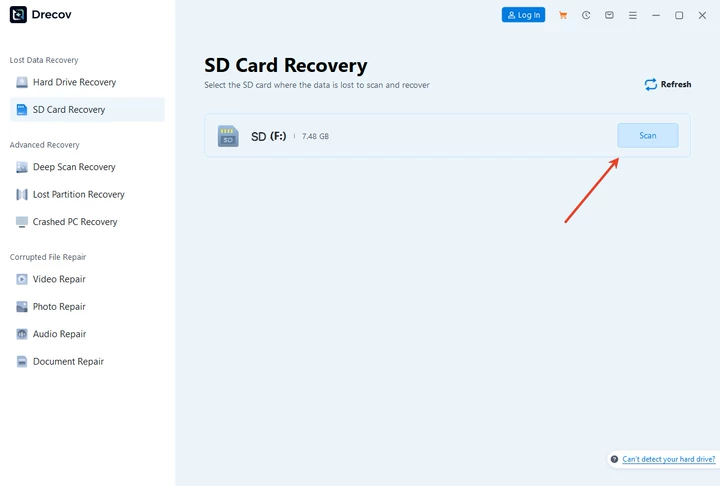
Pandaoffice Drecov supports recovering photos from an SD card as well as performing professional hard drive recovery. Whether files were accidentally deleted, a storage device was formatted, or data was lost due to corruption, its deep scan technology thoroughly analyzes storage sectors to locate recoverable content. The software is compatible with internal drives, memory cards, and various file systems, ensuring flexible recovery options in different environments.
Reliable Support for Recovering External Hard Drives
The software also specializes in recovering external hard drives that become inaccessible due to accidental formatting, partition loss, or file system damage. It automatically detects connected devices and performs comprehensive scans without altering original data, helping improve recovery success rates.
Efficient Recovery of Deleted Photos
One of its strongest capabilities is recovering deleted photos, even after permanent deletion from the Recycle Bin. The built-in preview feature allows users to verify files before restoration, ensuring accurate and controlled recovery.
With strong scanning performance, broad device compatibility, and an intuitive interface, Pandaoffice Drecov offers a dependable and professional solution for modern data recovery needs.


Following these practices ensures that critical communications are not permanently lost, improving workflow continuity and team efficiency.
⚠️Warning: Neglecting proactive measures increases the likelihood of permanent message loss.
Monitoring and Continuous Improvement
Effective Teams management includes monitoring data recovery processes and continuously improving strategies:
- Track deleted messages and recovery events.
- Evaluate the effectiveness of Pandaoffice Drecov in restoring messages.
- Update retention policies as organizational needs change.
This continuous improvement loop ensures that deleted messages in Teams can be consistently recovered and reduces operational risks.
⚠️Warning: Failing to monitor recovery processes may result in unnoticed data gaps.
Conclusion
Recovering deleted messages in Microsoft Teams involves understanding retention policies, compliance tools, and device-level caches. While admins can leverage eDiscovery and compliance archives, Pandaoffice Drecov enhances recovery capabilities by:
- Restoring deleted messages, attachments, and chat threads
- Scanning both cloud-synced and local device storage
- Supporting recovery outside standard retention windows
- Minimizing workflow disruption
By combining native Microsoft 365 tools with Drecov, organizations can ensure business continuity, maintain compliance, and secure vital communications.
⚠️Warning: Always validate restored content to ensure accuracy and completeness before resuming operations.





