







Introduction: Why Outlook Draft Emails Get Deleted So Easily
Draft emails in Microsoft Outlook are meant to protect unfinished work, yet many users discover that drafts can disappear unexpectedly. A deleted draft email often causes frustration, especially when it contains long, carefully written content that was never sent or backed up. Users frequently ask: can you recover a deleted draft in Outlook, or is it gone forever?
In reality, Outlook draft loss is more common than most people think. Drafts may be deleted accidentally, removed during mailbox cleanup, lost after Outlook crashes, or disappear due to sync issues with Exchange, IMAP, or PST/OST files. In some cases, drafts vanish after an Outlook update or profile corruption, making recovery feel impossible.
The good news is that a deleted draft email is not always permanently erased. Outlook stores drafts in multiple locations depending on account type and configuration. Even when a draft is removed from the Drafts folder, copies or remnants may still exist elsewhere.
This in-depth guide explains how to recover deleted drafts in Outlook using built-in Outlook features and advanced recovery methods. It also covers situations where professional recovery tools like Pandaoffice drecov can help retrieve lost Outlook draft data when standard options fail.
Somehow, I accidentally archived a draft email I was sending to my boss. I think I accidentally archived the whole chain at one point, but becuase I restored the whole chain, I figured the draft would be a part of that restore. I still had access to my draft yesterday as it had kept saving. But when I closed out of Outlook yesterday, I’m not sure what I did or what happened because as of today, the draft has disappeared. It’s not in my inbox, archives, deleted or any file folders that would make sense, and it’s not showing up in a search. It was literally ready to send this morning. Could someone help? 🙁 I’m working on a Lenovo Thinkpad.—from Microsoft Store
Understanding How Outlook Stores Draft Emails
Where Draft Emails Are Stored in Outlook
Outlook saves draft emails differently depending on the account type being used. For POP3 accounts, drafts are usually stored locally in a PST file. For Exchange, Microsoft 365, or IMAP accounts, drafts are stored on the mail server and synchronized across devices.
By default, Outlook places all unfinished emails in the Drafts folder. However, users can manually save drafts to other folders, which may later cause confusion when trying to locate missing drafts. Additionally, Outlook may auto-save drafts temporarily in hidden locations while composing emails.
Because of this complexity, when users attempt outlook recover deleted draft operations, they often overlook alternative storage paths. A draft that seems deleted may simply be stored in a different folder, mailbox, or data file.
Understanding where Outlook drafts are saved is critical before attempting recovery. It prevents unnecessary panic and helps users choose the correct recovery method.
What Happens When a Draft Is Deleted in Outlook
When a draft email is deleted, Outlook does not immediately erase the data. In most cases, the draft is moved to the Deleted Items folder. From there, it remains recoverable until the folder is emptied.
If the Deleted Items folder is cleared, Outlook may still retain the draft temporarily in recoverable storage, depending on account settings. Exchange and Microsoft 365 accounts often keep deleted items for a retention period, even after manual deletion.
For local PST files, deleting a draft only removes its reference from the mailbox index. The actual data remains in the file until it is overwritten or compacted. This behavior makes recover deleted drafts Outlook scenarios technically possible even after permanent deletion.
However, continued Outlook usage increases the risk of overwriting deleted draft data, reducing recovery success.
Common Reasons Draft Emails Disappear in Outlook
Draft emails can disappear for many reasons beyond simple deletion. One common cause is Outlook crashing while an email is being composed. In such cases, the auto-saved draft may not be properly written to the Drafts folder.
Another reason is synchronization failure. When using IMAP or Exchange, drafts may fail to sync correctly between devices, causing them to vanish from one device while remaining on another.
Corrupted Outlook profiles, damaged PST or OST files, and aggressive mailbox cleanup rules can also remove drafts without warning. These scenarios often lead users to search for retrieve deleted draft email Outlook solutions.
Identifying the cause of draft loss helps determine the most effective recovery method.
First Steps to Take Before Recovering Deleted Drafts
Check the Drafts Folder and Other Mail Folders
Before assuming a draft is deleted, carefully inspect the Drafts folder. Outlook may sort drafts by modified date, causing older drafts to appear lower in the list.
Next, search other folders, including Inbox, Sent Items, and custom folders. Some drafts are accidentally sent to oneself or saved in unexpected locations.
Use Outlook’s search bar with keywords from the draft subject or body. This simple step resolves many outlook recover deleted drafts cases without additional tools.
Look in the Deleted Items Folder
The Deleted Items folder is the first stop for draft recovery. If the draft was recently deleted, it is likely still there.
Open the folder, sort by date, and look for emails marked as Draft. If found, simply move the draft back to the Drafts folder or open and resave it.
As long as Deleted Items has not been emptied, recover deleted draft Outlook is quick and straightforward.
Search Using Outlook’s Advanced Search Features
Outlook’s advanced search allows users to filter emails by message type, keywords, and date. This is particularly helpful when Drafts folders are cluttered.
Search using partial text from the email body or subject. Even autosaved drafts may be searchable if they were indexed before deletion.
This step is often overlooked but can save significant time.
Recovering Deleted Drafts from the Recoverable Items Folder
What Is the Recoverable Items Folder in Outlook
For Exchange and Microsoft 365 users, Outlook includes a hidden Recoverable Items folder. This folder stores emails that have been permanently deleted from Deleted Items.
Items in this folder remain available until the retention period expires, making it a powerful option when asking can you recover a deleted draft in Outlook.
How to Access Recoverable Draft Emails
To access recoverable items, open Deleted Items and select “Recover items recently removed from this folder.” Outlook will display a list of recoverable emails.
If your deleted draft appears here, select it and restore it. The draft will return to the Drafts or Inbox folder depending on settings.
This method is one of the most reliable ways to retrieve deleted draft email Outlook for Exchange-based accounts.
Limitations of the Recoverable Items Method
Not all Outlook users have access to Recoverable Items. POP3 accounts and some IMAP configurations do not support this feature.
Additionally, once the retention period expires, drafts are permanently removed and no longer accessible through Outlook’s interface.
In such cases, advanced recovery methods are required.
Recovering Deleted Drafts from PST or OST Files
How PST and OST Files Affect Draft Recovery
Local Outlook data files (PST and OST) store emails, including drafts. When drafts are deleted, their data may still exist within these files.
Corruption, accidental deletion, or file compaction can cause drafts to disappear from Outlook but remain embedded in the data file.
This is where professional recovery tools become relevant.
Using Pandaoffice drecov to Recover Outlook Draft Emails
Download DrecovPandaoffice drecov can scan Outlook PST and OST files to locate deleted or inaccessible draft emails. It analyzes file structures to extract recoverable email data without modifying the original file.
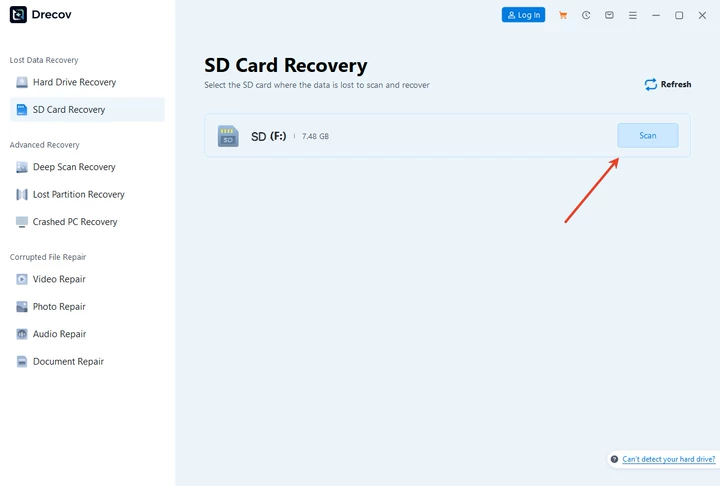
The software supports deep scanning, allowing it to identify draft emails even after permanent deletion from Outlook folders.

Recovered drafts can be previewed before restoration, ensuring only valid content is saved. This makes Pandaoffice drecov a practical option when built-in Outlook recovery methods fail.

Why Pandaoffice drecov Is Suitable for Outlook Draft Recovery
Pandaoffice drecov is designed to handle email recovery scenarios involving corrupted or deleted Outlook data. It operates in a read-only scanning mode, reducing the risk of further data loss.
Its compatibility with common Outlook file formats makes it suitable for users dealing with persistent draft loss issues.
Advanced Methods to Recover Deleted Drafts in Outlook
Recovering Draft Emails from AutoSave and Temporary Files
Outlook includes an AutoSave mechanism designed to protect users from losing unfinished emails. While composing a message, Outlook periodically saves temporary versions of drafts in the background. These AutoSave files are not always visible in the Drafts folder, but they can still exist after a crash or unexpected shutdown.
When users attempt outlook recover deleted draft operations, they often ignore these temporary storage locations. In some cases, Outlook crashes before properly writing the draft to the Drafts folder, leaving behind AutoSave data. These files may be recovered by reopening Outlook after a crash or by checking temporary file directories associated with the Outlook profile.
The success of this method depends on whether Outlook was able to save a temporary version before the draft was deleted or lost. If Outlook was closed normally and continued usage occurred afterward, the AutoSave data may have been overwritten.
Although AutoSave recovery is not guaranteed, it is still a valuable step when standard methods fail. It helps answer the common question: can you recover a deleted draft in Outlook under unexpected failure conditions.
Recovering Deleted Drafts After Outlook Crashes or Freezes
Outlook crashes are a major cause of draft email loss. When the application freezes or shuts down unexpectedly, drafts may not sync properly with the mail server or local data file. Users often reopen Outlook only to find their drafts missing.
In many cases, Outlook displays a recovery prompt after restarting, offering to restore unsaved work. Accepting this prompt can recover draft content that never appeared in the Drafts folder.
If no prompt appears, users should check the Drafts folder carefully and search for emails marked as “Recovered” or “Unsaved.” These drafts may be restored automatically under different names.
Crash-related recovery success depends on how Outlook was closed and whether the draft was auto-saved. While this method does not work in every case, it remains an essential step in recover deleted drafts Outlook workflows.
Recovering Draft Emails After Account Sync Issues
Synchronization problems are common with IMAP, Exchange, and Microsoft 365 accounts. Drafts created on one device may not sync correctly to another, leading users to believe they were deleted.
When sync issues occur, drafts may still exist on the server or another device. Checking Outlook Web App (OWA) or logging into the email account via a browser can sometimes reveal missing drafts.
This scenario is especially relevant when users ask how to recover deleted drafts in Outlook across multiple devices. Before attempting file-level recovery, verifying server-side data can prevent unnecessary recovery attempts.
Recovering Deleted Drafts Using Outlook Data Recovery Tools
When Built-In Outlook Recovery Methods Are Not Enough
Built-in Outlook recovery options are effective only under certain conditions. Once drafts are permanently deleted, removed from Recoverable Items, or lost due to PST/OST corruption, Outlook itself cannot restore them.
At this stage, users often assume recovery is impossible. However, deleted draft data may still reside inside Outlook data files, especially if file compaction has not occurred.
This is where professional recovery software becomes necessary. It works independently of Outlook’s interface and focuses on extracting email data at the file structure level.
Using Pandaoffice drecov to Retrieve Deleted Draft Email Outlook
Pandaoffice drecov can analyze Outlook PST and OST files to locate deleted draft emails. It scans for email structures rather than relying on folder indexes, allowing it to recover drafts that no longer appear in Outlook.
The recovery process typically involves selecting the affected Outlook data file and performing a deep scan. The software identifies recoverable drafts, including those deleted from the Drafts and Deleted Items folders.
Users can preview recovered draft emails before restoring them, ensuring content accuracy. Recovered drafts should be saved to a secure location to prevent overwriting existing Outlook data.
This approach is particularly useful when users need to retrieve deleted draft email Outlook after permanent deletion or corruption.
Why Pandaoffice drecov Is Effective for Outlook Draft Recovery
Pandaoffice drecov operates in a read-only scanning mode, ensuring original Outlook data files remain unchanged. This reduces the risk of additional data loss during recovery.
Its ability to handle corrupted PST and OST files makes it suitable for complex recovery scenarios. Unlike manual methods, it does not rely on Outlook being functional.
For users facing repeated draft loss, Pandaoffice drecov provides a practical recovery option when standard solutions fail.
Special Recovery Scenarios and Limitations
Recovering Drafts After PST or OST File Corruption
File corruption can make Outlook drafts disappear entirely. Symptoms include missing folders, error messages, or Outlook failing to open.
Even in corrupted files, deleted drafts may still exist internally. Recovery software can extract these drafts by bypassing damaged indexes.
However, success depends on the extent of corruption. Severe damage may reduce recovery accuracy, but partial recovery is often possible.
Why Some Draft Emails Cannot Be Recovered
Not all deleted drafts are recoverable. If draft data has been overwritten or securely erased, recovery becomes impossible.
Extended Outlook usage, file compaction, and repeated deletions reduce recovery chances significantly. This highlights the importance of acting quickly.
Understanding these limitations helps manage expectations and avoid unnecessary recovery attempts.
Preventing Draft Email Loss in Outlook
Best Practices to Protect Outlook Draft Emails
Saving drafts frequently and using manual save options reduces the risk of data loss. Avoid relying solely on AutoSave.
Using stable internet connections and keeping Outlook updated also prevents sync-related draft loss.
Backup Strategies for Outlook Drafts
Regular backups of PST files provide the most reliable protection. Server-based accounts benefit from retention policies and mailbox backups.
Prevention remains the most effective way to avoid future draft recovery issues.
Frequently Asked Questions About Outlook Draft Recovery
Can you recover a deleted draft in Outlook after emptying Deleted Items?
Yes, in some cases, drafts can be recovered from Recoverable Items or data files.
How to recover deleted drafts in Outlook permanently deleted?
Recovery may still be possible using Outlook data recovery tools if data has not been overwritten.
Does Outlook auto-save drafts automatically?
Yes, but AutoSave does not guarantee recovery in every situation.
Is recover deleted draft Outlook possible without software?
Only if the draft still exists in Outlook folders or Recoverable Items.
What does deleted sd card photo recovery have to do with Outlook recovery?
Both rely on similar principles: deleted data often remains recoverable until overwritten.
Conclusion: How to Recover a Deleted Draft in Outlook Successfully
Recovering a deleted draft in Outlook is possible in many situations, depending on how and when the draft was lost. Built-in Outlook tools should always be the first step.
When standard methods fail, professional solutions like Pandaoffice drecov can help retrieve deleted drafts from Outlook data files. Acting quickly and understanding Outlook’s storage behavior significantly improves recovery success.





