







An SD card format is one of the most basic yet most important maintenance tasks for any camera user. Whether you are using a DSLR, mirrorless camera, action camera, or dash cam, knowing how to format SD card correctly can prevent recording errors, improve performance, and extend the life of your memory card. Many beginners ask why their camera suddenly shows messages like “Card cannot be used,” “Card error,” or “Please format card.” In most cases, proper formatting SD card for your camera solves these issues quickly and safely.
Formatting an SD card means erasing all existing data and rebuilding the file system in a way your camera fully understands. Cameras usually prefer specific file systems, most commonly FAT32 format SD card for cards up to 32GB, and sometimes exFAT for larger cards. Using the wrong format or formatting the card on another device can lead to compatibility problems. This guide explains how to format a SD card for a camera, why data loss happens by mistake, what solutions you can use on different systems, and how to recover data if something goes wrong.
Why You Need to Format an SD Card for a Camera
A camera is not just a storage device; it continuously writes, deletes, and overwrites data at high speed. Because of this, cameras are sensitive to how an SD card is prepared. Simply deleting photos is not the same as a proper sd card format. Formatting resets the internal file structure so the camera can store images and videos efficiently and without errors.
Compatibility and Stability Issues
Different cameras are optimized for specific file systems. Many entry-level and mid-range cameras rely on format SD card FAT32 because it is widely supported and stable. If an SD card is formatted on a computer using NTFS or an incompatible scheme, the camera may fail to recognize it. Formatting the card inside the camera ensures maximum compatibility and reduces the risk of corrupted files.
Performance and Speed Benefits
Over time, fragmented data can slow down write speeds. This is especially noticeable when shooting burst photos or high-resolution video. A fresh formatting SD card clears fragmentation and restores optimal performance. This is critical for 4K video recording and continuous shooting modes.
⚠️ Warning: Formatting Deletes All Data
Formatting permanently removes all files on the SD card. Always back up your photos and videos before proceeding. If you format by mistake, stop using the card immediately to avoid overwriting recoverable data.
Common Causes of Data Loss When Formatting SD Cards
Many users search for how to format a SD card only after losing photos by accident. Understanding the common causes of data loss helps you avoid mistakes and choose safer solutions.
Formatting Without Backup
The most common mistake is formatting an SD card without backing up important photos or videos. This often happens when the camera displays a sudden error and prompts the user to format immediately.
Formatting on the Wrong Device
Formatting an SD card on a phone, game console, or computer with incompatible settings can confuse the camera. This may lead users to reformat multiple times, increasing the risk of permanent data loss.
File System Mismatch (FAT32 vs exFAT)
Smaller SD cards usually require fat32 format sd card, while larger cards may use exFAT. Using the wrong file system can make files unreadable or cause recording failures.
Every time you format and reuse the SD card, old data blocks may be overwritten. If you accidentally format a card, avoid taking new photos until recovery is complete.
How to Format an SD Card for a Camera (Recommended Way)
The safest and most reliable method to format SD card for a camera is using the camera itself. This ensures the card matches the camera’s exact requirements.
Step-by-Step: Format SD Card in Camera
- Insert the SD card into your camera.
- Turn on the camera and open the Menu.
- Navigate to Setup, Settings, or Tools.
- Select Format, Format Memory Card, or Initialize.
- Confirm the action when prompted.
- Wait until the process completes.
This method automatically chooses the correct file system, whether format SD card FAT32 or exFAT, depending on the card size and camera model.
Pros
- Maximum compatibility
- Reduces card errors
- Optimized for camera performance
Cons
- All data is erased
- No advanced options
For regular use, formatting in-camera is strongly recommended, especially after transferring photos to your computer.
How to Format an SD Card on Computer (Windows & Mac)
Sometimes you need to format an SD card using a computer, especially if the camera cannot read the card or shows persistent errors. Below are safe system-level methods.
Format SD Card on Windows (FAT32)
- Insert the SD card into your computer.
- Open This PC.
- Right-click the SD card and choose Format.
- Select FAT32 under File System.
- Check Quick Format.
- Click Start.
This method works well for SD cards up to 32GB and is ideal when you need format sd card fat32 for older cameras.
Format SD Card on Mac
- Insert the SD card into your Mac.
- Open Disk Utility.
- Select the SD card from the sidebar.
- Click Erase.
- Choose MS-DOS (FAT) and Master Boot Record.
- Click Erase.
NTFS is not supported by most cameras. Using it may cause “Card error” messages and failed recordings.
Software-Based Formatting and Recovery Solutions
When system tools fail or the SD card is corrupted, software solutions provide more flexibility. These tools can format stubborn cards and help with data recovery.
When to Use Software Formatting
- SD card not detected by camera
- Windows/Mac format fails
- Card shows RAW or unallocated
- Large-capacity cards need FAT32
Third-party formatting tools can handle these cases more reliably than built-in utilities.
Recover Data from Formatted SD Card (Recommended Solution)
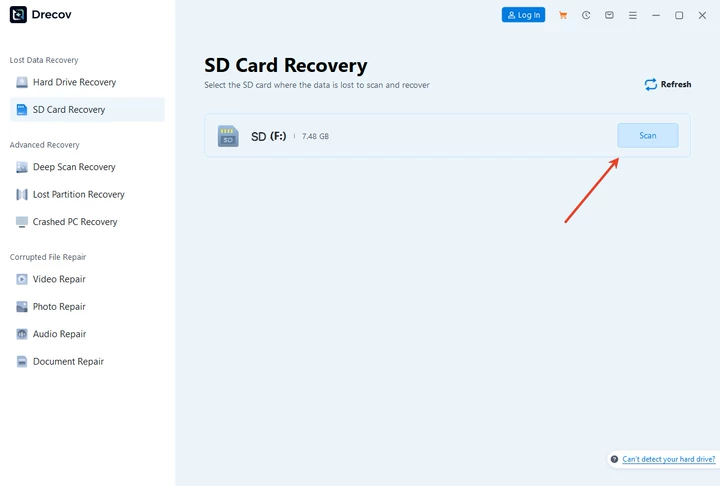
If you accidentally formatted your SD card, PandaOffice Drecov is a reliable recovery solution. It is designed for beginners and supports photos, videos, and RAW camera files.
3 Steps to Recover Data:
Download Drecov- Scan – Connect the SD card and run Drecov to scan lost data.
2. Preview – Preview photos and videos before recovery.
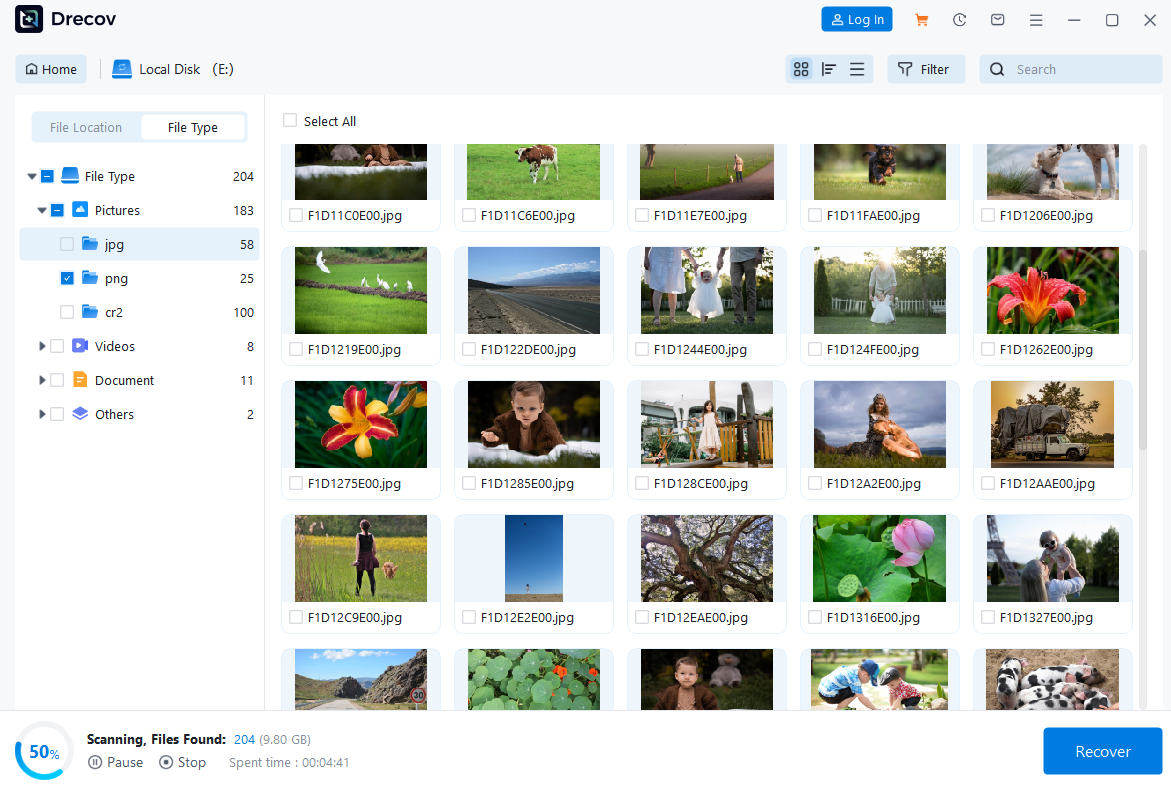
3. Recover – Select files and save them to a secure location.

Always recover files to a different drive to prevent overwriting remaining data.
Comparison: Camera Format vs Computer Format vs Software
| Method | Best For | Pros | Cons |
|---|---|---|---|
| Camera Format | Regular use | Highest compatibility | No recovery options |
| Computer Format | Basic repair | Easy access | Limited control |
| Software Tools | Corrupted cards | Advanced repair & recovery | Requires installation |
For most users, camera formatting is ideal. For errors or data loss, software tools offer the safest solution.
FAQs
Q1: How do you format a micro SD card for a camera?
Insert it into the camera and use the built-in format option. This ensures full compatibility and correct file system settings.
Q2: How to format a SD card for a camera on a computer?
Use Windows File Explorer or Mac Disk Utility and choose FAT32 or MS-DOS (FAT), depending on card size.
Q3: How do you format a micro SD card if the camera can’t read it?
Format it on a computer first, then reinsert it into the camera and format again in-camera.
Q4: How to format a SD card FAT32 safely?
Back up data first, use official system tools or trusted software, and avoid interrupting the process.
Q5: How to recover photos after formatting SD card?
Use PandaOffice Drecov to scan, preview, and recover lost photos in three simple steps.
Conclusion
Knowing how to format SD card for camera use is essential for reliable photography and video recording. A proper sd card format prevents errors, improves performance, and ensures full compatibility with your camera. The safest method is formatting directly in the camera, while computer and software options help solve advanced issues. Always remember that formatting SD card deletes data, so backups are crucial. If data loss happens by mistake, tools like PandaOffice Drecov provide an effective and beginner-friendly recovery solution. With the right approach, you can keep your SD cards healthy, your camera running smoothly, and your memories protected.





